
1. Introduction
This manual provides detailed instructions for the setup, operation, and maintenance of your DIERYA DK68 60% Wireless Mechanical Gaming Keyboard. Please read this manual thoroughly before using the product to ensure proper functionality and to maximize your user experience.

Image 1.1: DIERYA DK68 keyboard highlighting its main features.
2. Package Contents
Verify that all items are present in the package:
- DIERYA DK68 60% Wireless Mechanical Gaming Keyboard
- USB-C to USB-A Cable
- Keycap Puller
- User Manual (this document)
3. Product Overview
The DIERYA DK68 is a compact 60% mechanical keyboard designed for versatility and performance. It features a 68-key layout, tri-mode connectivity, RGB backlighting, and durable mechanical switches.
Key Features:
- Tri-Mode Connectivity: Supports Bluetooth 5.0, 2.4GHz wireless, and USB-C wired connections.
- 68-Key Compact Layout: Saves desk space while retaining essential keys.
- Clicky Blue Mechanical Switches: Provide tactile feedback and an audible click, ideal for typing and gaming.
- RGB Backlighting: Customizable lighting with multiple modes and brightness levels.
- N-Key Rollover & Anti-Ghosting: Ensures accurate registration of multiple simultaneous key presses.
- 3000mAh Battery: Long-lasting rechargeable battery for extended wireless use.
- Double-Shot Keycaps: Durable and fade-resistant keycaps.
- Ergonomic Design: Features two-stage adjustable feet and anti-slip pads for comfortable and stable use.

Image 3.1: Details of the Clicky Blue Mechanical Switches.

Image 3.2: Ergonomic features including double-shot keycaps, adjustable feet, and anti-slip pads.
4. Setup
The DK68 keyboard offers three connection modes: wired, 2.4GHz wireless, and Bluetooth. Choose the mode that best suits your device and needs.
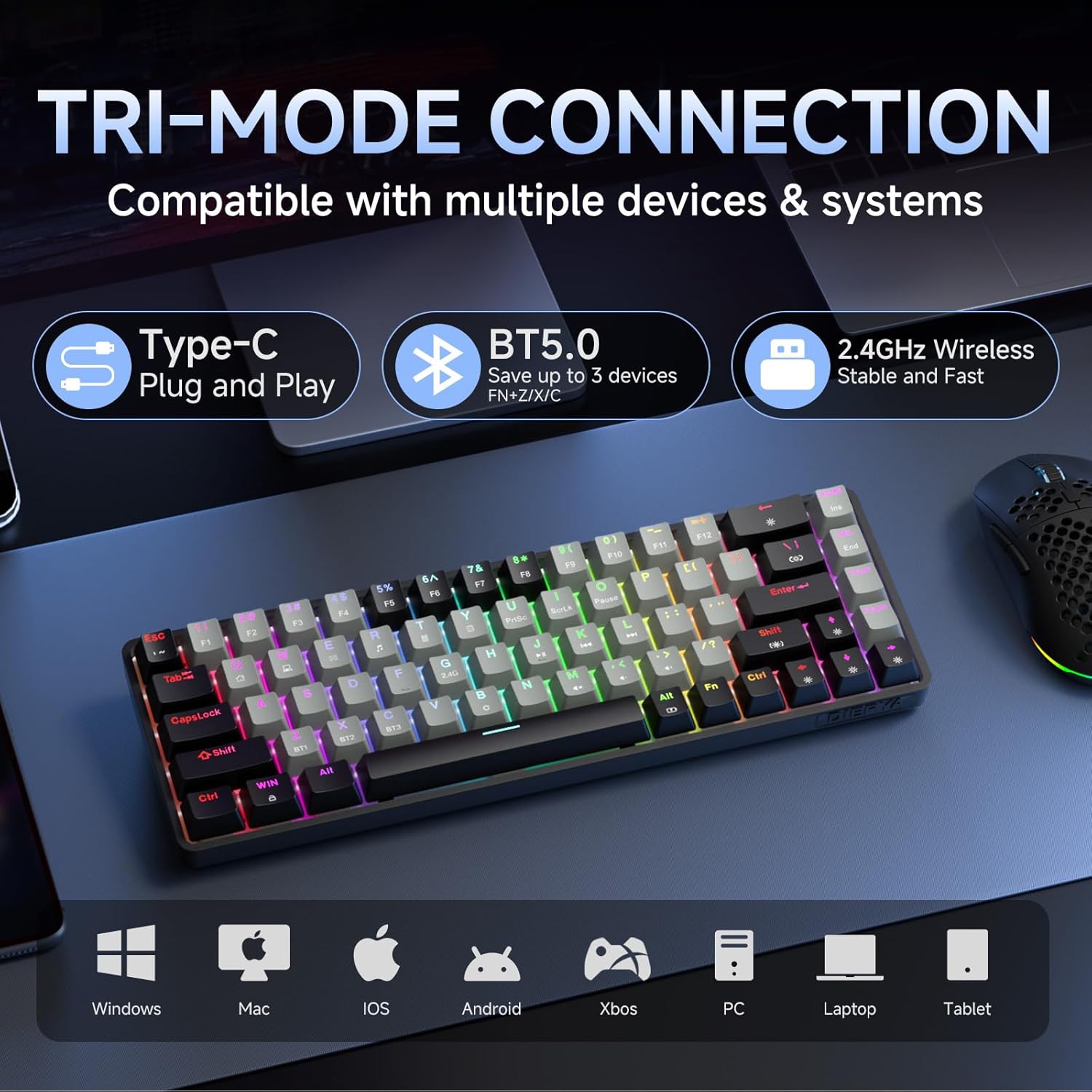
Image 4.1: Tri-mode connectivity and device compatibility.
4.1 Wired Connection (USB-C)
- Connect the provided USB-C cable to the keyboard's USB-C port.
- Connect the USB-A end of the cable to an available USB port on your computer.
- The keyboard will automatically be recognized and ready for use. The keyboard will also charge in this mode.
4.2 2.4GHz Wireless Connection
- Locate the 2.4GHz USB receiver (usually stored in a compartment on the keyboard or included separately).
- Plug the 2.4GHz USB receiver into an available USB port on your computer.
- Turn on the keyboard. The keyboard should automatically connect to the receiver.
- If connection is not established, press Fn + 2.4G (usually indicated by a specific keycap legend) to activate 2.4GHz pairing mode.
4.3 Bluetooth Connection
The keyboard supports connecting to up to three Bluetooth devices.
- Ensure the keyboard is powered on.
- Press and hold Fn + BT1, Fn + BT2, or Fn + BT3 for 3-5 seconds until the corresponding key (BT1, BT2, or BT3) flashes rapidly. This indicates pairing mode.
- On your device (computer, tablet, smartphone), open Bluetooth settings and search for new devices.
- Select "DIERYA DK68" (or similar name) from the list of available devices to pair.
- Once paired, the BT key will stop flashing and remain steadily lit.
- To switch between paired Bluetooth devices, simply press Fn + BT1/BT2/BT3.
5. Operating Instructions
5.1 RGB Backlighting Control
The DK68 features dynamic RGB backlighting with multiple modes and customization options.
- Fn + Backspace: Turn backlighting on/off.
- Fn + Shift: Switch between different lighting colors (for static modes).
- Fn + \|: Cycle through 20 different lighting modes.
- Fn + ↓: Decrease brightness.
- Fn + ↑: Increase brightness.
- Fn + ←: Decrease lighting speed (for dynamic modes).
- Fn + →: Increase lighting speed (for dynamic modes).

Image 5.1: RGB Backlighting control key combinations.
5.2 Function Key Combinations
Due to its compact 60% layout, many functions are accessed via the Fn key combined with other keys.
- Fn + F1-F12: Access multimedia and system functions (e.g., volume, media control). Specific functions are often indicated by secondary legends on the keycaps.
- Fn + Win: Lock/Unlock Windows key.
- Fn + P: Print Screen.
- Fn + [: Home.
- Fn + ]: End.
- Fn + ;: Page Up.
- Fn + ': Page Down.
- Fn + Enter: Insert.
- Fn + Delete: Delete.
- Fn + Spacebar: Check battery indicator (when wired, it pulsates blue while charging).
5.3 Charging
The keyboard is equipped with a 3000mAh rechargeable lithium battery.
- Connect the keyboard to a USB power source using the provided USB-C cable.
- The spacebar will typically indicate charging status (e.g., pulsating blue).
- A full charge provides approximately 12 hours of use with backlighting on, or up to 333 hours with backlighting off.
- The keyboard features an auto-stop function after 3 minutes of inactivity to conserve battery.

Image 5.2: Battery life and charging information.
6. Maintenance
Proper maintenance ensures the longevity and performance of your keyboard.
- Cleaning Keycaps: Use the provided keycap puller to carefully remove keycaps. Clean them with a soft, damp cloth and mild soap if necessary. Ensure they are completely dry before reattaching.
- Cleaning the Keyboard Body: Use a soft, dry cloth to wipe down the keyboard body. For dust between keys, use compressed air.
- Avoid Liquids: Do not expose the keyboard to excessive moisture or liquids. If spills occur, immediately disconnect the keyboard and allow it to dry completely before reuse.
- Storage: Store the keyboard in a cool, dry place away from direct sunlight and extreme temperatures.
7. Troubleshooting
If you encounter issues with your DIERYA DK68 keyboard, refer to the following common solutions:
- Keyboard not responding:
- Ensure the keyboard is charged. Connect it via USB-C cable to check if it works in wired mode.
- For wireless modes, ensure the keyboard is powered on and correctly paired (2.4GHz receiver plugged in, or Bluetooth paired to the correct channel).
- Try restarting your computer or device.
- Bluetooth connection issues:
- Ensure Bluetooth is enabled on your device.
- Forget the keyboard in your device's Bluetooth settings and re-pair it.
- Ensure no other devices are interfering with the Bluetooth signal.
- 2.4GHz wireless lag or disconnection:
- Ensure the 2.4GHz receiver is plugged into a direct USB port, not a hub.
- Move the keyboard closer to the receiver.
- Avoid placing large metal objects between the keyboard and receiver.
- RGB backlighting not working:
- Press Fn + Backspace to ensure backlighting is turned on.
- Increase brightness using Fn + ↑.
- Keys not registering correctly (ghosting):
- The keyboard features N-Key rollover, so this should be rare. Ensure no debris is under the keycap.
- If the issue persists, try resetting the keyboard (refer to manufacturer's website for specific reset procedures if available).
8. Specifications
| Feature | Specification |
|---|---|
| Model | DK68 |
| Layout | 68-Key (60% Compact) |
| Switch Type | Clicky Blue Mechanical Switches |
| Actuation Force | 60gf (±15gf) |
| Keystroke Travel | 2.3mm (±0.6mm) |
| Switch Lifespan | 50 Million Clicks |
| Connectivity | Bluetooth 5.0, 2.4GHz Wireless, USB-C Wired |
| Backlighting | RGB (20 Modes) |
| Battery Capacity | 3000mAh Lithium Polymer |
| Battery Life (Light On) | Approx. 12 hours |
| Battery Life (Light Off) | Approx. 333 hours |
| Auto Sleep | 3 minutes of inactivity |
| Key Rollover | N-Key Rollover |
| Dimensions (L x W x H) | 372 x 115 x 51 mm (14.65 x 4.53 x 2.01 inches) |
| Weight | 820 g (1.79 pounds) |
| Compatible OS | Windows, macOS, Linux, iOS, Android |

Image 8.1: Keyboard dimensions.
9. Warranty and Support
DIERYA products are designed for reliability and performance. For warranty information and technical support, please refer to the official DIERYA website or contact their customer service directly.
- Official Website: Visit the DIERYA Store on Amazon
- Customer Service: Refer to the contact information provided on the product packaging or the official website for support.
Please retain your proof of purchase for warranty claims.


