
Hopestar A10_White
Hopestar A10 Wireless Bluetooth Speaker User Manual
Model: A10_White
1. Introduction
This manual provides detailed instructions for the operation and maintenance of your Hopestar A10 Portable Wireless Bluetooth Speaker. The A10 speaker offers versatile connectivity options including FM Radio, Aux-in, USB Drive, Bluetooth, and TF card support, delivering high-quality sound with good bass in a compact and portable design.
Key features include:
- Wireless Speaker Supports FM Radio, Aux, USB Drive, Bluetooth, TF card.
- Compact and easy to hold design with high-quality sound and good bass.
- Portable and easy to carry anywhere.
- Supports connection with all types of phones and audio devices.
2. What's in the Box
Please check the contents of your package upon unboxing:
- 1 x Hopestar A10 Wireless Bluetooth Speaker
- 1 x Aux Cable
- 1 x USB Charging Cable
3. Product Overview
Familiarize yourself with the speaker's components and controls.
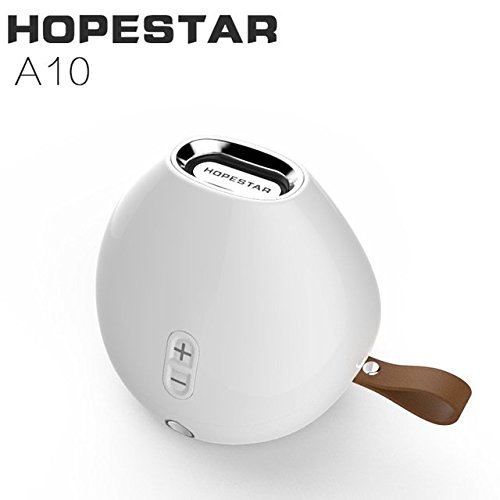
Figure 3.1: Front view of the Hopestar A10 Wireless Bluetooth Speaker in white, showing the volume controls and the Hopestar logo.
This image displays the primary view of the Hopestar A10 speaker. It features a sleek, rounded design with a white finish. Visible elements include the volume up (+) and volume down (-) buttons on the side, and the Hopestar brand name subtly placed on the top metallic ring. A brown leather strap is visible on the right side, indicating portability.
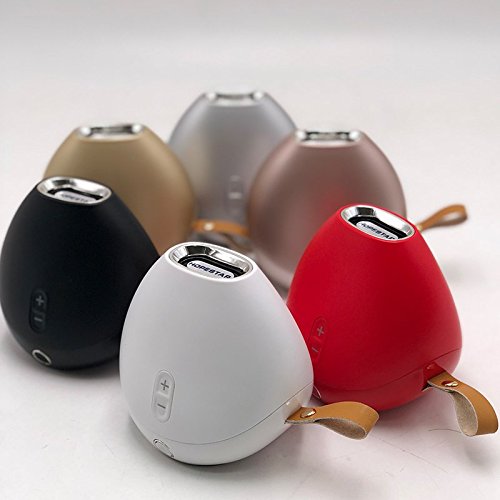
Figure 3.2: Collection of Hopestar A10 Speakers in different colors.
This image showcases the Hopestar A10 speaker available in multiple color options, including white, black, red, gold, and rose gold. The speakers are arranged in a group, highlighting their compact size and consistent design across different finishes. Each speaker retains the same button layout and leather strap for easy carrying.
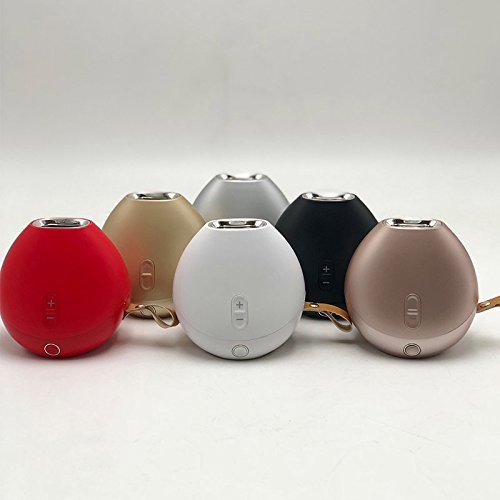
Figure 3.3: Another view of multiple Hopestar A10 Speakers.
This image provides an alternative perspective of the Hopestar A10 speakers in various colors. It emphasizes the rounded, pebble-like shape of the device and the integrated strap. The arrangement allows for a better appreciation of the speaker's overall form factor and portability.
Controls and Ports:
- Power Button: Located at the bottom/front. Press and hold to turn on/off.
- Volume Up (+): Increases volume. Also used for next track in some modes.
- Volume Down (-): Decreases volume. Also used for previous track in some modes.
- Play/Pause Button: Controls playback. Also used for answering/ending calls.
- Mode Button (M): Switches between Bluetooth, FM Radio, AUX, and TF/USB modes.
- USB Port: For USB drive playback and charging.
- TF Card Slot: For TF (MicroSD) card playback.
- AUX-in Port: For connecting external audio devices via 3.5mm audio cable.
4. Setup
4.1 Charging the Speaker
- Connect the small end of the included USB charging cable to the USB port on the speaker.
- Connect the larger end of the USB cable to a USB power adapter (not included) or a computer's USB port.
- The charging indicator light will illuminate (color may vary) to show that the speaker is charging.
- Once fully charged, the indicator light will change or turn off. A full charge typically takes 2-3 hours.
Note: For optimal battery life, fully charge the speaker before first use.
4.2 Powering On/Off
- To Power On: Press and hold the Power button for approximately 3 seconds until you hear an audible prompt or see an indicator light.
- To Power Off: Press and hold the Power button for approximately 3 seconds until you hear an audible prompt or the indicator light turns off.
5. Operating Instructions
5.1 Bluetooth Pairing
- Ensure the speaker is powered on and in Bluetooth mode. If not, press the Mode (M) button until you hear the Bluetooth pairing prompt.
- On your mobile device or computer, enable Bluetooth and search for available devices.
- Select "HOPESTAR A10" from the list of devices.
- Once paired, the speaker will indicate a successful connection, and you can begin playing audio.
- The speaker will automatically attempt to reconnect to the last paired device when powered on.
5.2 FM Radio Mode
- Press the Mode (M) button to switch to FM Radio mode.
- To auto-scan and save available stations, press the Play/Pause button once. The speaker will scan and store stations automatically.
- Use the Volume Up (+) and Volume Down (-) buttons to navigate between saved stations (short press).
- For better reception, ensure the USB charging cable is connected as an antenna.
5.3 AUX-in Mode
- Connect one end of the 3.5mm Aux cable to the AUX-in port on the speaker.
- Connect the other end of the Aux cable to the audio output jack of your external device (e.g., smartphone, MP3 player).
- The speaker will automatically switch to AUX mode, or you may need to press the Mode (M) button to select it.
- Control playback and volume from your connected device.
5.4 USB Drive / TF Card Playback
- Insert a USB drive into the USB port or a TF (MicroSD) card into the TF card slot.
- The speaker will automatically detect the storage device and begin playing audio files. If not, press the Mode (M) button to switch to the correct mode.
- Use the Play/Pause button to pause or resume playback.
- Short press Volume Up (+) for the next track, and Volume Down (-) for the previous track.
- Long press Volume Up (+) or Volume Down (-) to adjust the volume.
5.5 Call Function (Bluetooth Mode)
- Answer Call: When a call comes in, press the Play/Pause button once to answer.
- End Call: During a call, press the Play/Pause button once to end the call.
- Reject Call: Press and hold the Play/Pause button for 2 seconds to reject an incoming call.
- Redial Last Number: In Bluetooth mode, double-press the Play/Pause button to redial the last dialed number.
6. Maintenance
- Cleaning: Use a soft, dry cloth to clean the speaker's surface. Do not use abrasive cleaners, alcohol, or other chemical solvents, as these may damage the finish.
- Storage: When not in use for extended periods, store the speaker in a cool, dry place away from direct sunlight and extreme temperatures.
- Battery Care: To prolong battery life, avoid fully discharging the speaker frequently. Charge it regularly, even if not in use.
- Water Resistance: While the product is listed as waterproof, avoid submerging it in water or exposing it to heavy rain for prolonged periods. Ensure all ports are sealed if applicable.
7. Troubleshooting
| Problem | Possible Cause | Solution |
|---|---|---|
| Speaker does not turn on. | Low battery. | Charge the speaker for at least 30 minutes. |
| No sound from speaker. | Volume too low; incorrect mode; device not connected. | Increase speaker and device volume. Ensure correct mode is selected (Bluetooth, AUX, etc.). Reconnect device. |
| Bluetooth pairing fails. | Speaker not in pairing mode; device Bluetooth off; too far from speaker. | Ensure speaker is in Bluetooth pairing mode. Turn Bluetooth on your device. Move device closer to speaker (within 10 meters). Forget "HOPESTAR A10" on your device and re-pair. |
| Poor FM radio reception. | Weak signal; no antenna. | Connect the USB charging cable to act as an external antenna. Move to an area with better signal. |
| USB/TF card not playing. | Unsupported file format; card/drive not inserted correctly; corrupted files. | Ensure files are in a supported format (e.g., MP3). Reinsert the card/drive. Try a different card/drive. |
8. Specifications
| Feature | Detail |
|---|---|
| Brand | HOPESTAR |
| Model Name | A10 |
| Connectivity Technology | Bluetooth, Auxiliary, USB, Wireless |
| Special Feature | Bluetooth, Wireless, FM Radio, TF Card, USB Drive |
| Colour | White (Other colors available) |
| Item Weight | 450 Grams |
| Product Dimensions (LxWxH) | 10 x 10 x 8 Centimeters |
| Is Waterproof | TRUE |
| Included Components | 1 Speaker, 1 Aux cable, 1 USB Cable |
| Mounting Type | Tabletop Mount |
| Speaker Type | Bookshelf |
9. Warranty & Support
9.1 Product Warranty
The Hopestar A10 Wireless Bluetooth Speaker comes with a 6-month warranty from the date of purchase. This warranty covers manufacturing defects and issues arising from normal use. It does not cover damage caused by misuse, accidents, unauthorized modifications, or natural disasters.
Please retain your purchase receipt as proof of purchase for warranty claims.
9.2 Customer Support
For technical assistance, troubleshooting, or warranty inquiries, please contact Hopestar customer support. Refer to the contact information provided with your product packaging or visit the official Hopestar website for the most up-to-date support details.
Typical support channels may include:
- Email Support
- Phone Support
- Online FAQ / Knowledge Base
Related documentsA10_White


Ask a question about this manual
Ask about setup, troubleshooting, compatibility, parts, safety, or missing instructions. Manuals+ will review the question and use this page’s manual context to help answer it.