
1. Introduction
The SUNMI L2 SmartOrder is a rugged industrial terminal designed for various business applications requiring mobility and data capture. It features an Android 7.1 operating system, a 5-inch display, and an integrated 1D/2D Zebra scanner. This manual provides essential information for the proper setup, operation, and maintenance of your device.
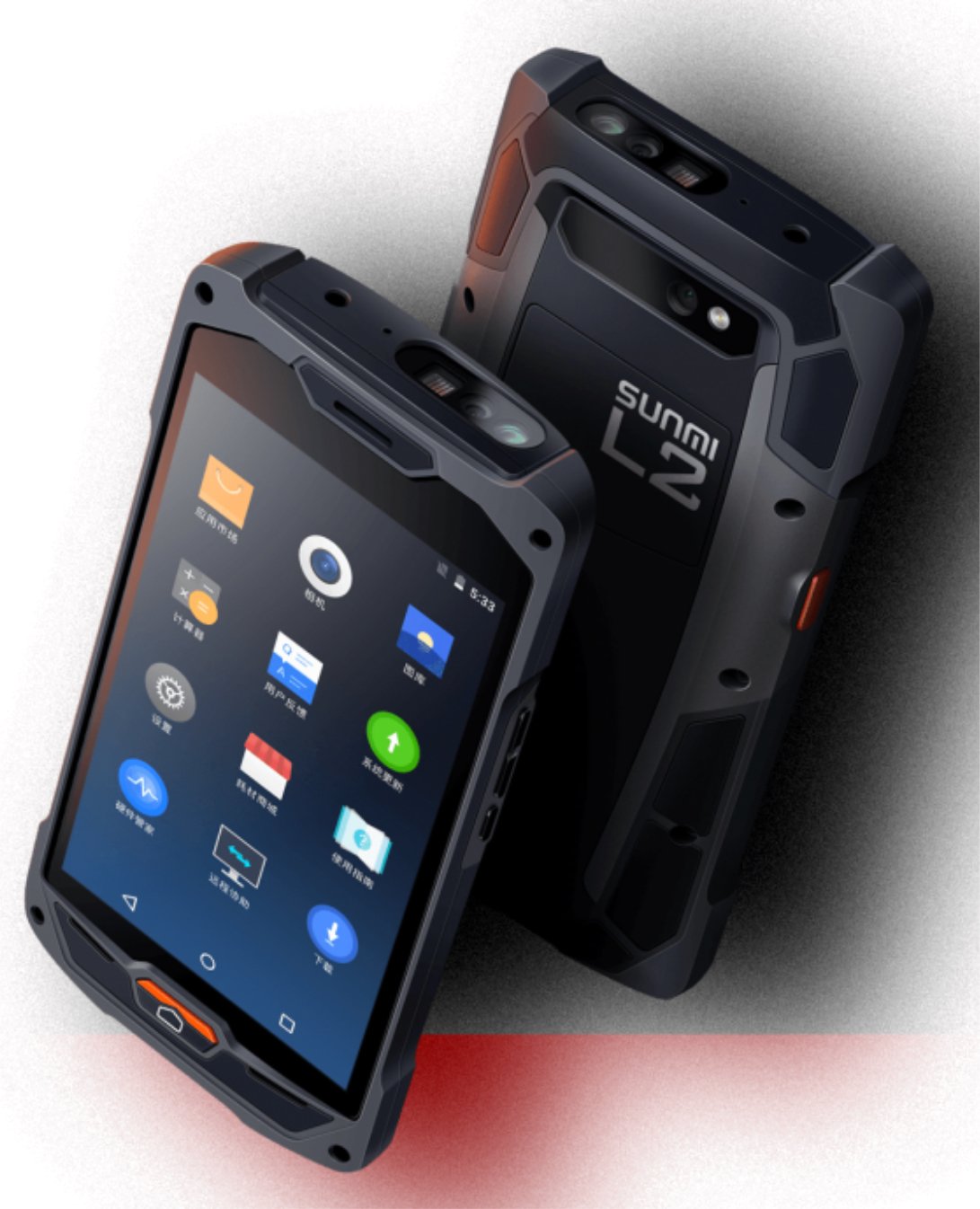
Figure 1: Front and rear view of the Sunmi L2 SmartOrder industrial terminal.
2. Safety Information
Please read all safety instructions before using the device to prevent injury or damage. Keep this manual for future reference.
- Do not expose the device to extreme temperatures, direct sunlight, or high humidity.
- Use only SUNMI-approved accessories and power adapters.
- Avoid dropping or subjecting the device to severe impact, despite its rugged design.
- Do not attempt to disassemble or repair the device yourself. Refer to qualified service personnel.
- Keep the device away from medical devices, as it may interfere with their operation.
3. Device Overview
The SUNMI L2 SmartOrder is designed for durability and functionality. Key features include:
- 5-inch Display: High-resolution touchscreen for clear visibility.
- 1D/2D Zebra Scanner: Integrated for efficient barcode and QR code scanning.
- USB-C Port: For charging and data transfer.
- SIM Card Slot: For cellular network connectivity.
- TF Card Slot: For expandable storage.
- PSAM Card Slot (Optional): For enhanced security in professional applications.
- NFC Induction Area: For near-field communication.

Figure 2: Rear view showing SIM card slot, TF card slot, PSAM card slot, and NFC induction area.

Figure 3: Three different scanner options for the Sunmi L2: Zebra Code Scanner, Standard Code Scanner, and without scanner.
4. Setup
4.1. Battery Installation and Charging
The device is equipped with a 5000mAh high-volume battery. Ensure the battery is fully charged before initial use.
- Connect the provided USB-C cable to the USB-C port on the device.
- Connect the other end of the USB-C cable to a compatible power adapter and plug it into a power outlet.
- The charging indicator will illuminate. Allow the device to charge completely before disconnecting.

Figure 4: Illustration of the 5000mAh high-volume battery with Quick Charge technology.
4.2. SIM and TF Card Installation
To install SIM or TF cards:
- Locate the card slot cover on the rear of the device (refer to Figure 2).
- Carefully open the cover.
- Insert the SIM card into the designated SIM card slot with the gold contacts facing down.
- Insert the TF card (microSD) into the TF card slot if additional storage is required.
- Close the card slot cover securely to maintain the device's IP67 rating.
4.3. Initial Power On
After charging, press and hold the power button located on the side of the device until the screen illuminates and the SUNMI logo appears. The device will boot into the Android 7.1 operating system.
5. Operating Instructions
5.1. Basic Navigation
The SUNMI L2 operates on Android 7.1. Navigate the interface using the touchscreen. Swipe to unlock, tap icons to open applications, and use the navigation buttons (Home, Back, Recent Apps) as standard for Android devices.
5.2. Using the 1D/2D Zebra Scanner
The integrated Zebra scanner is located at the top of the device.
- Open the scanning application on your device.
- Point the scanner window at the barcode or QR code you wish to scan.
- Press the dedicated scan button (if available on your model) or trigger the scan via the software interface.
- Ensure the barcode is well-lit and within the scanner's optimal range for accurate reading.

Figure 5: Bottom view of the Sunmi L2, highlighting its rugged design and integrated scanner.
5.3. Connectivity
The device supports various connectivity options:
- WLAN (Wi-Fi): Supports 2.4 GHz and 5 GHz bands. Access Wi-Fi settings from the Android system menu to connect to available networks.
- Bluetooth (BT): Pair with other Bluetooth-enabled devices such as printers or headsets via the Bluetooth settings.
- GPRS/LTE: Utilize cellular data by inserting a SIM card and configuring network settings.
- NFC: For short-range wireless communication, typically used for contactless payments or data exchange.
6. Maintenance
6.1. Cleaning the Device
To maintain the device's performance and appearance:
- Use a soft, lint-free cloth slightly dampened with water or a mild screen cleaner.
- Avoid using harsh chemicals, abrasive cleaners, or solvents, as these can damage the device's surface and seals.
- Ensure all port covers are securely closed before cleaning to maintain water and dust resistance.
6.2. Battery Care
Proper battery care extends its lifespan:
- Avoid fully discharging the battery frequently.
- Do not expose the device to extreme heat or cold, as this can degrade battery performance.
- If storing the device for an extended period, charge the battery to approximately 50% and store it in a cool, dry place.
6.3. Storage
When not in use, store the SUNMI L2 in a cool, dry environment, away from direct sunlight and corrosive materials.
7. Troubleshooting
This section addresses common issues you might encounter with your SUNMI L2 device.
- Device not powering on: Ensure the battery is sufficiently charged. Connect the device to a power source and attempt to power it on again.
- Scanner not working: Verify that the scanning application is active and the scanner is enabled in the device settings. Ensure the barcode is clean, undamaged, and properly illuminated.
- Connectivity issues (Wi-Fi/Cellular): Check your Wi-Fi network connection or cellular data settings. Ensure the SIM card is correctly inserted. Try restarting the device.
- Touchscreen unresponsive: Restart the device. If the issue persists, contact support.
8. Specifications
Key technical specifications for the SUNMI L2 SmartOrder:
| Model Number | Sunmi L2 Zebra T8900 |
| Operating System | Android 7.1 |
| Display | 5-inch |
| CPU | Quad Core |
| RAM | 2 GB |
| ROM | 16 GB |
| Scanner | 1D/2D Zebra Scanner |
| Connectivity | USB-C, WLAN 2.4/5 GHz, Bluetooth, GPRS, LTE, NFC |
| Battery | 5000mAh (up to 2 days use, 30 days standby) |
| Durability | IP67 rated (dust-proof, water-resistant, drop-resistant) |
| Operating Temperature | -20°C to +55°C |
| Weight | 349.27 g |
| Compatible Devices | Desktop computer, Laptop, POS, Smartphone, Tablet |

Figure 6: Sunmi L2 device partially submerged in water, demonstrating its IP67 dust-proof and water-resistant capabilities.
9. Warranty and Support
For detailed warranty information, technical support, or service inquiries, please refer to the official SUNMI website or contact your authorized SUNMI distributor. Please retain your purchase receipt as proof of purchase for any warranty claims.