
XIAOMI AI Translator
Xiaomi AI Translator Instruction Manual
Model: AI Translator
1. Introduction
This manual provides comprehensive instructions for the setup, operation, maintenance, and troubleshooting of your Xiaomi AI Translator. Please read this manual carefully before using the device to ensure optimal performance and longevity.

Figure 1: Xiaomi AI Translator device. This image shows the front of the translator, highlighting its minimalist design, central control buttons, and speaker grille at the bottom.
2. Product Features
- Multi-Language Support: Translates between 14 languages, covering over 170 countries and districts. Supported languages include Chinese, English, Japanese, Korean, French, German, Spanish, Russian, Portuguese, Italian, Dutch, Danish, Finnish, and Swedish.
- Advanced AI Technology: Utilizes Microsoft voice technology for natural language understanding and accurate mechanical translation, with self-correction capabilities.
- Versatile Assistant Functions: Beyond translation, it acts as a personal assistant for tasks such as music playback, weather updates, time checks, news broadcasts, calculator functions, voice reading, item explanations, story telling, exchange rate conversions, encryption, and relative salutations.
- Noise Reduction: Equipped with technology for clearer audio reception and more precise voice recognition in various environments.
- Portable Design: Features a pocket-sized, lightweight (approximately 63g), and durable aluminum alloy body with a curved design.

Figure 2: Language coverage map. This image illustrates the global reach of the 14 supported languages, indicating the extensive usability of the translator across various regions.

Figure 3: AI Translator technology. This image highlights the core technologies, including Microsoft voice and translation services, that power the device's accurate translation capabilities.

Figure 4: Assistant functions. This image displays a range of additional features, demonstrating the device's utility beyond simple translation, acting as a comprehensive personal assistant.
3. Parts and Controls
Familiarize yourself with the various parts and controls of your Xiaomi AI Translator:
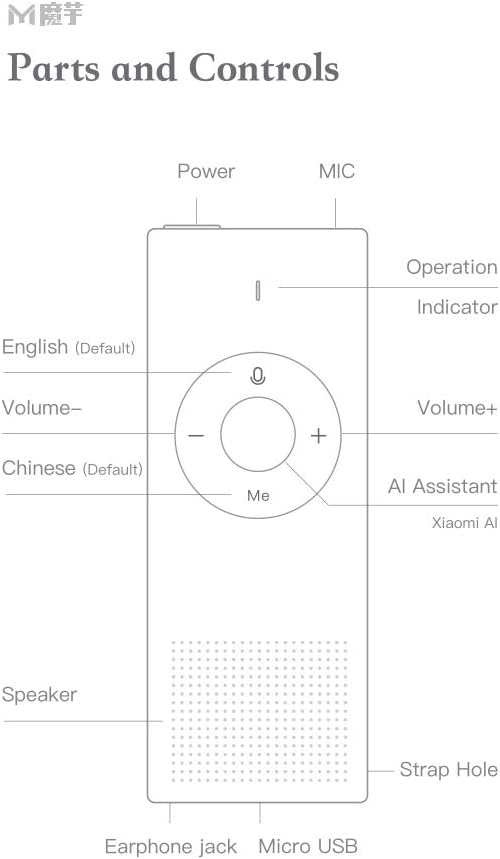
Figure 5: Parts and Controls. This diagram labels all external components and buttons of the Xiaomi AI Translator, essential for understanding its operation.
- Power Button: Located at the top, used to turn the device on/off and for screen wake/sleep.
- MIC (Microphone): Located at the top, for voice input.
- Operation Indicator: Light indicator for device status.
- English (Default) Button: Press and hold to speak in English (or the currently selected left-side language).
- Volume - Button: Decreases the volume.
- Chinese (Default) Button: Press and hold to speak in Chinese (or the currently selected right-side language).
- Volume + Button: Increases the volume.
- AI Assistant (Xiaomi AI) Button: Activates the AI assistant for various functions.
- Speaker: Located at the bottom, for audio output.
- Strap Hole: For attaching a wrist strap or lanyard.
- Earphone Jack: For connecting headphones.
- Micro USB Port: For charging the device.
4. Setup
4.1 Initial Charging
Before first use, fully charge the Xiaomi AI Translator. Connect the device to a power source using the provided Micro USB cable. The operation indicator will show charging status.
4.2 Powering On/Off
- To Power On: Press and hold the Power button until the device powers on.
- To Power Off: Press and hold the Power button until a power-off prompt appears, then confirm.
- Screen Wake/Sleep: Briefly press the Power button to wake or put the screen to sleep.
4.3 Language Selection and Network Connection
Upon first power-on, you may be prompted to select your preferred interface language and connect to a Wi-Fi network. A stable internet connection is required for translation functions.
- Follow the on-screen instructions to select the device's operating language.
- Navigate to the Wi-Fi settings and connect to an available network.
- Ensure the device's firmware is up to date for optimal performance. Check for updates in the settings menu.
5. Operating Instructions
5.1 Basic Translation
The Xiaomi AI Translator supports two-way translation between selected languages.
- Select Languages: On the device screen, select the two languages you wish to translate between. For example, set the left-side language to English and the right-side language to Chinese.
- Speak in Left-Side Language: Press and hold the English (Default) button (left button on the control panel) and speak clearly into the MIC. Release the button when you finish speaking. The device will translate and speak the text in the right-side language.
- Speak in Right-Side Language: Press and hold the Chinese (Default) button (right button on the control panel) and speak clearly into the MIC. Release the button when you finish speaking. The device will translate and speak the text in the left-side language.
5.2 Using the AI Assistant
Press the AI Assistant (Xiaomi AI) button (central button labeled "Me") to activate the AI assistant. You can then ask questions or issue commands for various functions:
- "Play music."
- "What's the weather like today?"
- "Tell me the time."
- "Read the news."
- "Open calculator."
- "Explain [item name]."
- "Tell me a story."
- "What's the exchange rate for USD to EUR?"
5.3 Volume Adjustment
Use the Volume + and Volume - buttons on the control panel to adjust the playback volume.
5.4 Usage Scenarios
The Xiaomi AI Translator is designed for various situations:

Figure 6: Multiple usage purposes. This image illustrates diverse applications of the translator, from travel and business to academic use and daily interactions like ordering food or checking into a hotel.
6. Maintenance
- Cleaning: Wipe the device with a soft, dry cloth. Do not use liquid cleaners or abrasive materials.
- Storage: Store the translator in a cool, dry place away from direct sunlight and extreme temperatures.
- Battery Care: To prolong battery life, avoid fully discharging the device frequently. Charge it regularly, even if not in use for extended periods.
- Software Updates: Periodically check for and install software updates to ensure optimal performance, new features, and security enhancements.
7. Troubleshooting
| Problem | Possible Cause | Solution |
|---|---|---|
| Device does not power on. | Low battery or device malfunction. | Charge the device for at least 30 minutes. If it still doesn't power on, contact customer support. |
| Translation is inaccurate or slow. | Poor internet connection, unclear speech, or outdated software. | Ensure a stable Wi-Fi connection. Speak clearly and at a moderate pace. Check for and install software updates. |
| No sound from speaker. | Volume too low or speaker malfunction. | Increase the volume using the Volume + button. Ensure no headphones are connected if you expect sound from the speaker. |
| Device freezes or becomes unresponsive. | Software error. | Perform a forced restart by pressing and holding the Power button for approximately 10-15 seconds until the device restarts. |
8. Specifications
| Brand | XIAOMI |
| Model | AI Translator |
| Part Number | ART4847267255513BP |
| Product Type | Electronics |
| Supported Languages | 14 (Chinese, English, Japanese, Korean, French, German, Spanish, Russian, Portuguese, Italian, Dutch, Danish, Finnish, Swedish) |
| Weight | Approximately 63 g (2.22 oz) |
| Dimensions (L x W x H) | Approximately 150 mm x 40 mm x 10 mm (5.91 in x 1.57 in x 0.39 in) |
| Connectivity | Wi-Fi (for translation), Micro USB (for charging) |
| Material | Aluminum Alloy Cover |

Figure 7: Portable design and dimensions. This image demonstrates the compact size of the translator, fitting easily into a pocket, and provides key physical specifications.
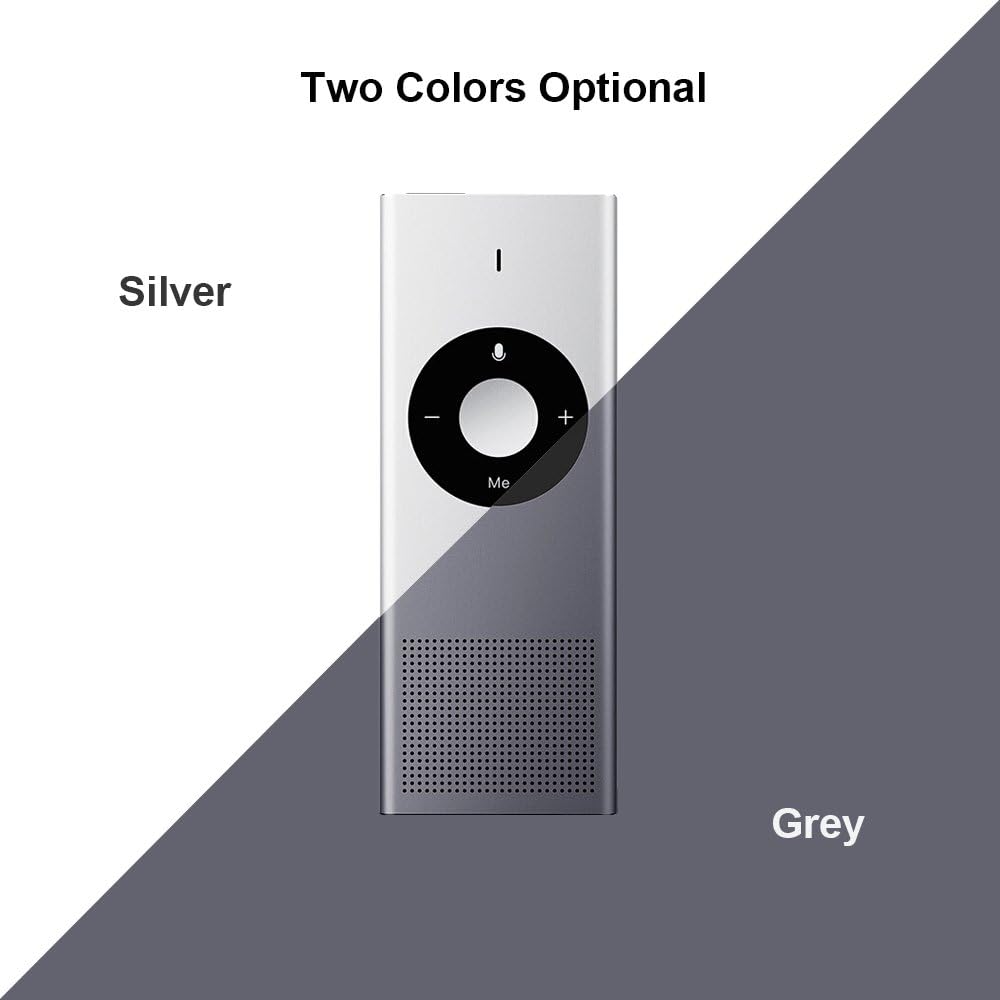
Figure 8: Available colors. This image displays the two color options for the Xiaomi AI Translator: Silver and Grey.
9. Warranty and Support
For warranty information, technical support, or service inquiries, please refer to the official Xiaomi website or contact your local authorized dealer. Keep your purchase receipt as proof of purchase for warranty claims.
Manufacturer: Xiaomi
ASIN: B07FX88LFZ
Available for purchase since: August 20, 2018
Ask a question about this manual
Ask about setup, troubleshooting, compatibility, parts, safety, or missing instructions. Manuals+ will review the question and use this page’s manual context to help answer it.