
Introduction
This manual provides essential information for the proper installation, operation, and maintenance of your Digi X2-HMU-EM-A XBee to Ethernet Gateway. This device facilitates seamless communication between XBee-PRO 900HP wireless networks and standard Ethernet infrastructure, housed in a robust industrial enclosure suitable for various environments.
Please read this manual thoroughly before attempting to install or operate the gateway to ensure optimal performance and safety.
Setup
Package Contents
Verify that all components are present in the package:
- Digi X2-HMU-EM-A XBee to Ethernet Gateway
- Power Supply Unit
- Ethernet Cable
- Quick Start Guide (if included)
Physical Installation
- Mounting: Securely mount the industrial enclosure in a suitable location, considering environmental factors and proximity to power and network connections. Ensure adequate ventilation.
- Connect Antenna: Attach the XBee antenna to the designated connector on the gateway. Ensure it is finger-tight.
- Connect Ethernet: Connect one end of the Ethernet cable to the gateway's Ethernet port and the other end to your network switch or router.
- Connect Power: Connect the power supply unit to the gateway's power input. Plug the power supply into a standard electrical outlet.
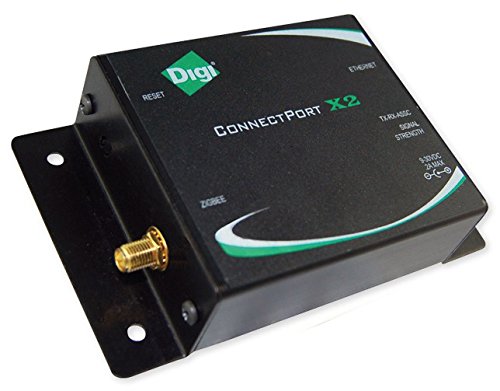
Image: Front view of the Digi X2-HMU-EM-A XBee to Ethernet Gateway, showing the industrial enclosure and various connection ports.
Initial Configuration
Upon power-up, the gateway will initiate its boot sequence. Refer to the Digi ConnectPort X2 documentation for detailed instructions on accessing the web interface for network configuration (IP address, subnet mask, gateway) and XBee network settings (PAN ID, channel, security keys).
- Default IP Address: Consult the Quick Start Guide or Digi's official documentation for the default IP address and login credentials.
- Network Settings: Configure the gateway's IP address to match your network requirements.
- XBee Network Settings: Ensure the XBee network settings (PAN ID, channel) on the gateway match those of your XBee-PRO 900HP devices for proper communication.
Operating Instructions
The Digi X2-HMU-EM-A gateway acts as a bridge, allowing XBee wireless devices to communicate with devices on a wired Ethernet network. Data sent from XBee devices is routed through the gateway to the specified Ethernet destination, and vice-versa.
Status Indicators
Observe the LED indicators on the gateway for operational status:
- Power LED: Indicates power status. (e.g., Solid Green: Power On)
- Ethernet Link/Activity LED: Indicates Ethernet connection status and data activity. (e.g., Solid Green: Link, Blinking: Activity)
- XBee RSSI/Activity LED: Indicates XBee wireless signal strength and data activity. (e.g., Blinking: XBee data transmission/reception)
Refer to the full product manual for a complete description of all LED indicators and their meanings.
Data Flow
Once configured, the gateway transparently passes data between the XBee wireless network and the Ethernet network. Applications on the Ethernet side can communicate with XBee devices as if they were directly connected to the wired network, typically using TCP/IP or UDP protocols.
Ensure that firewall rules and network configurations allow the necessary ports and protocols for communication between your applications and the gateway.
Maintenance
Cleaning
Periodically clean the exterior of the gateway with a soft, dry cloth. Do not use liquid cleaners or aerosols directly on the device. Ensure the device is powered off before cleaning.
Firmware Updates
Digi periodically releases firmware updates to improve performance, add features, or address security vulnerabilities. It is recommended to check the official Digi support website for the latest firmware versions for your X2-HMU-EM-A gateway.
- Download the latest firmware from the Digi Support Website.
- Follow the instructions provided with the firmware update package for the correct update procedure, typically performed via the gateway's web interface.
- Caution: Do not power off the device during a firmware update, as this may corrupt the device.
Environmental Considerations
While designed for industrial environments, avoid exposing the gateway to extreme temperatures, excessive moisture, or direct sunlight. Ensure proper air circulation around the unit.
Troubleshooting
No Power
- Check Power Connection: Ensure the power supply is securely connected to the gateway and the electrical outlet.
- Verify Outlet: Test the electrical outlet with another device to confirm it is functional.
- Power Supply: Ensure you are using the correct power supply unit provided with the gateway.
No Ethernet Connection
- Cable Check: Verify the Ethernet cable is securely connected at both ends (gateway and network device). Try a different Ethernet cable.
- Network Device: Ensure the connected network switch or router is powered on and functioning correctly.
- IP Configuration: Confirm the gateway's IP address, subnet mask, and default gateway settings are correct for your network.
- LED Indicators: Check the Ethernet Link/Activity LED on the gateway. If it's off, there's no physical link.
No XBee Communication
- Antenna: Ensure the XBee antenna is properly attached and positioned.
- XBee Settings: Verify that the XBee network settings (PAN ID, channel, encryption keys) on the gateway match those of the XBee devices it is intended to communicate with.
- Range: Ensure XBee devices are within the operational range of the gateway. Obstacles and interference can reduce range.
- RSSI LED: Observe the XBee RSSI/Activity LED for signs of wireless activity.
Gateway Unresponsive
- Reboot: Disconnect the power supply, wait 10 seconds, and then reconnect it.
- Factory Reset: If the issue persists, a factory reset may be necessary. Refer to the full product manual for instructions on performing a factory reset. Note: A factory reset will erase all custom configurations.
Specifications
| Feature | Description |
|---|---|
| Model | X2-HMU-EM-A |
| Product Type | XBee to Ethernet Gateway |
| Wireless Technology | XBee-PRO 900HP |
| Network Interface | Ethernet |
| Enclosure | Industrial |
| Manufacturer | Digi |
| Date First Available | July 23, 2018 |
Note: Detailed technical specifications, including power requirements, operating temperature range, and certifications, are available in the complete product datasheet on the Digi International website.
Warranty Information
The Digi X2-HMU-EM-A XBee to Ethernet Gateway is covered by a limited warranty provided by Digi International. The specific terms and duration of the warranty may vary by region and purchase agreement.
For complete warranty details, including coverage, limitations, and how to make a claim, please refer to the official warranty statement available on the Digi International website or contact your authorized Digi reseller.
Keep your proof of purchase for warranty validation.
Technical Support
For technical assistance, additional documentation, or to report issues with your Digi X2-HMU-EM-A gateway, please contact Digi International's customer support.
- Online Support: Visit the official Digi Support Website for FAQs, knowledge base articles, downloads, and support forums.
- Contact Information: Specific contact details (phone, email) can be found on the Digi website's support section.
When contacting support, please have your product model (X2-HMU-EM-A) and serial number ready.


