
1. Introduction
This manual provides instructions for the setup, operation, and maintenance of your TECKNET Bluetooth Mouse BM308. Please read this manual thoroughly before using the device to ensure optimal performance and longevity.

Image 1.1: The TECKNET Bluetooth Mouse BM308 in Red.
2. Package Contents
- 1 x TECKNET Wireless Bluetooth Mouse
- 1 x User Manual
- 1 x Warranty Card
3. Product Features
- Adjustable DPI: Six adjustable DPI levels (800/1200/1600/2400/3200/4800) for precise control.
- 6 Buttons: Includes left, right, scroll wheel, DPI button, and two side buttons.
- TruWave Technology: Ensures smooth and accurate tracking on various surfaces.
- Ergonomic Design: Contoured shape and soft rubber grip for comfortable use.
- Long Battery Life: Up to 24 months of battery life with two AA batteries (not included).
- Bluetooth Connectivity: Connects directly to Bluetooth-enabled devices without a receiver, offering a working range of up to 15 meters.
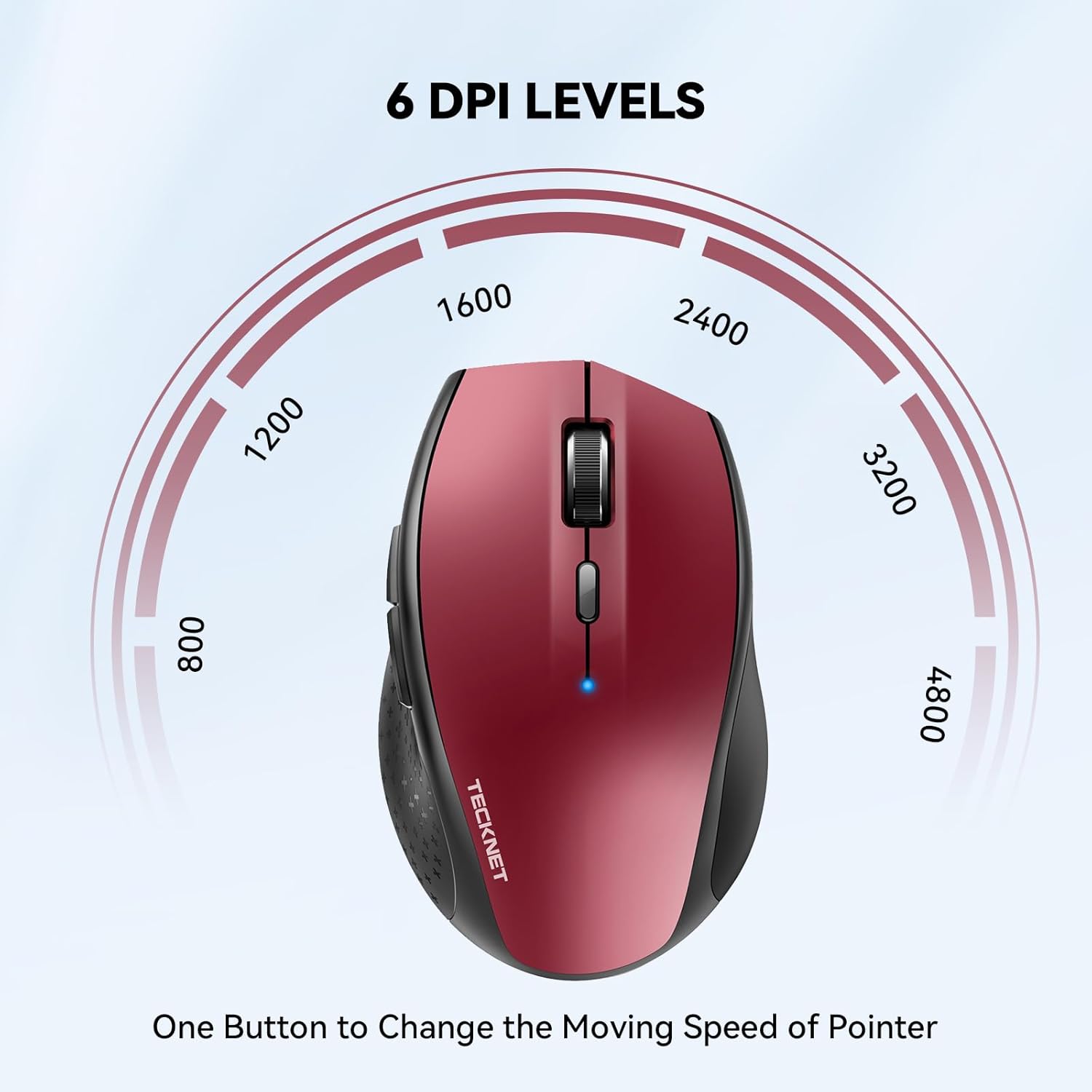
Image 3.1: The mouse features six adjustable DPI levels for customized cursor speed.

Image 3.2: The ergonomic design provides a comfortable grip for extended use.
4. Setup Instructions
4.1 Battery Installation
- Locate the battery compartment on the underside of the mouse.
- Remove the battery cover.
- Insert two AA batteries (not included) according to the polarity indicators (+/-).
- Replace the battery cover securely.
4.2 Bluetooth Pairing
- Turn on the mouse using the On/Off switch located on the underside.
- Press the Bluetooth pairing button on the underside of the mouse. The indicator light on the mouse will begin to flash, indicating it is in pairing mode.
- On your computer or device, navigate to the Bluetooth settings.
- Enable Bluetooth and search for new devices.
- Select "TECKNET Mouse" (or similar name) from the list of available devices to connect.
- Once connected, the indicator light on the mouse will stop flashing and remain solid for a few seconds, then turn off to conserve power.

Image 4.1: The underside of the mouse, illustrating battery placement and the Bluetooth pairing button.

Image 4.2: The mouse offers a stable Bluetooth connection with a working range of up to 15 meters.
5. Operating Instructions
5.1 DPI Adjustment
Press the DPI button located behind the scroll wheel to cycle through the six available DPI settings (800/1200/1600/2400/3200/4800). Each press will change the cursor speed, allowing you to select the sensitivity that best suits your task.
5.2 Button Functions
- Left Button: Standard click function.
- Right Button: Standard right-click function.
- Scroll Wheel: Scrolls up and down. Can also be pressed for middle-click functionality.
- DPI Button: Adjusts cursor sensitivity.
- Side Buttons: Typically function as 'Forward' and 'Backward' in web browsers and file explorers.
Note: The side buttons may not function on Mac OS devices due to compatibility limitations. Other buttons will operate normally.
5.3 TruWave Technology
The mouse utilizes TruWave Technology for enhanced tracking accuracy. This allows the mouse to operate smoothly on a variety of surfaces, including resin, wood, paper, cloth, and leather, without requiring a mouse pad.

Image 5.1: TruWave Technology enables the mouse to track accurately on diverse surfaces.
6. Maintenance
6.1 Cleaning
To clean the mouse, use a soft, dry cloth. For stubborn dirt, a slightly damp cloth can be used, ensuring no moisture enters the internal components. Avoid using harsh chemicals or abrasive cleaners.
6.2 Battery Replacement
When the mouse performance degrades or the indicator light signals low battery, replace the two AA batteries following the instructions in Section 4.1. Always use fresh batteries for optimal performance.
7. Troubleshooting
- Mouse not connecting:
- Ensure the mouse is turned on.
- Check if the batteries are correctly installed and have sufficient charge.
- Verify that Bluetooth is enabled on your device.
- Re-initiate the Bluetooth pairing process (Section 4.2).
- Try connecting to a different Bluetooth-enabled device to rule out device-specific issues.
- Cursor movement is erratic or unresponsive:
- Ensure the optical sensor on the underside of the mouse is clean and free from obstructions.
- Try using the mouse on a different surface.
- Replace the batteries.
- Adjust the DPI setting to a suitable level.
- Side buttons not working on Mac OS:
- This is a known compatibility limitation with Mac OS. The side buttons may not function as intended on these devices. Other mouse functions should work normally.
- Mouse goes to sleep too quickly:
- The mouse features an automatic sleep mode to conserve battery. To wake it up, simply click any button.
8. Specifications
| Feature | Specification |
|---|---|
| Model Number | EWM01308 |
| Product Dimensions | 2.8 x 1.69 x 4.41 inches |
| Item Weight | 3.17 ounces |
| Connectivity Technology | Bluetooth, Wireless |
| DPI Levels | 800, 1200, 1600, 2400, 3200, 4800 |
| Movement Detection | TruWave Technology |
| Battery Type | 2 x AA (not included) |
| Battery Life | Up to 24 months |
| Working Range | Up to 15 meters |
9. Warranty and Support
TECKNET offers 36 MONTHS SUPPORT for this product. If you encounter any issues or have questions regarding your TECKNET Bluetooth Mouse, please contact our professional customer service team. Refer to the warranty card included in your package for contact details and specific warranty terms.


