
1. Introduction
The DJI Ronin Image Transmitter is an accessory designed to enhance the functionality of compatible DJI Ronin gimbals. It facilitates live camera view transmission and enables advanced features such as ActiveTrack 3.0 directly through the Ronin app.
Key functions supported by the Image Transmitter include:
- ActiveTrack 3.0 for intelligent subject tracking.
- Force Mobile for intuitive gimbal control via smartphone.
- Remote gimbal control with a virtual joystick.
- Manual focus adjustments.
- Gimbal parameter adjustments.
- Camera exposure adjustments.
2. What's in the Box
Upon unboxing, verify that all components listed below are present:
- Image Transmitter × 1
- Cold Shoe to 1/4''-20 Adapter × 1
- USB-C Charging Cable (40 cm) × 1
- USB-C Power Cable (20 cm) × 1
- Mini-HDMI to HDMI Cable (20 cm) × 1
- Mini-HDMI to Mini-HDMI Cable (20 cm) × 1
- Mini-HDMI to Micro-HDMI Cable (20 cm) × 1
- M4 Screw × 2
- Allen Wrench (3 mm) × 1

Figure 2.1: All components included in the DJI Ronin Image Transmitter package.
3. Setup
Follow these steps to set up your DJI Ronin Image Transmitter:
- Mounting the Transmitter: Attach the Image Transmitter to your gimbal or camera rig using the Cold Shoe to 1/4''-20 Adapter and M4 screws as needed. Ensure it is securely fastened.
- Connecting to Camera: Connect the Image Transmitter to your camera using the appropriate HDMI cable (Mini-HDMI to HDMI, Mini-HDMI to Mini-HDMI, or Mini-HDMI to Micro-HDMI) provided.
- Powering the Transmitter: Use the USB-C Power Cable to connect the Image Transmitter to a power source, typically the gimbal itself or an external power bank. The transmitter includes one C battery.
- Connecting to Smartphone/Gimbal:
- For live camera view on the Ronin app: Connect the Image Transmitter to your smartphone via Wi-Fi.
- For live camera view on the gimbal's built-in screen: When using with DJI RS 4 Pro, DJI RS 2, or DJI RS 3 Pro, the live camera view can be displayed directly on the gimbal's screen.
- Note: When using with DJI RS 4, DJI RS 3, or DJI RSC 2, live camera view is only supported on the Ronin app, not on the gimbal's built-in screen.

Figure 3.1: Underside of the Image Transmitter with mounting points.

Figure 3.2: Image Transmitter securely mounted on a camera plate.

Figure 3.3: Ports on the Image Transmitter for camera connection.

Figure 3.4: Image Transmitter integrated with a camera and gimbal setup.
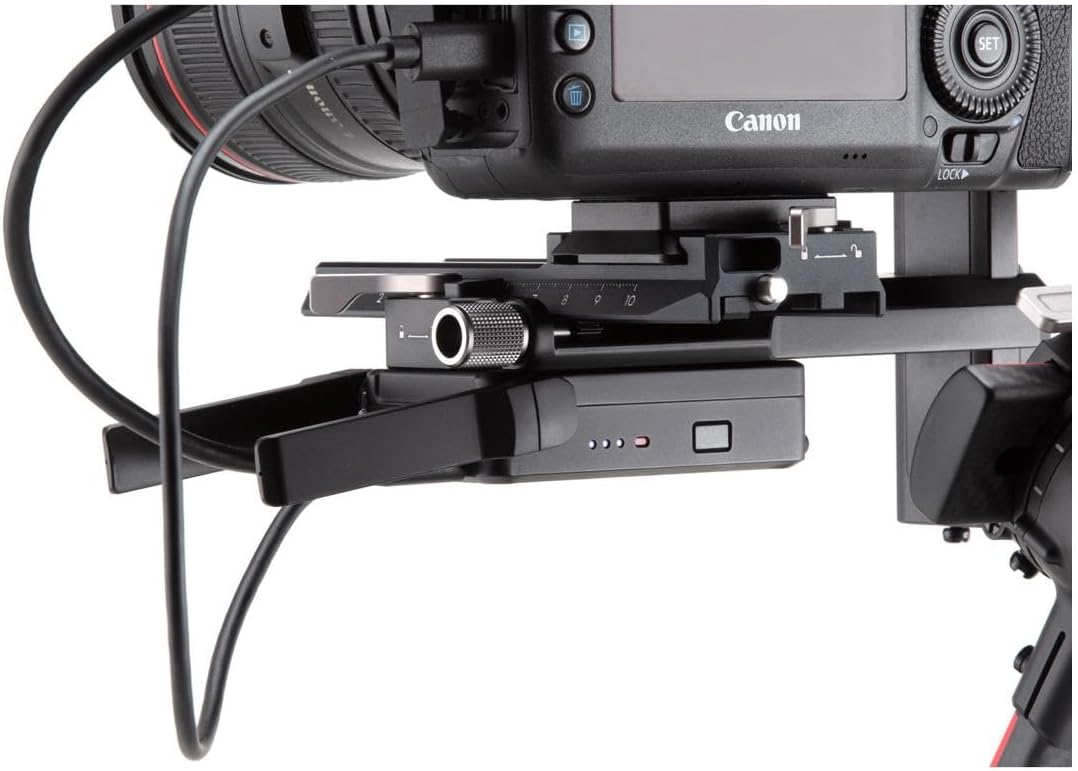
Figure 3.5: Detailed view of the Image Transmitter's connection to the gimbal.
4. Operating Instructions
Once the Image Transmitter is set up and connected, you can utilize its features through the DJI Ronin app. The app provides an intuitive interface for controlling various aspects of your camera and gimbal setup.
- Live Camera View: Access a real-time feed from your camera on your smartphone screen, allowing for precise framing and monitoring.
- ActiveTrack 3.0: Select a subject on your screen, and the gimbal will automatically track it, keeping it in the frame. This feature is ideal for dynamic shots where the subject is moving.
- Force Mobile: Control the gimbal's movements by tilting and rotating your smartphone, providing a highly responsive and natural control experience.
- Virtual Joystick: Use the virtual joystick within the app for precise manual control over the gimbal's pan, tilt, and roll axes.
- Parameter Adjustments: Adjust gimbal parameters (e.g., motor stiffness, follow speed) and camera exposure settings directly from the Ronin app.
For detailed instructions on using specific features within the Ronin app, refer to the app's built-in tutorials and help sections.
5. Maintenance
Proper maintenance ensures the longevity and optimal performance of your DJI Ronin Image Transmitter:
- Cleaning: Use a soft, dry cloth to clean the exterior of the transmitter. Avoid using liquid cleaners or solvents.
- Storage: Store the transmitter in a cool, dry place away from direct sunlight and extreme temperatures.
- Battery Care: The transmitter uses one C battery. Ensure the battery is properly inserted and charged. If storing for extended periods, it is recommended to partially charge the battery (around 50%) and remove it from the device.
- Cable Management: Handle all cables with care to prevent damage to connectors or wires.
6. Troubleshooting
If you encounter issues with your Image Transmitter, consider the following common troubleshooting steps:
- No Live View/Connection Issues:
- Ensure all cables (HDMI, power) are securely connected.
- Verify that the Image Transmitter is powered on.
- Check your smartphone's Wi-Fi connection to the transmitter.
- Confirm that your Ronin app is updated to the latest version.
- Ensure your gimbal's firmware is up-to-date.
- ActiveTrack Not Functioning:
- Ensure sufficient lighting and clear visibility of the subject.
- Verify that the subject is within the recommended tracking distance.
- Check for any obstructions between the camera and the subject.
- General Performance Issues:
- Restart the Image Transmitter, camera, and gimbal.
- Reinstall the Ronin app on your smartphone.
- Check DJI's official support website for the latest firmware updates and known issues.
7. Specifications
| Feature | Detail |
|---|---|
| Product Dimensions | 7.3 x 6.7 x 1.9 inches |
| Item Weight | 4.4 ounces |
| Item Model Number | CP.RN.00000100.04 |
| Batteries | 1 C battery required (included) |
| Compatible Devices | Camera, Cellphone (via Ronin app) |
| Connector Type | HDMI, Micro HDMI, Mini HDMI, USB Type C |
| Color | Black |
| Date First Available | October 6, 2020 |
8. Warranty and Support
For detailed warranty information and technical support, please refer to the official DJI website or contact DJI customer service directly. Keep your proof of purchase for warranty claims.
Official DJI Website: www.dji.com


