
Cable Matters 201007-BLK-1m
Cable Matters 5 Gbit/s USB Type C to USB-B 3.0 Cable
Instruction Manual
Introduction
Thank you for choosing the Cable Matters 5 Gbit/s USB Type C to USB-B 3.0 Cable. This high-quality cable is designed to connect your USB-C enabled computer or laptop to various peripheral devices equipped with a USB-B 3.0 port, such as external hard drives, printers, scanners, and docking stations. It supports SuperSpeed data transfer rates of up to 5 Gigabits per second (Gbps), ensuring efficient and reliable performance.
Setup Instructions
Follow these steps to correctly connect your Cable Matters USB Type C to USB-B 3.0 cable:
-
Identify Ports: Locate the USB-C port on your host device (e.g., laptop, computer) and the USB-B 3.0 port on your peripheral device (e.g., external hard drive, printer, scanner, docking station). The USB-B 3.0 port typically has a blue interior and a distinct shape, as shown in the image below.

Figure 1: Identifying the correct USB-B 3.0 port on your device. Ensure compatibility with USB-B 3.0, not older USB 2.0 or Micro USB types. - Connect USB-C End: Insert the USB Type-C connector of the cable into the USB-C port on your host device. The USB-C connector is reversible, allowing for easy insertion in any orientation.
-
Connect USB-B 3.0 End: Insert the USB-B 3.0 connector of the cable into the corresponding USB-B 3.0 port on your peripheral device. Ensure it is firmly seated.

Figure 2: Connecting the USB Type C end to a laptop and the USB-B 3.0 end to an external hard drive docking station. - Verify Connection: Your device should automatically recognize the connected peripheral. No additional drivers are typically required for standard operation.
Operating Instructions
This cable facilitates high-speed data transfer and connectivity between your USB-C host and USB-B 3.0 peripherals.
-
High-Speed Data Transfer: The cable supports USB 3.0 SuperSpeed, providing data transfer rates up to 5 Gbps. This is significantly faster than USB 2.0, making it ideal for large file transfers and high-bandwidth applications.

Figure 3: Comparison of USB 3.0 SuperSpeed (5 Gbps) versus USB 2.0 (480 Mbps) data transfer rates. -
Broad Compatibility: Use this cable with a wide range of devices including external desktop hard drives, USB hubs, docking stations, SATA enclosures, scanners, and monitors that feature a USB-B 3.0 port.

Figure 4: Examples of devices compatible with the USB-B 3.0 cable. - Plug and Play: The cable is designed for simple plug-and-play functionality. Connect it, and your operating system should automatically detect and configure the connected device.
Maintenance
To ensure the longevity and optimal performance of your Cable Matters USB cable, follow these maintenance guidelines:
- Storage: When not in use, coil the cable loosely. Avoid tight bends or kinks, which can damage the internal wires. Store it in a clean, dry place away from extreme temperatures.
- Cleaning: If the cable or connectors become dirty, gently wipe them with a dry, lint-free cloth. Do not use liquid cleaners or solvents.
- Handling: Always grasp the connector housing when plugging or unplugging the cable. Avoid pulling directly on the cable itself, as this can strain the connections and lead to damage.
-
Durability Features: This cable is built with a flexible and durable PVC jacket, gold-plated connectors for reliable signal transmission, and molded strain relief to withstand frequent disconnections and provide enhanced durability.
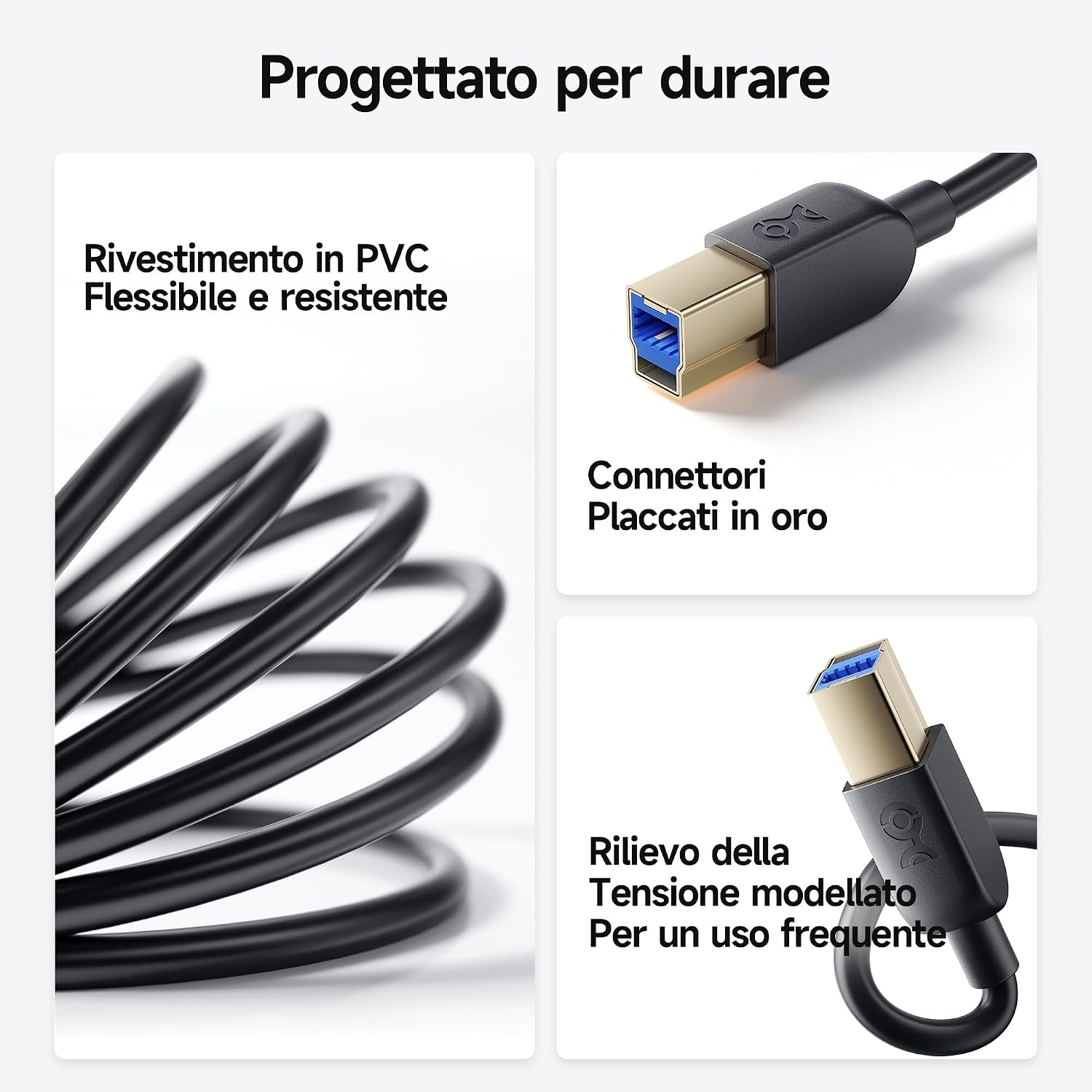
Figure 5: Key durability features of the cable, including flexible PVC, gold-plated connectors, and molded strain relief. 
Figure 6: Internal construction details, showcasing braided and foil shielding, cotton filling, and bare copper conductors for superior performance.
Troubleshooting
If you encounter issues with your cable, try the following solutions:
-
No Connection / Device Not Recognized:
- Ensure both ends of the cable are securely plugged into their respective ports.
- Try connecting the cable to a different USB-C port on your host device or a different USB-B 3.0 port on your peripheral, if available.
- Restart your computer and the peripheral device.
- Verify that the peripheral device is powered on and functioning correctly independently.
- Check if your operating system requires specific drivers for the peripheral device.
-
Slow Data Transfer Speed:
- Confirm that both your host device's USB-C port and your peripheral device's USB-B port support USB 3.0 (or higher) for 5 Gbps speeds. Connecting to a USB 2.0 port will limit speeds to 480 Mbps.
- Ensure that no other high-bandwidth USB devices are connected to the same USB controller on your computer, which could share bandwidth.
- Test the cable with another compatible device to rule out issues with the host or peripheral.
-
Intermittent Connection:
- Check for any physical damage to the cable or connectors.
- Ensure the cable is not being bent or strained during use.
- Try a different cable if possible to determine if the issue is with the cable or the devices.
Specifications
| Feature | Detail |
|---|---|
| Brand | Cable Matters |
| Model Name | 201007-BLK-1m |
| Cable Type | USB |
| Connector Type | USB Type C, USB B 3.0 |
| Data Transfer Speed | 5 Gigabit per second (USB 3.0 SuperSpeed) |
| Compatible Devices | External hard drives, docking stations, USB switches, printers, scanners, laptops, desktop computers |
| Special Features | Braided, Data Transfer, Gold-plated connectors, Molded strain relief |
| Cable Length | 1 meter (3.3 feet) |
| Color | Black |
| Material | Nylon (outer material) |
| Max Current | 3 Amperes |
| UPC | 081159815479 |
Warranty Information
Cable Matters provides a lifetime warranty for this product, ensuring peace of mind with your purchase. This warranty covers defects in materials and workmanship under normal use. Please retain your proof of purchase for warranty claims.
Customer Support
For further assistance, technical support, or warranty inquiries, please visit the official Cable Matters website or contact their customer service team.
You can find more information and contact details on the Cable Matters Store on Amazon.
Related documents201007-BLK-1m


Ask a question about this manual
Ask about setup, troubleshooting, compatibility, parts, safety, or missing instructions. Manuals+ will review the question and use this page’s manual context to help answer it.