1. Introduction
This manual provides essential instructions for setting up, operating, and maintaining your INSIGNIA NS-50DF710NA19 50-inch Smart 4K UHD Fire TV. This television integrates the Fire TV experience, offering access to various streaming services and smart features, including voice control with Alexa.
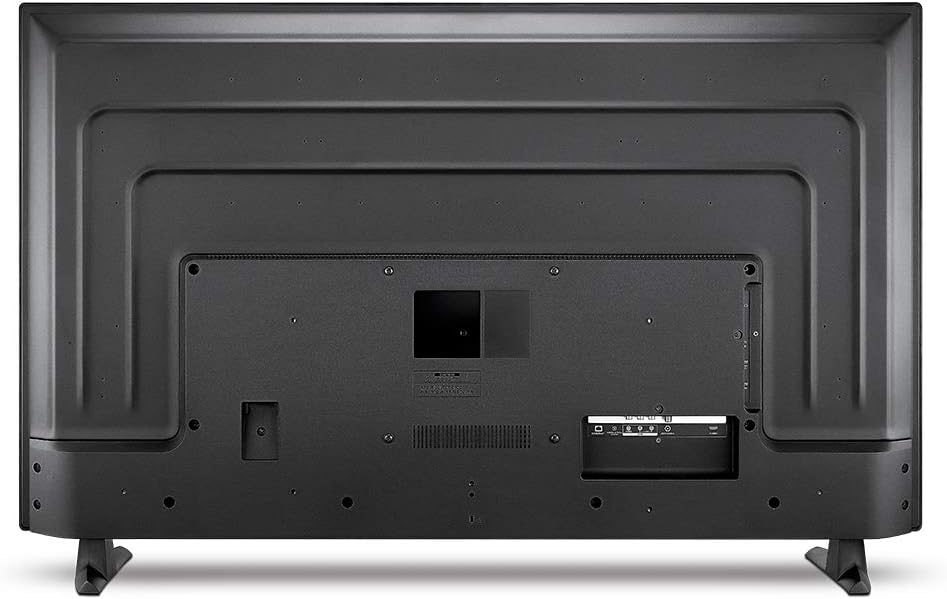
Image 1.1: Front view of the INSIGNIA NS-50DF710NA19 50-inch Smart 4K UHD Fire TV, displaying the Insignia and Fire TV Edition logos.
2. Setup
2.1 Unpacking and Assembly
Carefully remove all components from the packaging. Ensure you have the following items:
- INSIGNIA NS-50DF710NA19 50-inch Smart 4K UHD Fire TV
- Voice Remote with Alexa
- 2 AAA Batteries
- TV Stand (2 pieces)
- Screws for TV Stand
- Power Cord
To attach the TV stand:
- Place the TV face-down on a soft, clean surface to prevent screen damage.
- Align each stand piece with the corresponding slots on the bottom of the TV.
- Secure the stands using the provided screws.
2.2 Connecting External Devices
Your TV offers multiple input/output options for connecting various devices.

Image 2.1: Rear view of the INSIGNIA NS-50DF710NA19, highlighting the input/output ports.
- HDMI Ports (3, including 1 with ARC): Connect Blu-ray players, game consoles, cable/satellite boxes, and other HDMI-enabled devices. The HDMI ARC port supports audio return channel functionality for compatible sound systems.
- USB Port: Connect USB storage devices for media playback.
- Composite Input: For older devices using RCA (red, white, yellow) cables.
- Antenna/Cable Input: Connect an HD antenna for over-the-air broadcasts or a coaxial cable for cable TV.
- Digital Optical Audio Output: Connect to a soundbar or audio receiver for digital audio.
- Audio Output: For analog audio connections.
- Ethernet Port: For a wired internet connection.
2.3 Power Connection and Initial Setup
- Connect the power cord to the TV and then to a power outlet.
- Insert the included AAA batteries into the Voice Remote with Alexa.
- Press the Power button on the remote to turn on the TV.
- Follow the on-screen instructions to complete the initial setup, which includes connecting to your Wi-Fi network, logging into your Amazon account, and scanning for channels if an antenna is connected.
3. Operating Your TV
3.1 Voice Remote with Alexa
The included Voice Remote with Alexa allows for easy navigation and voice control of your Fire TV.

Image 3.1: The Voice Remote with Alexa for the INSIGNIA Fire TV.
- Power Button: Turns the TV on or off.
- Voice Button (Microphone icon): Press and hold to activate Alexa and speak commands.
- Navigation Ring: Use to move through menus and select items.
- Home Button: Returns to the Fire TV home screen.
- Back Button: Returns to the previous screen.
- Menu Button: Accesses contextual options.
- Volume Up/Down: Adjusts TV volume.
- Mute Button: Mutes or unmutes TV audio.
- Channel Up/Down: Changes channels for live TV.
- App Buttons: Dedicated buttons for popular streaming services like Prime Video, Netflix, HBO, and PlayStation Vue.
3.2 Navigating the Fire TV Interface
The Fire TV home screen provides a unified interface for live TV, streaming apps, and connected devices.

Image 3.2: The Fire TV home screen on the INSIGNIA NS-50DF710NA19, showing various streaming applications and content recommendations.
- Home Screen: Displays recommended content, recently used apps, and quick access to your favorite streaming services.
- Apps: Access tens of thousands of channels, apps, and Alexa skills, including Disney+, Netflix, YouTube, Prime Video, Hulu, HBO, SHOWTIME, and STARZ.
- Live TV: If an HD antenna is connected, live over-the-air TV channels are seamlessly integrated into the home screen.
- Inputs: Easily switch between HDMI inputs, USB, and other connected devices from the home screen or by using the remote.
3.3 Using Alexa Voice Commands
Press and hold the Voice button on your remote and speak clearly to Alexa. You can:
- Launch apps (e.g., "Open Netflix").
- Search for titles (e.g., "Find action movies").
- Play music.
- Switch inputs (e.g., "Switch to HDMI 1").
- Control smart home devices (if compatible and linked to your Alexa account).
4. Maintenance
4.1 Cleaning the TV
- Always unplug the TV before cleaning.
- Use a soft, dry cloth to wipe the screen and cabinet.
- For stubborn marks on the screen, lightly dampen a soft cloth with water or a specialized screen cleaner. Do not spray liquid directly onto the screen.
- Avoid using abrasive cleaners, waxes, or solvents.
4.2 General Care
- Do not block ventilation openings on the back of the TV.
- Avoid exposing the TV to direct sunlight, extreme temperatures, or high humidity.
- Keep the TV away from sources of strong electromagnetic interference.
5. Troubleshooting
If you encounter issues with your TV, refer to the following common solutions:
- No Power:
- Ensure the power cord is securely plugged into both the TV and a working power outlet.
- Check if the power outlet is functional by plugging in another device.
- Try pressing the power button on the TV itself, if available.
- No Picture/Sound:
- Verify that the correct input source is selected (e.g., HDMI 1, Antenna).
- Check all cable connections to external devices (HDMI, composite).
- Ensure the volume is not muted or set to a very low level.
- Restart the TV by unplugging it from the power outlet for 60 seconds, then plugging it back in.
- Remote Not Responding:
- Replace the batteries in the remote control.
- Ensure there are no obstructions between the remote and the TV.
- Try re-pairing the remote if it has become unpaired (refer to on-screen instructions during initial setup or in the TV's settings menu).
- Network Connection Issues:
- Check your Wi-Fi router and modem to ensure they are working correctly.
- Restart your router and modem.
- Go to the TV's network settings and try reconnecting to your Wi-Fi network.
- If using an Ethernet cable, ensure it is securely connected to both the TV and your router.
- TV Always Defaults to Home Screen on Power On:
- The Fire TV interface is designed to be the primary experience. While a specific default input cannot always be set, you can quickly switch to your desired input from the home screen or using Alexa voice commands (e.g., "Switch to HDMI 1").
6. Specifications
| Feature | Specification |
|---|---|
| Brand Name | INSIGNIA |
| Model Number | NS-50DF710NA19 |
| Screen Size | 49.5 Inches (50-inch class) |
| Display Technology | LED |
| Resolution | 4K Ultra HD (3840 x 2160) |
| Refresh Rate | 60 Hz |
| Aspect Ratio | 16:9 |
| Product Dimensions (without stand) | 44.4" W x 26.1" H x 3.3" D |
| Product Dimensions (with stand) | 44.4" W x 27.8" H x 10.4" D |
| Item Weight | 25.8 Pounds |
| Connectivity Technology | Ethernet, Wi-Fi |
| HDMI Ports | 3 (including 1 with ARC) |
| USB Ports | 1 |
| Speaker Type | Built-In |
| Batteries Required | 2 AAA (included) |
| Date First Available | September 17, 2018 |
7. Warranty and Support
Your INSIGNIA NS-50DF710NA19 50-inch Smart 4K UHD Fire TV is covered by a limited warranty. Please refer to the warranty card included with your product for specific terms and conditions, including the duration of coverage and how to obtain service.
For technical support or warranty inquiries, please contact INSIGNIA customer service. Contact information can typically be found on the INSIGNIA official website or on the product packaging.


