
KLIM KLIM Chroma
KLIM Chroma Wireless Gaming Keyboard
User Manual
Brand: KLIM | Model: KLIM Chroma
1. Introduction
Thank you for choosing the KLIM Chroma Wireless Gaming Keyboard. This manual provides essential information for setting up, operating, and maintaining your new keyboard. Designed for gamers and everyday users, the KLIM Chroma offers instant wireless connectivity, vibrant RGB backlighting, and a durable, spill-resistant design for a superior typing and gaming experience.

Image: The KLIM Chroma Wireless Gaming Keyboard, showcasing its full layout and the compact USB receiver.
2. Package Contents
Please ensure all items are present in your package:
- 1 x KLIM Chroma Wireless Gaming Keyboard
- 1 x USB Wireless Receiver
- 1 x USB Charging Cable
- 1 x User Manual (this document)
3. Setup Guide
3.1. Connecting the Keyboard
The KLIM Chroma keyboard offers instant plug-and-play connectivity without the need for additional drivers.
- Locate the USB wireless receiver, typically stored in a compartment on the underside of the keyboard.
- Plug the USB wireless receiver into an available USB port on your computer, gaming console, or compatible device.
- Turn on the keyboard using the power switch, usually located on the top edge or underside.
- The keyboard should automatically connect to the receiver within a few seconds. You are now ready to use your KLIM Chroma keyboard.

Image: Illustrates the keyboard's plug-and-play functionality, emphasizing instant connection without drivers.
3.2. Charging the Keyboard
The KLIM Chroma features a built-in rechargeable battery. To charge the keyboard:
- Connect the smaller end of the provided USB charging cable to the charging port on the keyboard.
- Connect the larger end of the USB charging cable to a USB power source (e.g., computer USB port, USB wall adapter).
- An indicator light on the keyboard will typically show the charging status. The battery takes approximately 4-6 hours for a full charge.
- A full charge provides up to 17 hours of continuous use with backlighting, or significantly longer without backlighting.

Image: Highlights the keyboard's long-lasting rechargeable battery, capable of up to 17 hours of use.
4. Operating Instructions
4.1. Power On/Off
To conserve battery life, always turn off the keyboard when not in use. The power switch is located on the top right edge of the keyboard.
- Slide the switch to the "ON" position to power on the keyboard.
- Slide the switch to the "OFF" position to power off the keyboard.
4.2. RGB Backlighting Control
The KLIM Chroma keyboard features vibrant RGB backlighting to enhance your experience. Please note that the colors are not customizable, but you can cycle through various modes and adjust brightness.
- FN + RGB: Press these keys simultaneously to cycle through different lighting modes (e.g., static, breathing).
- FN + Page Up/Page Down: Adjust the brightness of the backlighting.
- FN + +/-: Adjust the speed of dynamic lighting effects.
- FN + On/Off (light icon): Turn the backlighting on or off.

Image: Shows the keyboard illuminated with its impressive RGB lighting effects, adding visual appeal to any setup.
4.3. Function Key Combinations (FN Key)
The FN key allows access to multimedia controls and other functions:
| Combination | Function |
|---|---|
| FN + F1 | Media Player |
| FN + F2 | Volume Down |
| FN + F3 | Volume Up |
| FN + F4 | Mute |
| FN + F5 | Stop |
| FN + F6 | Previous Track |
| FN + F7 | Play/Pause |
| FN + F8 | Next Track |
| FN + F9 | |
| FN + F10 | Web Browser |
| FN + F11 | My Computer |
| FN + F12 | Calculator |
4.4. Compatibility
The KLIM Chroma Wireless Gaming Keyboard is widely compatible with various operating systems and devices, including:
- PC (Windows XP/Vista/7/8/10/11)
- Mac OS
- PlayStation 4 (PS4)
- PlayStation 5 (PS5)
- Xbox One
- Xbox Series X/S
- Laptops, Smart TVs, Tablets (with USB port)

Image: Visual representation of the keyboard's broad compatibility across various gaming platforms and operating systems.
5. Maintenance and Care
To ensure the longevity and optimal performance of your KLIM Chroma keyboard, follow these care guidelines:
- Cleaning: Use a soft, dry cloth to wipe down the keyboard. For deeper cleaning, a slightly damp cloth with mild soap can be used, ensuring no liquid enters the key switches or internal components.
- Spill Resistance: The keyboard is designed to be spill-resistant. In case of accidental spills, immediately power off the keyboard, disconnect it, and allow it to dry completely before re-using. Do not submerge the keyboard in water.
- Battery Care: Avoid fully discharging the battery frequently. For best battery life, charge the keyboard when the low battery indicator appears. Store the keyboard in a cool, dry place if not used for extended periods.
- Storage: Store the USB receiver in its designated compartment on the keyboard's underside when not in use to prevent loss.

Image: Depicts the keyboard's ultra-durable and spill-resistant design, highlighting its resilience against accidental liquid exposure.
6. Troubleshooting
If you encounter issues with your KLIM Chroma keyboard, try the following solutions:
- Keyboard not responding:
- Ensure the keyboard is powered on.
- Check if the USB receiver is securely plugged into a working USB port.
- Ensure the keyboard is charged. Connect the USB cable to charge it.
- Try plugging the USB receiver into a different USB port.
- Restart your computer or device.
- Backlighting not working:
- Ensure the keyboard is powered on and charged.
- Press FN + On/Off (light icon) to toggle the backlighting.
- Adjust brightness using FN + Page Up/Page Down.
- Keys not registering or delayed input:
- Ensure the keyboard is within the wireless range (up to 30 feet) of the receiver.
- Check for potential interference from other wireless devices.
- Ensure the battery is not critically low.
7. Technical Specifications
Detailed specifications for the KLIM Chroma Wireless Gaming Keyboard:
| Feature | Specification |
|---|---|
| Wireless Frequency | 2.4 GHz |
| Wireless Range | Up to 10 meters (30 feet) |
| Connectivity | USB Receiver (Plug & Play) |
| Battery Type | Rechargeable (included) |
| Battery Capacity | 2000 mAh |
| Charging Time | Approx. 4-6 hours |
| Battery Life (with lights) | 17 hours (continuous use) |
| Battery Life (without lights) | Up to 42 hours |
| Voltage | 3.7 V |
| Key Lifespan | 10 million keystrokes |
| Keyboard Type | Membrane Gaming Keyboard |
| Number of Keys | 104 |
| Backlighting | RGB (non-customizable colors) |
| Sleep Mode | Activates after 60 seconds of inactivity |
| Dimensions (L x W x H) | 17.32 x 5.67 x 1.14 inches (440 x 144 x 29 mm) |
| Weight | 1.32 pounds (599 g) |
| Supported OS | Windows XP/7/8/10/11, macOS, Linux |
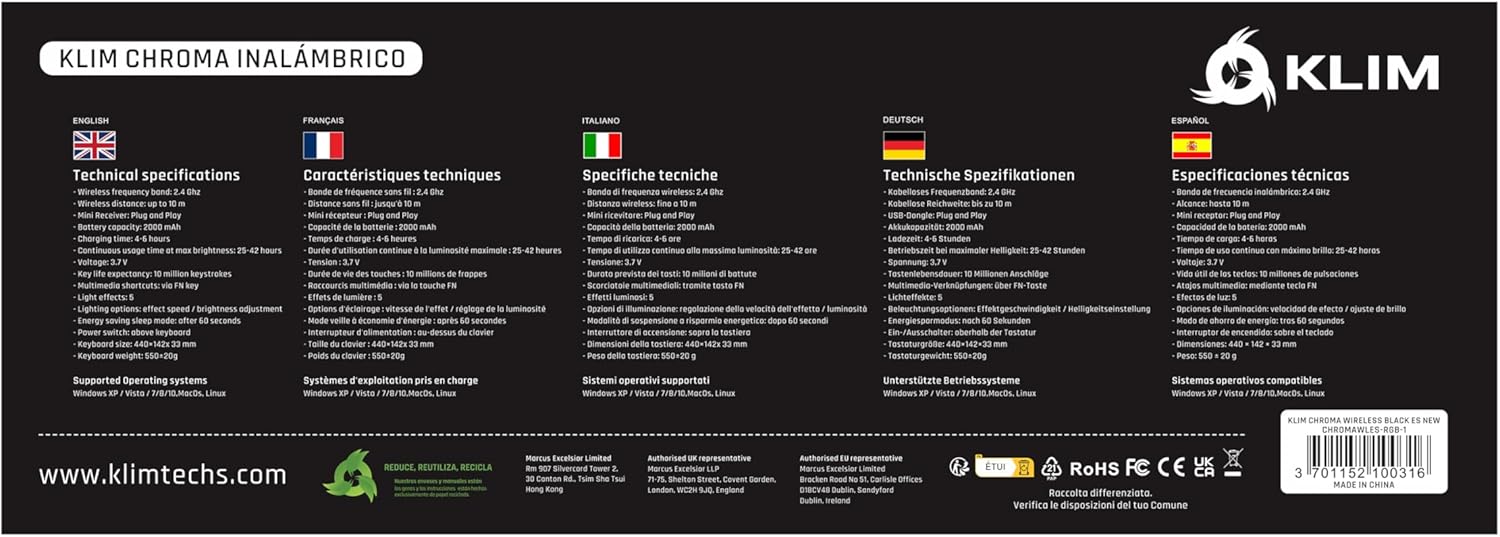
Image: The product packaging displaying technical specifications and features in various languages.
8. Warranty and Support
KLIM stands behind the quality of its products. The KLIM Chroma Wireless Gaming Keyboard comes with a 5-year warranty against manufacturing defects.
For technical support, warranty claims, or any questions regarding your product, please visit the official KLIM website or contact their customer service:
- Website: www.klimtechs.com
- Email: Refer to the support section on the KLIM website for the most current contact information.
Please have your product model (KLIM Chroma) and ASIN (B07FLJ9DWJ) ready when contacting support.
Related documentsKLIM Chroma


Ask a question about this manual
Ask about setup, troubleshooting, compatibility, parts, safety, or missing instructions. Manuals+ will review the question and use this page’s manual context to help answer it.