
1. Introduction
This manual provides essential information for the safe and efficient use of your Fujitsu FMV LIFEBOOK E741 laptop. Please read this manual thoroughly before operating your device and retain it for future reference. This laptop is designed for general computing tasks, featuring a 2nd generation Intel Core i5 processor, a 15.6-inch Full HD display, 8GB of RAM, and a 320GB hard disk drive. It comes pre-installed with Windows 10 and includes WPS Office software.
2. Safety Information
Observe the following safety precautions to prevent damage to your laptop and ensure personal safety:
- Do not expose the laptop to extreme temperatures, direct sunlight, or high humidity.
- Avoid placing heavy objects on the laptop.
- Keep liquids away from the device to prevent electrical shock or damage.
- Use only the provided power adapter or a compatible replacement.
- Do not attempt to disassemble or repair the laptop yourself. Refer to qualified service personnel.
- Ensure proper ventilation to prevent overheating.
3. Package Contents
Verify that all items are present in the package:
- Fujitsu FMV LIFEBOOK E741 Laptop
- AC Adapter and Power Cord
- WPS Office License Card
- Recovery Disks (for Windows 7 DtoD recovery)
- Driver Disks

Image: The Fujitsu FMV LIFEBOOK E741 laptop shown with the included WPS Office license card and a recovery disk.

Image: A close-up of the WPS Office license card, detailing product information and serial number.

Image: A set of four optical disks, including recovery disks for 64-bit and 32-bit systems, a troubleshooting and driver disk, and a Corel WinDVD disk.
4. Setup
4.1 Initial Power On
- Unpack the laptop and all accessories.
- Connect the AC adapter to the laptop's power input port and then plug it into a power outlet.
- Open the laptop lid.
- Press the power button, typically located above the keyboard or on the side, to turn on the laptop.
- Follow the on-screen instructions to complete the initial Windows 10 setup.
4.2 Connecting to Wi-Fi
- Once Windows 10 is set up, click the Wi-Fi icon in the system tray (bottom-right corner of the screen).
- Select your desired wireless network from the list.
- Enter the network security key (password) if prompted.
- Click 'Connect'.
5. Operating the Laptop
5.1 Power On/Off and Sleep Mode
- Power On: Press the power button.
- Shut Down: Click the 'Start' button, then 'Power', and select 'Shut down'.
- Restart: Click the 'Start' button, then 'Power', and select 'Restart'.
- Sleep: Click the 'Start' button, then 'Power', and select 'Sleep', or close the laptop lid.
5.2 Keyboard and Touchpad
The laptop features a full-size keyboard with a dedicated numeric keypad for efficient data entry.

Image: A close-up view of the numeric keypad section of the laptop keyboard, showing standard number and operator keys.
The touchpad located below the keyboard functions as a pointing device. Use gestures for navigation:
- Tap: Single tap for left-click, two fingers tap for right-click.
- Scroll: Drag two fingers up or down.
- Zoom: Pinch in or out with two fingers.
5.3 Display
The 15.6-inch Full HD (1920x1080) display provides a clear visual experience. You can adjust brightness using the function keys (Fn + Fx, where Fx is the brightness key) or through Windows display settings.
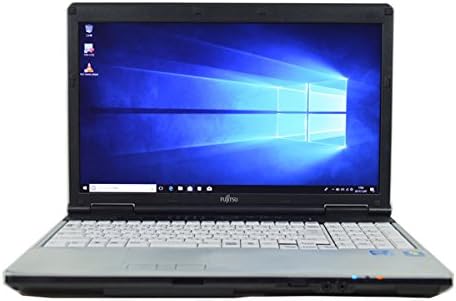
Image: The Fujitsu FMV LIFEBOOK E741 laptop with its screen displaying the Windows 10 desktop interface.
5.4 Optical Drive (DVD Multi)
The laptop includes a DVD Multi drive for reading and writing CDs and DVDs.
- Press the eject button on the drive to open the tray.
- Place a disc gently onto the tray, ensuring it is centered.
- Push the tray back into the laptop until it clicks shut.
- The operating system will typically prompt you for action or automatically play the disc content.

Image: A side view of the Fujitsu LIFEBOOK E741 laptop with its optical drive tray extended, showing the disc spindle.
5.5 Connectivity
The laptop supports Wi-Fi for wireless internet access and features an HDMI port for connecting to external displays.
- Wi-Fi: Connect as described in Section 4.2.
- HDMI: Connect an HDMI cable from the laptop's HDMI port to an external monitor or TV. Use Windows display settings to configure display modes (duplicate, extend, second screen only).

Image: A side view of the laptop, highlighting various ports including what appears to be a VGA port, USB ports, and potentially an HDMI port, along with the keyboard.
5.6 WPS Office
Your laptop includes WPS Office, a suite of productivity applications compatible with Microsoft Office formats. It typically includes Writer (word processor), Presentation (slideshows), and Spreadsheets (spreadsheets).
- Locate the WPS Office icons on your desktop or in the Start Menu.
- Click to launch the desired application (e.g., WPS Writer for documents).
- Refer to the WPS Office help documentation for detailed usage instructions.
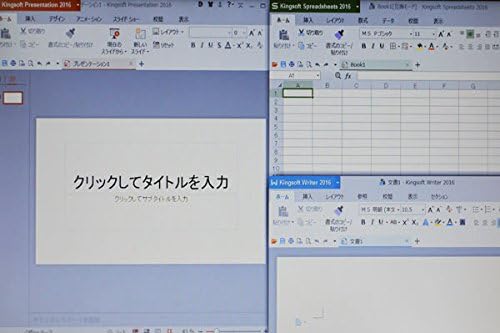
Image: The laptop screen displaying multiple WPS Office applications open simultaneously, including Presentation and Spreadsheets.
5.7 Windows 10 and Recovery
The laptop operates on Windows 10. It also includes functionality for creating recovery disks for Windows 7 (Win7DtoD), which was likely the original operating system. These recovery disks can be used to restore the system to its factory state if needed.
- To create recovery disks, locate the 'Recovery Disk Creation Function' utility in your Start Menu or system tools.
- Follow the on-screen prompts, inserting blank DVDs as instructed.
- Store the created recovery disks in a safe place.

Image: A screenshot of a utility for creating recovery disks, showing options for 'Recovery Data Disk', 'Troubleshooting & Driver Disk', and 'InterVideo WinDVD for FUJITSU'.
6. Maintenance
- Cleaning: Use a soft, lint-free cloth to clean the screen and exterior. Do not use harsh chemicals.
- Battery Care: Avoid fully discharging the battery frequently. For long-term storage, charge the battery to about 50-60%.
- Software Updates: Regularly update Windows 10 and WPS Office to ensure security and optimal performance.
- Data Backup: Periodically back up important data to an external drive or cloud storage.
7. Troubleshooting
If you encounter issues, try the following basic troubleshooting steps:
- No Power: Ensure the AC adapter is securely connected to both the laptop and the power outlet. Try a different outlet.
- Screen is Blank: Press Fn + Fx (display toggle key) to ensure the display is not turned off. Connect to an external monitor to check if the laptop is outputting video.
- Wi-Fi Not Connecting: Check if Wi-Fi is enabled in Windows settings. Restart your router and the laptop.
- Slow Performance: Close unnecessary applications. Check for malware. Ensure sufficient free space on the hard drive.
- System Recovery: If the system becomes unstable, use the provided recovery disks to restore the operating system.
8. Specifications
| Brand | Fujitsu |
| Model Name | LIFEBOOK E741 |
| CPU Type | Intel Core i5-2520M (2nd Generation) |
| RAM Memory Size | 8 GB (DDR3) |
| Hard Disk Capacity | 320 GB (HDD) |
| Display Size | 15.6 inches |
| Resolution | Full HD (1920x1080 pixels) |
| Operating System | Windows 10 (with Windows 7 Professional DtoD recovery capability) |
| Optical Drive | DVD Multi |
| Connectivity | Wi-Fi, HDMI |
| Audio Output | Headphone |
| Features | Numeric Keypad |
9. Warranty and Support
For warranty information and technical support, please refer to the documentation provided with your purchase or visit the official Fujitsu support website. Keep your purchase receipt as proof of purchase for warranty claims.
Online Support: https://www.fujitsu.com/global/support/


