
Introduction
The FELICON K618 is a 3-in-1 gaming bundle designed for PC gamers and office use. It includes a mechanical-feel keyboard, a precision optical mouse, and an oversized RGB mouse pad. This combo offers a unified lighting ecosystem with various effects and ergonomic features for extended use.

Image: The FELICON K618 gaming keyboard, mouse, and large RGB mouse pad set up on a desk, showcasing its vibrant lighting.
Setup
The FELICON K618 combo is designed for plug-and-play compatibility, requiring no additional drivers for most operating systems.
Connecting the Combo
- Locate the braided USB cable attached to the keyboard.
- Plug the USB connector into an available USB port on your computer.
- The keyboard, mouse, and RGB mouse pad will automatically be recognized by your system.
- For the mouse, ensure the USB dongle (if wireless) is connected to a USB port. The K618 mouse is wired and connects via the keyboard's USB cable.
The system is compatible with Windows 11/10/8/7, XP, Vista, and Mac OS.
Operating Instructions
Keyboard Functions
- Backlight Effects: The keyboard features 16 backlight effects. Use the FN key combined with number keys (0-9) to cycle through different lighting modes.
- Backlight Speed Adjustment: Adjust the speed of dynamic backlight effects using specific key combinations (refer to the detailed instructions below).
- Anti-Ghosting: Equipped with 26-key anti-ghosting technology to ensure all simultaneous key presses are registered accurately.
- Multimedia Function Keys: Use the FN key in combination with F1-F12 keys for quick access to multimedia controls (e.g., volume, play/pause).
- Magnetic Removable Wrist Rest: The keyboard includes a magnetic wrist rest that can be attached or removed for ergonomic comfort.
- Integrated Organizer: A built-in phone holder, pen bracket, and accessory stand are provided for desktop organization.
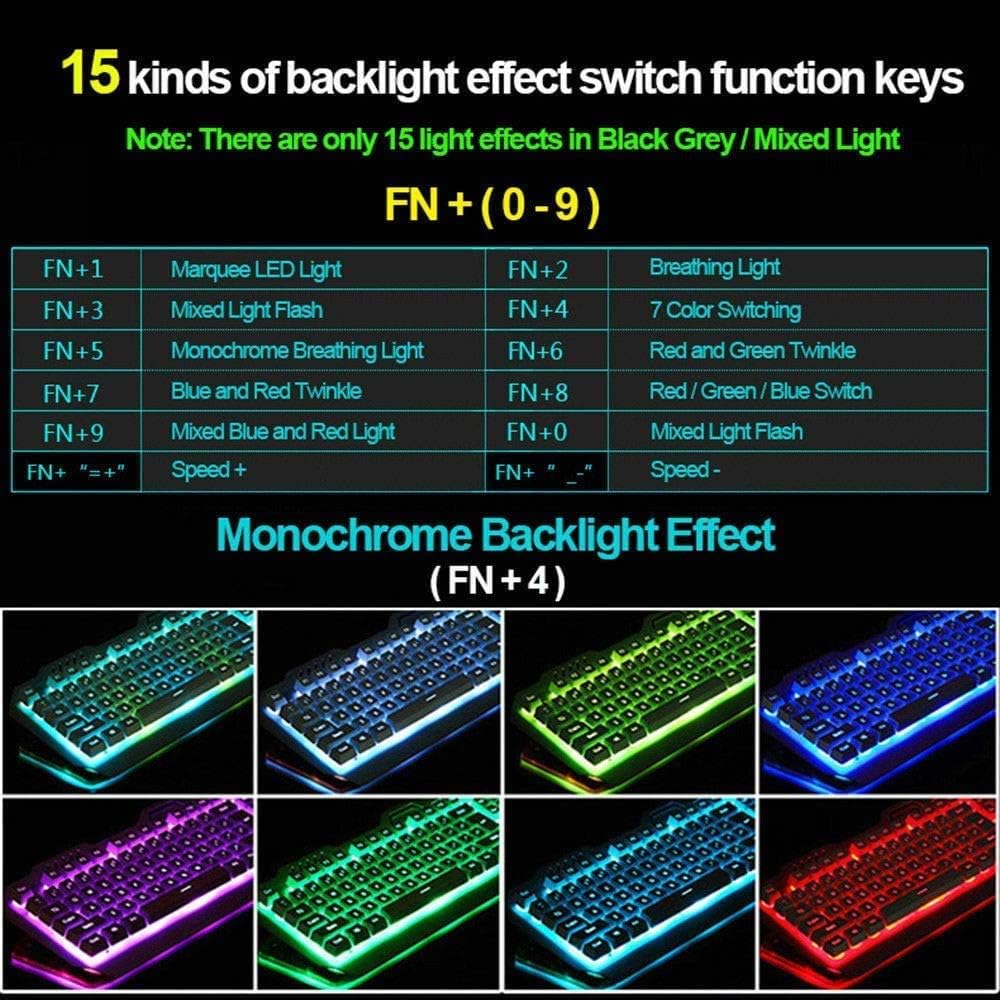
Image: Diagram illustrating the 15 different backlight effect switch function keys on the keyboard, activated by FN + (0-9).

Image: Close-up of the keyboard showing the magnetic wrist rest being attached, highlighting its ease of use and ergonomic benefit.
Mouse Functions
- DPI Adjustment: The mouse features 4-level on-the-fly DPI adjustment (1200, 1600, 2400, 3200) for customizable sensitivity. Use the dedicated DPI button to cycle through settings.
- 6-Button Design: Includes left-click, right-click, scroll wheel, DPI button, and forward/backward buttons for enhanced control.
- RGB Lighting: The mouse has a pulsing RGB lighting effect that cycles automatically through colors.

Image: Detailed diagram of the USB wired backlit gaming mouse, pointing out its features like DPI adjustment, scroll wheel, and forward/backward buttons.
RGB Mouse Pad
- 10 Lighting Modes: The oversized mouse pad offers 10 different lighting modes, including 7 single-color modes, breathing mode, rainbow flash mode, and rainbow flow mode.
- Control Button: A dedicated button on the mouse pad allows you to cycle through the lighting modes.

Image: Visual representation of the 10 lighting modes available for the RGB mouse pad, including various static colors and dynamic effects.
Official Product Video
Video: A demonstration of the FELICON K618 wired gaming keyboard and mouse combo, showcasing its features and RGB lighting in action.
Maintenance
- Cleaning: Use a soft, dry cloth to clean the surfaces of the keyboard, mouse, and mouse pad. For stubborn dirt, a slightly damp cloth can be used, ensuring no liquid enters the devices.
- Spill-Resistant Design: The keyboard features a spill-resistant design. In case of accidental spills, promptly disconnect the keyboard and allow it to dry completely before reconnecting.
- Storage: Store the combo in a cool, dry place away from direct sunlight and extreme temperatures when not in use for extended periods.
Troubleshooting
- No Power/Lights: Ensure the USB cable is securely connected to a functioning USB port on your computer. Try a different USB port.
- Keyboard/Mouse Unresponsive: Disconnect and reconnect the USB cable. Restart your computer.
- Lighting Issues: For the keyboard, ensure the backlight is not turned off (FN + PgDn can decrease brightness until off). For the mouse pad, press its control button to cycle through modes or turn it on/off.
- DPI Not Changing: Press the dedicated DPI button on the mouse to cycle through the available sensitivity settings.
- Compatibility: Verify your operating system is listed as compatible (Windows 11/10/8/7, XP, Vista, Mac OS).
Specifications
| Feature | Detail |
|---|---|
| Product Dimensions | 17.32 x 5.31 x 0.14 inches |
| Item Weight | 3.87 pounds |
| Model Number | K13 |
| Brand | FELICON |
| Color | Black & RGB |
| Connectivity Technology | USB |
| Special Feature | Ergonomic |
| Compatible Devices | Personal Computer |
| Manufacturer | FELICON |
| Date First Available | July 12, 2018 |
Warranty and Support
FELICON is committed to delivering high-quality products. If you encounter any issues or are unsatisfied with your product for any reason, please contact our after-sales service for professional assistance.
For support, please visit the FELICON Store on Amazon or refer to the contact information provided with your product packaging.
