
1. Introduction
This manual provides detailed instructions for the installation, operation, and maintenance of your iRV Technologies iRV35 Car Stereo Receiver. Please read this manual thoroughly before using the product to ensure proper function and to prevent damage.

Figure 1: Front view of the iRV35 Car Stereo Receiver, showing the control panel, volume knob, and display.
2. What's in the Box
Upon unpacking, please verify that all items listed below are present and in good condition:
- iRV35 Car Stereo Receiver Unit
- User Manual (this document)
- Connecting Harness
- Remote Control

Figure 2: Package contents of the iRV35, including the main unit, remote control, wiring harness, and user manual.
3. Product Specifications
| Feature | Specification |
|---|---|
| Product Dimensions | 16.9 x 6.5 x 3.9 inches |
| Item Weight | 4.59 pounds |
| Model Number | iRV35 |
| Connectivity Technologies | Bluetooth, USB |
| Wireless Communication | AM/FM, Bluetooth, IR |
| Special Features | Built-in clock, Zone 3 speaker independent control, CEC, HDMI ARC |
| Total HDMI Ports | 1 |
| Audio Output Mode | Surround |
| Surround Sound Channel Configuration | 2.1 |
| Color | Black |
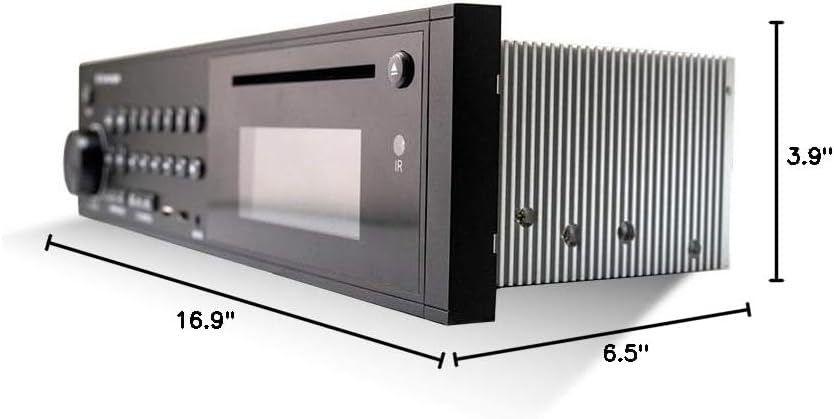
Figure 3: Dimensions of the iRV35 Car Stereo Receiver.
4. Installation
4.1 Mounting
The iRV35 is designed for wall-mount installation, typically in RVs or similar vehicles. Ensure adequate space and ventilation around the unit to prevent overheating. Refer to the dimensions provided in Section 3 for precise measurements.
4.2 Wiring Connections
Connect the provided wiring harness to the corresponding ports on the rear of the iRV35 unit and to your vehicle's electrical system and speakers. Ensure all connections are secure and correctly matched to avoid damage or malfunction. Consult a professional if you are unsure about the wiring process.

Figure 4: Rear view of the iRV35 unit, displaying the various connection ports for power, speakers, and external devices.
4.3 Initial Power-Up
After all connections are made, apply power to the unit. The display should illuminate. If not, recheck all power connections and fuses.
5. Operating Instructions
5.1 Basic Controls
The front panel features a volume knob, mode selection buttons, and playback controls. The included remote control provides full functionality from a distance.
5.2 Bluetooth Pairing
To pair a Bluetooth device:
- Press the Bluetooth button on the unit or remote.
- Ensure Bluetooth is enabled on your smart device.
- Search for available devices and select "iRV35" from the list.
- Confirm pairing on your device.
Note: Some functions may require the dedicated iRV Technologies app, available for Android and Apple devices, which turns your smartphone into a wireless remote control.
5.3 HDMI ARC Functionality
The iRV35 features an HDMI output with Audio Return Channel (ARC) functionality. This allows audio from your TV to be streamed directly to the stereo's speakers, enhancing your entertainment experience. Connect your TV's HDMI ARC port to the HDMI ARC port on the iRV35.
5.4 Independent Zone 3 Control
The iRV35 offers independent control for three audio zones. Use the dedicated Zone 1, 2, and 3 buttons on the front panel to manage audio output to different speaker areas independently.
5.5 Setting the Clock
To set the built-in clock:
- Press and hold the CLOCK button until the clock display flashes.
- Turn the VOLUME knob to adjust the hour.
- Press the VOLUME knob to advance to the minutes setting.
- Turn the VOLUME knob to adjust the minutes.
- Press the CLOCK button again to save the settings.
5.6 Media Playback (DVD/CD/USB)
Insert a DVD or CD into the disc slot for playback. For USB media, insert a USB drive into the designated USB port. The unit supports various audio and video formats including MP3 and MP4.
Video 1: Product Overview of the iRV35 Car Stereo Receiver, demonstrating its features and connectivity options.
6. Maintenance
6.1 Cleaning
Wipe the unit's exterior with a soft, dry cloth. Do not use abrasive cleaners or solvents. Keep the disc slot and USB port free of dust and debris.
6.2 Ventilation
Ensure the unit has proper ventilation to prevent overheating, especially during extended use. Do not block any ventilation openings.
7. Troubleshooting
7.1 No Power
- Check all power connections to ensure they are secure.
- Verify the vehicle's fuse box for any blown fuses related to the stereo.
- Ensure the unit's power button is pressed.
7.2 Bluetooth Connectivity Issues
- Ensure the iRV35 is in Bluetooth mode.
- Confirm Bluetooth is enabled on your smart device and it is within range.
- Try unpairing and re-pairing the device.
- If using the app, ensure it is correctly installed and updated.
7.3 No Audio Output
- Check speaker connections at the unit and at the speakers.
- Ensure the correct audio source is selected (e.g., DVD, USB, Bluetooth).
- Verify that the volume is not muted or set too low.
- Check the Zone 3 controls to ensure audio is enabled for the desired zone.
7.4 Unit Overheating
- Ensure there is sufficient airflow around the unit.
- Do not block ventilation grilles.
- If the issue persists, contact customer support.
8. Warranty and Support
iRV Technologies products are manufactured to high-quality standards. For warranty information, please refer to the warranty card included with your product or visit the official iRV Technologies website. If you encounter any issues not covered in this manual, or require further assistance, please contact iRV Technologies customer support.
Contact information can typically be found on the manufacturer's website or on the product packaging.


