
1. Overview
The BrosTrend AC1200 Dual-Band USB WiFi Adapter is designed to provide high-speed wireless connectivity for your computer. It supports both 5GHz (up to 867Mbps) and 2.4GHz (up to 300Mbps) bands, offering flexibility and performance for various online activities such as 4K video streaming, gaming, and high-quality audio. This adapter is compatible with a wide range of Linux distributions and Windows operating systems, ensuring broad usability.

Figure 1: BrosTrend AC1200 USB WiFi Adapter in use with a laptop.
2. Package Contents
Please verify that all items are present in your package:
- 1 x BrosTrend AC1200 Long Range Linux USB WiFi Adapter
- 2 x External High Gain Antennas
- 1 x 5-Feet USB 3.0 Extension Cradle

Figure 2: Package contents including the adapter, antennas, and USB extension cradle.
3. Setup Instructions
Follow these steps to set up your BrosTrend AC1200 USB WiFi Adapter:
- Attach the Antennas: Carefully screw the two external high-gain antennas onto the adapter's connectors. Ensure they are securely fastened.
- Connect to your Computer:
- Direct Plug: Insert the USB 3.0 connector of the adapter directly into an available USB 3.0 port on your desktop or laptop.
- Using the Extension Cradle: For optimal placement and signal reception, connect the adapter to the provided 5-feet USB 3.0 extension cradle. Then, plug the cradle's USB connector into a USB 3.0 port on your computer. This allows you to position the adapter for better signal strength.
- Driver Installation:
- For Linux (Kernel 6.2 or newer): The adapter may work out of the box with built-in kernel drivers. For best performance and full features (e.g., AP mode), use the installer provided by BrosTrend, especially for supported Debian-based distributions (kernels up to 6.14).
- For Windows 11/10/8.1/8/7: Drivers are typically installed automatically. If not, please refer to the BrosTrend support website for driver downloads.
- Verify Connection: Once connected and drivers are installed, the adapter's indicator light should illuminate. You can then proceed to connect to your desired Wi-Fi network through your operating system's network settings.

Figure 3: Connecting the adapter to a laptop.

Figure 4: Adapter connected to a desktop PC.
4. Operating Instructions
After successful installation, the BrosTrend AC1200 adapter will function as your computer's primary Wi-Fi device. You can manage your wireless connections through your operating system's standard network interface.
- Connecting to a Wi-Fi Network: Open your system's network settings, locate the list of available Wi-Fi networks, select your desired network, and enter the password if required.
- Dual-Band Operation: The adapter automatically detects and connects to both 2.4GHz and 5GHz networks. For faster speeds and less interference, prioritize connecting to 5GHz networks when available and within range. The 2.4GHz band offers wider coverage and better penetration through walls.
- Antenna Adjustment: The two 5dBi external antennas can be rotated 360 degrees. Adjust their orientation to achieve the best possible signal strength and stability for your location.
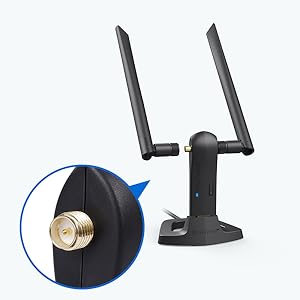
Figure 5: Adjustable antennas for optimized signal reception.
5. Key Features
- Multi-OS Support: Compatible with Linux distributions (kernel 6.2+ including Ubuntu, Debian, Mint, Kali, Raspberry Pi OS) and Windows 11/10/8.1/8/7.
- Fast Wi-Fi Speed: Achieves 867Mbps on the 5GHz band and 300Mbps on the 2.4GHz band.
- Boosted Wireless Range: Equipped with two 5dBi long-range Wi-Fi antennas and two internal signal power amplifiers for extended coverage and stability.
- Advanced WPA3 Security: Supports WPA3-SAE, WPA2/WPA/WEP, AES/PSK/TKIP, and 802.1x for secure network connections.
- Multiple Working Modes: Supports IBSS, Managed, AP, P2P-client, and P2P-GO modes.
- USB 3.0 Interface: Provides data transfer speeds up to 10 times faster than USB 2.0, ensuring stable and efficient performance.

Figure 6: Multi-OS compatibility for Linux and Windows.

Figure 7: AC1200 dual-band speed capabilities.

Figure 8: USB 3.0 port for high-speed data transfer.
Video 1: Overview of the BrosTrend AC1200 Long Range Linux USB WiFi Adapter, demonstrating its features and connectivity.
6. Specifications
| Brand | BrosTrend |
| Model Number | AC3L Linux WiFi Adapter |
| Hardware Interface | USB 3.0 |
| Color | Black |
| Compatible Devices | Desktop, laptop, computer, PC, notebook |
| Product Dimensions (L x W x H) | 3.7" x 3.9" x 7" (9.4cm x 9.9cm x 17.8cm) |
| Data Link Protocol | IEEE 802.11ac/n/a 5GHz, IEEE 802.11n/g/b 2.4GHz |
| Data Transfer Rate | 1200 Megabits Per Second (867Mbps on 5GHz, 300Mbps on 2.4GHz) |
| Item Weight | 60 Grams |
| Compatible Operating System Family | Linux (kernel 6.2+), Windows (11/10/8.1/8/7) |
| Manufacturer | BrosTrend Technology LLC |
7. Troubleshooting
If you encounter issues with your BrosTrend AC1200 USB WiFi Adapter, consider the following:
- No Wi-Fi Connection:
- Ensure the adapter is securely plugged into a USB 3.0 port.
- Verify that the drivers are correctly installed for your operating system. Check the BrosTrend support website for the latest drivers.
- Restart your computer and your Wi-Fi router.
- Slow Speeds or Unstable Connection:
- Adjust the orientation of the external antennas for optimal signal reception.
- Try connecting to a different Wi-Fi band (5GHz for speed, 2.4GHz for range).
- Ensure the adapter is not obstructed by large objects or other electronic devices that may cause interference.
- If using the extension cradle, ensure the cradle is placed in an open area with minimal obstructions.
- Compatibility Issues:
- Confirm your Linux kernel version is 6.2 or newer. Some older Linux kernels or specific distributions (e.g., RHEL, CentOS, openSUSE Leap) may not be compatible.
- Ensure your operating system is one of the supported Windows versions.
Video 2: Demonstration of the BrosTrend AC1200 Long Range USB WiFi Adapter for PC, highlighting its ease of use and performance.
8. Warranty & Support
BrosTrend offers a 2-Year Warranty for this product upon registration. For technical assistance, driver downloads, or any inquiries, please contact BrosTrend Support Team.
Support Email: support@brostrend.com
For more information and resources, visit the official BrosTrend website.


