
1. Product Overview
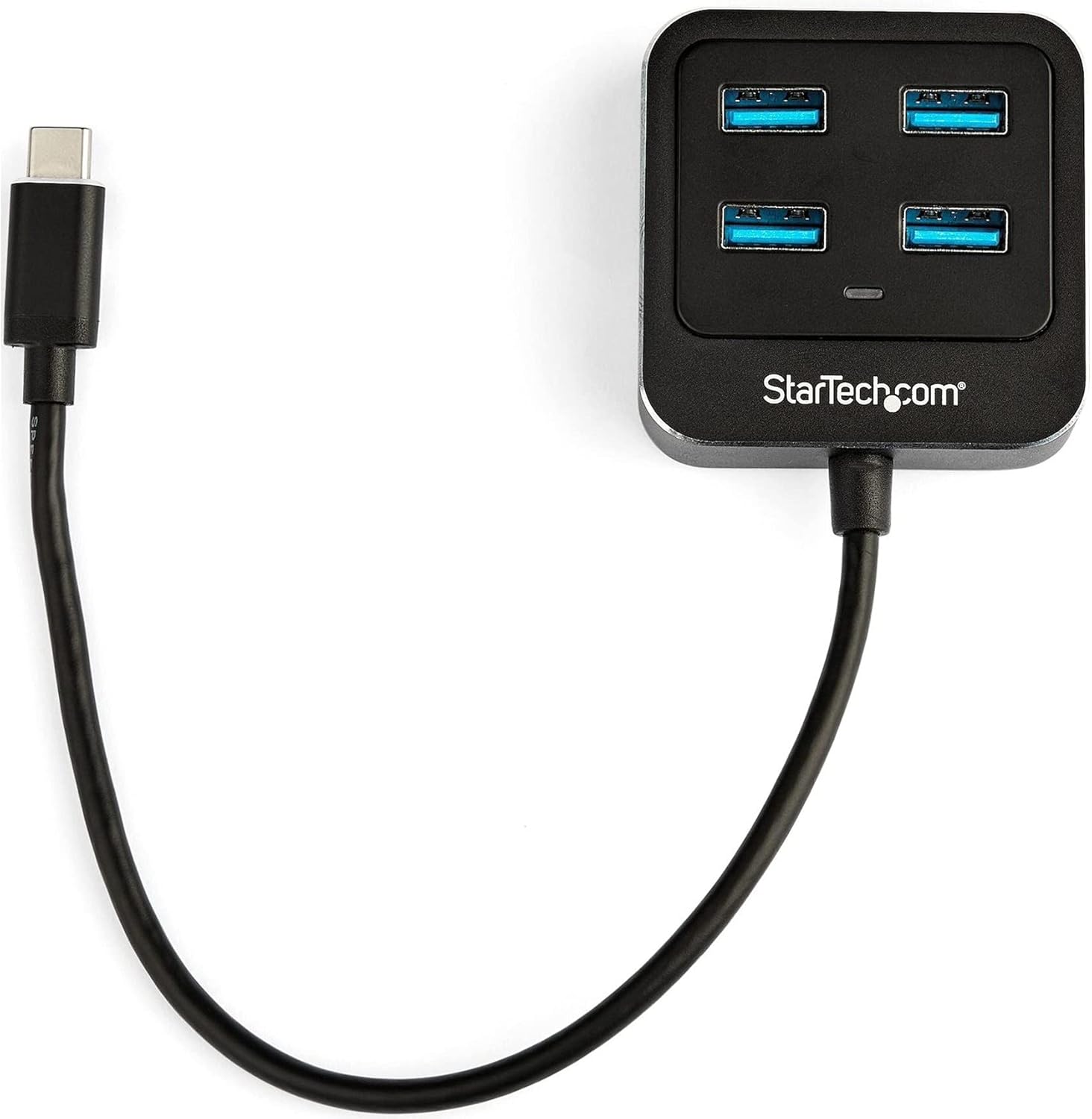
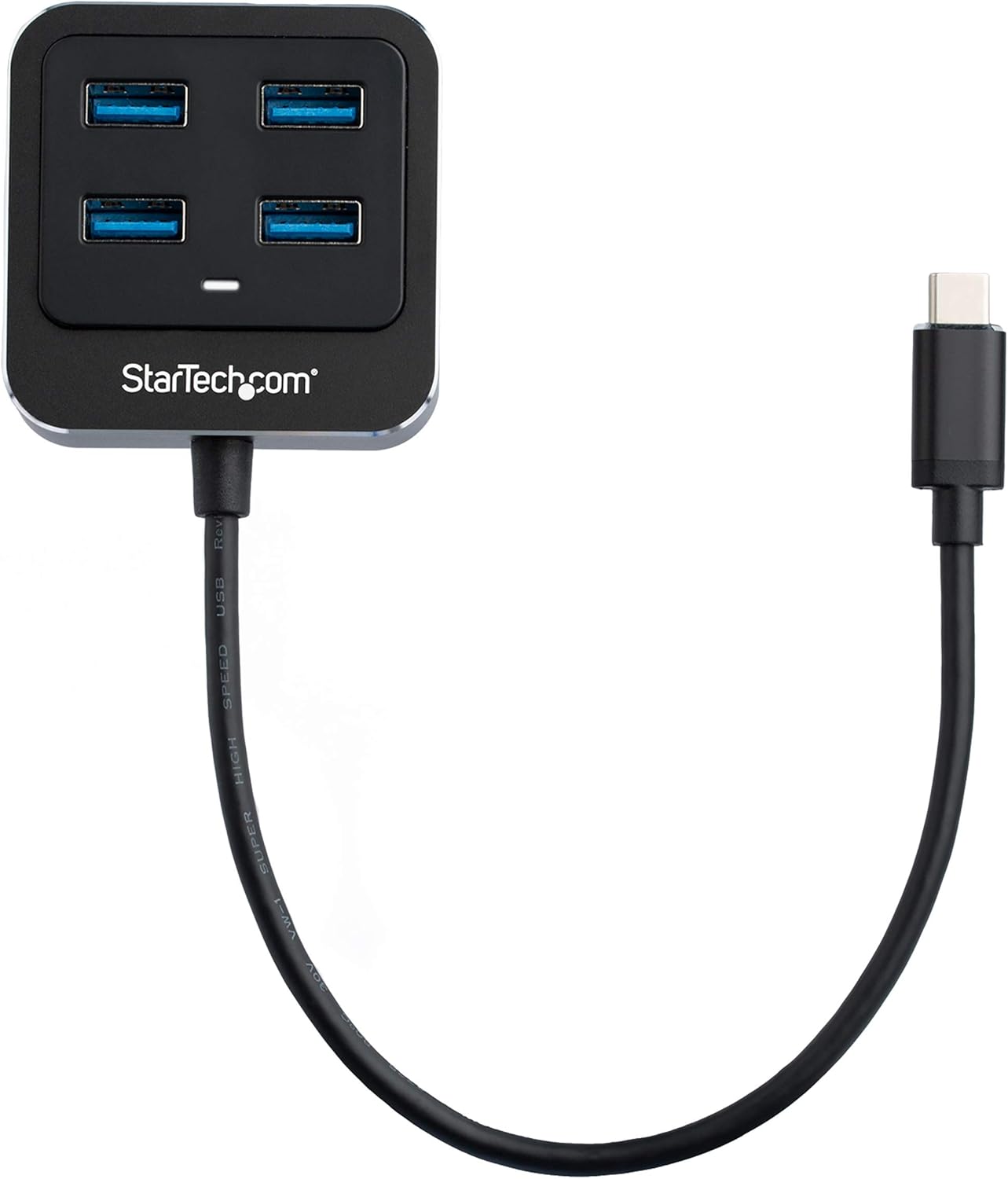
The StarTech.com HB31C4AB is a 4-port USB-C hub designed to expand the connectivity of your USB-C or Thunderbolt 3 enabled laptop or desktop. It provides four USB 3.1 Gen 2 Type-A ports, allowing you to connect multiple USB devices with high-speed data transfer capabilities.
This hub is bus-powered, meaning it draws power directly from your computer's USB-C port, eliminating the need for an external power adapter. Its compact and lightweight design, along with an integrated 9.8-inch (25 cm) cable, makes it suitable for portable use.
Key Features:
- Expands one USB-C port into four USB-A ports.
- Supports SuperSpeed 10Gbps (USB 3.1/3.2 Gen 2) data transfer rates.
- Backward compatible with USB 3.0 and USB 2.0 Type-A devices.
- Bus-powered operation, no external power adapter required.
- Compact and portable design with an integrated USB-C host cable.
- Driverless setup, compatible with Windows, macOS, Linux, iPadOS, and Chrome OS.
- Thunderbolt 3 host compatible.

2. Setup Instructions
2.1 Package Contents
- 1x StarTech.com 4-Port USB-C Hub (HB31C4AB)
2.2 System Requirements
- Host computer with an available USB Type-C port (USB 3.1 Gen 2 or Thunderbolt 3 recommended for full performance).
- Operating System: Windows 10, Windows 7, macOS, Linux, iPadOS, Chrome OS.
2.3 Connecting the Hub
- Locate an available USB Type-C port on your laptop or desktop computer.
- Connect the integrated USB-C cable from the HB31C4AB hub into your computer's USB Type-C port.
- The hub is driverless and should be automatically recognized by your operating system.
- You can now connect your USB-A devices to the four available ports on the hub.
3. Operating Instructions
3.1 Connecting USB Devices
Once the hub is connected to your computer, you can plug up to four USB-A devices into the available ports. These can include flash drives, external hard drives, keyboards, mice, webcams, and headsets.
- High-Speed Data Transfer: The hub supports data transfer speeds of up to 10Gbps, ideal for transferring large files quickly with compatible USB 3.1 Gen 2 devices.
- Backward Compatibility: The hub is backward compatible with older USB 3.0 (5Gbps) and USB 2.0 (480Mbps) devices, allowing you to continue using your existing peripherals.
3.2 Bus Power
The HB31C4AB hub is bus-powered, drawing its operational power directly from the host computer's USB-C port. It provides up to 15W of shared power across all downstream devices. For devices requiring significant power, such as certain external hard drives, ensure they have their own power source or that the total power draw from the hub does not exceed its capacity.
4. Maintenance
To ensure the longevity and optimal performance of your StarTech.com USB-C hub, follow these maintenance guidelines:
- Cleaning: Use a soft, dry cloth to clean the exterior of the hub. Avoid liquid cleaners or solvents.
- Storage: Store the hub in a cool, dry place away from direct sunlight and extreme temperatures.
- Handling: Avoid dropping the hub or subjecting it to strong impacts. Do not bend or twist the integrated cable excessively.
- Environment: Do not expose the hub to moisture or humidity.
5. Troubleshooting
If you encounter issues with your StarTech.com 4-Port USB-C Hub, refer to the following troubleshooting steps:
| Issue | Possible Solution |
|---|---|
| Connected device is not recognized. |
|
| Slow data transfer speeds. |
|
| Insufficient power for connected devices (e.g., external hard drives). |
|
6. Technical Specifications
| Feature | Specification |
|---|---|
| Model Number | HB31C4AB |
| Brand | StarTech.com |
| Ports | 4x USB 3.1 Gen 2 Type-A |
| Host Connector | 1x USB 3.1 Gen 2 Type-C (integrated cable) |
| Data Transfer Rate | Up to 10Gbps (USB 3.1 Gen 2) |
| Power Source | USB Bus Powered (up to 15W shared) |
| Operating System Compatibility | Windows, macOS, Linux, iPadOS, Chrome OS |
| Dimensions (LxWxH) | 2.2 x 2.2 x 0.7 inches (56 x 56 x 19 mm) |
| Item Weight | 1.9 ounces (54 g) |
| Color | Black |
| Material | Aluminum & Plastic Housing |
7. Warranty and Technical Support
StarTech.com products are backed by a comprehensive warranty. For specific warranty details, please refer to the warranty information included with your product or visit the official StarTech.com website.
For technical support, product documentation, drivers, and FAQs, please visit the StarTech.com support page or contact their customer service directly. Contact information can typically be found on the StarTech.com website.
Online Support: www.startech.com/support


