
EASYTONE T95
EASYTONE T95 Android 10.0 4K Smart TV Box User Manual
Model: T95
Introduction
This user manual provides detailed instructions for the setup, operation, maintenance, and troubleshooting of your EASYTONE T95 Android 10.0 4K Smart TV Box. Please read this manual carefully before using the device to ensure optimal performance and longevity.
1. Setup
1.1 Unboxing and Package Contents
Carefully unpack your EASYTONE T95 Android TV Box and verify that all components are present. The standard package includes the TV box, remote control, HDMI cable, power adapter, and a user manual.

Image: The package contents of the EASYTONE T95 Android TV Box, including the main unit, remote, cables, and manual.
1.2 Connecting the TV Box
- Connect to TV: Use the provided HDMI cable to connect the TV Box to an HDMI input port on your television. Note the HDMI port number (e.g., HDMI 1, HDMI 2).
- Connect Power: Plug the power adapter into the DC port on the TV Box, then plug the adapter into a wall outlet.
- Network Connection:
- Wi-Fi: For wireless internet, ensure your Wi-Fi router is on and within range. You will configure Wi-Fi settings during initial setup.
- Ethernet: For a wired connection, connect an Ethernet cable from your router to the LAN port on the TV Box.

Image: Visual representation of the three simple steps to install the EASYTONE T95 Android TV Box: connect to TV, connect to network, and start watching.

Image: Depiction of the device's fast 2.4G WiFi technology, highlighting its network capabilities.
1.3 Initial Power On and Basic Settings
After connecting all cables, turn on your TV and select the correct HDMI input source. The TV Box should power on automatically. Follow the on-screen prompts to complete the initial setup, which typically includes:
- Language selection
- Network connection (Wi-Fi password entry if applicable)
- Google account sign-in (optional, but recommended for app downloads)
- Time zone and date settings
2. Operating Instructions
2.1 Navigating the Interface (Android 10.0 System)
Your EASYTONE T95 runs on the Android 10.0 operating system, offering a stable and user-friendly experience. Use the provided remote control to navigate through menus and select applications.

Image: Screenshot of the Android 10.0 system interface on the TV Box, showing various app icons like Netflix, Plex, Disney+, and YouTube.
The home screen typically displays frequently used apps and recommended content. You can customize the layout and add shortcuts to your favorite applications.
2.2 App Installation and Management
Access the Google Play Store to download and install a wide variety of applications, including streaming services, games, and utility tools. To manage installed apps, go to Settings > Apps.
2.3 Media Playback
The EASYTONE T95 supports 4K Ultra HD resolution with HDR10, providing a high-quality viewing experience. It also features H.265 HEVC video decoding for efficient streaming and playback.
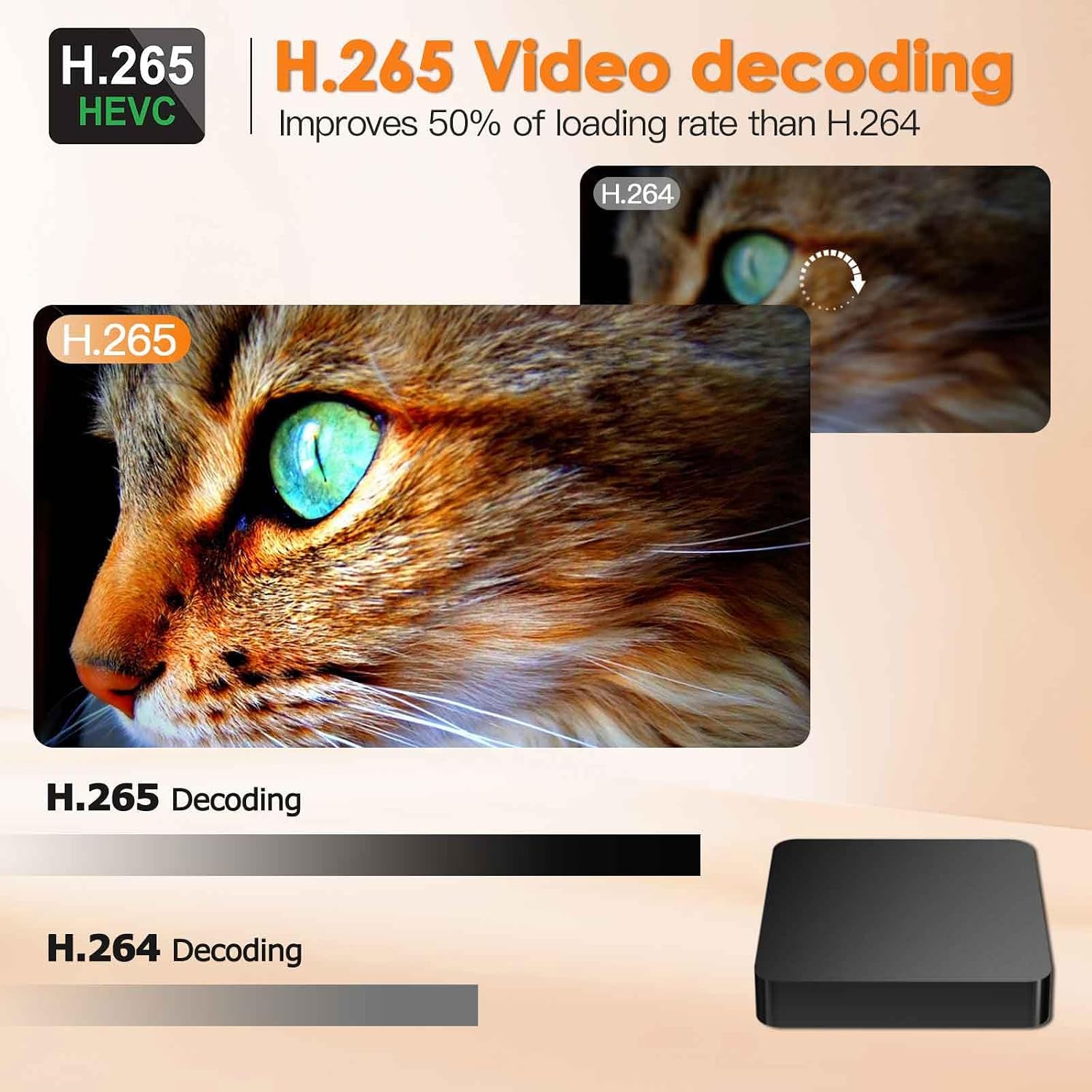
Image: A scene from a movie displayed in 4K HDR10 Ultra HD quality, emphasizing the device's high-resolution capabilities.

Image: Comparison of H.265 HEVC decoding versus H.264, illustrating the improved efficiency and quality of H.265 for video playback.
You can play media from various sources:
- Streaming Apps: Use pre-installed or downloaded apps like Netflix, YouTube, Disney+, etc.
- Local Storage: Connect USB drives or SD cards to play media files directly.
- Network Storage: Access media from network-attached storage (NAS) devices.
2.4 Screen Sharing
The TV Box supports screen sharing features, allowing you to cast content from your mobile devices to your television. Refer to your mobile device's screen mirroring or cast settings for compatibility and instructions.

Image: A tablet displaying content being mirrored to a large screen TV via the TV Box, demonstrating the screen sharing feature.
2.5 Remote Control Usage
The included remote control allows for easy navigation. Familiarize yourself with the buttons for power, volume, navigation, home, back, and app shortcuts.
Video: A short preview demonstrating the basic functionality and interface of an Android TV Box, highlighting its streaming capabilities and ease of use.
3. Maintenance
3.1 Cleaning the Device
To maintain optimal performance, regularly clean the exterior of the TV Box with a soft, dry cloth. Avoid using liquid cleaners or abrasive materials.
3.2 Software Updates
Periodically check for system updates to ensure your device has the latest features and security patches. Go to Settings > About > System Update to check for and install updates.
3.3 Storage Management
The device comes with 16GB of internal storage. To manage storage, go to Settings > Storage. You can clear cache, uninstall unused apps, or expand storage using an SD card or external hard drive via the USB ports.
4. Troubleshooting
4.1 Common Issues and Solutions
- No Power:
Ensure the power adapter is securely connected to both the TV Box and a working power outlet. Try a different outlet.
- No Signal on TV:
Verify the HDMI cable is properly connected to both the TV Box and the TV. Ensure your TV is set to the correct HDMI input source.
- Wi-Fi Connection Issues:
Check if your Wi-Fi router is working correctly. Re-enter the Wi-Fi password in Settings > Network & Internet. Try restarting both the TV Box and your router.
- Apps Crashing or Slow Performance:
Clear the cache for the problematic app (Settings > Apps > [App Name] > Clear Cache). Close background apps. Restart the TV Box. Consider uninstalling and reinstalling the app.
4.2 Factory Reset
If you encounter persistent issues, a factory reset can resolve many software-related problems. Warning: A factory reset will erase all data, settings, and installed applications from your device. Go to Settings > System > Reset options > Erase all data (factory reset) and confirm your choice.
5. Specifications
| Feature | Detail |
|---|---|
| Brand | EASYTONE |
| Model | T95 |
| Model Name | T95 Super |
| Operating System | Android 10.0 |
| CPU | Quad Core CPU H3 Chipset |
| RAM | 2 GB |
| Internal Storage | 16 GB |
| Video Output | 4K Ultra HD, HDR10 |
| Video Decoding | H.265 HEVC |
| Connectivity | Wi-Fi (2.4G), Ethernet, USB 2.0, HDMI, Bluetooth |
| Compatible Devices | Television |
6. Warranty and Support
For warranty information or technical support, please refer to the contact details provided with your purchase or visit the official EASYTONE website. Customer satisfaction is a top priority, and assistance is available for any questions or concerns regarding your product.
You can also visit the EASYTONE Store on Amazon for more information.
Ask a question about this manual
Ask about setup, troubleshooting, compatibility, parts, safety, or missing instructions. Manuals+ will review the question and use this page’s manual context to help answer it.