
Introduction
Thank you for choosing the EVIDA EV-62 Digital Voice Recorder. This manual provides detailed instructions for the proper setup, operation, and maintenance of your device. Please read this manual thoroughly before use to ensure optimal performance and longevity of your recorder.
Product Overview
The EVIDA EV-62 is a portable digital voice recorder designed for high-quality audio capture in various environments, such as lectures, meetings, and interviews. Key features include:
- Superior Audio Quality: Equipped with an 8-core denoiser and two high-sensitivity microphones, capable of recording up to 1536kbps for clear sound capture.
- Variable Playback Speed: Offers 16 levels of playback speed adjustment, allowing users to slow down or speed up recordings for efficient review.
- Voice Activated Recording (VOR): Automatically starts recording when sound is detected and pauses during silence, optimizing storage space and playback time.
- Long Battery Life: Rechargeable battery provides up to 13 hours of continuous recording at 1536kbps.
- Versatile Compatibility: Supports WAV and MP3 recording formats and is compatible with Mac computers.
- Additional Functions: Includes support for external microphones, line-in recording, A-B repeat function, and T-mark for important sections.
Package Contents
Please check the package for the following items:
- EVIDA EV-62 Digital Voice Recorder
- USB Cable
- Earbuds
- External Microphone (if included in your specific package)
- Telephone Adapter (if included in your specific package)
- User Manual (this document)
Device Layout
Familiarize yourself with the buttons and ports on your EVIDA EV-62 recorder.

Image: Front view of the EVIDA EV-62 Digital Voice Recorder, showing the display screen, recording indicators, and control buttons such as REC, Play/Pause, Stop, Menu, and T-MARK.
Specific button functions and port locations are detailed in the following sections.
Setup
1. Charging the Device
Before first use, fully charge the recorder. Connect the device to a computer's USB port or a USB wall adapter using the provided USB cable. The battery indicator on the screen will show charging status. A full charge typically takes 2-3 hours.

Image: The EVIDA EV-62 recorder being charged via a USB connection to a laptop, illustrating its long battery life capability and Mac compatibility.
2. Powering On/Off
- To Power On: Slide the power switch to the 'ON' position or press and hold the Power button (if applicable) until the screen illuminates.
- To Power Off: Slide the power switch to the 'OFF' position or press and hold the Power button until the screen turns off.
3. Initial Settings (Date, Time, Language)
Upon first power-on or after a factory reset, you may need to set the date, time, and language. Navigate through the menu using the directional buttons and confirm selections with the 'Play/Pause' button. Refer to the 'Menu Navigation' section for general menu operation.
Operating Instructions
1. Recording Audio
- Standard Recording: Press the REC button to start recording. The screen will display recording time and audio levels. Press the STOP button to end and save the recording.
- Voice Activated Recording (VOR): To enable VOR, navigate to the 'Recording Settings' in the menu and select 'VOR Mode'. When VOR is active, the recorder will automatically start recording when sound is detected and pause when silence occurs. This conserves memory and battery.
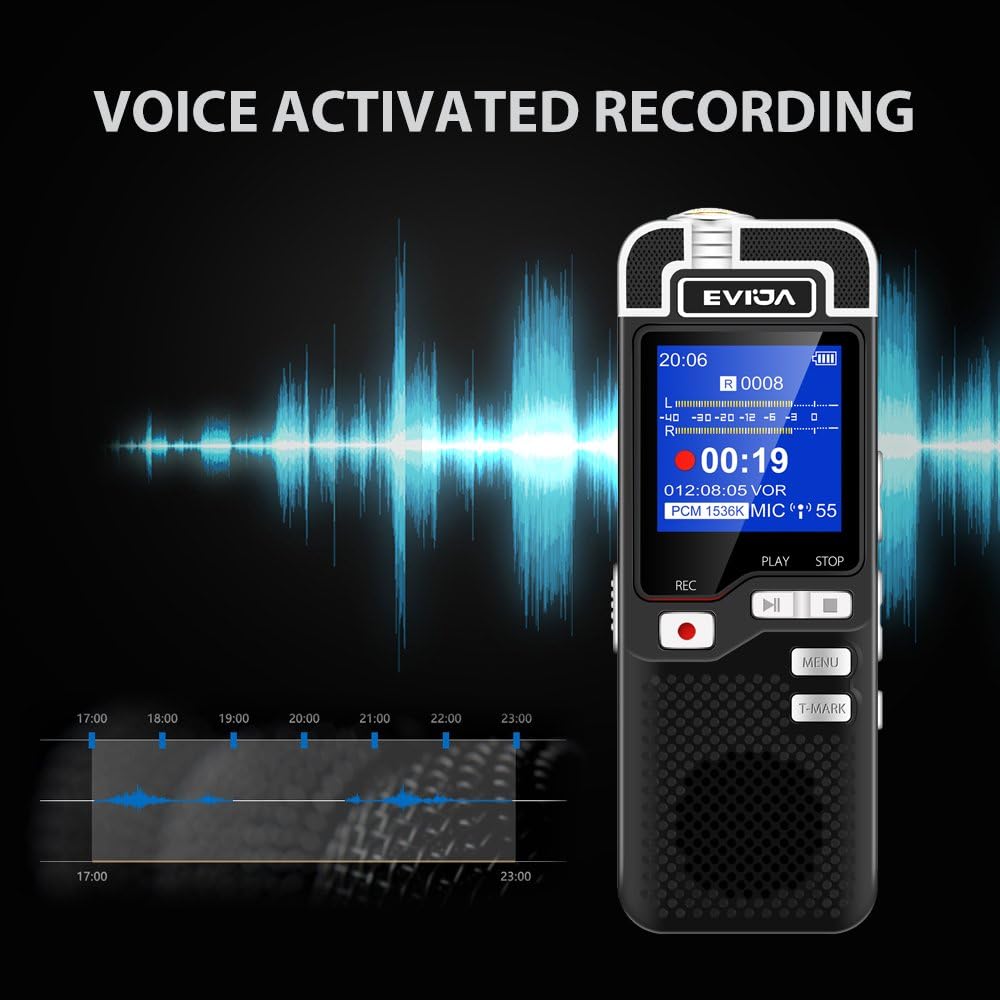
Image: The EVIDA EV-62 recorder displaying its Voice Activated Recording (VOR) mode, showing the device actively recording based on sound input.
For optimal audio quality, ensure the microphones are unobstructed and the device is placed appropriately for the sound source.

Image: A close-up of the EVIDA EV-62 recorder, emphasizing its high-quality recording capabilities with 1536Kbps, an 8-core denoiser, and two HD microphones for clear audio capture.
2. Playback Functions
- Playing Recordings: In the main menu, navigate to 'Recordings' or 'Files'. Select the desired file and press the 'Play/Pause' button to start playback.
- Variable Playback Speed: During playback, access the 'Playback Speed' option in the menu. You can adjust the speed through 16 different levels to suit your listening preference.

Image: The EVIDA EV-62 recorder's display showing the option for 16 different levels of playback speed, indicating its flexibility for reviewing audio.
- A-B Repeat: This function allows you to loop a specific segment of a recording. During playback, press the 'A-B' button (or navigate via menu) to mark the start point (A). Press it again to mark the end point (B). The segment between A and B will repeat.
- T-Mark: Use the 'T-MARK' button to insert a timestamp or bookmark during recording or playback. This helps in quickly locating important sections later.
3. Connecting to a Computer
Connect the recorder to your computer using the supplied USB cable. The device will appear as a removable disk. You can then transfer recorded files to your computer or manage files on the recorder's internal memory (8GB). The device is compatible with both Windows and Mac operating systems.
4. External Microphone and Line-in Recording
The EV-62 supports external audio input. Connect an external microphone to the designated microphone jack for enhanced recording flexibility. The line-in port allows direct recording from other audio sources, such as a telephone adapter or another audio device.

Image: A person holding the EVIDA EV-62 recorder with an external microphone connected, demonstrating its support for external audio input.
Maintenance
1. Battery Care
- Avoid fully discharging the battery frequently.
- Charge the device regularly, even if not in use, to maintain battery health.
- Do not expose the device to extreme temperatures, as this can degrade battery performance.
2. Storage
Store the recorder in a cool, dry place away from direct sunlight and moisture. Use a protective case to prevent scratches and damage.
3. Cleaning
Wipe the device with a soft, dry cloth. Do not use liquid cleaners or abrasive materials, as they may damage the surface or internal components.
Troubleshooting
| Problem | Possible Cause | Solution |
|---|---|---|
| Device does not power on. | Low battery; Power switch in OFF position. | Charge the device fully. Ensure the power switch is in the 'ON' position. |
| Cannot record. | Memory full; Device in playback mode; Microphone obstructed. | Delete old files to free up space. Ensure the device is in recording mode. Check for obstructions around the microphones. |
| Poor audio quality. | Distance from sound source; High background noise; Incorrect recording settings. | Move closer to the sound source. Enable noise reduction feature. Adjust microphone sensitivity in settings. |
| Device not recognized by computer. | Faulty USB cable; Loose connection; Driver issue. | Try a different USB port or cable. Ensure the cable is securely connected. Restart both the recorder and the computer. |
| "No files found" error. | Files deleted or corrupted; Device error. | Connect to a computer to check file system. If problem persists, contact customer support. |
Specifications
| Feature | Detail |
|---|---|
| Brand | EVIDA |
| Model Number | EV-62 |
| Product Dimensions | 10.11 x 3.71 x 1.19 cm |
| Item Weight | 60 grams |
| Memory Storage Capacity | 8 GB |
| Recording Formats | MP3, WAV |
| Highest Recording Quality | 1536kbps |
| Microphone Operation Mode | Stereo |
| Hardware Interface | USB |
| Compatible Devices | Personal Computer (Windows, Mac) |
| Battery Type | 1 Lithium Polymer (included) |
| Battery Life (Recording) | Up to 13 hours (at 1536kbps) |
| UPC | 680491398550 |
Warranty and Support
EVIDA provides a 2-year warranty for the EV-62 Digital Voice Recorder, covering manufacturing defects and malfunctions under normal use. Additionally, lifetime technical support is available to assist you with any questions or issues you may encounter.
For support, warranty claims, or to request a free e-book or video tutorial, please contact EVIDA Customer Support directly via the email address provided on the small card included in your product package. Please do not use the EVIDA website support page for direct assistance as per previous customer feedback.
We are committed to ensuring your satisfaction with our product. Happy recording!


