
Introduction
This manual provides detailed instructions for the Cable Matters USB-C Dual 4K DisplayPort Docking Station, Model 201054. This docking station is designed to expand the connectivity of Windows computers equipped with a USB-C or Thunderbolt 3 port, offering dual 4K display output, power delivery, and various peripheral connections.
Please read this manual thoroughly before using the product to ensure proper setup and operation.
Product Features
The Cable Matters USB-C Dual 4K DisplayPort Docking Station offers a comprehensive set of features to enhance your workstation:
- Dual 4K Display Output: Supports two 4K DisplayPort displays (up to 3840x2160@30Hz or one 4K@60Hz) or dual 1080p/1440p displays via MST technology.
- 80W Power Delivery: Charges connected laptops up to 80 watts via the USB-C host port.
- High-Speed USB Ports: Includes USB 3.1 Gen 2 (10Gbps) USB-A and USB-C ports, along with additional USB 3.0 and USB 2.0 ports for various peripherals.
- Gigabit Ethernet: Provides a stable and fast wired network connection (up to 1000Mbps).
- UHS-II SD Card Reader: Supports high-speed data transfer from SD, SDHC, and SDXC memory cards.
- Audio Connectivity: Features 3.5mm audio input (microphone) and output (headset/speaker) ports.
- Dynamic Bandwidth Switch: Allows selection between 4K Mode (optimized for dual 4K displays) and HD Mode (optimized for dual HD displays and full USB 3.0/Gigabit Ethernet speeds).
Hardware Overview
Familiarize yourself with the ports and indicators on your docking station.

Image: Front and rear view of the docking station, highlighting all available ports and their functions. The front panel includes USB-A, USB-C, audio jacks, and SD card slots. The rear panel features power input, DisplayPort outputs, Gigabit Ethernet, and additional USB ports.

Image: A side profile of the Cable Matters USB-C docking station, shown vertically in its stand. This view emphasizes the compact design and the arrangement of ports on the front and rear panels.
Setup Instructions
Follow these steps to set up your docking station:
- Connect Power: Connect the included power adapter to the DC-IN 24V/5A port on the rear of the docking station and then to a power outlet.
- Connect to Host Computer: Use a USB-C cable to connect the 'Host USB-C' port on the rear of the docking station to a USB-C or Thunderbolt 3 port on your Windows laptop.
- Connect Displays: Connect your DisplayPort monitors to the 'DP' ports on the rear of the docking station. Ensure your monitors are powered on.
- Connect Peripherals:
- Ethernet: Connect an Ethernet cable from your network router/switch to the Gigabit Ethernet port on the rear.
- USB Devices: Connect your USB peripherals (keyboard, mouse, external drives) to the available USB-A and USB-C ports on the front and rear panels.
- Audio Devices: Connect headphones, speakers, or a microphone to the 3.5mm audio input/output jacks on the front panel.
- Insert SD Cards: If needed, insert your SD or MicroSD cards into the corresponding slots on the front panel.
Your computer should automatically detect and configure the docking station. If not, ensure your computer's USB-C/Thunderbolt 3 drivers are up to date.
Operating Instructions
Dynamic Bandwidth Switch
The docking station features a dynamic bandwidth switch on the rear panel, allowing you to optimize performance based on your display and data transfer needs. This switch toggles between 'HD Setting' and '4K Setting'.

Image: A detailed diagram illustrating the dynamic bandwidth switch on the docking station. It shows two modes: 'HD Setting' for dual 1920x1200@60Hz or one 3840x2160@30Hz display with full Gigabit Ethernet and USB 3.0 speeds, and '4K Setting' for dual 3840x2160@30Hz or one 3840x2160@60Hz display with Ethernet and USB speeds limited to 480Mbps.
- HD Setting: Ideal for dual 1920x1200@60Hz or one 3840x2160@30Hz display. In this mode, Gigabit Ethernet and USB 3.0 data transfer speeds are fully supported.
- 4K Setting: Optimized for dual 3840x2160@30Hz or one 3840x2160@60Hz display. In this mode, Ethernet and USB data transfer speeds are limited to 480Mbps (USB 2.0 equivalent).
Select the setting that best suits your current usage requirements.
Display Configuration
After connecting your displays, you may need to configure them in your operating system settings. Windows typically allows for 'Extend' (separate desktops) or 'Duplicate' (mirroring) modes.

Image: A table detailing the number of extended displays supported by various operating systems when using this docking station. Windows and Linux support 2 displays, while macOS, Android, and ChromeOS support 1 display.
USB Data Transfer and Charging
The docking station provides various USB ports for data transfer and charging.

Image: A graphic detailing the USB 3.1 Gen 2 ports on the front of the dock. It shows an 18W charging USB-C port and a 10W charging USB-A port, both capable of 10Gbps data transfer. A comparison chart illustrates data transfer rates for USB 3.1 Gen 2 (10Gbps), USB 3.1 Gen 1 (5Gbps), and USB 2.0 (480Mbps).
- USB 3.1 Gen 2 Ports: The front USB-A and USB-C ports support up to 10Gbps data transfer. The USB-C port can provide up to 18W charging, and the USB-A port up to 10W.
- UHS-II SD Card Reader: The integrated SD and MicroSD card readers support UHS-II speeds, allowing for faster file transfers compared to UHS-I.
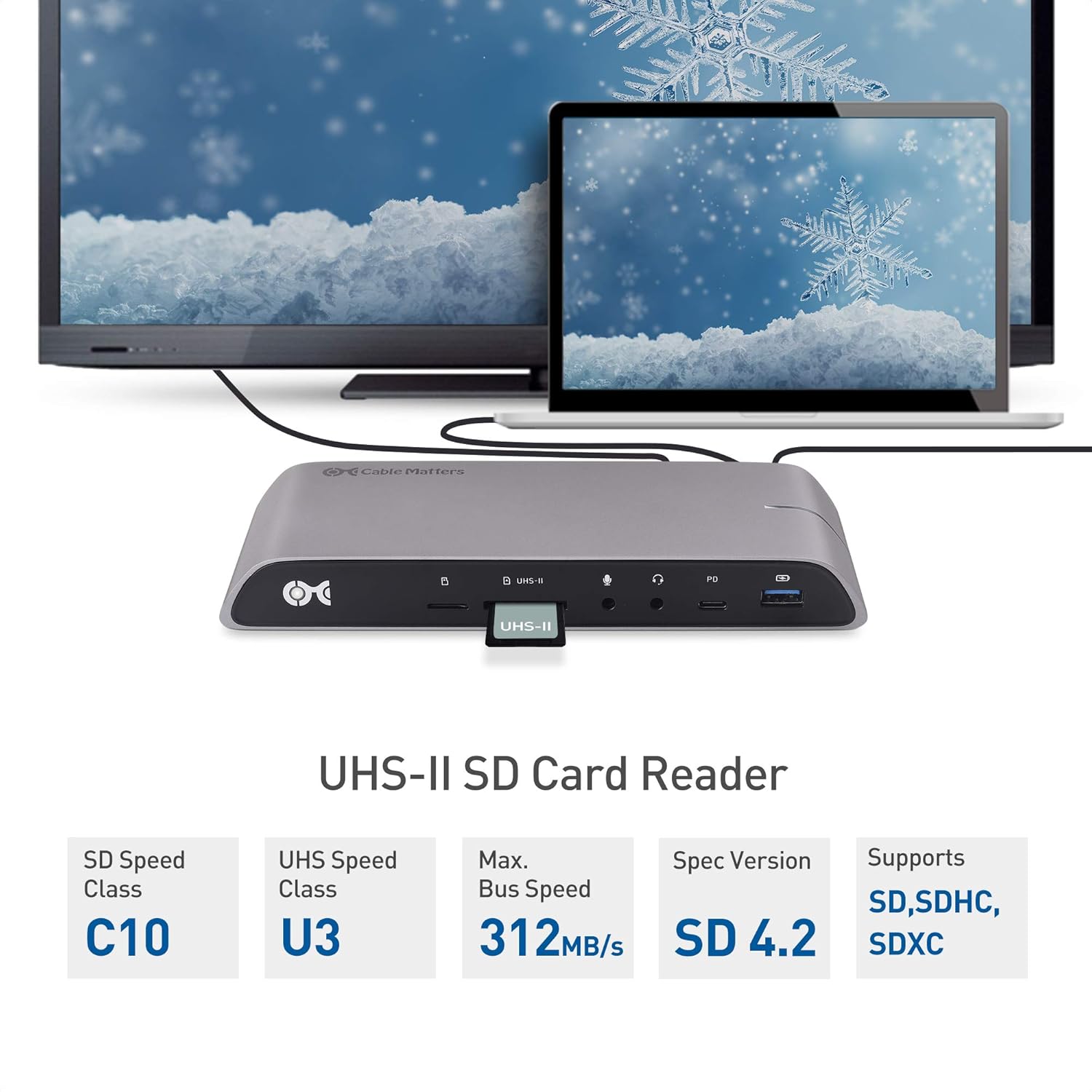
Image: A graphic highlighting the UHS-II SD Card Reader. It displays specifications such as SD Speed Class C10, UHS Speed Class U3, Max Bus Speed 312MB/s, Spec Version SD 4.2, and support for SD, SDHC, and SDXC card types.
Maintenance
To ensure the longevity and optimal performance of your docking station, follow these maintenance guidelines:
- Cleaning: Use a soft, dry cloth to clean the exterior of the docking station. Avoid using liquid cleaners or solvents.
- Storage: Store the docking station in a cool, dry place away from direct sunlight and extreme temperatures when not in use.
- Cable Management: Ensure cables are not excessively bent or strained, which can lead to damage over time.
- Ventilation: Do not block the ventilation openings on the docking station to prevent overheating.
Troubleshooting
If you encounter issues with your docking station, refer to the following common troubleshooting steps:
- No Display Output:
- Ensure the docking station is powered on and the host USB-C cable is securely connected to both the dock and your laptop.
- Verify that DisplayPort cables are securely connected to both the dock and your monitors.
- Check your computer's display settings to ensure the external monitors are detected and configured for 'Extend' or 'Duplicate' mode.
- Try restarting your computer with the dock connected.
- Confirm the dynamic bandwidth switch is set appropriately for your display configuration (HD Setting for lower resolutions, 4K Setting for higher resolutions).
- Laptop Not Charging:
- Ensure the power adapter is correctly connected to the dock and a working power outlet.
- Verify your laptop's USB-C port supports Power Delivery.
- Some laptops require more than 80W; the dock will provide up to 80W, which may result in slower charging or battery drain under heavy load for high-power laptops.
- USB Devices Not Recognized or Slow:
- Ensure the dynamic bandwidth switch is in 'HD Setting' for full USB 3.0 speeds. In '4K Setting', USB speeds are limited to 480Mbps.
- Try connecting the USB device to a different port on the dock or directly to your computer.
- Update your computer's USB drivers.
- Intermittent Connections:
- Ensure all cables are firmly seated.
- Disconnect and reconnect the docking station from your laptop.
- Ensure your laptop's firmware and drivers are up to date.
Specifications
| Feature | Specification |
|---|---|
| Model Number | 201054 |
| Product Dimensions | 7.85 x 2.76 x 1.02 inches |
| Item Weight | 0.01 ounces |
| Power Delivery | Up to 80 watts |
| Display Output | 2x DisplayPort (Dual 4K@30Hz or Single 4K@60Hz) |
| USB Ports | Total 6 (1x USB-C 3.1 Gen 2, 1x USB-A 3.1 Gen 2, 2x USB 3.0, 2x USB 2.0) |
| Ethernet | Gigabit Ethernet (RJ45) |
| Card Reader | UHS-II SD and MicroSD |
| Audio | 3.5mm Audio In/Out |
| Compatible Devices | Windows laptops with USB-C or Thunderbolt 3 (e.g., Dell Precision, XPS, ThinkPad, Aspire, Alienware, Razer Blade Stealth) |
| UPC | 818707023440 |

Image: A diagram showing the physical dimensions of the docking station: approximately 7.9 inches long, 2.8 inches wide, and 1.0 inch thick.
Warranty and Support
Cable Matters products are designed for reliability and performance. For warranty information or technical support, please visit the official Cable Matters website or contact their customer service directly. Keep your purchase receipt for warranty claims.
For further assistance, please refer to the Cable Matters Store on Amazon.


