
1. Introduction
This manual provides essential instructions for the safe and effective use of your DIGITEK DSG-005 3-Axis Handheld Gimbal Stabilizer. Please read this manual thoroughly before operating the device and retain it for future reference.
The DIGITEK DSG-005 is designed to provide stable and smooth footage for smartphones and GoPro cameras. It features a 3-axis stabilization system, intelligent shooting modes, and a long operational time.

Image 1: DIGITEK DSG-005 3-Axis Handheld Gimbal Stabilizer with smartphone mounted, displaying key features and a QR code for app download.
2. Package Contents
Ensure all items are present in the package:
- 1 x DIGITEK DSG-005 Gimbal Stabilizer
- 1 x Belt
- 1 x Charging Cable
- 1 x Mini Tripod Leg
- 1 x Gimbal Catalogue (Manual)
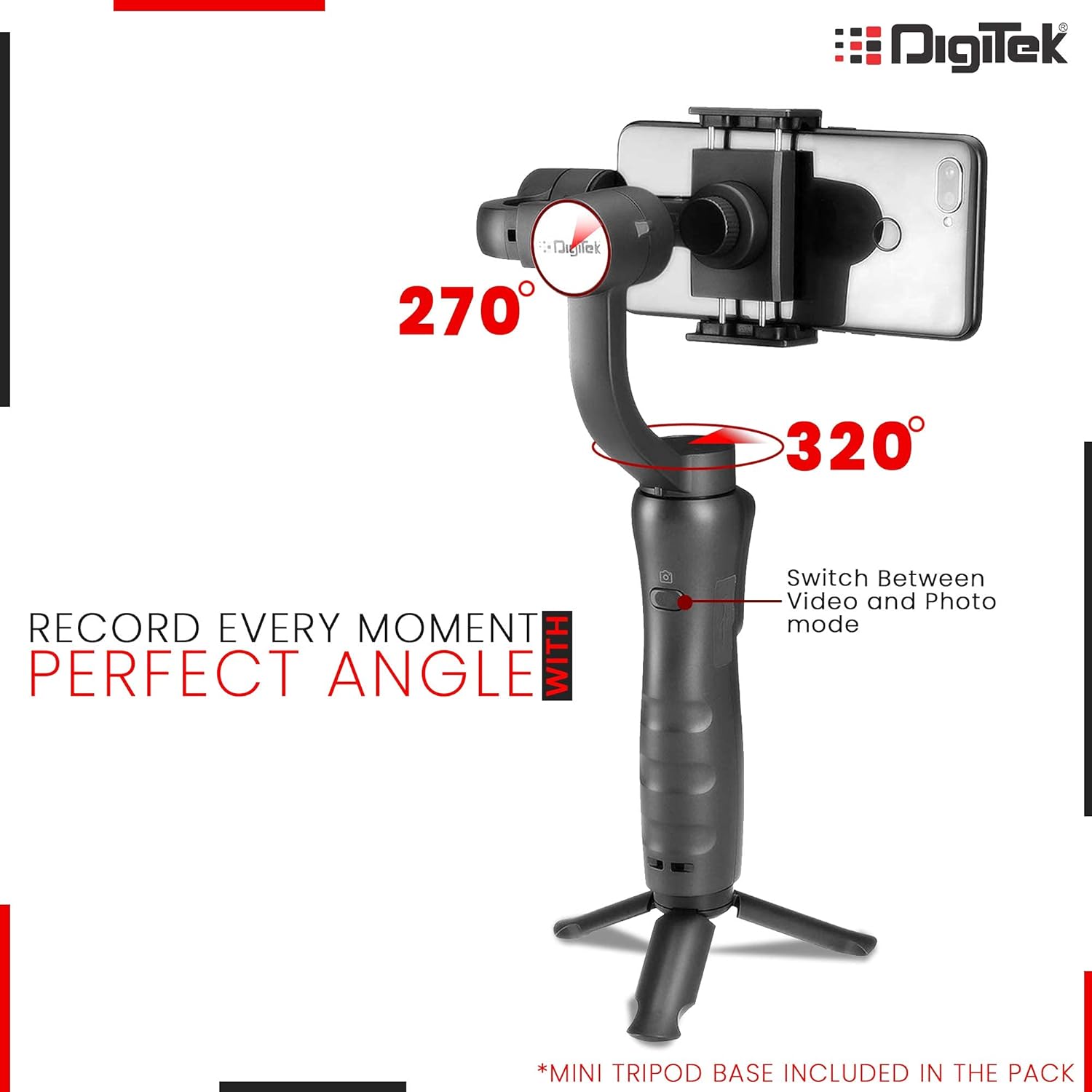
Image 2: The DIGITEK DSG-005 gimbal stabilizer and its accessories neatly packed inside a black, shock-proof hard carry case with red trim.
3. Product Overview
Familiarize yourself with the components of your DSG-005 gimbal stabilizer:

Image 3: The handle of the gimbal, highlighting the joystick for pan/tilt/speed, mode function button, and power on/off button.
- Smartphone Clamp: Secures your smartphone or GoPro.
- Roll Motor: Controls the roll axis for stabilization.
- Tilt Motor: Controls the tilt axis for stabilization.
- Pan Motor: Controls the pan axis for stabilization.
- Joystick: Controls pan, tilt, and speed.
- Power On/Off Button: Turns the gimbal on or off.
- Mode Select Button: Cycles through different operating modes.
- Zoom Slider (W/T): Adjusts zoom in/out.
- Micro USB Charging Port: For charging the gimbal.
- USB Output Port: Can be used to charge a smartphone from the gimbal.
- Indicators: Display battery level and mode status.
4. Setup
4.1. Charging the Gimbal
Before initial use, fully charge the gimbal. The charging time for the lithium battery is approximately 3-4 hours.
- Connect the provided charging cable to the Micro USB Charging Port on the gimbal.
- Connect the other end of the cable to a suitable USB power source.
- The indicator lights will show the charging status.
The gimbal can also function as a power bank to charge your smartphone via its USB Output Port.

Image 4: An illustration of the gimbal's handle with labels pointing to the USB interface for charging a smartphone through the gimbal and the Micro USB interface for charging the gimbal itself.
4.2. Mounting the Smartphone
- Remove your smartphone's protective case, if any, for optimal balance.
- Expand the smartphone clamp and carefully place your smartphone into the holder.
- Slide the smartphone all the way to the right until it touches the Tilt Motor.
4.3. Manual Balancing (Critical Step)
WARNING: Do NOT switch on the gimbal without proper manual balancing. Failure to do so may lead to motor damage and fast battery draining.
Proper balancing is crucial for the gimbal's performance and longevity. If the smartphone does not stay leveled when mounted, follow these steps:
- Loosen the Roll balance Knob.
- Make small adjustments by sliding the horizontal arm until the mobile intersects the stabilizer with a 70-100 degree angle.
- Tighten the Thumb Screw after the phone is well balanced in level to ensure normal operations.

Image 5: A visual guide demonstrating how to place a smartphone into the mounting clip, slide it until it touches the tilt motor, and then adjust the roll balance knob and thumb screw for proper leveling.
Video 1: A detailed instructional video demonstrating the manual balancing process for the DIGITEK DSG-005 gimbal stabilizer, including unfolding, attaching the tripod, placing the smartphone, and adjusting the clamps and knobs for perfect balance.
4.4. App Installation and Bluetooth Connection
For enhanced features and control, download the Gimbal Pro App.
- Scan the QR code on the product packaging or visit https://flowcode.com/p/dX8vRxaV3 to download the Gimbal Pro App for Android or iOS.
- Ensure your smartphone's Bluetooth is enabled.
- If your smartphone was previously connected to other gimbals, please turn them off. If this gimbal was connected to other smartphones, turn off their Bluetooth.
- Hold the Power button on the gimbal to turn on its wireless connectivity.
- Search for new devices on your smartphone's Bluetooth settings and connect to "STABILIZER_9CB565" (or similar).
- Open the Gimbal Pro App to unlock the full experience.
5. Operating Modes and Features
5.1. Power On/Off
Press and hold the Power On/Off button for a few seconds to turn the gimbal on or off.
5.2. Mode Selection
The gimbal offers intelligent shooting modes for versatile capture:
- Pan Mode: Allows horizontal panning.
- Tilt Mode: Allows vertical tilting.
- Lock Mode: Locks the camera in a fixed direction.
- Follow Mode: The gimbal automatically follows the target, keeping the picture stable and smooth.

Image 6: The gimbal with a smartphone mounted, illustrating its range of motion for 270-degree roll and 320-degree pan, along with a button to switch between video and photo modes.
5.3. Joystick Control
Use the joystick to precisely control the pan and tilt movements of your smartphone and adjust the speed of movement.
5.4. Zoom In/Out
Utilize the W/T slider to smoothly zoom in or out during recording, adding dynamic visual impact to your footage.
5.5. Advanced Features (via App)
When connected to the Gimbal Pro App, you can access advanced features:
- Face & Object Tracking: The gimbal will automatically follow the target, ensuring it remains in frame.
- Time-Lapse Video: Compress time and capture fleeting experiences.
- Panoramic Shots: Capture multiple photos and stitch them together for seamless panoramic images.
Video 2: An official product video demonstrating the DIGITEK DSG-005 gimbal stabilizer in action, highlighting its smooth cinematic shots, face detection, low-angle shooting, and ease of use for capturing stable video.
6. Maintenance
- Keep the gimbal clean and free from dust and debris.
- Store the gimbal in its shock-proof hard carry case when not in use to protect it from damage.
- Avoid exposing the gimbal to extreme temperatures or moisture.
- Do not attempt to disassemble or repair the gimbal yourself. Contact customer support for assistance.
7. Troubleshooting
7.1. Gimbal Not Stabilizing / Motor Overheating
- Ensure the smartphone is manually balanced correctly before powering on the gimbal. Refer to Section 4.3.
- Improper balancing puts excessive pressure on the motors, leading to overheating and reduced battery life.
7.2. Short Battery Life
- Ensure the gimbal is fully charged before use.
- Verify that the smartphone is manually balanced. An unbalanced gimbal consumes more power.
7.3. Bluetooth Connection Issues
- Ensure Bluetooth is enabled on your smartphone and the gimbal.
- Forget any previously paired gimbal devices from your smartphone's Bluetooth settings.
- Restart both the gimbal and your smartphone, then attempt to pair again.
7.4. App Crashing / Features Not Working
- Ensure you have the latest version of the Gimbal Pro App installed.
- Clear the app's cache or reinstall the app.
- Verify that your smartphone meets the app's minimum system requirements.
8. Specifications
| Feature | Detail |
|---|---|
| Model Number | DSG 005 |
| Brand | Digitek |
| Dimensions (LxWxH) | 29 x 13 x 29 cm |
| Item Weight | 440 g |
| Compatible Devices | Cellphone (Smartphones & GoPro) |
| Colour | Black |
| Charging Time | 3-4 Hours |
| Operational Time | Up to 12 hours (depending on balancing) |
| Included Components | 1 Gimbal, 1 Belt, 1 Charging Cable, 1 Leg, Gimbal Catalogue |
9. Warranty and Support
9.1. Warranty Information
This product comes with a 1 Year Standard Brand Warranty.
9.2. Customer Support
For any technical issues or further assistance, please contact Digitek Gimbal Customer Care at 011 4707 4444.

