
1. Overview
The Anker Bluetooth Ultra-Slim Keyboard is designed for efficient and quiet typing across multiple operating systems. Its compact and lightweight design makes it suitable for portable use with tablets and other Bluetooth-enabled devices.

Figure 1: Anker Bluetooth Ultra-Slim Keyboard in use, demonstrating its low-profile, soft-press keys for quiet and efficient typing.
Key features include:
- Ultra-slim and lightweight design for portability.
- Bluetooth connectivity, eliminating the need for cables.
- Universal compatibility with Android, iOS, Mac, and Windows devices.
- Quiet, low-profile keys for comfortable typing.
- Power-saving mode for extended battery life.
2. Setup
2.1. Battery Installation
The keyboard operates on standard AAA batteries. To install or replace batteries:
- Locate the battery compartment on the underside of the keyboard.
- Slide open the battery compartment cover.
- Insert the required AAA batteries, ensuring correct polarity (+/-).
- Close the battery compartment cover securely.

Figure 2: The underside of the keyboard, highlighting the power switch and the battery compartment for easy access and replacement.
2.2. Powering On/Off
To power on the keyboard, slide the power switch located on the top edge of the keyboard to the "ON" position. To power off, slide the switch to the "OFF" position.
2.3. Bluetooth Pairing
To connect the keyboard to your device via Bluetooth:
- Ensure the keyboard is powered on.
- Activate Bluetooth on your device (tablet, smartphone, computer).
- Press the Fn key and the Bluetooth key (usually marked with a Bluetooth symbol, often on the 'Z' key) simultaneously to enter pairing mode. The Bluetooth indicator light on the keyboard will flash.
- On your device, search for available Bluetooth devices. Select "Anker Bluetooth Keyboard" from the list.
- Follow any on-screen prompts to complete the pairing process. A successful connection will be indicated by the Bluetooth light turning solid or turning off, depending on the model.
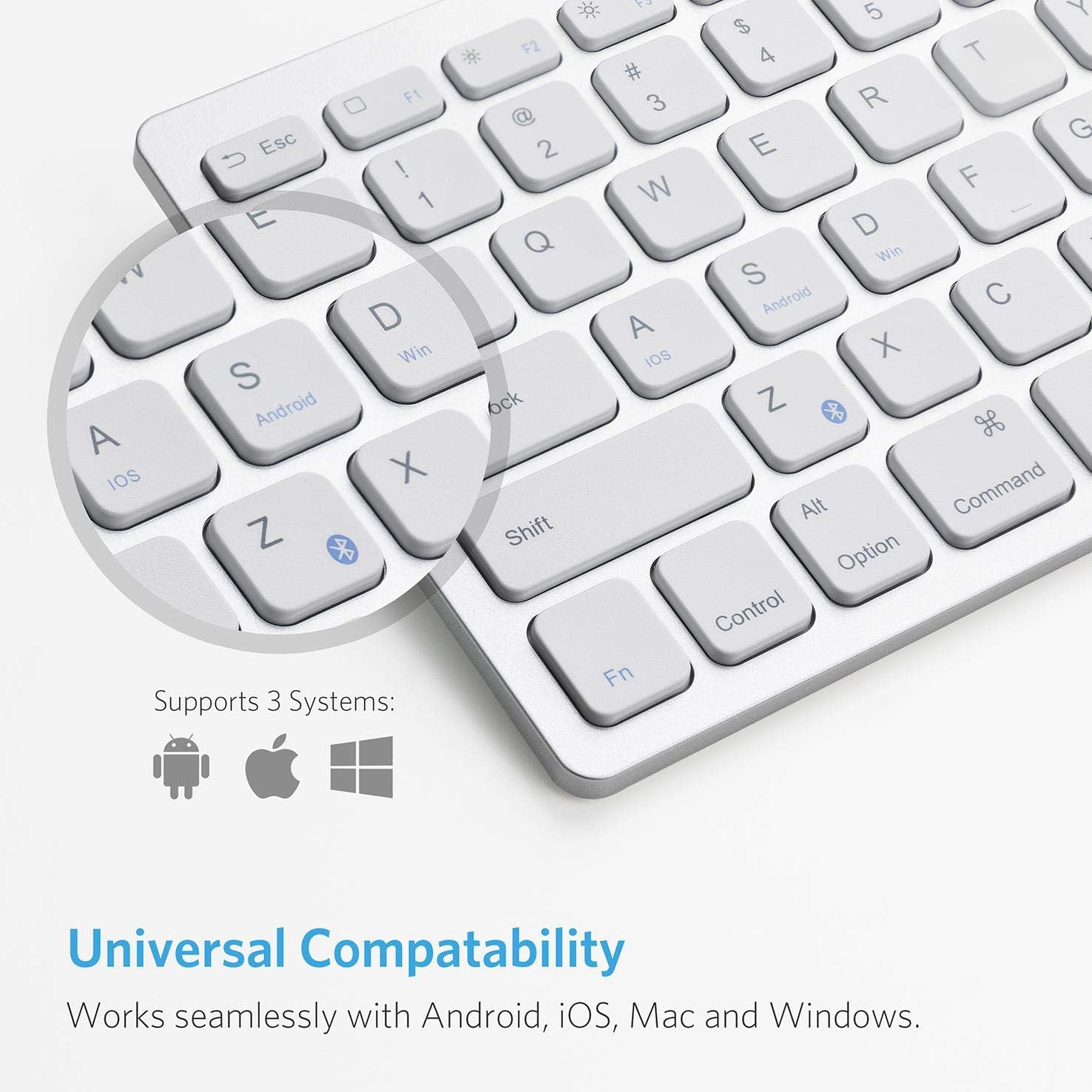
Figure 3: The keyboard features dedicated keys for selecting operating systems (iOS, Android, Windows) to optimize key functions for your device.
3. Operating Instructions
3.1. System Compatibility
The keyboard is designed for universal compatibility. To switch between operating system modes, press the Fn key along with the corresponding OS key:
- Fn + Q for iOS
- Fn + W for Android
- Fn + E for Windows
3.2. Function Keys
The top row of keys provides various function shortcuts. These keys can be used in conjunction with the Fn key for specific actions, such as media control, volume adjustment, and screen brightness.
Refer to your device's operating system for specific function key behaviors.

Figure 4: The keyboard seamlessly complements various devices, offering an enhanced typing experience for on-the-go productivity.
4. Maintenance
4.1. Cleaning
To clean the keyboard:
- Power off the keyboard before cleaning.
- Use a soft, lint-free cloth slightly dampened with water or a mild cleaning solution.
- Avoid excessive moisture and do not spray cleaners directly onto the keyboard.
- For dust and debris between keys, use compressed air.
4.2. Battery Life
The keyboard features a power-saving mode that allows for extended use. Replace batteries when the keyboard's performance diminishes or the indicator light suggests low power. For optimal battery life, power off the keyboard when not in use.
5. Troubleshooting
5.1. Keyboard Not Connecting
- Ensure the keyboard is powered on and has fresh batteries.
- Verify Bluetooth is enabled on your device.
- Make sure the keyboard is in pairing mode (Bluetooth indicator flashing).
- Try unpairing and re-pairing the keyboard from your device's Bluetooth settings.
- Ensure the keyboard is within the effective range of your device (typically up to 10 meters).
5.2. Keys Not Responding
- Check battery levels and replace if necessary.
- Ensure the correct operating system mode is selected (Fn + Q/W/E).
- Restart both the keyboard and your connected device.
6. Specifications
| Brand | Anker |
| Model Number | B07F22RH7F |
| Connectivity | Bluetooth |
| Material | Plastic |
| Color | White |
| Dimensions (Approximate) | 11.2 in (length) x 4.7 in (width) - Based on image 4, not explicitly in JSON specs. |
| Power Source | AAA Batteries (not rechargeable) - Based on review and image 5. |

Figure 5: The slimline design of the keyboard, measuring approximately 6mm thin, with overall dimensions of 11.2 inches in length and 4.7 inches in width.
7. Warranty and Support
For warranty information and customer support, please refer to the documentation included with your product or visit the official Anker website. Keep your proof of purchase for warranty claims.

