
JBL LIVE200BT
JBL LIVE200BT Bluetooth Wireless In-Ear Earphones User Manual
Brand: JBL
Model: LIVE200BT (JBLLIVE200BTBLU)
1. Introduction
The JBL LIVE200BT earphones deliver the legendary JBL Signature Sound, providing a high-quality audio experience. Designed for convenience, these wireless in-ear earphones offer long-lasting battery life, quick charging, and seamless connectivity for music and calls. Their comfortable neckband design and magnetic ear tips ensure ease of use and portability.

Image: The JBL LIVE200BT Bluetooth Wireless In-Ear Earphones in blue, showcasing the neckband and earbuds.
2. What's in the Box
Upon unboxing your JBL LIVE200BT earphones, you should find the following components:
- JBL LIVE200BT Headphones
- Safety Sheet
- Multiple sizes of ear tips (pre-installed and additional pairs)
- USB Charging Cable
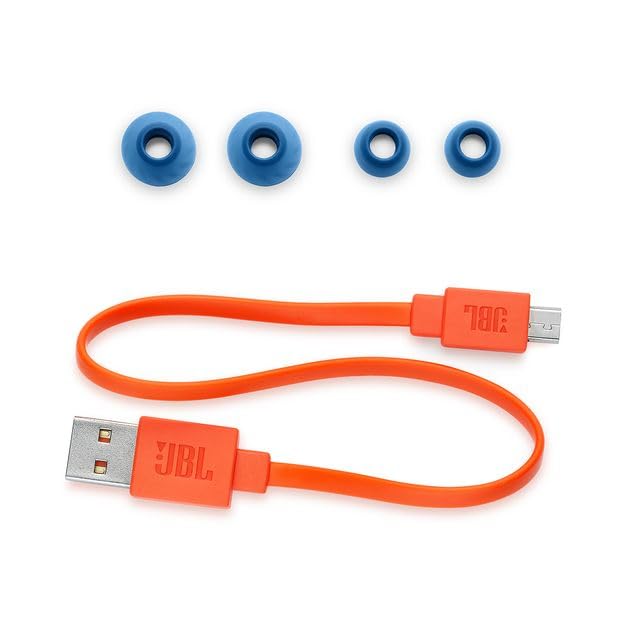
Image: The included accessories for the JBL LIVE200BT, featuring various sizes of blue ear tips and an orange USB charging cable.
3. Setup
3.1 Charging the Earphones
Before first use, it is recommended to fully charge your JBL LIVE200BT earphones. Connect the provided USB charging cable to the charging port located on the neckband and plug the other end into a USB power source (e.g., computer USB port, wall adapter). A full charge takes approximately 2 hours, providing up to 10 hours of playtime.
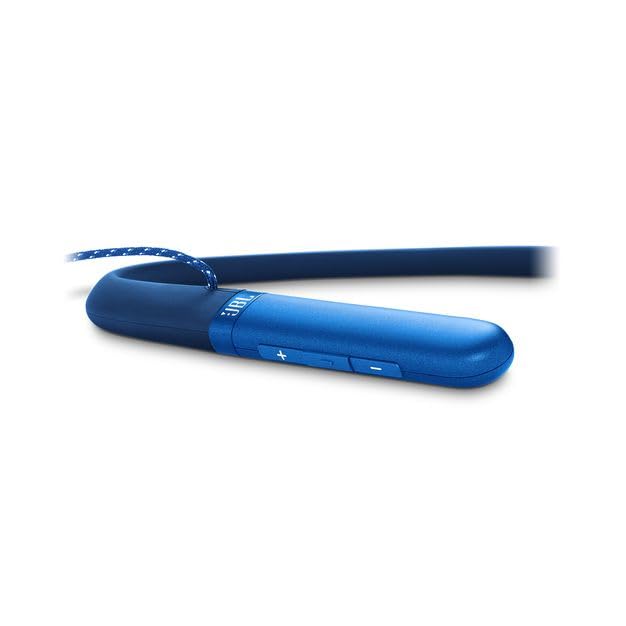
Image: A close-up view of the blue neckband, highlighting the control buttons and the location of the charging port.
3.2 Bluetooth Pairing
- Power On: Press and hold the power button on the neckband until the LED indicator lights up, indicating the earphones are powered on.
- Enter Pairing Mode: The earphones will automatically enter pairing mode when powered on for the first time or if no device is connected. The LED indicator will typically flash blue rapidly.
- Enable Bluetooth on Your Device: On your smartphone, tablet, or other Bluetooth-enabled device, go to the Bluetooth settings.
- Select Earphones: Look for 'JBL LIVE200BT' in the list of available devices and select it to connect.
- Confirmation: Once successfully paired, the LED indicator on the earphones will turn solid blue, and you may hear an audible confirmation tone.
4. Operating Instructions
4.1 Controls
The JBL LIVE200BT features a convenient three-button inline remote on the neckband for easy control:
- Volume Control: Use the '+' and '-' buttons to adjust the listening volume.
- Music Playback: The center button controls play/pause, skip tracks (double-press for next, triple-press for previous).
- Call Management: The center button also allows you to answer/end calls (single press) and reject calls (press and hold).
- Voice Assistant: Quickly launch your device's voice assistant (Google Assistant / Siri) by pressing a dedicated button or a specific combination on the remote.
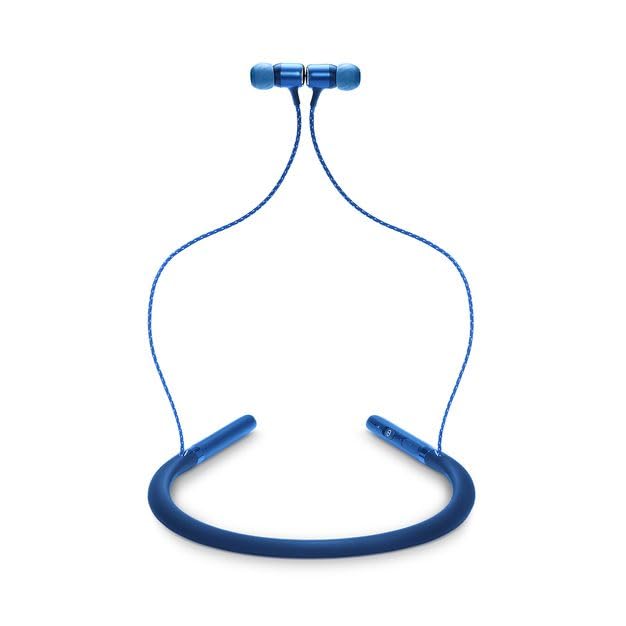
Image: A full view of the JBL LIVE200BT earphones, illustrating the neckband design and earbud placement.
4.2 Magnetic Ear Tips
The ear tips of the JBL LIVE200BT are magnetic, allowing them to snap together when not in use. This feature helps prevent tangling of the cables and provides a convenient way to wear the earphones securely around your neck when you're not listening to audio.
5. Maintenance
Proper care and maintenance will extend the life of your JBL LIVE200BT earphones:
- Cleaning: Regularly wipe the earbuds and neckband with a soft, dry, lint-free cloth. For stubborn dirt, a slightly damp cloth can be used, but ensure the earphones are completely dry before use or charging.
- Storage: When not in use, store the earphones in a clean, dry place away from direct sunlight, extreme temperatures, and excessive humidity. The magnetic ear tips help keep them tidy.
- Avoid Liquids: While the earphones are designed to be waterproof, avoid prolonged submersion in water or exposure to corrosive liquids.
- Cable Care: Do not pull on the cables excessively or wrap them too tightly, as this can damage the internal wiring.
6. Troubleshooting
If you encounter issues with your JBL LIVE200BT earphones, refer to the following common solutions:
- No Power: Ensure the earphones are fully charged. Connect them to a power source and allow sufficient time for charging (approx. 2 hours).
- Cannot Pair with Device:
- Make sure Bluetooth is enabled on your device.
- Ensure the earphones are in pairing mode (LED flashing blue).
- Try restarting both the earphones and your device.
- Ensure no other devices are actively connected to the earphones.
- Clear the Bluetooth pairing history on your device and try pairing again.
- No Sound or Low Volume:
- Check the volume levels on both the earphones and your connected device.
- Ensure the earphones are properly paired and selected as the audio output device on your source.
- Try playing audio from a different application or source.
- Intermittent Connection/Audio Dropouts:
- Move closer to your connected device to ensure a stable Bluetooth connection.
- Avoid obstacles (walls, large metal objects) that may interfere with the Bluetooth signal.
- Ensure there is no strong Wi-Fi or other wireless interference nearby.
7. Specifications
| Feature | Specification |
|---|---|
| Model Name | LIVE200BT |
| Connectivity Technology | Wireless (Bluetooth) |
| Wireless Communication Technology | Bluetooth |
| Battery Life | Up to 10 Hours |
| Charging Time | 2 Hours |
| Frequency Range | 20Hz – 20kHz |
| Item Weight | 210 Grams |
| Product Dimensions (LxWxH) | 18 x 22.8 x 4 cm |
| Material | Aluminium |
| Control Type | Volume Control, Touch |
| Water Resistance Level | Waterproof |
| Included Components | Headphones, Safety Sheet |
| Manufacturer | Harman International Industries, Inc |
8. Warranty and Support
The JBL LIVE200BT earphones are covered by a 1-year manufacturer’s warranty from the date of purchase. This warranty covers manufacturing defects and ensures your product performs as expected under normal use.
For warranty claims, technical support, or further assistance with your JBL LIVE200BT earphones, please visit the official JBL support website or contact their customer service. You can also find more information and products at the JBL Official Store.
Note: No official product videos were available for embedding based on the provided data.
Related documentsLIVE200BT


Ask a question about this manual
Ask about setup, troubleshooting, compatibility, parts, safety, or missing instructions. Manuals+ will review the question and use this page’s manual context to help answer it.