1. Introduction
This manual provides comprehensive instructions for the installation, setup, operation, and maintenance of your Kwikset Smartcode 912 Z-Wave Plus Keypad Lever Lock. This keyless entry system offers enhanced security and convenience for your home.
The Smartcode 912 integrates Z-Wave technology, allowing for remote access and control when connected to a compatible smart home system. It features a backlit keypad for easy code entry, one-touch locking, and an auto-locking function. The lock also incorporates SmartKey Security for rekeying convenience.
2. Safety Information
Please read all instructions thoroughly before installation and use. Failure to follow these instructions could result in product damage, property damage, or personal injury.
- Do not use corrosive cleaners or abrasive materials on the lock finish.
- Ensure all components are installed correctly and securely before operation.
- Keep your user codes confidential.
- Always test the lock's functionality after installation and any programming changes.
3. Package Contents
Verify that all the following components are included in your package:
- Exterior Assembly
- Interior Assembly
- 2 Keys
- SmartKey Learn Tool
- Latch
- Strike Plate
- 2 Levers (Tustin style)
- Installation Hardware
- Installation Guide (this document)
4. Installation
The Kwikset Smartcode 912 is designed for easy installation with basic tools. A screwdriver is typically the only tool required. This lock fits standard doors between 1-3/8" and 1-3/4" thick.
4.1 Prepare the Door
- Ensure your door is properly prepped for a lever lock.
- Check the backset (distance from door edge to center of bore hole) and adjust the latch if necessary.
4.2 Install the Latch and Strike Plate
- Insert the latch into the door edge and secure it with screws.
- Install the strike plate on the door frame, aligning it with the latch.
4.3 Install the Exterior Assembly
Position the exterior keypad assembly on the outside of the door, ensuring the cable passes through the door bore hole.
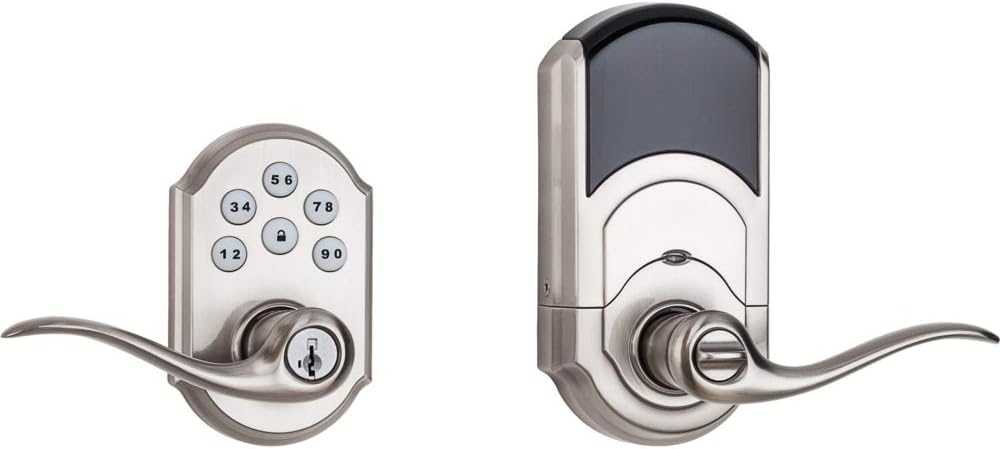
Image: Kwikset Smartcode 912 Z-Wave Plus Keypad Lever Lock, showing both the exterior keypad assembly and the interior battery housing and lever.
4.4 Install the Interior Assembly
Connect the cable from the exterior assembly to the interior assembly. Secure the interior assembly to the door using the provided screws. Ensure the levers are correctly oriented.

Image: Interior view of the Kwikset Smartcode 912 Z-Wave Plus Keypad Lever Lock, showing the battery cover and the thumb turn for manual locking.
4.5 Install Batteries
Install 4 AA batteries into the interior assembly. The lock will perform a self-calibration process. Ensure the battery pack is securely seated.
5. Setup and Programming
5.1 Master Code Creation
The first step is to create a Master Code. This code is used to add or delete user codes and to configure lock settings. It does not unlock the door.
- Open the battery cover on the interior assembly.
- Press the "Program" button once.
- Enter a new 4-8 digit Master Code.
- Press the "Lock" button.
- Re-enter the Master Code.
- Press the "Lock" button again.
A successful programming will be indicated by a green flash and a single beep. A red flash and three beeps indicate an error.

Image: Close-up of the Kwikset Smartcode 912 keypad, showing the numbered buttons and the lock button.
5.2 Adding User Codes
You can program up to 30 unique user codes for keyless entry.
- Open the battery cover.
- Press the "Program" button once.
- Enter your Master Code.
- Press the "Lock" button.
- Enter a new 4-8 digit User Code.
- Press the "Lock" button.
5.3 Deleting User Codes
To delete a specific user code:
- Open the battery cover.
- Press the "Program" button once.
- Enter your Master Code.
- Press the "Lock" button.
- Enter the User Code you wish to delete.
- Press the "Lock" button.
5.4 Z-Wave Pairing
To integrate your lock with a Z-Wave smart home system (hub required):
- Initiate the inclusion (pairing) process on your Z-Wave controller. Refer to your controller's instructions.
- On the lock, open the battery cover and press the "A" button (located on the interior assembly) once.
- The lock will attempt to pair. A successful pairing will be indicated by a green flash and a single beep.
Once paired, you can control the lock remotely and receive notifications via your Z-Wave smart home system.
6. Operating Instructions
6.1 Unlocking the Door from Outside
- Enter a valid User Code on the keypad.
- The lock will unlock. Turn the lever to open the door.
6.2 Locking the Door from Outside
- Press the "Lock" button once. The lock will engage.
- Alternatively, if the auto-lock feature is enabled, the lock will automatically engage after a set time.
6.3 Locking/Unlocking from Inside
Use the thumb turn on the interior assembly to manually lock or unlock the door.
7. SmartKey Security
Your Kwikset Smartcode 912 features SmartKey Security, allowing you to rekey your lock to work with an existing Kwikset key. This is useful if you want all your Kwikset locks to operate with a single key.

Image: Diagram showing the SmartKey rekeying tool and the rekeying slot on the lock cylinder. This feature allows users to rekey their lock to an existing Kwikset key in seconds.
7.1 Rekeying Instructions
- Insert your functioning key into the cylinder and turn it 90 degrees clockwise.
- Insert the SmartKey Learn Tool fully into the SmartKey hole. Apply firm pressure and remove the tool.
- Remove your functioning key.
- Insert your new key fully into the cylinder and turn it 90 degrees counter-clockwise.
- Remove the new key. The lock is now rekeyed.
Always test the new key multiple times to ensure successful rekeying.
8. Maintenance
8.1 Battery Replacement
The lock will provide a low battery warning (e.g., flashing red light, audible beeps) when the batteries are running low. Replace all four AA batteries promptly.
- Remove the battery cover from the interior assembly.
- Remove the old batteries.
- Insert four new AA alkaline batteries, ensuring correct polarity.
- Replace the battery cover.
8.2 Cleaning
Clean the lock with a soft, damp cloth. Do not use abrasive cleaners or solvents, as these can damage the finish and electronic components.
9. Troubleshooting
| Problem | Possible Cause | Solution |
|---|---|---|
| Lock does not respond to keypad entry. | Low or dead batteries. Incorrect code entered. | Replace batteries. Verify correct user code. |
| Lock does not engage/disengage smoothly. | Misalignment of lock components. Door frame obstruction. | Check installation for proper alignment. Ensure door frame is clear. |
| Z-Wave pairing fails. | Controller not in inclusion mode. Lock too far from controller. | Ensure Z-Wave controller is in inclusion mode. Move controller closer or use a Z-Wave repeater. |
| Auto-lock feature not working. | Feature not enabled or incorrectly configured. | Refer to programming instructions to enable and configure auto-lock. |
10. Specifications
- Model Number: 99120-037
- Material: Metal
- Finish: Satin Nickel (Brushed)
- Door Thickness: 1-3/8" to 1-3/4"
- Power Source: 4 AA Batteries (not included)
- Connectivity: Z-Wave Plus
- User Codes: Up to 30 programmable codes
- Special Features: Keypad Entry, One-Touch Locking, Auto-Lock, SmartKey Security
- Product Dimensions: 5.34 x 4.89 x 9.74 inches
- Item Weight: 4.09 pounds
- UPC: 883351628600
11. Quality Assurance
Kwikset is committed to providing high-quality security products. The manufacturing process involves rigorous testing and adherence to strict standards to ensure reliability and durability.
Video: "Kwikset Means Quality" - This video highlights Kwikset's manufacturing processes and commitment to product quality and durability, showcasing various stages of lock production and testing.
12. Warranty and Support
Kwikset provides a comprehensive warranty for its products:
- Mechanical and Finish Warranty: Lifetime
- Electronics Warranty: 1 Year
For full warranty details, product support, or technical assistance, please visit the official Kwikset website or contact Kwikset customer service. Contact information can typically be found on the Kwikset website or product packaging.
You can also visit the Kwikset Store on Amazon for additional product information and support resources.


