
Introduction
This manual provides instructions for the setup, operation, and maintenance of your ENHANCE Infiltrate Membrane Gaming Keyboard. This keyboard is designed for gaming, featuring quiet hybrid mechanical switches, customizable RGB lighting, and a spill-resistant design.

Image: Angled view of the ENHANCE Infiltrate Membrane Gaming Keyboard, showcasing its full layout and active RGB backlighting.
Setup
- Unpacking: Carefully remove the keyboard from its packaging. Ensure all components are present.
- Connection: Connect the keyboard's USB cable to an available USB port on your computer.
- Driver Installation: The keyboard is plug-and-play and typically does not require additional drivers. Your operating system should automatically detect and install the necessary drivers.
- Placement: Position the keyboard comfortably on your desk. The integrated kickstands at the rear can be used to adjust the typing angle.
Operating Instructions
Lighting Effects
The Infiltrate keyboard features customizable RGB backlighting with 7 static colors and 9 dynamic lighting effects. The transparent letters and symbols on each key ensure clear visibility in low-light conditions.
- Changing Lighting Effects: Press the FN key + 1 through 9 keys to cycle through the 9 dynamic lighting effects.
- Changing Static Colors: Press the FN key + ~ (tilde) key to cycle through the 7 static color options.
- Adjusting Brightness: Press the FN key + Page Up or Page Down keys to increase or decrease the backlight brightness.
- Sound Response Mode: One of the dynamic effects is a Sound Response mode, where the keyboard's lighting pulses and changes color in response to audio input (music, in-game sounds).

Image: Close-up of the keyboard illustrating the FN key combinations for toggling LED effects, colors, and brightness.

Image: The keyboard positioned with external speakers, visually representing the sound response lighting feature where lights react to audio.
Multimedia and Gaming Features
- Multimedia Keys: The keyboard includes 12 quick-access multimedia keys (F1-F12 functions when combined with FN key) for controlling audio, video, and other system functions.
- Anti-Ghosting and 19-Key Rollover: Designed for precise input, the keyboard supports 19-key rollover and anti-ghosting, ensuring that multiple simultaneous key presses are registered accurately during intense gaming sessions.
- Hybrid Mechanical Switches: The keyboard utilizes hybrid mechanical switches, providing a tactile keystroke experience similar to mechanical keyboards but with reduced noise, suitable for environments where quiet operation is preferred.

Image: A graphic overlay on the keyboard highlighting its advanced features, including multiple color modes, lighting effects, anti-ghosting, and 19-key rollover.

Image: A magnified view of a keycap removed, revealing the hybrid mechanical switch mechanism underneath, designed for tactile yet quiet keystrokes.
Maintenance
Spill and Dust Resistance
The ENHANCE Infiltrate keyboard features a special raised switch design and rear drainage ports, providing water and dust resistance. This design helps protect the internal components from accidental spills and dust accumulation.
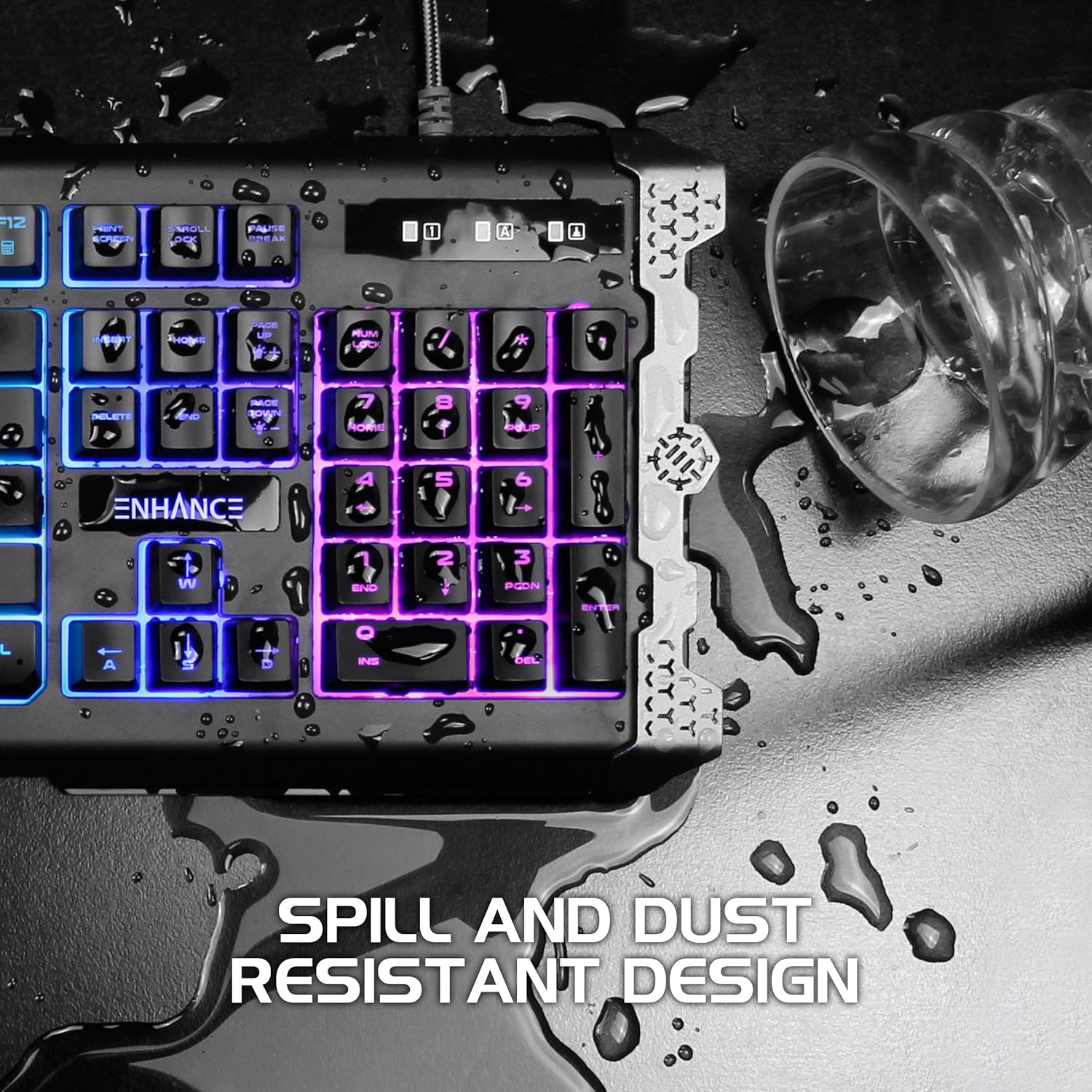
Image: The keyboard with water droplets on its surface, illustrating its spill-resistant design and drainage capabilities.
Cleaning Instructions
- General Cleaning: Use a soft, dry cloth to wipe down the keyboard surface regularly.
- Dust Removal: Use compressed air to remove dust and debris from between the keys.
- Spill Cleanup: In case of a liquid spill, immediately disconnect the keyboard from your computer. Gently wipe away the liquid with a clean cloth. Allow the keyboard to air dry completely before reconnecting. Do not use harsh chemicals or abrasive materials.
Troubleshooting
- Keyboard Not Responding:
- Ensure the USB cable is securely connected to both the keyboard and the computer.
- Try connecting the keyboard to a different USB port.
- Restart your computer.
- Test the keyboard on another computer to determine if the issue is with the keyboard or the computer's port/drivers.
- Backlighting Not Working or Inconsistent:
- Ensure the backlight brightness is not set to the lowest level (use FN + Page Up).
- Cycle through different lighting effects and colors (FN + 1-9, FN + ~) to see if the issue persists across all modes.
- If specific keys or sections of the lighting are consistently out, this may indicate a hardware issue.
- Keys Not Registering:
- Check for any physical obstructions under the keycap.
- Clean the keyboard as per the maintenance instructions.
- If only specific keys are affected, it might be a hardware malfunction.
Specifications
| Feature | Detail |
|---|---|
| Brand | ENHANCE |
| Model Number | ENINKNL100BKUS |
| Hardware Platform | PC |
| Connectivity Technology | USB |
| Keyboard Description | Gaming |
| Special Feature | Spill Proof |
| Keyboard Backlighting | RGB (7 colors, 9 dynamic effects) |
| Key Rollover | 19-Key Rollover |
| Anti-Ghosting | Yes |
| Switch Type | Hybrid Mechanical Membrane |
| Material | Metal Accents |
| Item Weight | 1.84 pounds |
| Product Dimensions (LxWxH) | 18.75 x 6.75 x 2 inches |
Warranty
The ENHANCE Infiltrate Membrane Gaming Keyboard comes with a 3-Year Manufacturer's Warranty. This warranty covers defects in materials and workmanship under normal use. Please retain your proof of purchase for warranty claims.
For detailed warranty terms and conditions, please refer to the official ENHANCE website or contact customer support.
Support
If you encounter any issues not covered in this manual or require further assistance, please contact ENHANCE customer support.
- Online Resources: Visit the official ENHANCE website for FAQs, updated manuals, and support articles.
- Contact Information: Refer to the product packaging or the ENHANCE website for the most current customer service contact details (phone, email, or support portal).
Additional Information
This product is from a small business brand. Your support is appreciated.


