
1. Product Overview
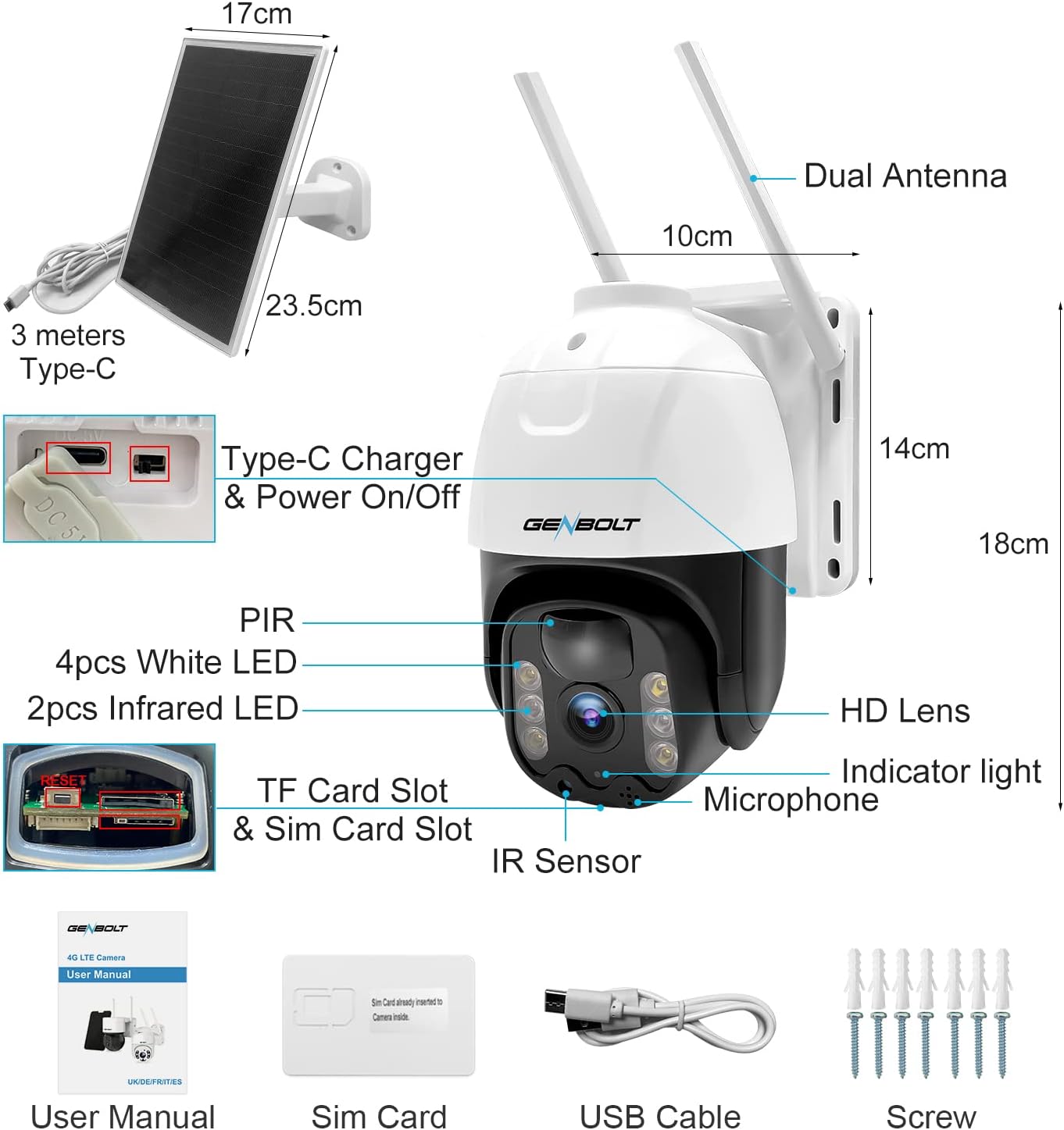
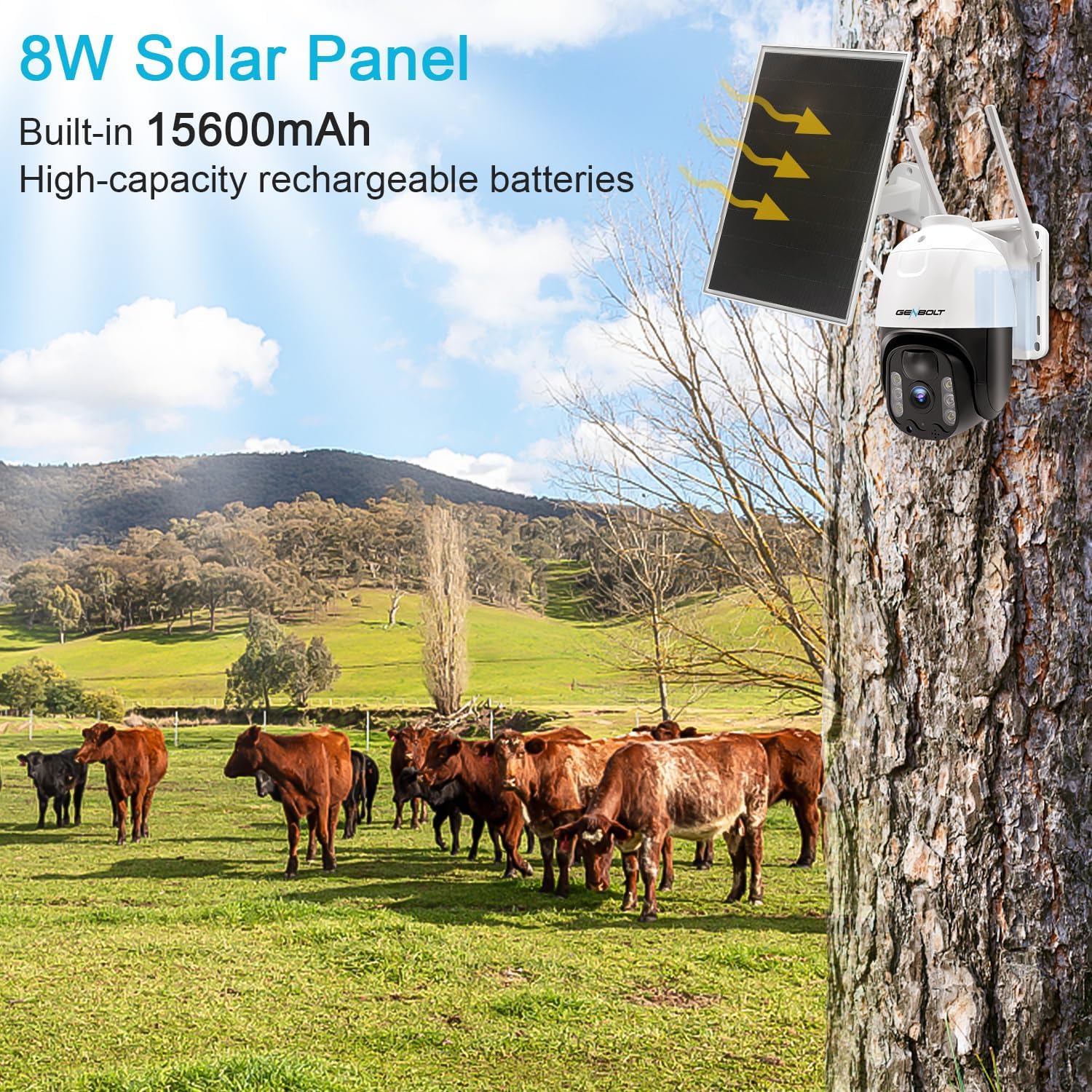
The GENBOLT 4G LTE Cellular Solar Security Camera is a completely wire-free surveillance solution designed for outdoor use where Wi-Fi or wired power may not be available. It features an 8W solar panel for continuous charging, a 15600mAh high-capacity battery, and operates on 4G LTE cellular networks. Key features include PTZ (Pan/Tilt/Zoom) capabilities, PIR human detection, and various night vision modes.
Package Contents
- GENBOLT 4G LTE Cellular Solar Security Camera
- Solar Panel (8W)
- SIM Card (pre-paired with APN)
- USB Cable
- Mounting Screws
- User Manual
Component Diagram
2. Setup Guide
2.1 Initial Charging and SIM Card Installation
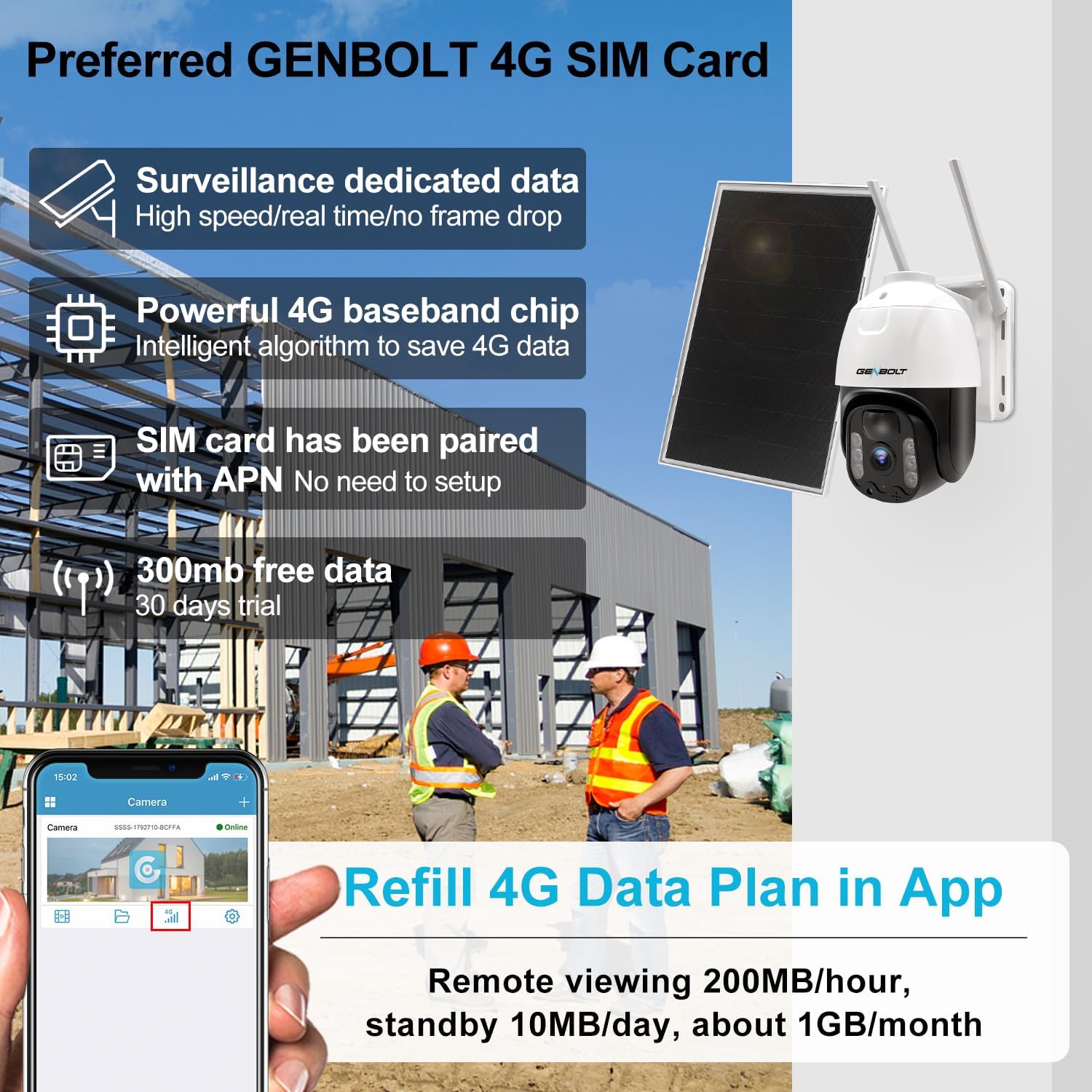
Before first use, ensure the camera's internal 15600mAh battery is fully charged using the provided USB cable. The solar panel will maintain the charge once installed. The camera comes with a pre-paired GENBOLT 4G SIM card. Insert the SIM card into the designated slot as shown in the product diagram.
2.2 App Download and Camera Connection
- Download the official GENBOLT app from your smartphone's app store (iOS or Android).
- Create an account and log in.
- Turn on the camera power using the switch near the Type-C port.
- Wait approximately 10 seconds for the blue indicator light to flash, indicating it's ready for connection.
- In the app, select 'Add Device' and scan the QR code located on the camera or its packaging to connect.

2.3 Mounting the Camera and Solar Panel
Choose a location with ample sunlight for the solar panel and a clear view for the camera. Use the provided mounting screws to securely attach the camera and solar panel to a wall or pole. Ensure the solar panel is positioned to receive maximum direct sunlight throughout the day.
3. Operating Instructions
3.1 Remote Viewing and PTZ Control
Once connected, you can access live view and recorded footage remotely via the GENBOLT app. The camera supports 355° horizontal pan and 90° vertical tilt, allowing you to cover a wide area without blind spots. Use the directional controls within the app to adjust the camera's viewing angle.

3.2 PIR Human Detection and Alerts
The camera features an advanced PIR (Passive Infrared) sensor that detects objects with body temperature around 37°C (98.6°F), significantly reducing false alarms caused by environmental factors like sunlight. When motion is detected, the camera will immediately push notifications to your smartphone.

3.3 Night Vision Modes
The camera offers both Infrared Night Vision and Color Night Vision. In White Light mode, floodlights automatically turn on when an alarm is triggered at night, providing clear color images and deterring intruders. You can switch between modes in the app settings.

3.4 4G LTE Connectivity
The camera operates exclusively on 3G/4G LTE networks, making it ideal for locations without Wi-Fi. The included GENBOLT SIM card is pre-configured. You can monitor and refill your data plan directly within the app. The camera is designed for efficient data usage with a powerful 4G baseband chip and intelligent algorithms.
4. Maintenance
4.1 Solar Panel Cleaning
Regularly clean the surface of the solar panel to ensure optimal charging efficiency. Dust, dirt, and debris can reduce its performance. Use a soft, damp cloth to gently wipe the panel.
4.2 Battery Management
The camera's 15600mAh battery is designed for long standby times. While the solar panel provides continuous charging, in prolonged periods of low sunlight or heavy usage, the battery level may drop. Monitor the battery status in the app and recharge via the Type-C port if necessary.
4.3 Weather Resistance
The camera has an IP66 waterproof rating, meaning it is protected against dust and powerful water jets. While designed to withstand various weather conditions, avoid submerging the camera in water or exposing it to extreme temperatures outside its operating range.
5. Troubleshooting
5.1 Camera Not Connecting
- Ensure the camera is powered on and the blue indicator light is flashing.
- Verify the SIM card is correctly inserted and has an active data plan.
- Check cellular signal strength at the camera's location.
- Restart the camera and try connecting again.
5.2 Poor Image Quality
- Clean the camera lens with a soft cloth.
- Ensure there are no obstructions in the camera's field of view.
- Check the network connection stability; a weak 4G signal can affect streaming quality.
5.3 Battery Not Charging
- Ensure the solar panel is clean and receiving direct sunlight.
- Check the connection between the solar panel and the camera.
- Verify the Type-C charging cable is working if charging directly.
6. Specifications
| Feature | Specification |
|---|---|
| Model Name | GB216K-4G |
| Indoor/Outdoor Usage | Outdoor |
| Power Source | Solar Powered |
| Connectivity Protocol | 3G/4G LTE ONLY |
| Video Capture Resolution | 1080p |
| Effective Video Resolution | 3.00 MP |
| Viewing Angle | 355 Degrees (Pan) / 90 Degrees (Tilt) |
| Night Vision Range | 10 Meters |
| Material | Plastic |
| Wattage | 8 watts (Solar Panel) |
| Battery Capacity | 15600mAh (Built-in) |
| Item Dimensions (L x W x H) | 3.54 x 5.12 x 5.12 inches |
| Item Weight | 1.1 pounds (0.5 Kilograms) |
| International Protection Rating | IP66 |
| Alert Type | Motion Only (PIR) |
| Control Method | App |
7. Warranty and Support
GENBOLT Wireless Camera Systems are certified under CE FCC. We offer comprehensive support for your product:
- 30 Days Exchange: For any issues within 30 days of purchase.
- One Year Warranty: Covers manufacturing defects for one year from the purchase date.
- Lifetime Free Technical Support: Our team is available to assist you with any technical queries.
Contact Information:
- Email: us@genbolt.com
- Free Tech Support Hotline: +1 (778) 807-9710 (Monday - Friday, 6:30 AM to 9:30 AM PST)
