
1. Product Overview
The Integra DTM-7 is a Network A/V Stereo Receiver designed to integrate modern digital audio and video technologies with traditional stereo sound. It supports advanced HDMI switching for 4K and HDR10 content, offers robust network connectivity for streaming services, and includes wireless audio capabilities. The receiver is built with a focus on sound quality and versatile control options.
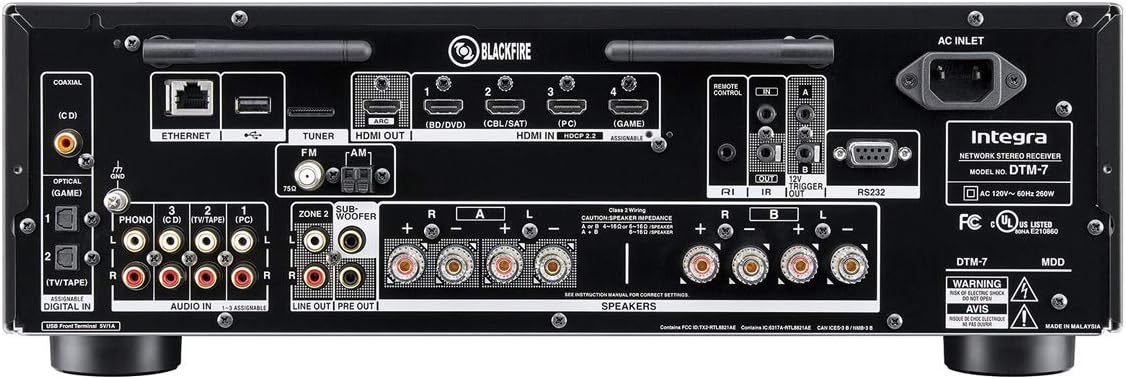
Figure 1.1: Front view of the Integra DTM-7 Network A/V Stereo Receiver. This image displays the front panel controls, display, and input jacks.
Key Features:
- High Power Output: Delivers 100 Watts per channel (8 Ohms, 20 Hz-20 kHz, 0.08% THD, 2 Channels Driven, FTC) with 4-ohm stability, housed in an anti-resonant steel chassis and audiophile-grade aluminum front panel.
- Advanced HDMI Connectivity: Features 4 HDMI inputs and 1 HDMI output, supporting 4K/60 Hz, HDR10, HLG (Hybrid Log-Gamma), Dolby Vision, and BT.2020 Pass-thru with HDCP 2.2, 4:4:4 Color Space, and WCG (Wide Color Gamut).
- Sonos Integration: Compatible with existing Sonos Home Sound Systems or as a starting point for a new one, allowing for music streaming capability with Sonos Connect and a firmware update.
- Extensive Network and Wireless Audio: Includes Wi-Fi and Bluetooth compatibility, providing access to internet radio sources such as Tidal, Pandora, Spotify, Deezer, and TuneIn. Supports Chromecast Built-In, DTS Play-Fi technology, and AirPlay for wireless audio streaming.
- Analog Connectivity: Features a built-in phono preamp for turntable connection.
- Flexible Control Options: Controllable via the included IR remote, the Integra Control Pro app (for iOS and Android devices), or through 3rd party control systems utilizing IP or RS232C.
2. What's in the Box
Verify that all items listed below are included in the package:
- Integra DTM-7 Network A/V Stereo Receiver
- Power cord
- Indoor FM antenna
- AM loop antenna
- Speaker setup microphone
- Basic manual (this document provides detailed instructions)
- Remote Control
- 2 AAA Batteries (for remote control)
3. Setup
3.1 Connecting Your Components
Before making any connections, ensure the receiver and all components are powered off and unplugged from the wall outlet. Refer to the rear panel diagram for connection points.

Figure 3.1: Rear panel connections of the Integra DTM-7. This image illustrates the various input and output ports for audio, video, and network connections.
- Speaker Connections: Connect your passive speakers to the SPEAKER terminals on the rear panel. Ensure correct polarity (+ to + and - to -) for each speaker. The DTM-7 supports 4-ohm compatible speakers. For optimal performance, use high-quality speaker cables.
- HDMI Connections: Connect your video sources (e.g., Blu-ray player, game console, streaming device) to the HDMI IN ports. Connect your TV or projector to the HDMI OUT port. The HDMI ports support 4K/60 Hz, HDR10, Dolby Vision, and HDCP 2.2.
- Network Connection: For wired network access, connect an Ethernet cable from your router to the ETHERNET port. For wireless network access, ensure the Wi-Fi antennas are properly attached and positioned.
- Analog Audio Connections: Connect analog audio sources (e.g., CD player, cassette deck) to the AUDIO IN ports. For turntables, connect to the PHONO input, which includes a built-in preamplifier.
- Antenna Connections: Connect the supplied FM and AM antennas to their respective terminals for radio reception.
- Power Connection: After all other connections are made, connect the power cord to the AC INLET on the receiver and then to a wall outlet.
3.2 Initial Setup and Calibration
After connecting your components, perform the initial setup:
- Power On: Press the ON/STANDBY button on the front panel or remote control to power on the receiver.
- On-Screen Setup Guide: Follow the on-screen instructions displayed on your TV for initial configuration, including language selection and network settings.
- Speaker Calibration: Use the supplied speaker setup microphone. Connect it to the dedicated port on the front panel. Place the microphone at your primary listening position and follow the on-screen prompts to automatically calibrate your speakers for optimal sound.
4. Operating Instructions
4.1 Basic Operation
- Power On/Off: Press the ON/STANDBY button on the front panel or remote.
- Input Selection: Use the INPUT selector buttons on the front panel or the remote control to choose your desired audio/video source (e.g., HDMI 1, CD, NET).
- Volume Control: Adjust the MASTER VOLUME knob on the front panel or the VOLUME +/- buttons on the remote control.
- Tone Control: Use the BASS and TREBLE knobs on the front panel to adjust the sound characteristics to your preference.
4.2 Network and Wireless Features
The DTM-7 offers a range of network and wireless audio capabilities:
- Streaming Services: Access integrated streaming services such as Tidal, Pandora, Spotify, Deezer, and TuneIn directly from the receiver's menu. A stable internet connection is required.
- Chromecast Built-In: Cast audio from compatible apps on your smartphone, tablet, or computer directly to the receiver.
- DTS Play-Fi: Enjoy high-quality wireless audio from your mobile device or PC to the receiver and other DTS Play-Fi enabled products.
- AirPlay: Stream audio from your Apple devices (iPhone, iPad, Mac) to the receiver over your home network.
- Bluetooth: Pair your Bluetooth-enabled devices to stream audio wirelessly to the receiver.
4.3 Control Options
- IR Remote Control: Use the included remote for direct control of all receiver functions. Ensure line of sight to the receiver's IR sensor.
- Integra Control Pro App: Download the free Integra Control Pro app for iOS and Android devices. This app provides comprehensive control over the receiver's functions, including input selection, volume, network features, and settings.
- 3rd Party Control: The DTM-7 supports integration with custom installation systems via IP control or RS232C for advanced home automation.
5. Maintenance
To ensure the longevity and optimal performance of your Integra DTM-7 receiver, follow these maintenance guidelines:
- Cleaning: Gently wipe the exterior surfaces with a soft, dry cloth. Do not use abrasive cleaners, waxes, or solvents, as they can damage the finish.
- Ventilation: Ensure adequate ventilation around the receiver. Do not block the ventilation openings on the top or sides. Avoid placing the unit in an enclosed cabinet without proper airflow.
- Dust Removal: Periodically use a soft brush or a vacuum cleaner with a brush attachment to remove dust from the ventilation grilles.
- Power Cord: Regularly check the power cord for any signs of damage. If damaged, discontinue use and contact customer support for a replacement.
6. Troubleshooting
If you encounter issues with your DTM-7 receiver, refer to the following common troubleshooting steps:
- No Power:
- Ensure the power cord is securely plugged into both the receiver and a working wall outlet.
- Check if the wall outlet is functional by plugging in another device.
- No Sound:
- Verify that the correct input source is selected.
- Check all speaker connections for proper polarity and secure fit.
- Ensure the volume is not set to minimum or muted.
- Confirm that your speakers are functional.
- No Video:
- Ensure the HDMI cables are securely connected to both the source device, the receiver's HDMI IN, and the TV's HDMI OUT.
- Verify that the correct HDMI input is selected on the receiver and the correct HDMI input is selected on your TV.
- Try a different HDMI cable or port.
- Network Connection Issues:
- For wired connections, ensure the Ethernet cable is properly connected to the receiver and your router.
- For Wi-Fi, check your router's status and ensure the receiver is within range. Re-enter Wi-Fi credentials if necessary.
- Restart your router and the receiver.
- Remote Control Not Working:
- Replace the batteries in the remote control.
- Ensure there are no obstructions between the remote and the receiver's IR sensor.
If the problem persists after trying these steps, please refer to the Integra support website or contact customer service.
7. Specifications
| Feature | Specification |
|---|---|
| Power Output | 100 W/Ch. (8 Ohms, 20 Hz-20 kHz, 0.08% THD, 2 Channels Driven, FTC) |
| HDMI Inputs/Outputs | 4 In / 1 Out |
| HDMI Features | 4K/60 Hz, HDR10, HLG, Dolby Vision, BT.2020 Pass-thru, HDCP 2.2, 4:4:4 Color Space, WCG |
| Connectivity Technology | AirPlay, Bluetooth, HDMI, Wi-Fi, Ethernet |
| Wireless Audio Features | Chromecast Built-In, DTS Play-Fi, AirPlay, Spotify, Pandora, Tidal, Deezer, TuneIn |
| Audio Output Mode | Stereo |
| Surround Sound Channel Configuration | 2.1 |
| Phono Input | Yes (Built-in phono preamp) |
| Control Type | IR Remote, Android/iOS App (Integra Control Pro), IP, RS232C |
| Product Dimensions (W x H x D) | 17.1 x 5.9 x 12.9 inches (approx.) |
| Item Weight | 18.7 pounds |
| Manufacturer | Onkyo |
8. Warranty and Support
For detailed warranty information, please refer to the warranty card included with your product or visit the official Integra website. For technical support, product registration, or service inquiries, please contact Integra customer support or visit their official website for the most up-to-date information.
Manufacturer: Onkyo