
GENBOLT GB102S
GENBOLT Wireless WiFi IP Security Camera User Manual
Model: GB102S
Introduction
This manual provides comprehensive instructions for the installation, operation, and maintenance of your GENBOLT Wireless WiFi IP Security Camera (Model GB102S). Please read this manual thoroughly before using the product to ensure proper setup and functionality. Keep this manual for future reference.
Package Contents
Verify that all items listed below are included in your package:
- 1 x GENBOLT Wireless WiFi IP Camera
- 1 x WiFi Antenna
- 1 x Network Cable
- 1 x Power Adapter (1.5m)
- 1 x User Manual
- 1 x Set Screw & Screwdriver
Product Overview
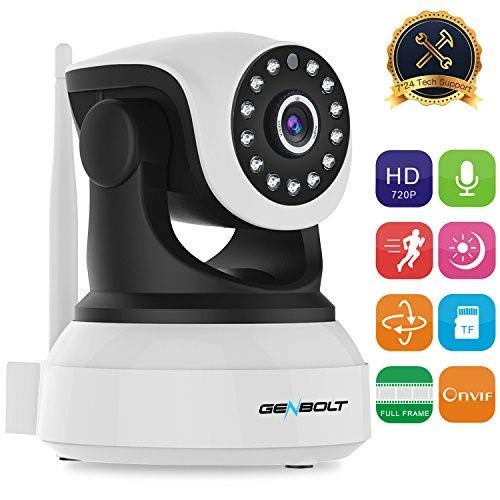
Figure 1: GENBOLT Wireless WiFi IP Security Camera (Model GB102S). This image displays the camera's front view, highlighting its pan-tilt design, the lens with surrounding infrared LEDs for night vision, and the external Wi-Fi antenna.
Key Features:
- 720P Full Frame Video: Offers clear live video at 25/30 frames per second.
- Multiple Platform Support: Compatible with Android, iOS, Windows PC, iPad, IE, Chrome, and Firefox.
- Flexible Storage Options: Supports TF Card (Max 64GB, FAT32 format required), FTP, and NVR (ONVIF 2.0-2.4).
- 10m Night Vision: Equipped with 13 IR LEDs for clear visibility up to 10 meters in low light conditions.
- Motion Detection & Smart Alerts: Triggers recording and sends notifications (or email) upon motion detection.
- Two-Way Audio: Allows for communication through the camera.
- Pan & Tilt Control: Remote control for horizontal and vertical camera movement.
- Enhanced WiFi Antenna: 3dBi antenna for stable signal connection and extended transmission distance.
Setup Guide
1. Initial Connection:
- Power On: Connect the camera to the power adapter and plug it into an electrical outlet.
- Network Connection (Initial Setup): For the first-time setup, it is recommended to connect the camera to your router using the provided LAN cable. After the setup is complete, you can configure Wi-Fi for wireless viewing.
- Router Configuration: Ensure your router is set to WPA or WPA2 security mode. If your router broadcasts both 2.4G and 5G signals, connect your mobile device to the 2.4G Wi-Fi network during setup.
2. App Installation and Configuration:
- Download App: Search for and download the "CamHi" app from the Apple App Store (for iOS) or Google Play Store (for Android).
- Add Device: Open the CamHi app and follow the on-screen instructions to add your camera. This typically involves scanning a QR code on the camera or manually entering its ID.
- Wi-Fi Setup (After LAN Connection): Once the camera is added and connected via LAN, navigate to the Wi-Fi settings within the CamHi app. Select your Wi-Fi network and enter the password. After successful configuration, the camera will reboot and connect wirelessly.
Note: This camera does not work with Mac OS.
Operating Instructions
Live View and Pan/Tilt Control:
Once connected, open the CamHi app to view the live feed from your camera. Use the on-screen controls to remotely pan (horizontal movement) and tilt (vertical movement) the camera to adjust its viewing angle.
Two-Way Audio:
The camera supports two-way audio. Within the live view interface of the CamHi app, locate the microphone icon to speak through the camera and the speaker icon to listen to audio from the camera's vicinity.
Recording and Storage:
- TF Card Recording: Insert a TF card (up to 64GB, formatted to FAT32) into the camera's slot for local storage. You can configure continuous recording (24/7) or event-triggered recording via the app.
- Motion Detection Recording: When motion detection is enabled, the camera will automatically record a short video clip (if an SD card is inserted) when motion is detected.
- FTP/NVR Recording: For advanced users, the camera supports recording to FTP servers or Network Video Recorders (NVRs) that are ONVIF 2.0-2.4 compliant.
Motion Detection and Alerts:
Configure motion detection sensitivity and alert methods within the CamHi app. When motion is detected, the camera can send instant notifications to your phone or an email with attached pictures. Ensure the CamHi app is running in the background on your device to receive notifications.
Maintenance
- Cleaning: Use a soft, dry cloth to clean the camera lens and body. Avoid using harsh chemicals or abrasive cleaners.
- Firmware Updates: Periodically check the CamHi app or GENBOLT's official website for firmware updates to ensure optimal performance and security.
- Power Cycle: If the camera experiences issues, try power cycling it by unplugging and re-plugging the power adapter.
Troubleshooting
| Problem | Possible Cause / Solution |
|---|---|
| Camera not connecting to Wi-Fi. |
|
| No notifications received. |
|
| Poor video quality or choppy feed. |
|
| Camera not working with Mac OS. | This product is not compatible with Mac OS. Please use Android, iOS, or Windows PC. |
Specifications
| Feature | Detail |
|---|---|
| Image Sensor | OmniVision 720P |
| Lens | 3.6mm 2.0MP |
| IR LEDs | 13pcs |
| Night Vision Range | Up to 10m |
| Video Capture Resolution | 720p |
| Frame Rate | 30 frames per second |
| Connectivity Protocol | TCP/IP, UDP/IP, HTTP, ICMP, FTP, EMAIL, TELNET |
| Wireless Communication | Wi-Fi |
| Storage Support | TF Card (Max 64GB, FAT32), FTP, NVR (ONVIF 2.0-2.4) |
| Power Source | Corded Electric |
| Wattage | 5 watts |
| Material | Metal |
| Dimensions (L x W x H) | 19.5 x 13.5 x 16.5 cm |
| Item Weight | 544 Grams |
| Indoor/Outdoor Usage | Indoor |
| Compatible Devices | Tablet, Smartphone |
Warranty and Support
GENBOLT offers a 2-Year Warranty for this product. For any questions or technical assistance, please contact GENBOLT Customer Support:
- Email: us@genbolt.com
- US Phone Number: +001 (719)602-7269 (Available after 5:00 PM Pacific Time)
- Money Back Guarantee: 30-Day Money Back Guaranteed.
Ask a question about this manual
Ask about setup, troubleshooting, compatibility, parts, safety, or missing instructions. Manuals+ will review the question and use this page’s manual context to help answer it.