
Introduction
This manual provides instructions for the setup, operation, and maintenance of your visiPower Fingerprint Attendance Machine, Model Fingerprint_2. This device is designed to manage employee attendance efficiently using biometric fingerprint recognition and password authentication. It features a 2.4-inch TFT screen for easy interaction and supports data transfer via USB.
Product Features
- Adheres to national security product standards, suitable for office, factory, hotel, and school entrances/exits.
- Equipped with an energy-saving optical fingerprint sensor and power management functions.
- Features a 2.4-inch TFT screen for clear display and user interaction.
- Supports easy fingerprint enrollment and sharing across compatible visiPower terminals.
- Offers USB Flash Drive download and USB communication for data transfer.
- No additional software required; supports T9 input for direct entry of names, departments, and other information.
- Generates attendance reports directly from the device, simplifying user operation.
- Supports both Chinese and English languages.
- Operates with a DC 5V/1A power adapter.
- Effective fingerprint collecting area of 16x16mm.
Package Contents
Verify that all items listed below are included in your package:
- 1 x visiPower Fingerprint Attendance Machine
- 1 x Power Adapter (DC 5V/1A)
- 4 x Mounting Screws
- 4 x Expansion Tubes
Setup
1. Device Overview
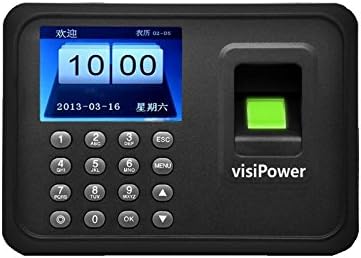
Figure 1: Front view of the visiPower Fingerprint Attendance Machine. This image displays the 2.4-inch TFT screen, the numerical keypad, and the optical fingerprint sensor on the right side. The screen shows a digital clock and date.
2. Mounting the Device
- Choose a suitable location for installation, ensuring it is easily accessible for employees and protected from direct sunlight or moisture.
- Use the provided mounting screws and expansion tubes to securely attach the device to a wall. Refer to Figure 2 for the location of mounting holes on the back of the unit.

Figure 2: Back view of the attendance machine. This image shows the mounting holes for wall installation and ventilation slots.
3. Power Connection
- Connect the provided DC 5V/1A power adapter to the power input port on the side of the device.
- Plug the power adapter into a standard electrical outlet. The device will power on automatically.
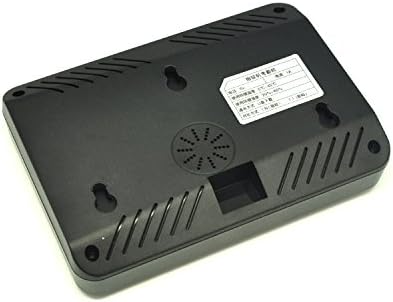
Figure 3: Side view illustrating connection ports. This diagram highlights the USB port for U disk (upload/download data), another USB port for communication, and the power input port.
4. Initial Settings
- Upon first power-on, the device may prompt you to set the date and time. Use the keypad and navigation buttons (up/down arrows, OK) to adjust these settings.
- Access the main menu by pressing the MENU button. You may be prompted for an administrator fingerprint or password if one has been set.
Operating Instructions
1. User Enrollment (Fingerprint/Password)
- Press MENU to enter the main menu.
- Navigate to User Management or Enroll User.
- Select Enroll Fingerprint or Enroll Password.
- Follow the on-screen prompts to register a new user. For fingerprint enrollment, place the finger firmly on the sensor multiple times as instructed. For password enrollment, enter a numerical password.
- Assign a User ID to each new user.
2. Recording Attendance
- To clock in or out, simply place your registered finger on the fingerprint sensor.
- Alternatively, enter your User ID and then your password using the keypad.
- A confirmation message will appear on the screen, indicating successful attendance recording.
3. Data Download (USB Flash Drive)
- Insert a USB flash drive into the "U disk" port on the side of the device (refer to Figure 3).
- Press MENU to enter the main menu.
- Navigate to Data Management or Download Data.
- Select the desired data type (e.g., attendance records, user information) and confirm the download. The data will be saved to the USB flash drive in a compatible format.
4. Record Query
Users can query their own attendance records directly on the device after successful authentication (fingerprint or password). This feature allows individuals to review their clock-in/out times without needing to access the main system.
Maintenance
- Cleaning: Use a soft, dry cloth to clean the device's screen and fingerprint sensor. Avoid using abrasive cleaners or solvents.
- Environment: Ensure the device is operated within the specified temperature and humidity ranges (0℃~ +45℃, 20%~80% RH). Keep it away from water, dust, and direct heat sources.
- Power: Always use the original power adapter provided with the device.
Troubleshooting
| Problem | Possible Cause | Solution |
|---|---|---|
| Device does not power on. | No power, faulty adapter, or loose connection. | Check power adapter connection and wall outlet. Ensure the adapter is functioning correctly. |
| Fingerprint not recognized. | Finger is wet, dirty, or improperly placed. Fingerprint not enrolled or damaged. | Ensure finger is clean and dry. Place finger firmly and completely on the sensor. Re-enroll fingerprint if issues persist. |
| Cannot download data to USB. | USB flash drive is full, incompatible, or not properly inserted. | Ensure USB drive has sufficient space and is formatted correctly (FAT32 recommended). Re-insert the USB drive firmly into the correct port. |
| Screen is blank or frozen. | Software error or temporary malfunction. | Restart the device by disconnecting and reconnecting the power. If the problem persists, contact support. |
Specifications
| Feature | Detail |
|---|---|
| Model | A6 (Fingerprint_2) |
| TFT Screen | 2.4 inch |
| Fingerprint Sensor | Energy-saving Optical Fingerprint Sensor (Resolution: 500DPI) |
| CPU | 32bit CPU |
| Fingerprint Capacity | 600 |
| Log Capacity | 100,000 events |
| Communication | USB |
| Identification Mode | Fingerprint, Password |
| USB Flash Drive Up/Download | Available |
| Record Query | Available (users can query their own attendance record after authentication) |
| Rotational Angle | Total Rotational Angle |
| Effective Collecting Area | 16 x 16mm |
| Identification Time | < 1 second |
| FRR (False Rejection Rate) | < 0.1% |
| FAR (False Acceptance Rate) | < 0.0001% |
| Operating Mode | Off-line / Online |
| Authentication Mode | 1:1, 1:N |
| Language | Chinese, English |
| Voice Prompt | Available |
| Power Management | Auto Sleep Time, Auto Power Off Time |
| Power Adapter | DC 5V/1A |
| Operating Temperature | 0℃ ~ +45℃ |
| Operating Humidity | 20% ~ 80% RH |
| Terminal Size | 170(L) x 118(W) x 30(H) mm |
| Weight | 0.65 KG |
Warranty and Support
This product comes with a standard manufacturer's warranty. For detailed warranty information, technical support, or service inquiries, please contact your retailer or the visiPower customer support directly. Please have your product model number (Fingerprint_2) and purchase information ready when contacting support.