
1. Introduction
The wsdcam TVI to HDMI Converter is designed to display high-definition video from various security cameras on an HDMI-compatible monitor or television. This device supports multiple analog video formats including TVI, CVBS, AHD, and CVI. It is capable of accepting input resolutions up to 8MP (4K) and outputs a standard 1080p HDMI video signal. This converter is ideal for public view monitors or connecting security camera feeds to a DVR.
2. Package Contents
Please verify that all items listed below are included in your package:
- 1 x wsdcam TVI to HDMI Converter
- 1 x Power Adapter
- 1 x BNC Cable
- 1 x USB Power Cable

Image: Package contents of the wsdcam TVI to HDMI Converter.
3. Product Overview
Familiarize yourself with the ports and indicators on the wsdcam TVI to HDMI Converter:
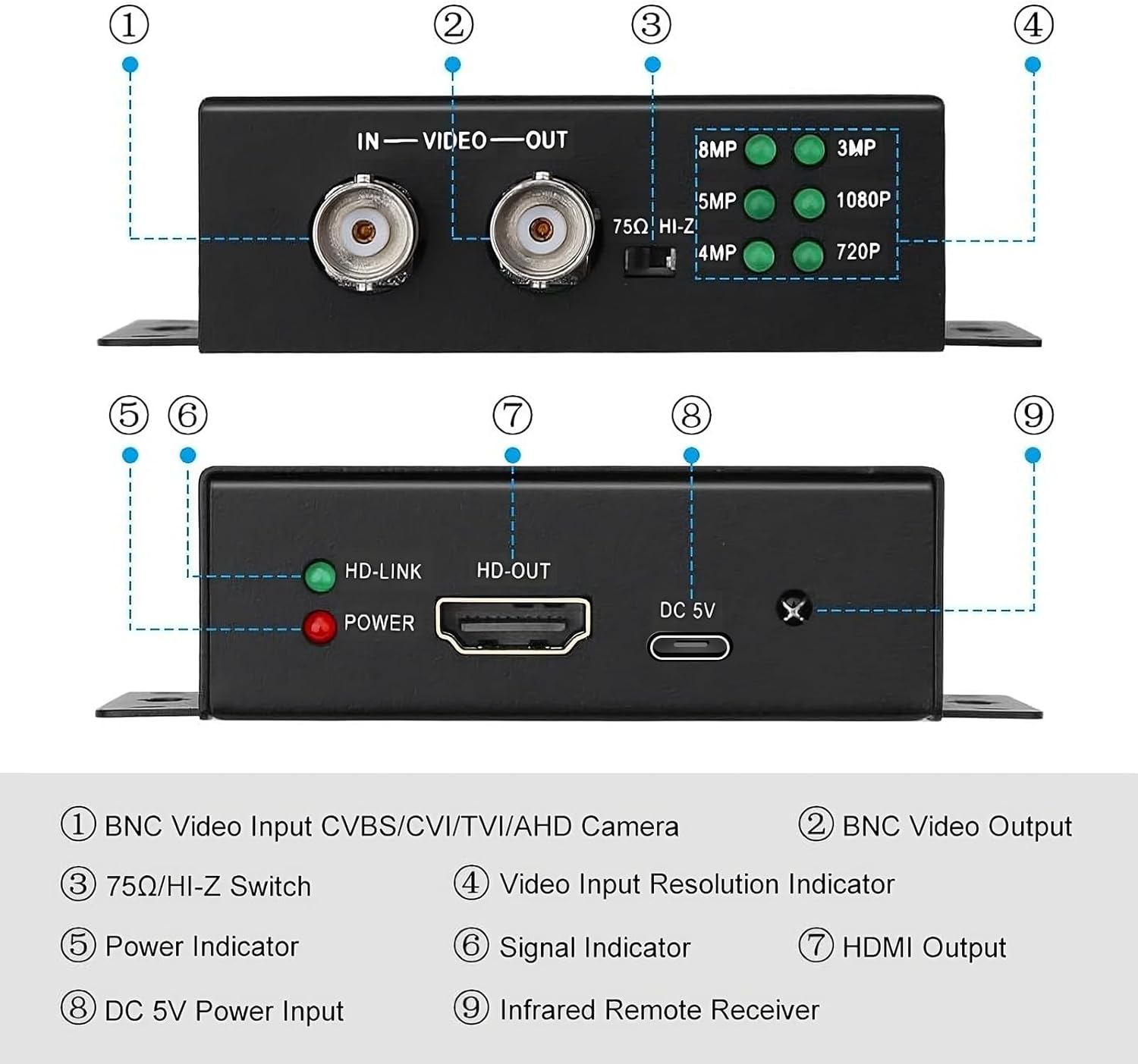
Image: Front and rear view of the converter with labeled ports and indicators.
- BNC Video Input: Connects to CVBS, CVI, TVI, or AHD cameras.
- BNC Video Output: Provides a 4K BNC video loop out for connecting to another device like a DVR or camera tester.
- 75Ω/HI-Z Switch: Set to 75Ω for HDMI output only. Set to HI-Z if using the BNC loop output.
- Video Input Resolution Indicators: LEDs illuminate to show the detected input resolution (8MP, 5MP, 4MP, 3MP, 1080P, 720P).
- Power Indicator: Red LED indicates the device is powered on.
- Signal Indicator (HD-LINK): Green LED indicates a stable video signal input.
- HDMI Output (HD-OUT): Connects to an HDMI display for 1080p video output.
- DC 5V Power Input: Connect the provided power adapter.
- Infrared Remote Receiver: For future or optional remote control functionality (remote not included).
4. Setup and Connection
4.1 Connecting to a Single Monitor
Follow these steps to connect your security camera to a single HDMI monitor:
- Connect your security camera's BNC output to the BNC Video Input port on the converter.
- Connect an HDMI cable from the HDMI Output port on the converter to the HDMI input on your monitor or TV.
- Connect the provided power adapter to the DC 5V Power Input port on the converter and plug it into a power outlet.
- Ensure the 75Ω/HI-Z Switch is set to 75Ω if you are only using the HDMI output.
- Power on your camera and monitor. The converter will automatically detect the input resolution and display it on the HDMI monitor.

Image: Connection diagram for a single monitor setup.
4.2 Connecting to Multiple HDMI Monitors (Video Splitter Function)
Multiple wsdcam TVI to HDMI converters can be used in series to display a single analog camera feed on several HDMI monitors. This utilizes the BNC Video Loop Out feature.
- Connect your security camera's BNC output to the BNC Video Input port of the first converter.
- Connect an HDMI cable from the HDMI Output of the first converter to your first HDMI monitor.
- Connect a BNC cable from the BNC Video Output of the first converter to the BNC Video Input of the second converter.
- Connect an HDMI cable from the HDMI Output of the second converter to your second HDMI monitor.
- Repeat step 3 and 4 for additional converters and monitors as needed.
- Connect power adapters to all converters.
- Ensure the 75Ω/HI-Z Switch on all converters is set to HI-Z if you are using the BNC loop output.

Image: Connection diagram for multiple HDMI monitors.
5. Operating Instructions
The wsdcam TVI to HDMI Converter is designed for plug-and-play operation, requiring no driver installation.
- Once all connections are made and power is supplied, the converter will automatically detect the incoming video signal type (CVBS, TVI, CVI, AHD) and its resolution.
- The corresponding LED on the converter (720P, 1080P, 3MP, 4MP, 5MP, 8MP) will illuminate to indicate the detected input resolution.
- The video signal will then be converted and outputted via the HDMI port at 1080p resolution to your connected display.
6. Maintenance
To ensure the longevity and optimal performance of your converter, please observe the following maintenance guidelines:
- Keep the device in a dry environment, away from moisture and extreme temperatures.
- Clean the exterior of the converter with a soft, dry cloth. Do not use liquid cleaners or aerosols.
- Avoid dropping or subjecting the device to strong impacts.
- Ensure proper ventilation around the unit to prevent overheating.
7. Troubleshooting
If you encounter issues with your wsdcam TVI to HDMI Converter, please refer to the following common problems and solutions:
- No video output on the HDMI display:
- Verify that the power adapter is securely connected to the converter and a working power outlet. The red POWER LED should be on.
- Check all BNC and HDMI cable connections to ensure they are secure and correctly plugged in.
- Confirm that your security camera is powered on and functioning correctly.
- Ensure the HDMI display is set to the correct input source.
- Check the 75Ω/HI-Z switch setting. It should be 75Ω if only using HDMI output.
- Image is black and white:
- This can sometimes occur with certain camera or monitor configurations. Try adjusting the color settings on your HDMI display.
- Ensure the camera itself is outputting a color signal.
- If the issue persists, contact customer support for further assistance.
- Power connection is loose or device does not power on:
- Ensure the USB power cable is fully inserted into the DC 5V Power Input port.
- Use the provided power adapter and USB cable. If using a different USB power source, ensure it provides stable 5V DC.
If you require further assistance or are unable to resolve an issue, please contact wsdcam customer support.
8. Specifications
| Model Number | WSDUS0327 |
| Product Dimensions (L x W x H) | 3.74 x 2.83 x 0.94 inches (9.5 x 7.2 x 2.4 cm) |
| Item Weight | 12.3 ounces |
| Compatible Devices | Cameras, Monitors |
| Connector Type | HDMI, BNC |
| Supported Input Formats | CVBS, TVI, CVI, AHD |
| Supported TVI/AHD Resolutions | 720p, 1080p, 3 MP, 4 MP, 5 MP, 8 MP (4K) |
| Supported CVI Resolutions | 720p, 1080p, 4 MP, 8 MP (4K) |
| HDMI Output Resolution | 1080p |
| BNC Video Loop Out | Supports up to 4K |
| Power Input | DC 5V |

Image: Converter dimensions.
9. Warranty and Support
This product is covered by a standard manufacturer's warranty. For specific warranty details, please refer to the product packaging or contact your retailer.
For any technical assistance, questions, or concerns regarding your wsdcam TVI to HDMI Converter, please do not hesitate to contact us. We are committed to providing support and resolving any issues you may encounter.
Contact Information: Please refer to the contact details provided with your purchase or visit the official wsdcam website for support options.