
Introduction
The JBL Live 200BT are wireless in-ear headphones designed for comfortable listening and hands-free communication. Featuring a neckband design, these headphones offer a blend of portability and extended battery life. This manual provides essential information for setting up, operating, maintaining, and troubleshooting your JBL Live 200BT headphones to ensure optimal performance and longevity.
What's in the Box
Upon unboxing your JBL Live 200BT headphones, please verify that all components are present:
- JBL Live 200BT Wireless In-Ear Headphones
- Ear Cushions (various sizes may be included)
- USB Charging Cable (for charging the headphones)
- Quick Start Guide / Safety Sheet (separate documentation)
Setup
1. Charging the Headphones
Before first use, it is recommended to fully charge your JBL Live 200BT headphones. Connect the supplied USB charging cable to the charging port on the neckband and the other end to a USB power source (e.g., computer USB port, USB wall adapter). A full charge typically takes approximately 2 hours.
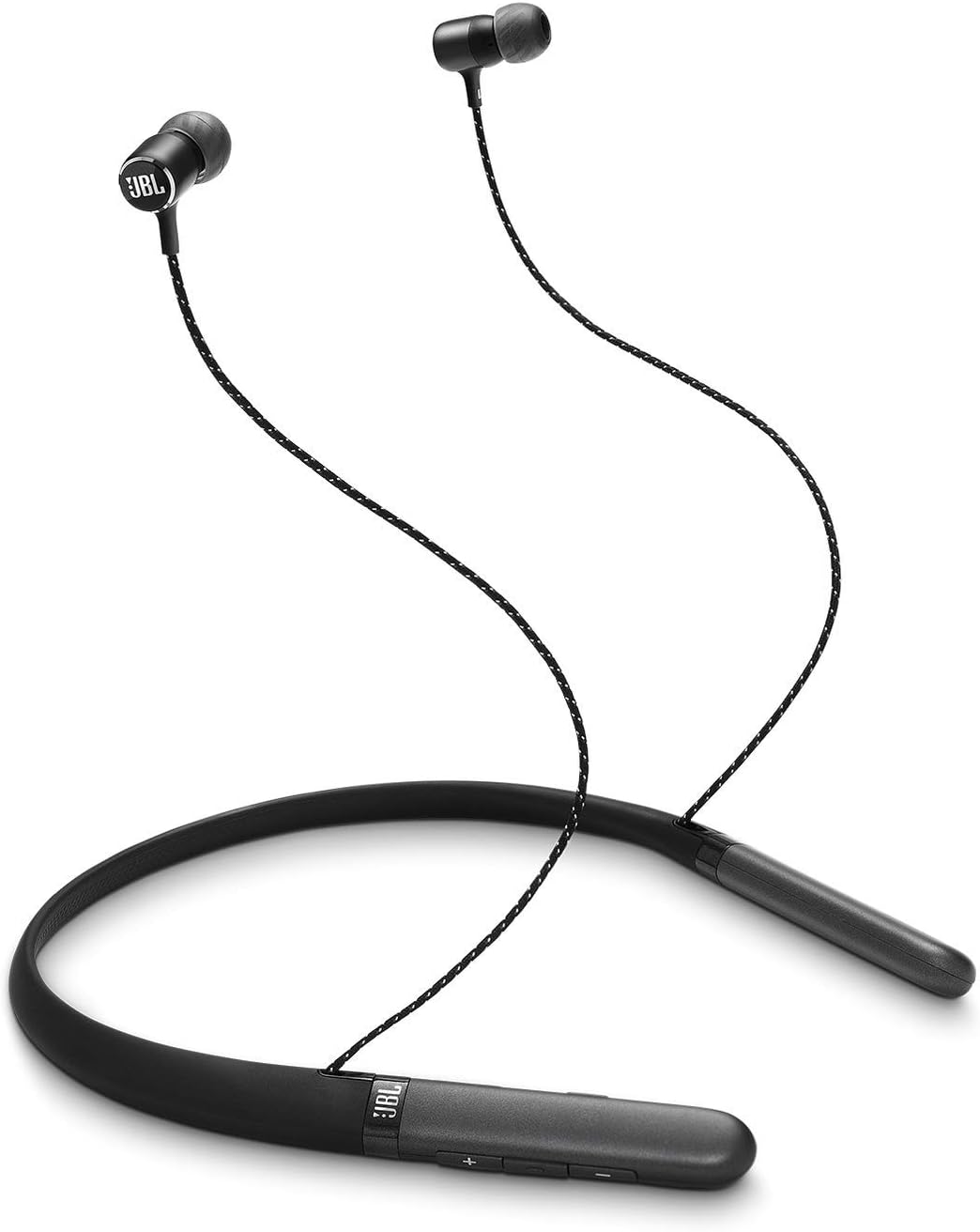
This image shows the complete JBL Live 200BT wireless in-ear headphones. The black neckband rests around the user's neck, with the earbuds extending upwards. The earbuds feature the JBL logo and are connected by a braided cable.
2. Powering On and Bluetooth Pairing
- Power On: Press and hold the power button on the neckband until the LED indicator lights up, indicating the headphones are powered on.
- Pairing Mode: The headphones will automatically enter pairing mode when powered on for the first time, or if no previously paired device is found. The LED indicator will typically flash blue rapidly.
- Connect to Device: On your Bluetooth-enabled device (smartphone, tablet, computer), go to the Bluetooth settings and search for available devices. Select "JBL Live 200BT" from the list.
- Confirmation: Once successfully paired, the LED indicator on the headphones will turn solid blue, and you may hear an audible confirmation tone.
3. Wearing the Headphones
Place the neckband comfortably around your neck. Insert the earbuds into your ears, ensuring a snug fit. Experiment with the different sizes of ear cushions provided to find the best fit for optimal sound quality and comfort.

This image focuses on the individual left (L) and right (R) earbuds of the JBL Live 200BT headphones. It highlights the ear tips and the distinct markings for proper ear placement, ensuring optimal sound and comfort.
Operating Instructions
Controls Overview
The JBL Live 200BT headphones feature a 3-button inline remote and microphone located on the neckband for easy control of music and calls.

A detailed shot of the control panel located on the JBL Live 200BT neckband. It clearly shows the volume up (+), volume down (-), and multi-function buttons, which are used for playback control, call management, and power.
| Button/Action | Function |
|---|---|
| Power Button (Multi-function) | Press and hold to Power On/Off. Short press for Play/Pause (music), Answer/End Call. Double press for Next Track. Triple press for Previous Track. Press and hold for Voice Assistant. |
| Volume Up (+) | Short press to increase volume. |
| Volume Down (-) | Short press to decrease volume. |
Music Playback
- Play/Pause: Press the multi-function button once.
- Next Track: Double press the multi-function button.
- Previous Track: Triple press the multi-function button.
Call Management
- Answer/End Call: Press the multi-function button once.
- Reject Call: Press and hold the multi-function button for 2 seconds.
Voice Assistant
To activate your device's voice assistant (e.g., Siri, Google Assistant), press and hold the multi-function button until the voice assistant is activated.
Maintenance
Proper maintenance ensures the longevity and performance of your JBL Live 200BT headphones.
- Cleaning: Regularly wipe the earbuds and neckband with a soft, dry, lint-free cloth. For stubborn dirt, a slightly damp cloth can be used, but ensure no moisture enters the charging port or speaker grilles. Do not use harsh chemicals or abrasive materials.
- Ear Cushions: Remove ear cushions periodically and clean them with a mild soap solution if necessary, then rinse thoroughly and allow them to dry completely before reattaching.
- Storage: When not in use, store the headphones in a clean, dry place away from extreme temperatures, humidity, and direct sunlight. Avoid tangling the cables.
- Battery Care: To preserve battery life, avoid fully discharging the battery frequently. If storing for an extended period, charge the headphones to about 50% before storage and recharge every few months.
Troubleshooting
If you encounter issues with your JBL Live 200BT headphones, refer to the following common problems and solutions:
| Problem | Possible Solution |
|---|---|
| Headphones do not power on. | Ensure the headphones are fully charged. Connect them to a power source and try again after a few minutes. |
| Cannot pair with Bluetooth device. |
|
| No sound or low sound. |
|
| Sound quality is poor or distorted. |
|
| Microphone not working. |
|
Specifications
Key technical specifications for the JBL Live 200BT Wireless In-Ear Headphones:
| Feature | Detail |
|---|---|
| Model Name | JBL Live 200BT Wireless in-Ear Neckband Headphones (Black) |
| Model Number | 2724679108277 |
| Connectivity Technology | Bluetooth |
| Wireless Communication Technology | Bluetooth |
| Ear Placement | In Ear |
| Form Factor | Neckband |
| Frequency Range | 20 Hz - 20,000 Hz |
| Charging Time | 2 Hours |
| Battery Type | Lithium Polymer (1 required, included) |
| Item Weight | 7.1 Ounces (approx. 201.28 g) |
| Product Dimensions | 4.4 x 22.6 x 18.8 cm |
| Microphone Format | 3-Button Microphone |
| Control Method | App (referring to general JBL app compatibility, if applicable) |
| Material | Aluminum |
Warranty and Support
For detailed warranty information regarding your JBL Live 200BT headphones, please refer to the warranty card included with your product packaging or visit the official JBL website. Warranty terms and conditions may vary by region.
For further assistance, technical support, or to access frequently asked questions, please visit the official JBL support website. You can often find product registration, software updates, and contact information for customer service there.
Visit the JBL Store on Amazon for more product information.


