
1. Product Overview
The FebSmart FS-AE120SE is a high-performance Wireless AC 1200Mbps PCIE WiFi Card designed to provide ultra-fast and stable wireless network connectivity for desktop PCs. It supports dual-band operation at 2.4GHz (up to 300Mbps) and 5GHz (up to 867Mbps), making it ideal for internet surfing, online gaming, Pro-HD video streaming, and online calls. Additionally, this card features a built-in WiFi Stereo Adapter, enabling low-latency wireless audio transmission to compatible devices such as WiFi headsets, speakers, and soundbars.
It is compatible with a wide range of operating systems, including Windows 11, 10 (32/64bit), Windows 8.1 64bit, Windows 8 64bit, and Windows Server 2012, 2012R2, 2016, 2019, 2022, as well as Linux and Chrome OS. The card utilizes a PCI-E X1 interface, ensuring compatibility with various PCI-E slots (X1, X2, X4, X8, X16) and standards (PCI-E 1.X, 2.X, 3.X, 4.X).

Image: FebSmart FS-AE120SE Wireless AC 1200Mbps PCIE WiFi Card with two antennas.

Image: Diagram illustrating 2.4GHz (150Mbps) and 5GHz (433Mbps) speeds, highlighting WiFi 5 and applications like video streaming, internet surfing, online video calls, and online phone calls.

Image: Visual representation of 5GHz (867Mbps) and 2.4GHz (300Mbps) speeds, and support for Pro-HD video quality.
2. What's in the Box
Upon opening the package, please verify that all the following components are included:
- 1x FS-AE120SE Wireless AC 1200Mbps PCIE WiFi Card
- 1x User Manual
- 2x 3dBi Antennas
- 1x Mounting Screw
- 1x USB 2.0 Cable
- 1x Low Profile Bracket
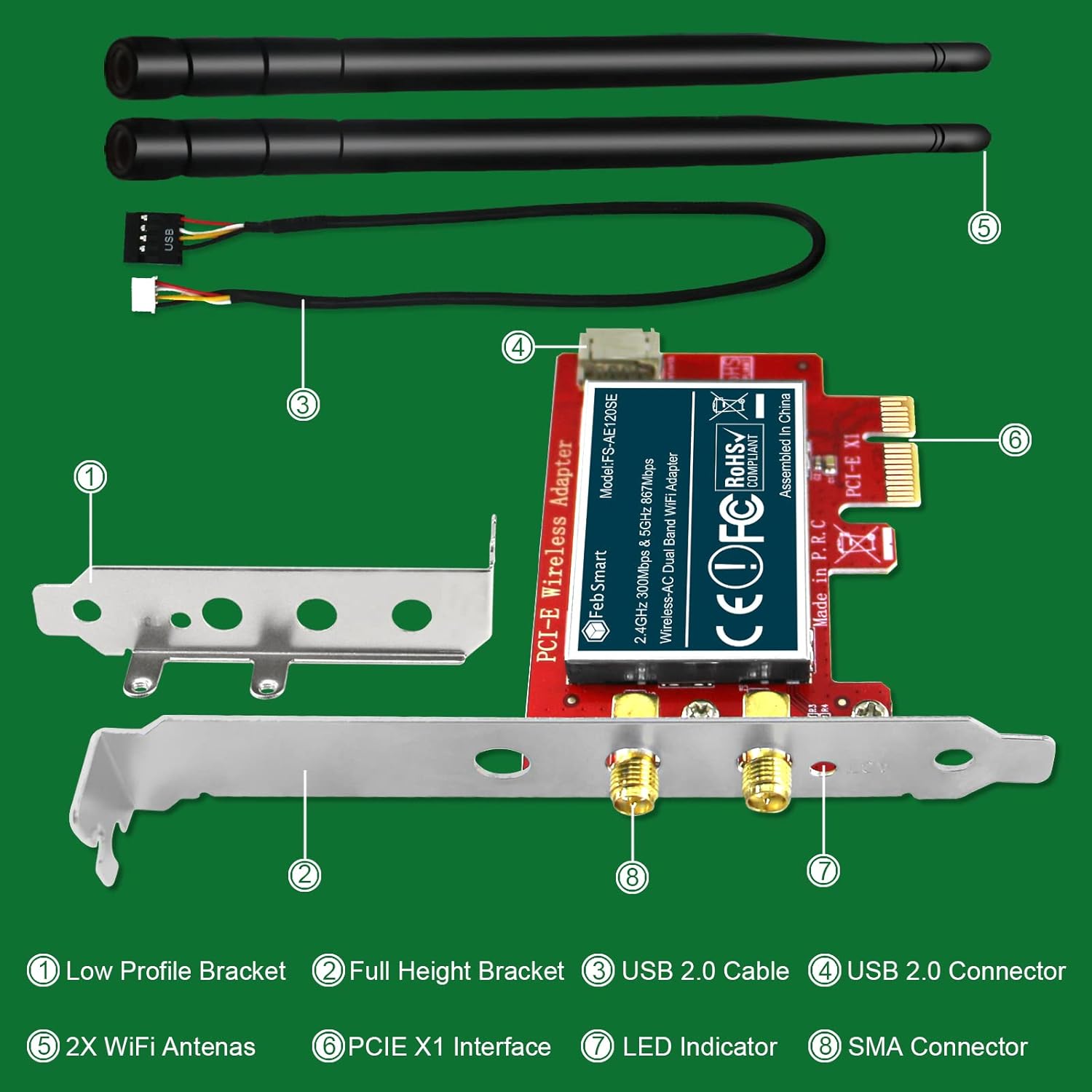
Image: Exploded view of the product components, including the low profile bracket, full height bracket, USB 2.0 cable, USB 2.0 connector, WiFi antennas, PCIe X1 interface, LED indicator, and SMA connector.
3. System Requirements
Before installation, ensure your system meets the following requirements:
- Operating System: Windows 11, 10 (32/64bit), Windows 8.1 64bit, Windows 8 64bit, Windows Server 2012, 2012R2, 2016, 2019, 2022. Also compatible with Linux and Chrome OS.
- PCI-E Slot: At least one empty PCI-E X1, X2, X4, X8, or X16 slot available on the motherboard.
- USB Header: One empty 9-Pin USB 2.0 header on the motherboard is required for the WiFi Stereo Adapter functionality.
- PC Case: Compatible with both standard size PCs (full height bracket pre-installed) and slim PCs (low profile bracket included for manual change).

Image: Visual representation of compatible operating systems including Linux/Unix, Windows Server, Windows 11, Windows 10, Windows 8.x, and Windows 7.

Image: Icons for Windows 11 (32/64bit), Windows 10 (32/64bit), Windows 8 (64bit), and Windows Server (32/64bit) indicating compatibility.
4. Installation Guide
Follow these steps carefully to install your FebSmart FS-AE120SE WiFi Card:
- Prepare Your PC:
- Power off your computer and unplug all cables.
- Open the PC case by removing the side panel.
- Locate an empty PCI-E slot (X1, X2, X4, X8, or X16). Remove the corresponding metal bracket cover from the PC case.
- For slim PCs, you may need to replace the pre-installed full-height bracket on the WiFi card with the included low-profile bracket.
- Install the WiFi Card:
- Carefully insert the FS-AE120SE WiFi card into the chosen PCI-E slot, ensuring it is seated firmly.
- Secure the card with the mounting screw.
- Connect USB Cable (for WiFi Stereo Adapter):
- Locate an available 9-Pin USB 2.0 header on your motherboard.
- Connect the provided USB 2.0 cable from the WiFi card to the motherboard's USB 2.0 header. Ensure correct orientation to avoid damage.
- Attach Antennas:
- Screw the two 3dBi antennas onto the SMA connectors at the back of the WiFi card.
- Close PC Case and Power On:
- Replace the PC case side panel.
- Reconnect all cables and power on your computer.
- Driver Installation:
- For Windows 10 and 11 (32/64bit), the card is typically plug-and-play, and drivers should install automatically.
- For Windows 8.1 64bit, Windows 8 64bit, and Windows Server 2012, 2012R2, 2016, 2019, 2022, you may need to manually install drivers. Refer to the included user manual or the FebSmart official website for the latest drivers.
- For Linux and Chrome OS, specific driver installation steps may be required. Consult the FebSmart website or relevant OS documentation.
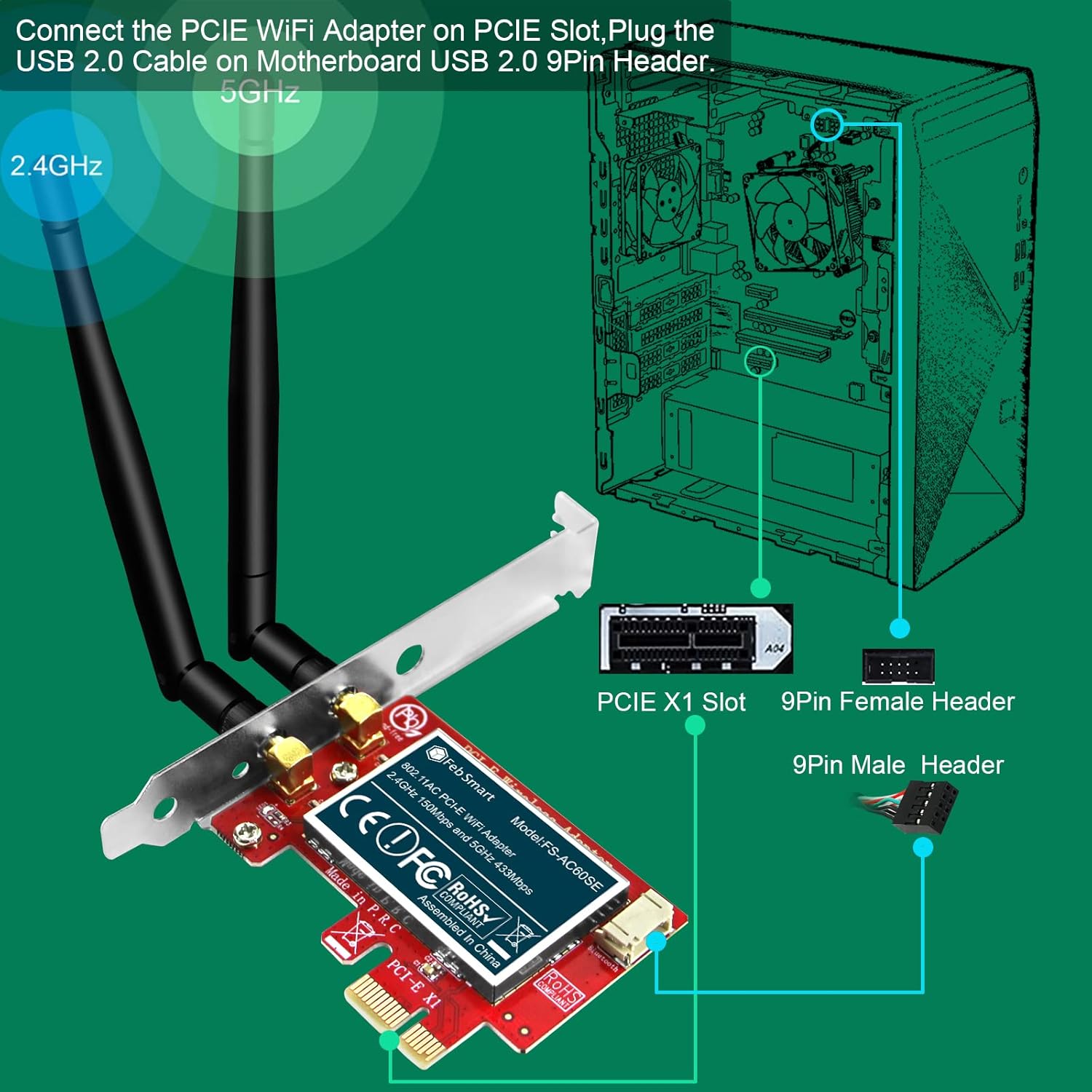
Image: Diagram showing how to connect the PCIe WiFi Adapter to a PCIe slot and plug the USB 2.0 cable into the motherboard's 9-Pin USB 2.0 header.

Image: Illustration of PCIe X1 interface compatibility with X1, X2, X4, X8, X16 slots, and the inclusion of both full height and low profile brackets for standard and slim PCs.

Image: Step-by-step visual guide for installation, including removing the mount screw, removing the PC cover, finding a PCIe slot, plugging in the WiFi card and USB cable, reattaching the cover, connecting antennas, and connecting to a WiFi network.
5. Operating Instructions
5.1 Connecting to a Wi-Fi Network
Once the card is installed and drivers are recognized, you can connect to a wireless network:
- On Windows, click the Wi-Fi icon in the system tray (usually bottom-right corner).
- Select your desired Wi-Fi network from the list.
- Click "Connect" and enter the network security key (password) if prompted.
- Your computer should now be connected to the internet.
5.2 Using the WiFi Stereo Adapter
The integrated WiFi Stereo Adapter allows for wireless audio transmission. Ensure the USB 2.0 cable is connected to your motherboard's 9-Pin USB 2.0 header for this feature to function.
- This feature enables seamless connection to WiFi audio devices such as earphones, headphones, keyboards, mice, and speakers.
- Refer to your specific WiFi audio device's instructions for pairing and connection procedures. The adapter provides the necessary wireless interface for these devices to communicate with your PC.

Image: Diagram showing the WiFi Stereo Adapter connecting to various devices like keyboards, gamepads, mice, TWS earphones, headphones, and speakers.

Image: Illustration of the WiFi Stereo Adapter enabling seamless connection to multiple WiFi audio devices such as earphones, headphones, mice, and speakers, shown with a desktop PC setup.
6. Maintenance
To ensure optimal performance and longevity of your FebSmart FS-AE120SE WiFi Card, consider the following maintenance tips:
- Keep Drivers Updated: Periodically check the FebSmart official website for the latest driver updates. Updated drivers can improve performance, stability, and compatibility.
- Maintain Airflow: Ensure good airflow within your PC case to prevent overheating, which can affect the performance of internal components.
- Clean Dust: Every few months, carefully open your PC case and use compressed air to remove any dust buildup on the WiFi card and surrounding components. Dust can impede heat dissipation.
- Antenna Positioning: Adjust the antennas for the best signal reception. Experiment with different angles to find the optimal position for your environment.
7. Troubleshooting
If you encounter issues with your FebSmart FS-AE120SE WiFi Card, refer to the following common troubleshooting steps:
| Problem | Possible Cause | Solution |
|---|---|---|
| WiFi card not detected / No WiFi networks visible. |
|
|
| Slow Wi-Fi speed or frequent disconnections. |
|
|
| WiFi Stereo Adapter (Bluetooth) not working. |
|
|
| Issues on Windows Server OS (2012R2/2016/2019/2022). |
|
|
8. Specifications
| Feature | Detail |
|---|---|
| Model Number | FS-AE120 |
| Wireless Protocol | IEEE 802.11 AC WiFi 5 |
| Operation Frequency | 5GHz and 2.4GHz |
| Max Speed (2.4GHz) | 300Mbps |
| Max Speed (5GHz) | 867Mbps |
| Major Chipset | Marvell AVSTAR Wireless AC 88W8897 |
| Wireless Encryption | WEP, WPA, WPA2, WPA3, WPA-PSK, WPA2-PSK |
| Hardware Interface | PCI-E X1 (Compatible with X1, X2, X4, X8, X16 slots) |
| Compatible Devices | Desktop PCs |
| Product Dimensions | 4.72 x 3.34 x 0.79 inches (12cm L x 7.8cm W x 1.8cm H for card) |
| Item Weight | 3.53 ounces (100 Grams) |
| Color | Matte Red |
| Manufacturer | FebSmart Co.,LTD |

Image: Detailed dimensions of the WiFi card, low profile bracket, and antennas.
9. Warranty and Support
FebSmart products are designed for reliability and performance. For warranty information or technical support, please contact FebSmart Co.,LTD directly through their official website or the contact information provided in your product packaging.
When contacting support, please have your product model (FS-AE120SE) and purchase details ready to assist with faster service.
