
Wicked Audio WIBTNC1000
Wicked Audio HUM 1000 Wireless Bluetooth Headphones
Model: WIBTNC1000
Introduction
The Wicked Audio HUM 1000 headphones are designed to provide an immersive audio experience with advanced active noise cancelling technology. Featuring comfortable Soft-Tech cushions and a robust design, these headphones are suitable for extended listening sessions. This manual will guide you through the setup, operation, and maintenance of your new headphones to ensure optimal performance.
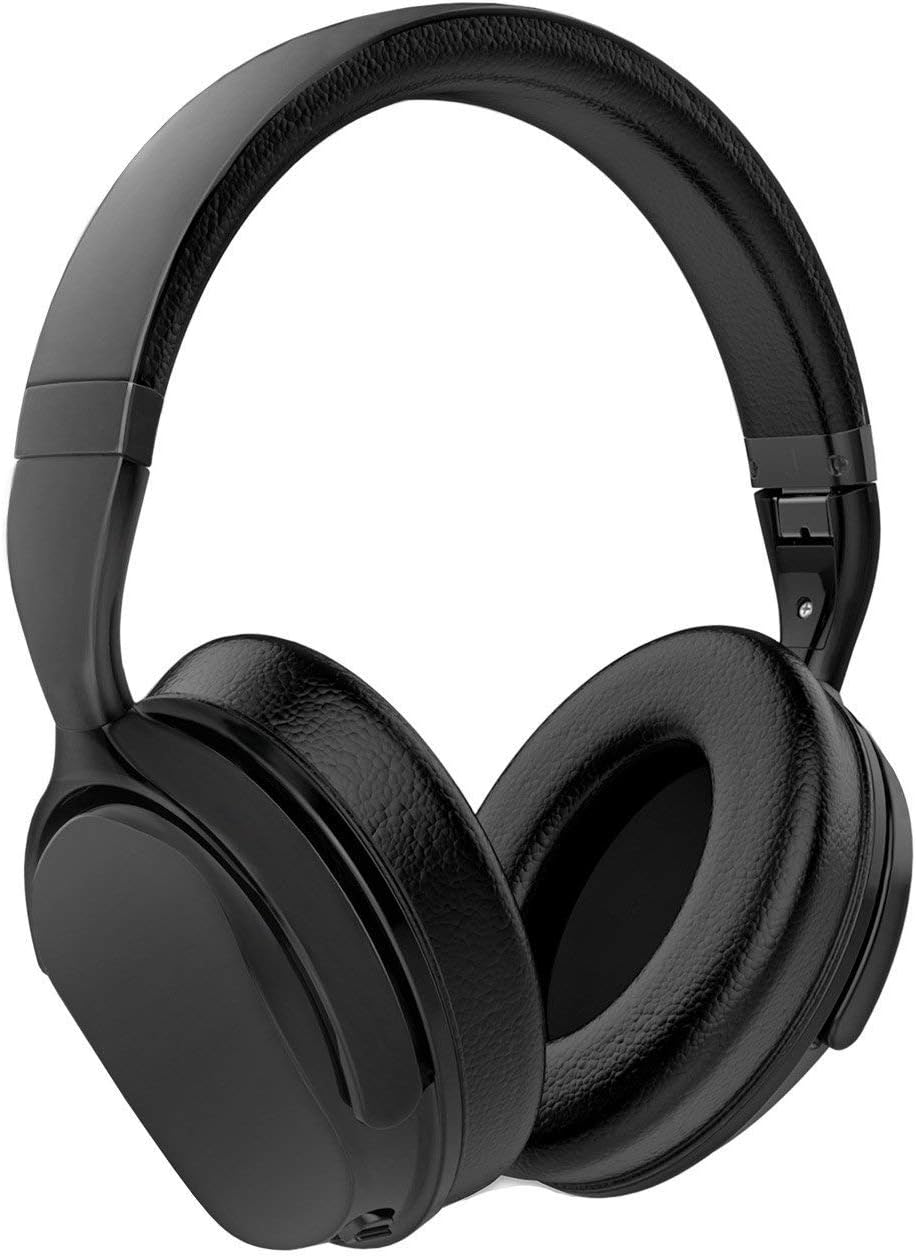
Image: The Wicked Audio HUM 1000 headphones in black, showcasing their over-ear design and sleek finish.
Package Contents
Please check the box for the following items:
- Wicked Audio HUM 1000 Full-Size, Wireless, Noise Cancelling Headphone
- EVA Travel Case
- USB to Micro USB Charging Cord
- Instruction Booklet (this manual)
- Aux Cord (3.5mm audio cable)

Image: A visual representation of all items included in the Wicked Audio HUM 1000 headphone package, including the headphones, travel case, charging cable, and auxiliary cable.
Product Overview and Controls
Familiarize yourself with the physical features and control buttons on your HUM 1000 headphones.

Image: A detailed view of the control buttons located on the earcup of the Wicked Audio HUM 1000 headphones, showing power, volume, and track control buttons.
Control Functions:
- Power Button: Press and hold to turn the headphones on or off.
- Volume Up/Next Track: Short press for volume up, long press for next track.
- Volume Down/Previous Track: Short press for volume down, long press for previous track.
- Multi-function Button (Play/Pause/Answer/Hangup): Press once to play/pause music or answer/end calls.
- ANC (Active Noise Cancelling) Switch: Toggle to activate or deactivate noise cancelling.
Setup and Initial Use
1. Charging the Headphones
Before first use, fully charge your headphones. A full charge takes approximately 2 hours and provides up to 13.5 hours of playback.
- Connect the small end of the included USB to Micro USB charging cord to the charging port on the headphone.
- Connect the larger end of the USB cable to a USB power adapter (not included) or a computer's USB port.
- The LED indicator will show charging status (refer to the LED indicator section in the full manual for details).

Image: An informational graphic detailing Wicked Audio's Triple Battery Protection, which includes battery management on the main circuit board, integrated circuit protection against over-voltage, under-voltage, overcharge, undercharge, and dead short, and a final testing phase for charge/discharge cycles.
2. Bluetooth Pairing
Pair your headphones with your Bluetooth-enabled device for wireless audio.
- Ensure the headphones are charged and turned off.
- Press and hold the Power button until the LED indicator flashes blue and red, indicating pairing mode.
- On your device, enable Bluetooth and search for new devices.
- Select "Wicked Audio HUM 1000" from the list of available devices.
- Once connected, the LED indicator will turn solid blue.
Operating the Headphones
Active Noise Cancelling (ANC)
The HUM 1000 features 97.5% active ambient noise reduction to minimize distractions from your surroundings.
- To activate ANC, slide the ANC switch to the 'ON' position.
- To deactivate ANC, slide the ANC switch to the 'OFF' position.
Wired Connection (Aux Mode)
You can use the headphones with the included 3.5mm aux cord, even if the battery is depleted.
- Plug one end of the 3.5mm aux cord into the audio input jack on the headphone.
- Plug the other end into the 3.5mm audio output jack of your device.
- Note: Controls on the headphone may be limited or inactive in wired mode, depending on your device.
Care and Maintenance
- Clean the headphones with a soft, dry cloth. Do not use abrasive cleaners or solvents.
- Avoid exposing the headphones to extreme temperatures, humidity, or direct sunlight.
- Store the headphones in the provided EVA travel case when not in use to protect them from dust and damage.
- Do not attempt to disassemble or modify the headphones, as this will void the warranty.
Troubleshooting
| Problem | Possible Cause | Solution |
|---|---|---|
| Headphones do not turn on | Low battery | Charge the headphones fully. |
| Cannot pair with device | Headphones not in pairing mode; Device Bluetooth off; Too far from device | Ensure headphones are in pairing mode (flashing blue/red). Turn device Bluetooth on. Move headphones closer to device (within 32ft/10m). |
| No sound or low volume | Volume too low; Incorrect audio source; Headphones not connected | Increase volume on headphones and device. Ensure correct audio output is selected on device. Re-pair or reconnect headphones. |
| ANC not working effectively | ANC switch off; Improper fit | Ensure ANC switch is in the 'ON' position. Adjust headphones for a snug fit over your ears. |
Technical Specifications
| Feature | Detail |
|---|---|
| Model Name | Wicked Audio HUM 1000 |
| Noise Control | Active Noise Cancellation (97.5% ambient noise reduction) |
| Connectivity Technology | Bluetooth 5.0 |
| Battery Life | Up to 13.5 Hours |
| Charge Time | Approx. 2 Hours |
| Frequency Response | 20Hz - 20kHz |
| Impedance | 35 Ohm |
| Ear Placement | Over Ear |
| Control Type | Media Control, Touch |
| Item Weight | 12 ounces (0.75 Pounds) |
| Product Dimensions | 3 x 8 x 10.5 inches |
| Color | Black |
| UPC | 712949011558 |

Image: A detailed graphic outlining the technical specifications and key features of the Wicked Audio HUM 1000 headphones, including battery life, Bluetooth version, and control types.
Warranty and Support
Wicked Audio products are designed for durability and performance. For warranty information or technical support, please refer to the official Wicked Audio website or contact their customer service directly. Keep your proof of purchase for any warranty claims.
For further assistance, visit the Wicked Audio Store on Amazon.
Ask a question about this manual
Ask about setup, troubleshooting, compatibility, parts, safety, or missing instructions. Manuals+ will review the question and use this page’s manual context to help answer it.