
Introduction
This manual provides essential instructions for the safe and efficient operation of your Fujitsu FS-6160ZLA Document Scanner. Please read this manual thoroughly before using the scanner and retain it for future reference. Following these guidelines will ensure optimal performance and longevity of your device.
Product Overview
The Fujitsu FS-6160ZLA is a high-performance document scanner designed for efficient paper handling and digital conversion. It features an Automatic Document Feeder (ADF) for batch scanning and a user-friendly control panel.
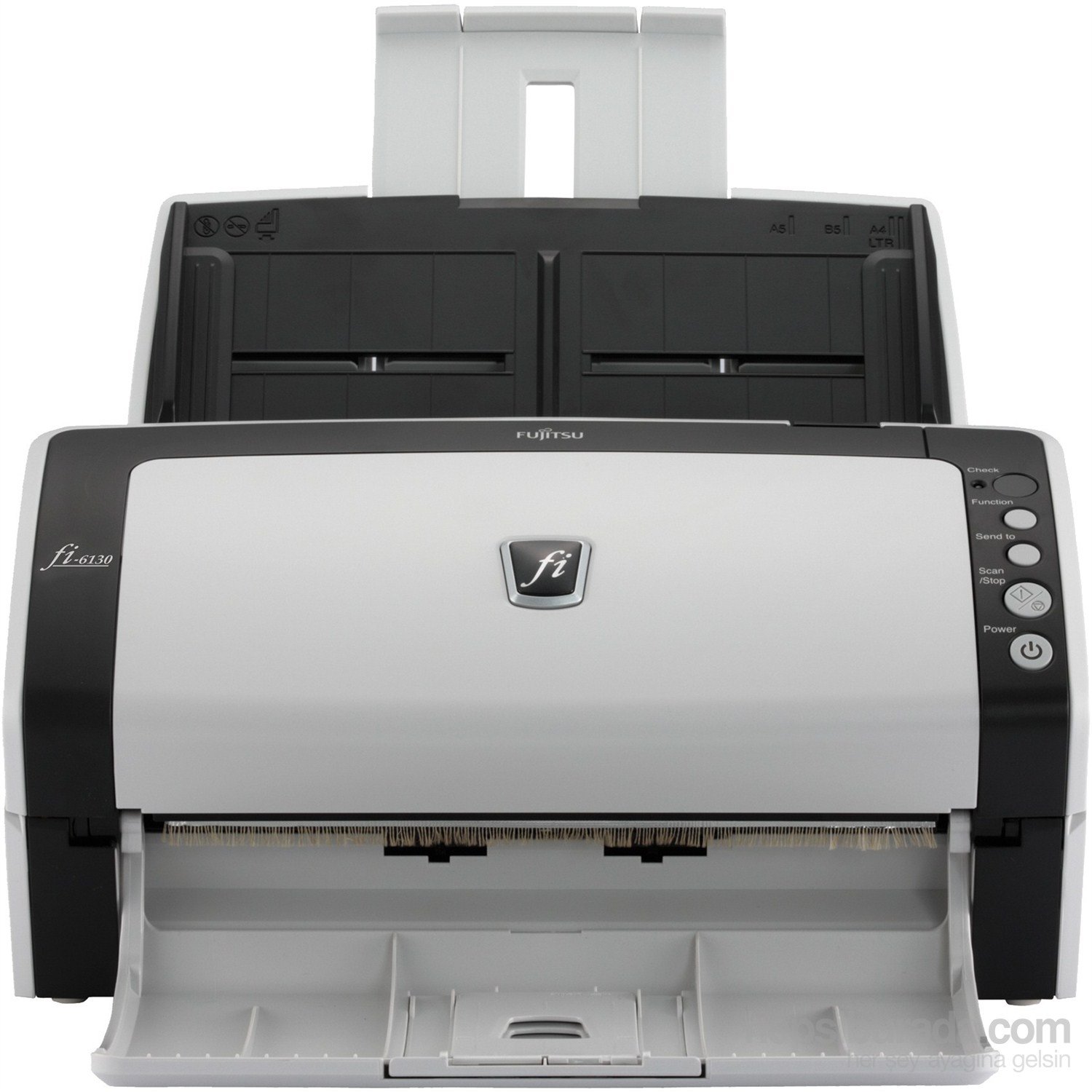
Figure 1: Front view of the Fujitsu fi-6130 document scanner, showing the automatic document feeder (ADF) input tray at the top, the control panel on the right, and the output tray at the bottom. The scanner is white and black.
Key Components:
- Automatic Document Feeder (ADF): For loading multiple documents for continuous scanning.
- Control Panel: Buttons for various functions including power, scan, and job selection.
- Output Tray: Collects scanned documents.
- USB/Power Ports: Located at the rear for connectivity and power supply.
Setup
- Unpacking: Carefully remove the scanner and all accessories from the packaging. Ensure all components are present: scanner unit, AC adapter, USB cable, and software CD/DVD (if included).
- Placement: Place the scanner on a stable, flat surface with adequate space for document feeding and output. Ensure proper ventilation.
- Connect Power: Connect the AC adapter to the scanner's power input and then plug it into a wall outlet.
- Connect to Computer:
- USB Connection: Connect one end of the USB cable to the scanner's USB port and the other end to an available USB port on your computer.
- Wi-Fi Connection: Refer to the separate network setup guide or the scanner's display (if applicable) for instructions on connecting to your wireless network.
- Software Installation: Insert the provided software CD/DVD into your computer's drive, or download the latest drivers and scanning software from the official Fujitsu support website. Follow the on-screen instructions to complete the installation.
Operating Instructions
- Power On: Press the Power button on the control panel to turn on the scanner. Wait for the scanner to initialize.
- Load Documents:
- Fan the stack of documents to separate pages and align edges.
- Place documents face-down in the Automatic Document Feeder (ADF) input tray. Adjust the side guides to fit the width of your documents.
- Ensure documents are within supported sizes (e.g., A4, A5, B5, Letter, Legal).
- Select Scan Settings: Open your scanning software on the computer. Select the desired scan profile, resolution, color mode (e.g., color, grayscale, black & white), and destination folder.
- Start Scanning:
- Press the Scan/Stop button on the scanner's control panel, or initiate the scan from your computer software.
- The scanner will feed and scan the documents.
- Review and Save: After scanning, review the digitized images on your computer. Save them to your preferred location and format.
- Control Panel Functions:
- Check: Verifies scanner status or settings.
- Function: Cycles through predefined scan jobs or settings.
- Send to: Directs scanned documents to a specific application or destination.
- Scan/Stop: Starts or stops the scanning process.
- Power: Turns the scanner on or off.
Maintenance
Regular maintenance ensures consistent scan quality and extends the life of your scanner.
- Cleaning the Rollers:
- Turn off and unplug the scanner.
- Open the scanner cover to access the feed rollers.
- Gently wipe the rollers with a lint-free cloth dampened with isopropyl alcohol or a specialized roller cleaner. Allow to dry completely before closing the cover.
- Cleaning the Glass:
- Locate the glass scanning surface inside the scanner.
- Use a soft, lint-free cloth dampened with glass cleaner (non-abrasive) to clean the glass. Avoid spraying cleaner directly onto the glass.
- Exterior Cleaning: Wipe the exterior of the scanner with a soft, dry cloth. Do not use abrasive cleaners or solvents.
- Consumables: Periodically check the condition of feed rollers and separation pads. Replace them as recommended by Fujitsu to maintain optimal performance. Refer to the Fujitsu support website for replacement part information.
Troubleshooting
This section addresses common issues you might encounter with your Fujitsu FS-6160ZLA scanner.
- Scanner Not Powering On:
- Ensure the power cable is securely connected to both the scanner and a working power outlet.
- Verify the power adapter is functioning correctly.
- Documents Jamming:
- Remove all jammed documents carefully, following the scanner's internal guides.
- Ensure documents are properly fanned and aligned in the ADF.
- Check for worn-out feed rollers or separation pads and replace if necessary.
- Avoid loading creased, stapled, or damaged documents.
- Poor Scan Quality (Streaks, Blurs, Dots):
- Clean the glass scanning surface and feed rollers as described in the Maintenance section.
- Adjust scan settings (e.g., resolution, brightness) in your scanning software.
- Ensure documents are clean and free of debris.
- Scanner Not Detected by Computer:
- Verify the USB or Wi-Fi connection is secure and active.
- Restart both the scanner and your computer.
- Reinstall the scanner drivers and software.
- Try a different USB port or cable.
Specifications
| Feature | Detail |
|---|---|
| Brand | Fujitsu |
| Model | FS-6160ZLA |
| Scanner Type | Document |
| Connectivity Technology | Wi-Fi |
| Optical Sensor Technology | CIS |
| Resolution | 200 dpi |
| Bit Depth | 24-bit |
| Weight | 4.2 kg |
| Dimensions (W x D x H) | 301 mm x 160 mm x 158 mm |
| Maximum Document Size | A4 Vertical: 210 mm x 297 mm, Legal: 216 mm x 355.6 mm (8.5 in x 14 in) |
Warranty and Support
For detailed warranty information, technical support, or to purchase replacement parts and consumables, please visit the official Fujitsu website or contact your local Fujitsu service provider. Keep your purchase receipt as proof of purchase for warranty claims.
Online Resources:


