
1. Introduction
The Whistler PRO-93GXi is an advanced international radar and laser detector designed to identify various radar and laser threats. It incorporates an integrated GPS database to alert users to fixed speed cameras, red light cameras, and combined speed/red light cameras across Europe.
Important Note: Before purchasing or operating this device, please verify the legal situation regarding radar detectors in your country. The possession and/or operation of a radar detector may not be permitted in all regions.
2. Package Contents
Ensure all the following items are present in your package:
- Whistler PRO-93GXi Radar/Laser Detector
- 12V Power Cord
- Windshield Bracket Kit
- Dashboard Mount
- User Guide
- USB Data Cable
3. Product Features
The PRO-93GXi is equipped with several features to enhance detection and user experience:
- FDSR (Field Disturbance Sensor Rejection): Reduces false alerts from collision avoidance and blind spot detection systems in modern vehicles.
- TFSR (Traffic Flow Signal Rejection): Helps eliminate alerts from radar-based traffic flow sensors.
- OLED Display: A clear blue OLED text display provides distinct alerts and information.
- GNATURE ID / RSID / LSID: Provides specific identification for radar and laser signals.
- Internal GPS: Locates and alerts to red light and speed camera locations. The database is updateable via USB.
- Ka Narrow Mode: Specifically designed to detect 34.0 and 34.3 GHz Ka band radar.
- UK / European Laser Alert: Optimized for laser detection in the UK and Europe.
- LED Periscopes: LEDs on the top of the unit provide additional 360° visual alerts.
- MAXX RADAR COVERAGE: Detects signals from the front, sides, and rear of the vehicle.
- SAVER: An optional feature that automatically turns off the detector if you forget to do so.
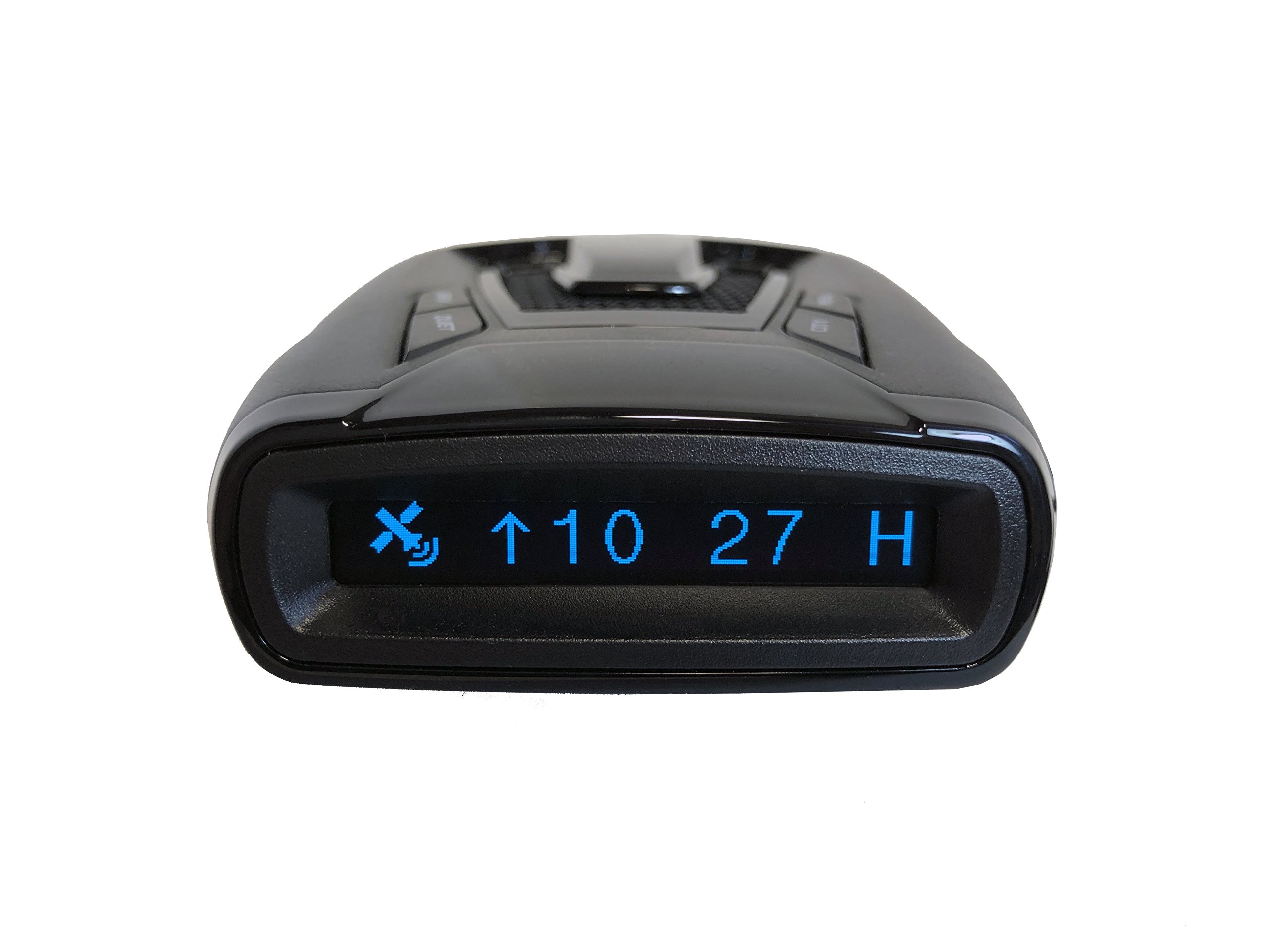
Figure 1: Front view of the Whistler PRO-93GXi Radar/Laser Detector, showing the display area and control buttons.

Figure 2: Top-down view of the Whistler PRO-93GXi, highlighting the button layout and sleek design.
4. Setup
4.1 Mounting the Detector
The PRO-93GXi can be mounted on your vehicle's windshield or dashboard. Choose a location that provides a clear, unobstructed view of the road ahead and behind, ensuring the detector is level.
- Windshield Mount: Attach the suction cup bracket to the windshield, ensuring it is secure. Slide the detector onto the bracket.
- Dashboard Mount: Use the provided adhesive pad to secure the dashboard mount to a clean, flat surface on your dashboard. Slide the detector onto the mount.
4.2 Power Connection
Connect the small end of the 12V power cord to the power input jack on the detector. Plug the larger end into your vehicle's 12V accessory outlet (cigarette lighter socket).
5. Operating Instructions
5.1 Power On/Off
To power on the device, ensure it is connected to a 12V power source. The unit will typically power on automatically with the vehicle's ignition. To manually power off, press and hold the power button (refer to the user guide for exact button location).
5.2 Mode Selection
The PRO-93GXi offers various modes to optimize performance and reduce false alerts:
- City Mode: Reduces sensitivity to X and K band radar to minimize false alerts in urban areas.
- Quiet Mode: Silences audio alerts after an initial warning, allowing visual alerts to continue.
- Dark Mode: Turns off the display and all visual indicators while maintaining full detection capabilities. Audio alerts will still function.
Refer to the user guide for instructions on how to cycle through these modes using the control buttons.
5.3 GPS Functions
The integrated GPS provides alerts for known fixed camera locations. When approaching a stored location, the detector will provide an audible and visual warning. You can also mark your own points of interest (POIs) for future alerts, such as frequently encountered mobile speed camera zones.
5.4 Alert Interpretation
When a radar or laser signal is detected, the PRO-93GXi will provide both audible and visual alerts. The OLED display will show the detected band (e.g., Ka, Laser) and signal strength. The LED periscopes will flash to provide an additional visual cue.
5.5 Database Updates
The internal GPS database for fixed camera locations is updateable. Connect the detector to a computer using the provided USB data cable and visit the official Whistler website for software and database updates. Follow the instructions provided on the website for the update process.
6. Maintenance
6.1 Cleaning
To clean the exterior of the detector, use a soft, damp cloth. Do not use abrasive cleaners or solvents, as these can damage the unit. Ensure the display and lens areas are kept clean for optimal performance.
6.2 Software and Database Updates
Regularly check the Whistler website for available software and GPS database updates. Keeping your device updated ensures it has the latest detection capabilities and camera location information.
7. Troubleshooting
- No Power:
Ensure the 12V power cord is securely connected to both the detector and the vehicle's accessory outlet. Check the vehicle's fuse for the accessory outlet. - Excessive False Alerts:
Activate City Mode to reduce sensitivity in urban areas. Ensure FDSR and TFSR features are enabled. Consider repositioning the detector to avoid interference from vehicle systems. - GPS Not Acquiring Signal:
Ensure the detector has a clear view of the sky. Avoid mounting it directly under metallic tints or other obstructions on the windshield. Allow several minutes for initial GPS lock. - No Audio Alerts:
Check the volume setting. Ensure Quiet Mode is not activated. - Display Not Working:
Ensure Dark Mode is not activated. Check power connection.
8. Specifications
| Feature | Detail |
|---|---|
| Brand | Whistler |
| Model Number | PRO-93GXi |
| Compatible Devices | Camera |
| Supported Frequency Bands | 34.3 GHz |
| Power Source | Wired Electric (12V) |
| Display Type | OLED |
| UPC | 052303408786 |
9. Warranty and Support
For detailed warranty information, please refer to the warranty card included in your product package or consult the official Whistler website. For technical support, troubleshooting assistance, or further inquiries, please contact Whistler customer service. Keep your user guide and proof of purchase handy when seeking support.


