
TP-Link Deco M9 Plus (2-pack)
TP-Link Deco Powerline Hybrid Mesh WIFI System User Manual
Model: Deco M9 Plus (2-pack)
Introduction
This manual provides comprehensive instructions for the setup, operation, maintenance, and troubleshooting of your TP-Link Deco Powerline Hybrid Mesh WIFI System. The Deco M9 Plus is designed to deliver seamless, high-performance Wi-Fi coverage throughout your home, combining tri-band Wi-Fi with powerline technology for enhanced connectivity.
The system supports over 100 devices and includes a built-in smart hub for ZigBee, Bluetooth, and Wi-Fi smart home products, eliminating the need for additional hubs. It also features advanced security protocols and antivirus protection by Trend Micro to safeguard your network.
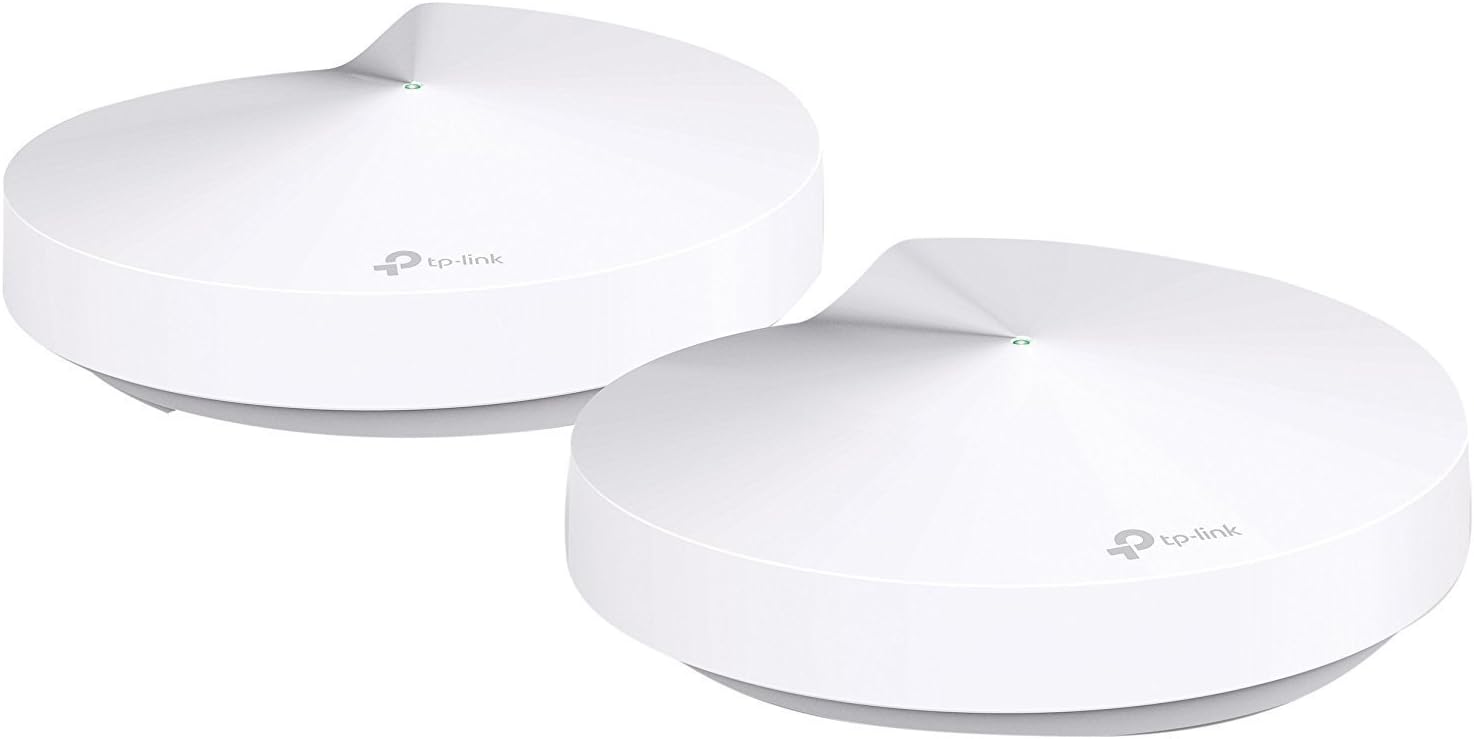
Image: Two TP-Link Deco M9 Plus units, showcasing their compact and modern design.
Setup Guide
Setting up your Deco M9 Plus system is a straightforward process primarily managed through the Deco mobile application.
Package Contents
Before you begin, ensure all components are present:
- Deco M9 Plus Units (2-pack)
- Power Adapters
- Ethernet Cable
- Quick Installation Guide
Initial Setup Steps
1. Connect the Main Deco Unit: Connect one Deco unit to your cable modem or existing router using the provided Ethernet cable. Power on the Deco unit.

Image: Rear view of a Deco M9 Plus unit, highlighting its two Ethernet ports and a USB port for connectivity. This is where the main Deco unit connects to your modem.
2. Download the Deco App: Search for "TP-Link Deco" in your mobile device's app store (App Store for iOS or Google Play Store for Android) and download the application.

Image: A smartphone screen showing the Deco app interface, guiding the user through the setup. The app is essential for configuring the mesh system.
3. Follow In-App Instructions: Launch the Deco app and sign in with your TP-Link ID or create a new one. The app will guide you step-by-step through the configuration process, including placing additional Deco units and setting up your Wi-Fi network name and password.
Placement Recommendations
For optimal performance, place Deco units in central locations within your home, avoiding obstructions and sources of interference. The Deco app provides guidance on ideal placement for the best signal strength and coverage.

Image: An architectural diagram showing how Deco M9 Plus units provide comprehensive Wi-Fi, Bluetooth, and ZigBee mesh coverage across different floors of a house, illustrating the system's whole-home reach.
Operating Your Deco System
Once set up, your Deco M9 Plus system operates as a unified Wi-Fi network, providing seamless roaming and intelligent connection management.
Network Management via Deco App
The Deco app is your primary interface for managing your network. It allows you to:
- View connected devices and their status.
- Prioritize devices for optimal performance (QoS).
- Set up parental controls and time limits.
- Enable or disable guest networks.
- Access network security features (HomeCare).
- Monitor network usage and attack summaries.
Smart Home Hub Functionality
The Deco M9 Plus includes a built-in smart hub that supports ZigBee, Bluetooth, and Wi-Fi smart devices. You can connect and control compatible smart home products directly through the Deco app, simplifying your smart home setup.
Maintenance
Regular maintenance ensures the longevity and optimal performance of your Deco system.
Firmware Updates
The Deco app will notify you when new firmware updates are available. It is highly recommended to keep your Deco units updated to the latest firmware to benefit from performance improvements, new features, and security enhancements. Updates are typically performed directly through the app.
Cleaning
Wipe the Deco units with a soft, dry cloth. Do not use liquid cleaners or aerosol sprays. Ensure the units are unplugged before cleaning.
Restarting the System
If you experience minor network issues, a simple restart of your Deco units and modem can often resolve them. Unplug the power adapters from all Deco units and your modem, wait for 30 seconds, then plug them back in, starting with the modem, then the main Deco, and finally other Deco units.
Troubleshooting
This section addresses common issues you might encounter with your Deco M9 Plus system.
No Internet Connection
- Verify that your modem is working correctly and has an active internet connection.
- Ensure the Ethernet cable connecting the main Deco unit to the modem is securely plugged in.
- Restart your modem and all Deco units.
- Check the Deco app for any error messages or diagnostic tools.
Weak Wi-Fi Signal or Dead Zones
- Relocate Deco units to more central positions, ensuring they are within range of each other. The Deco app can help identify optimal placement.
- Minimize physical obstructions like thick walls or large metal objects between Deco units.
- Ensure all Deco units are powered on and their LED indicators are solid green.
Deco Unit LED Status
| LED Color | Status | Meaning |
|---|---|---|
| Solid Green | Working normally | Deco is online and operating correctly. |
| Pulsing Green | Starting up | Deco is booting up or connecting to the network. |
| Solid Red | No internet connection | Deco has lost its internet connection. |
| Pulsing Red | Error or disconnected | Deco is experiencing an issue or is disconnected from the main unit. |
| Solid White | Resetting | Deco is being reset to factory settings. |
Specifications
| Feature | Detail |
|---|---|
| Model | Deco M9 Plus (2-pack) |
| Wireless Type | 802.11ac |
| Frequency Band Class | Tri-Band |
| Coverage | Up to 4,500 sq. ft. (with 2 units) |
| Connected Devices | Supports 100+ devices |
| Smart Hub | Built-in ZigBee, Bluetooth, Wi-Fi hub |
| Security | TP-Link HomeCare (Antivirus by Trend Micro) |
| Ports | 2 Gigabit Ethernet ports per Deco unit, 1 USB port |
| Dimensions (LxWxH) | 6 x 6 x 3.5 inches |
| Item Weight | 2.2 pounds |
| Power Supply | 9 Volts |
Warranty and Support
Warranty Information
The TP-Link Deco M9 Plus comes with a manufacturer's warranty. For detailed warranty terms and conditions, please refer to the official TP-Link website or the warranty card included with your product. Note that the free lifetime subscription to TP-Link HomeCare is tied to the life of the purchased device and is non-transferable.
Technical Support
For technical assistance, product registration, or to access additional resources, please visit the official TP-Link support website. You can find FAQs, updated drivers, and contact information for customer service.
Official TP-Link Support: www.tp-link.com/support
User Guide (PDF): Download User Guide
User Manual (PDF): Download User Manual
Related Documents - Deco M9 Plus (2-pack)
 |
TP-Link Deco Quick Installation Guide Quick installation guide for TP-Link Deco mesh WiFi systems, providing setup instructions and LED status explanations in multiple languages. |
 |
TP-Link Deco App User Guide: Mesh Wi-Fi Setup, Management & Features Explore the TP-Link Deco app user guide for seamless mesh Wi-Fi setup, network monitoring, parental controls, smart home integration, VPN, and advanced features. Optimize your home network. |
 |
TP-Link Deco 3.0 User Guide: Setup, Features, and Management Comprehensive user guide for the TP-Link Deco 3.0 mesh Wi-Fi system. Learn how to set up, manage, and optimize your home network with detailed instructions and feature explanations. |
 |
TP-Link Deco E4 AC1200 Whole Home Mesh WiFi System | Features & Specifications Discover the TP-Link Deco E4, an AC1200 Whole Home Mesh WiFi System designed to eliminate dead zones, provide seamless roaming, and offer robust parental controls. Learn about its features, specifications, and how it simplifies your home network. |
 |
TP-Link Deco AC1200 Whole Home Mesh Wi-Fi System User Guide Comprehensive user guide for the TP-Link Deco AC1200 Whole Home Mesh Wi-Fi System (M4/M4R/E4/E4R/W2400), covering setup, configuration, advanced features, and regulatory information. |
 |
TP-Link Deco P9 AC1200 + AV1000 Whole Home Powerline Mesh Wi-Fi System User Guide Comprehensive user guide for the TP-Link Deco P9 AC1200 + AV1000 Whole Home Powerline Mesh Wi-Fi System, detailing setup, network management, advanced features, and regulatory compliance. |