
1. Introduction
The DataLocker Sentry ONE is a secure, encrypted USB 3.1 flash drive designed to protect sensitive data. This manual provides essential information for the proper setup, operation, and maintenance of your device, ensuring optimal security and performance. The Sentry ONE requires management through DataLocker's EMS or SafeConsole platforms, which are sold separately.
2. Product Overview
The DataLocker Sentry ONE is a compact and robust USB flash drive engineered for high-level data security. It features hardware-based encryption to safeguard your information against unauthorized access.
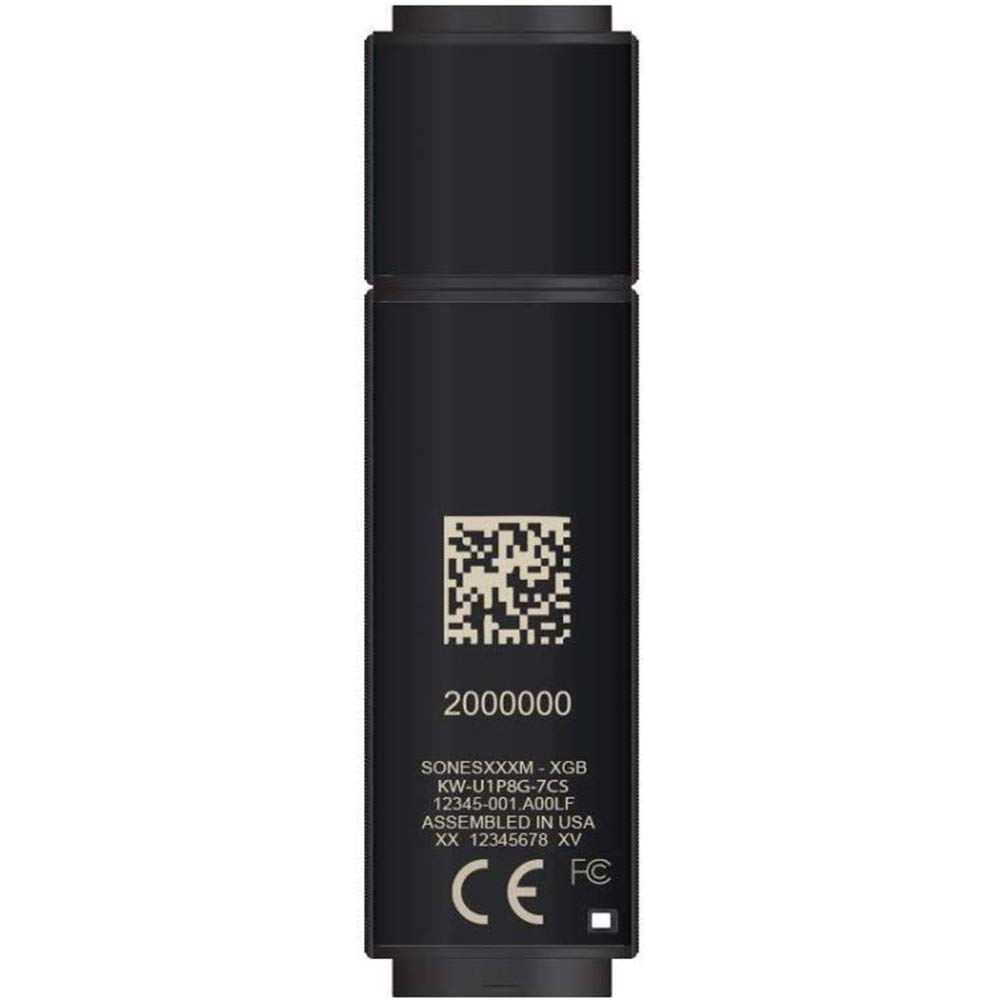
An image showing the DataLocker Sentry ONE Encrypted Flash Drive, a compact black USB device designed for secure data storage.
This device is TAA Compliant and meets stringent security standards, making it suitable for government and enterprise use.
3. Key Features
- Storage Capacity: 4 GB for essential data.
- Advanced Encryption: FIPS 140-2 Level 3 validated 256-bit AES hardware encryption.
- High-Speed Interface: USB 3.1 Gen 1 for fast data transfer.
- Centralized Management: Designed for use with DataLocker's EMS or SafeConsole management platforms (sold separately) for policy enforcement and auditing.
- TAA Compliant: Meets Trade Agreements Act requirements.
- Durable Design: Compact and robust construction for portability and protection.
4. Setup Instructions
Initial setup of the DataLocker Sentry ONE requires access to a DataLocker EMS or SafeConsole management system. This process ensures the device is configured according to your organization's security policies.
- Connect the Device: Insert the Sentry ONE flash drive into an available USB 3.1 (or compatible USB 2.0) port on your computer.
- Access Management Console: Log in to your organization's DataLocker EMS or SafeConsole administration portal.
- Device Recognition: The management console should detect the newly connected Sentry ONE device. Follow the on-screen prompts within the console to initiate the setup process.
- Policy Application: The management console will apply the necessary security policies, including password requirements, inactivity timeouts, and other security settings.
- User Enrollment: Complete any required user enrollment or authentication steps as directed by your administrator or the management console. This typically involves setting a strong password for device access.
- Ready for Use: Once configured and authenticated, the Sentry ONE will be ready for secure data storage.
Note: Specific setup steps may vary based on your organization's EMS or SafeConsole configuration. Consult your IT administrator for detailed guidance.
5. Operating Instructions
Follow these steps for daily use of your DataLocker Sentry ONE encrypted flash drive:
- Connect the Drive: Insert the Sentry ONE into a USB port on your computer.
- Authenticate: The device will prompt you for authentication (e.g., password entry). Enter your credentials as established during the setup process.
- Access Data: Once authenticated, the secure volume of the Sentry ONE will appear as a removable drive in your operating system's file explorer. You can now drag and drop files to and from the drive as you would with any standard USB drive.
- Locking the Drive: To secure your data, you can manually lock the drive through the device's utility (if available) or by safely ejecting it from your operating system. The drive will automatically lock after a period of inactivity as defined by your organization's security policy.
- Safely Eject: Before removing the drive, always safely eject it from your operating system to prevent data corruption. Right-click the drive icon in your file explorer and select "Eject" or "Safely Remove Hardware."
6. Maintenance
Proper maintenance ensures the longevity and continued security of your DataLocker Sentry ONE.
- Physical Care: Keep the drive clean and free from dust and moisture. Avoid extreme temperatures and physical impacts.
- Firmware Updates: Periodically check with your IT administrator or DataLocker support for any available firmware updates. Updates often include security enhancements and performance improvements.
- Password Management: Always use a strong, unique password for your device. Change your password regularly as per your organization's policy.
- Data Backup: While the Sentry ONE provides robust security, it is good practice to maintain backups of critical data on other secure storage solutions.
7. Troubleshooting
If you encounter issues with your DataLocker Sentry ONE, consider the following common solutions:
- Drive Not Recognized:
- Ensure the drive is fully inserted into the USB port.
- Try a different USB port on your computer.
- Test the drive on another computer to rule out a computer-specific issue.
- Check your computer's Device Manager (Windows) or System Information (macOS) to see if the USB device is detected.
- Authentication Failure:
- Verify that you are entering the correct password. Pay attention to capitalization and special characters.
- If you have forgotten your password, contact your IT administrator for assistance with password reset procedures via EMS or SafeConsole.
- Slow Data Transfer:
- Ensure the drive is connected to a USB 3.1 compatible port for optimal speed. Using a USB 2.0 port will result in slower transfers.
- Close any unnecessary applications running in the background that might be consuming system resources.
- Drive Appears Locked:
- The drive may have automatically locked due to inactivity. Re-authenticate to unlock it.
- Ensure no security policies are preventing access. Contact your IT administrator if you suspect a policy issue.
For issues not covered here, please contact your IT department or DataLocker support.
8. Specifications
| Feature | Detail |
|---|---|
| Model Number | SONE004M |
| Storage Capacity | 4 GB |
| Encryption Standard | 256-bit AES (FIPS 140-2 Level 3 Validated) |
| Host Interface | USB 3.1 Gen 1 (backward compatible with USB 2.0) |
| Dimensions (LxWxH) | 0.87 x 3.07 x 0.47 inches |
| Weight | 1.76 ounces |
| Color | Black |
| Compliance | TAA Compliant |
| Management Required | DataLocker EMS or SafeConsole (sold separately) |
| UPC | 853770007690 |
9. Warranty and Support
For information regarding product warranty, technical support, or to access additional resources, please refer to the official DataLocker website or contact your authorized reseller. For general inquiries, you may also visit the DataLocker Store on Amazon.
It is recommended to keep your purchase receipt and product packaging for warranty claims.


