
1. Introduction
The MICROWARE MOCUTE 054 is a wireless gamepad designed to enhance your mobile gaming experience on Android devices. Featuring a telescopic holder for smartphones, ergonomic design, and a reliable Bluetooth connection, this controller provides precise control for a wide range of games. This manual provides detailed instructions for setup, operation, maintenance, and troubleshooting to ensure optimal performance.
Important Note: This product is designed exclusively for Android operating systems and does not support iOS devices.
2. Important Safety Information
- Do not expose the gamepad to extreme temperatures, direct sunlight, or high humidity.
- Avoid dropping or subjecting the device to strong impacts.
- Keep out of reach of children.
- Do not attempt to disassemble or modify the gamepad. This will void the warranty and may cause damage.
- Use only the provided or recommended charging cable.
- Dispose of the product and its battery responsibly according to local regulations.
3. Package Contents
Please check the package for the following items:
- 1 x MOCUTE 054 Wireless Gamepad
- 1 x User Manual
- 1 x USB Charging Cable (not explicitly listed in product description but implied for charging)
4. Product Overview
The MOCUTE 054 gamepad features a standard controller layout with dual analog sticks, a D-pad, action buttons, shoulder buttons, and a built-in telescopic phone holder.

Image: Front view of the MOCUTE 054 Wireless Gamepad with its telescopic phone holder extended.
4.1 Controls and Indicators

Image: Labeled diagram of the MOCUTE 054 Gamepad's buttons and controls.
- Left Joystick/L3: For movement and camera control. Press down for L3.
- Directional Pad (D-Pad): For precise directional input.
- SELECT Button: Typically used for menu selection or specific game functions.
- Power Key: Used to turn the gamepad on/off and for pairing.
- L1/L2 Buttons: Left shoulder and trigger buttons.
- Right Joystick/R3: For camera control or specific game actions. Press down for R3.
- Function Keys (A, B, X, Y): Standard action buttons.
- START Button: Typically used to pause games or access menus.
- M Key: Mode button, often used for specific functions or mode switching.
- R1/R2 Buttons: Right shoulder and trigger buttons.
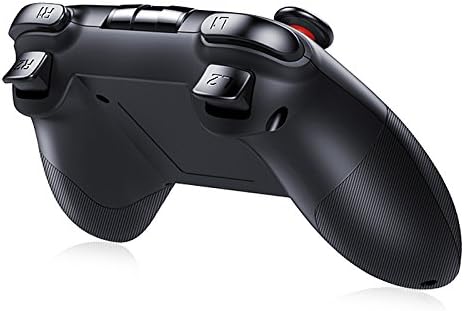
Image: Side view of the MOCUTE 054 Gamepad, highlighting the L1, L2, R1, and R2 trigger buttons.
5. Setup
5.1 Charging the Gamepad
Before first use, fully charge the gamepad. Connect the provided USB charging cable to the charging port on the gamepad and plug the other end into a USB power source (e.g., computer, USB wall adapter). The charging indicator light will illuminate during charging and turn off when fully charged. A full charge typically takes 2-3 hours.
5.2 Powering On/Off
- To Power On: Press and hold the Power Key for a few seconds until the indicator light flashes.
- To Power Off: Press and hold the Power Key for a few seconds until the indicator light turns off. The gamepad will automatically power off after a period of inactivity to conserve battery.
5.3 Bluetooth Pairing (Android Devices)
The MOCUTE 054 connects wirelessly via Bluetooth to your Android smartphone or tablet.
- Ensure the gamepad is sufficiently charged.
- Power on the gamepad by pressing and holding the Power Key. The indicator light will flash, indicating it's in pairing mode.
- On your Android device, go to Settings > Bluetooth and turn Bluetooth on.
- Scan for available devices. You should see "MOCUTE-054-XXXX" or a similar name.
- Select the gamepad from the list to pair. Once paired, the indicator light on the gamepad will become solid.
- If prompted for a passcode, enter "0000" or "1234".
5.4 Important Compatibility Note
This gamepad is compatible only with Android wireless mobile phones and Android devices. It does not support iOS systems (iPhone, iPad) or Windows operating systems for gaming. Supported Android devices include, but are not limited to, Samsung Galaxy S8/S9/Note 8, Huawei Mate/P series, OPPO, and Vivo Android phones and tablets.
6. Operating Instructions
6.1 Selecting a Boot Mode
The MOCUTE 054 supports different boot modes to ensure compatibility with various Android games and applications. Customers should choose the appropriate boot mode based on their device and the game they intend to play.

Image: Diagram showing different boot modes and their compatibility.
To select a boot mode, press and hold the Power Key along with the corresponding mode key (A, B, X, Y) simultaneously until the indicator light flashes in the desired pattern or color (refer to the gamepad's specific indicator behavior for each mode).
| Boot Mode | Bluetooth Name | Android Compatibility |
|---|---|---|
| 1. Auto Mode (Default) | -AUTO | General Gamepad |
| 2. iCade Mode | -iCade | General Gamepad |
| 3. NEWGAME Mode | -NEWGAME | General Gamepad |
| 4. Xiaoji-MTK Mode | -XJMTK | Keyboard Mode |
6.2 Using the Telescopic Holder
The integrated telescopic holder can securely hold smartphones between 4 and 6 inches in size. Gently pull the top part of the holder upwards to extend it, place your phone securely, and then release to clamp it in place. Ensure your phone is centered for balance.

Image: The MOCUTE 054 Gamepad with a smartphone securely mounted in its telescopic holder, ready for gaming.
6.3 Gaming Experience
Once paired and a suitable boot mode is selected, launch your favorite Android games that support gamepad input. The ergonomic design and high-precision joysticks are intended to provide a comfortable and responsive gaming experience.

Image: A user engaging in mobile gaming with the MOCUTE 054 Gamepad and a smartphone.
7. Maintenance
- Cleaning: Use a soft, dry cloth to wipe the surface of the gamepad. Do not use harsh chemicals or abrasive cleaners.
- Storage: Store the gamepad in a cool, dry place away from direct sunlight and extreme temperatures when not in use.
- Battery Care: To prolong battery life, avoid fully discharging the battery frequently. Charge the gamepad regularly, even if not in constant use.
8. Troubleshooting
- Gamepad not turning on: Ensure the gamepad is fully charged. Connect it to a power source and try again.
- Cannot pair with Android device:
- Make sure Bluetooth is enabled on your Android device.
- Ensure the gamepad is in pairing mode (flashing indicator light).
- Forget any previously paired MOCUTE devices on your phone and try pairing again.
- Restart both the gamepad and your Android device.
- Buttons not responding in game:
- Verify that the game supports gamepad input.
- Try switching to a different boot mode (e.g., Auto Mode, NEWGAME Mode) as some games may require specific modes.
- Ensure the gamepad is properly paired and connected.
- Short battery life: Ensure the gamepad is fully charged before use. Operating time is approximately 20-30 hours on a full charge.
9. Specifications
| Feature | Detail |
|---|---|
| Model | MOCUTE 054 |
| Wireless Version | Bluetooth 3.0 |
| Material | ABS Plastic |
| Compatibility | Android Smartphones, Tablets (No iOS support) |
| Battery | 400mAh Li-ion (Built-in, rechargeable) |
| Transmission Distance | 2-8 meters |
| Working Time | 20-30 hours |
| Charging Time | 2-3 hours |
| Standby Time | 30 days (fully charged) |
| Dimensions | 170 x 140 x 60 mm |
| Weight | 286 g |
| Phone Holder Support | 4-6 inch smartphones |
| Special Features | Ergonomic design, Wireless connectivity |
10. Warranty and Support
This product comes with a standard manufacturer's warranty. Please refer to your purchase documentation for specific warranty terms and conditions. For technical support or inquiries, please contact the retailer or manufacturer directly through their official channels.