
1. Product Overview
The ANRAN 4-Channel 1080p Wi-Fi NVR Surveillance System is designed for comprehensive home and property monitoring. This system includes a Network Video Recorder (NVR) with a pre-installed 1TB hard drive and four 2MP waterproof IP cameras. It offers wireless connectivity between the cameras and the NVR, simplifying installation. Key features include remote access via mobile application, motion detection with email alerts, and automatic pairing for ease of use.

Figure 1.1: Overview of the ANRAN Wi-Fi NVR surveillance system, showing the NVR unit, four cameras, and a 1TB hard drive.
2. System Components
The ANRAN surveillance system consists of the following main components:
- NVR (Network Video Recorder): The central unit for recording and managing video footage. It features a built-in Wi-Fi router and two wireless antennas for strong signal transmission.
- IP Cameras (4x 2MP): Waterproof cameras designed for both indoor and outdoor use, providing 1080p video resolution. Each camera requires a 12V DC power adapter.
- 1TB Hard Drive: Pre-installed in the NVR for local video storage.
- Power Adapters: For NVR and each camera.
- USB Mouse: For NVR operation.
- HDMI/VGA Cable (optional, not always included): For connecting NVR to a monitor.

Figure 2.1: Diagram illustrating the NVR's ports (WiFi Antenna, USB Port, Power Supply, Net Port, HDMI Port, VGA Port) and its dimensions (150mm diameter, 230mm height).
3. Setup Guide
3.1 Initial Setup
- Connect NVR:
- Connect the NVR to a power outlet using its DC adapter.
- Connect the NVR to a monitor or TV via HDMI or VGA cable. Ensure the display resolution is at least 1920x1080 pixels for optimal viewing.
- Connect the USB mouse to the NVR's USB port.
- Power On Cameras: Connect each camera to a 12V DC power outlet. The cameras will automatically pair with the NVR.
- System Boot-up: The NVR system will boot up, and live video feeds from the cameras should appear on the connected monitor.

Figure 3.1: Illustration showing a camera connected to a power outlet and wirelessly communicating with the NVR, emphasizing that no video cable is needed between them.
3.2 Camera Placement and Signal Range
The system features an auto-pairing function. The NVR has a built-in router, and cameras automatically connect. The Wi-Fi signal can reach up to 100ft in open areas, 50ft with one wall, and 30ft with two walls. Actual distance may vary based on environmental factors.

Figure 3.2: Diagram illustrating the auto-pairing system, showing the NVR's central placement and cameras wirelessly connected around a house, indicating signal reach.
3.3 Internet Connection (Optional for Remote Access)
While the system functions without an internet connection for local viewing and recording, an internet connection is required for remote access via smartphone, tablet, or PC.
- Connect the NVR to your home router using an Ethernet cable via the NVR's "Net Port".
4. Operating Instructions
4.1 Local Viewing and Playback
Once the NVR is connected to a monitor, you can view live feeds and playback recorded footage using the connected USB mouse to navigate the NVR's interface.
4.2 Remote Access via Mobile App
To access your surveillance system remotely:
- Download App: Search for the official ANRAN app on your smartphone's app store (e.g., Google Play Store for Android, Apple App Store for iOS).
- Scan or Input Cloud ID: Open the app and follow the instructions to scan the QR code displayed on your NVR's monitor or manually input the Cloud ID.
- View Cameras: Once connected, you can view live streams, playback recordings, and manage settings from your mobile device.
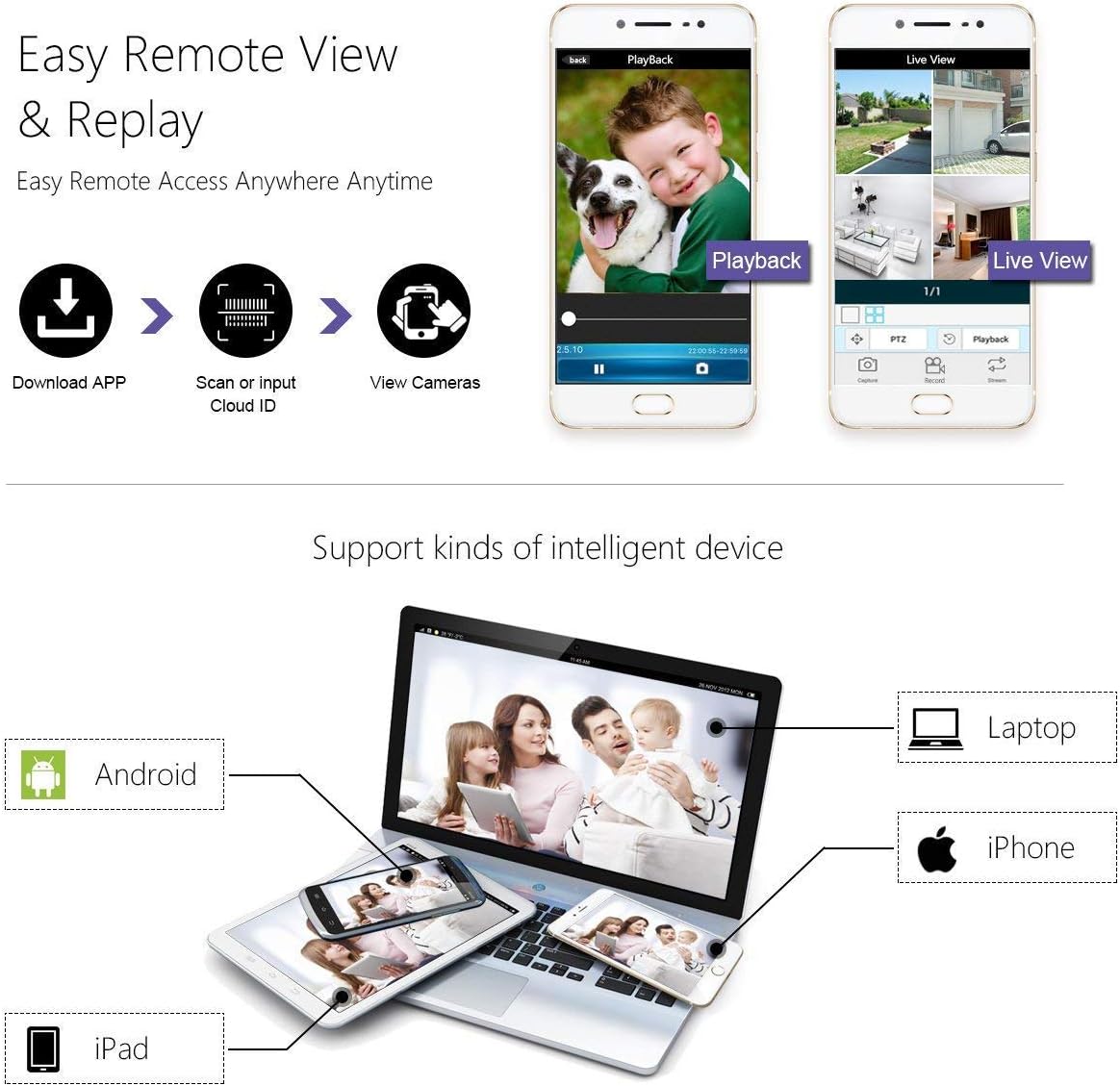
Figure 4.1: Flowchart showing steps to download the app, scan Cloud ID, and view cameras, with screenshots of the app interface for live view and playback. Compatible with Android, iPhone, iPad, and Laptops.
4.3 Motion Detection and Email Alerts
The system supports intelligent motion detection and can send email alerts upon detecting activity.
- Configure Motion Detection Area: Through the NVR interface or mobile app, you can define specific areas within the camera's view for motion detection. This helps minimize false alarms.
- Adjust Sensitivity: Customize the sensitivity of the motion detection to suit your environment.
- Set Up Email Notifications: Configure your email settings within the NVR system to receive instant alerts when motion is detected.
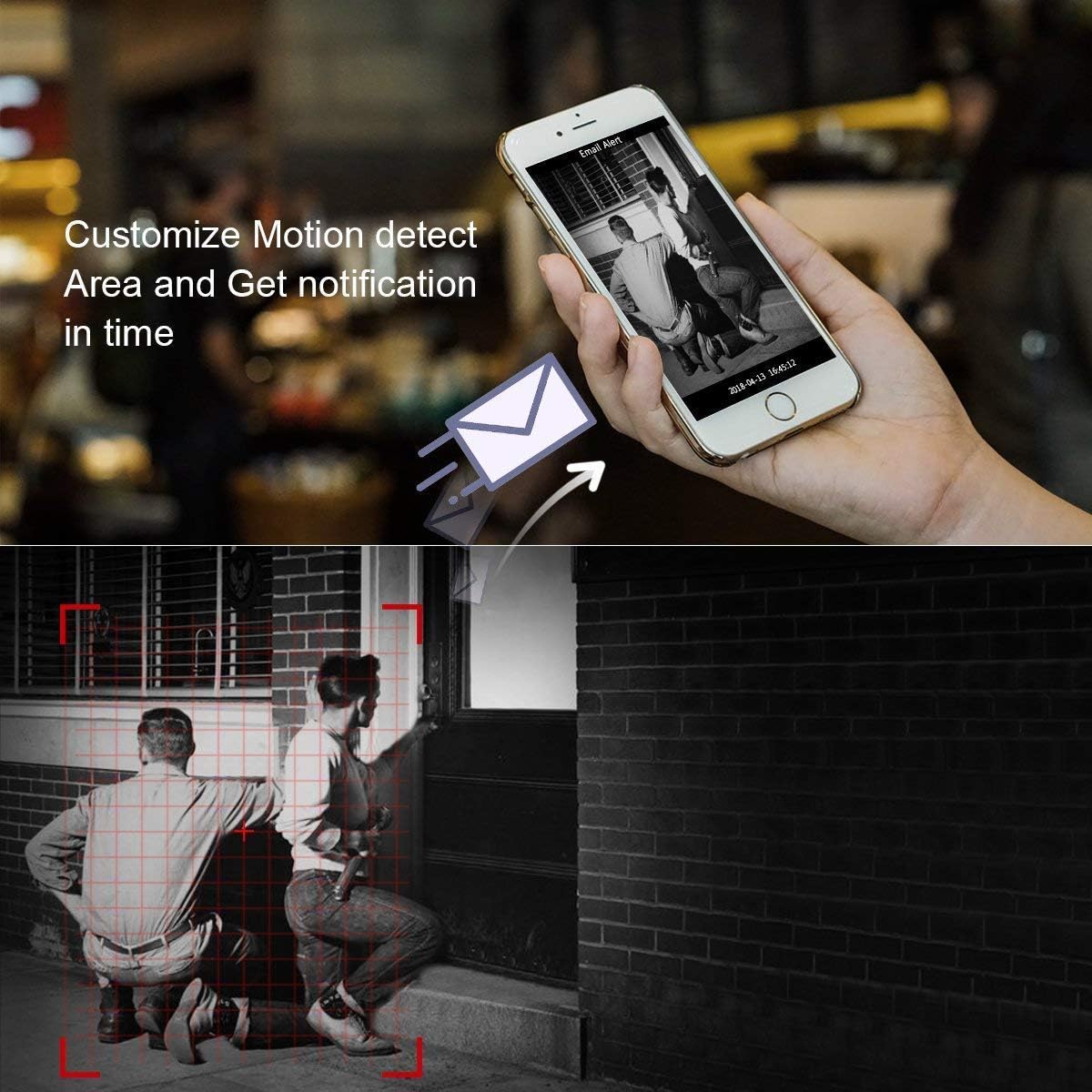
Figure 4.2: Image depicting a smartphone receiving an email alert and a visual representation of customizing motion detection zones with a red grid overlay.
5. Maintenance
5.1 General Care
- Keep the NVR unit in a well-ventilated area, away from direct sunlight and excessive heat.
- Regularly clean camera lenses with a soft, damp cloth to ensure clear image quality.
- Ensure all power connections are secure and free from damage.
5.2 Hard Drive Management
The 1TB hard drive will automatically overwrite the oldest recordings when full. If you need to preserve specific footage, back it up to an external device (e.g., USB drive) before it is overwritten.
5.3 Firmware Updates
Periodically check the ANRAN official website or app for firmware updates to ensure optimal performance and security of your system.
6. Troubleshooting
- No Video Feed from Camera:
- Ensure the camera is properly powered. Check the power adapter and outlet.
- Verify the camera is within the NVR's Wi-Fi range. Relocate the camera or NVR if necessary.
- Check if the camera has lost its pairing with the NVR. Refer to the NVR's manual for re-pairing instructions if needed.
- Poor Image Quality / Signal Loss:
- Check for obstructions (thick walls, metal objects) between the camera and NVR.
- Ensure camera lens is clean.
- Consider using a Wi-Fi repeater if the distance is too great or signal is weak.

Figure 6.1: Image highlighting the camera's night vision capabilities and weatherproof design, and the NVR's strong signal for reliable connection.
- Remote Access Not Working:
- Confirm the NVR is connected to the internet via Ethernet cable.
- Ensure your mobile device has a stable internet connection.
- Verify the Cloud ID or QR code was entered correctly in the app.
- Check your router's firewall settings if you are experiencing connection issues.
- Motion Detection Not Triggering / Too Many False Alarms:
- Adjust the motion detection sensitivity.
- Refine the motion detection area to exclude irrelevant zones (e.g., moving trees, busy roads).
7. Specifications
| Feature | Specification |
|---|---|
| Model Number | BS-K04W5684 |
| Brand | ANRAN |
| Video Recording Resolution | 1080p |
| Number of Channels | 4 |
| Storage Capacity | 1 TB (pre-installed) |
| Connectivity Technology | Wireless, Wired |
| Power Source | DC Adapter Powered |
| Special Features | Dual Antenna Enhance, Motion Detection, Night Vision, Weatherproof Cameras |
| NVR Dimensions (L x W x H) | 30.5 x 26 x 21 cm (approx. 150mm diameter, 230mm height for cylindrical NVR) |
| Weight | 4.8 Kilograms |
| Compatible Devices | Personal Computer, Tablet, Smartphone |

Figure 7.1: Collage showing various application scenarios for the cameras: indoor, outdoor, waterproof capability, and night vision.
8. Warranty and Support
ANRAN provides support for its products. If you encounter any issues or have questions after purchase, please contact ANRAN customer service via email. The product description mentions that new replacement parts will be provided free of charge if needed.
For further assistance, please refer to the contact information provided with your product packaging or visit the official ANRAN support website.


