
UHURU WM-02Z
UHURU WM-02Z Wireless Gaming Mouse User Manual
Model: WM-02Z
Introduction
The UHURU WM-02Z is a 2.4G wireless rechargeable gaming mouse designed for enhanced performance and comfort. It features 6 programmable buttons, 5 adjustable DPI levels up to 4800 DPI, and 7 colorful LED lights, making it suitable for various gaming and work environments. This manual provides detailed instructions for setting up, operating, and maintaining your mouse to ensure optimal performance and longevity.
Safety Information
- Do not expose the mouse to extreme temperatures or humidity.
- Avoid dropping or subjecting the mouse to strong impacts.
- Keep the mouse away from water and other liquids.
- Do not attempt to disassemble or repair the mouse yourself. Contact customer support for assistance.
- Dispose of the battery according to local regulations.
Package Contents
- 1 x UHURU WM-02Z Wireless Gaming Mouse
- 1 x USB Charging Cable (59-inch)
- 1 x USB Nano Receiver
- 1 x User Manual
Product Overview
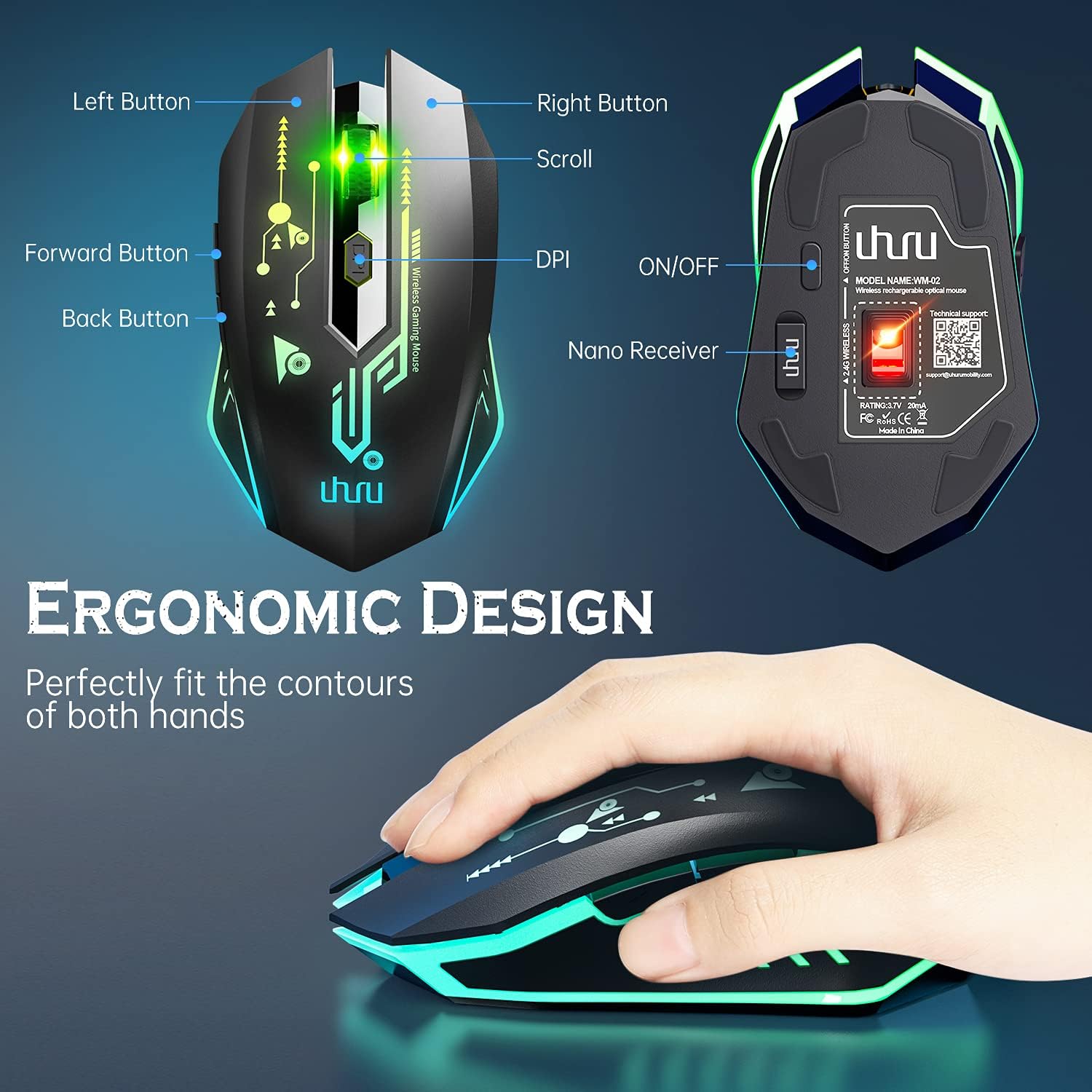
Figure 1: UHURU WM-02Z Wireless Gaming Mouse with labeled components.
The UHURU WM-02Z mouse features an ergonomic design for comfortable use. Key components include:
- Left Button: Standard left-click function.
- Right Button: Standard right-click function.
- Scroll Wheel: For scrolling and middle-click function.
- DPI Button: Adjusts mouse sensitivity (DPI).
- Forward Button: Navigates forward in web browsers or applications.
- Back Button: Navigates backward in web browsers or applications.
- ON/OFF Switch: Located on the bottom of the mouse to power on or off.
- Nano Receiver Storage: A compartment on the bottom of the mouse to store the USB nano receiver when not in use.
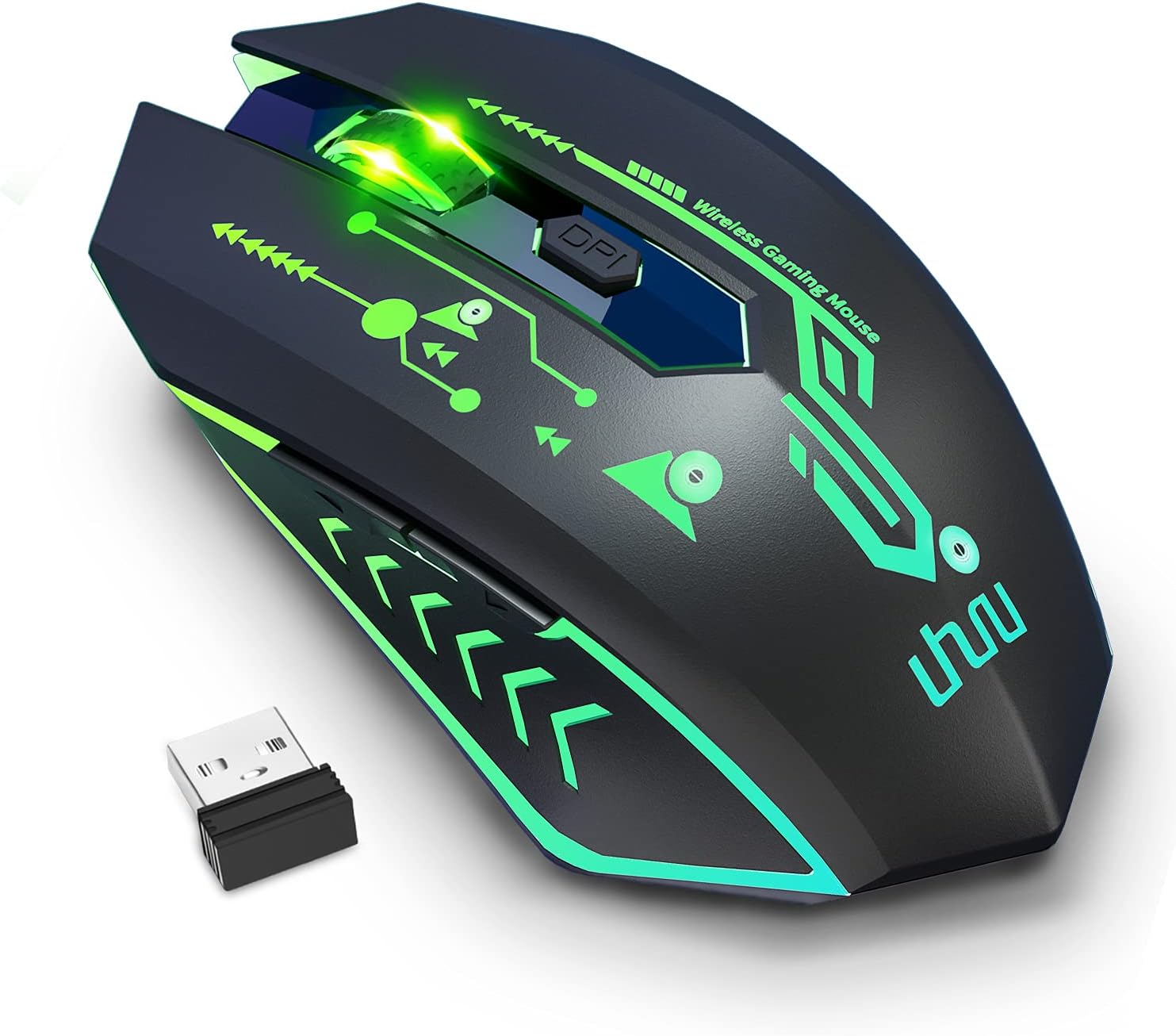
Figure 2: The UHURU WM-02Z Wireless Gaming Mouse and its compact USB nano receiver.
Setup
1. Charging the Mouse
Before first use, it is recommended to fully charge the mouse. Connect the provided USB charging cable to the charging port on the front of the mouse and the other end to a USB power source (e.g., computer USB port, USB wall adapter). The mouse features a built-in rechargeable battery, eliminating the need for disposable batteries.

Figure 3: Charging the UHURU WM-02Z Wireless Gaming Mouse.
2. Connecting the USB Nano Receiver
Locate the USB nano receiver stored in the compartment on the bottom of the mouse. Remove the receiver and plug it into an available USB port on your computer (Notebook, PC, Mac). The mouse will automatically connect to the receiver.
3. Powering On/Off
Slide the ON/OFF switch on the bottom of the mouse to the 'ON' position to power it on. To conserve battery life, slide the switch to the 'OFF' position when the mouse is not in use for an extended period.
4. Driver Installation (Windows Only)
For full functionality, including programming the 6 buttons and accessing the 4800 DPI level, driver software is required. This software is compatible with Windows operating systems only. Please refer to the included mini-CD or the manufacturer's website for driver download and installation instructions.
Operating Instructions
1. DPI Adjustment
The mouse offers 5 adjustable DPI levels: 800, 1200, 1600, 2400, and 4800 DPI. Press the DPI button located behind the scroll wheel to cycle through these sensitivity levels. The current DPI setting affects the mouse's moving speed on the screen.

Figure 4: Adjustable DPI levels for precise control.
2. Programmable Buttons
The UHURU WM-02Z features 6 programmable buttons. By installing the dedicated driver software (Windows only), you can customize the function of each button to suit your gaming or productivity needs. This allows for personalized control and macro assignments.

Figure 5: Software interface for programming mouse buttons.
3. RGB Lighting Modes
The mouse features 7 colorful LED lights that change automatically, providing a dynamic and immersive gaming atmosphere. These lights are an integral part of the mouse's design and enhance its aesthetic appeal.

Figure 6: The mouse displaying its vibrant RGB lighting.
4. Power Saving Mode
To optimize battery life, the gaming mouse will automatically enter sleep mode if it remains inactive for 8 minutes. To wake the mouse, simply move it or click any button.
Maintenance
- Cleaning: Use a soft, dry cloth to clean the surface of the mouse. For stubborn dirt, a slightly damp cloth can be used, but ensure no moisture enters the mouse.
- Battery Care: While the mouse has a built-in rechargeable battery, avoid completely draining it frequently. Charge the mouse when the battery indicator suggests low power.
- Storage: When not in use for extended periods, store the mouse in a cool, dry place. Ensure the ON/OFF switch is in the 'OFF' position.
Troubleshooting
| Problem | Possible Cause | Solution |
|---|---|---|
| Mouse not responding | Low battery; Receiver not connected; Mouse powered off; Driver issue. | Charge the mouse; Ensure USB nano receiver is securely plugged in; Turn the mouse ON; Reinstall drivers (Windows). |
| DPI adjustment not working | Software conflict; Hardware issue. | Ensure no conflicting mouse software is running; Try on a different computer. |
| Programmable buttons not working | Driver not installed or corrupted; Not compatible with Mac/Linux. | Install or reinstall the driver software (Windows only); Ensure you are using a Windows OS for programming. |
| Lights not working | Mouse is off or in sleep mode; Hardware issue. | Turn the mouse on or wake it from sleep; Contact support if issue persists. |
| Poor tracking performance | Dirty sensor; Unsuitable surface. | Clean the optical sensor on the bottom of the mouse; Use on a clean, non-reflective surface. |
Specifications
- Model: WM-02Z
- Connectivity: 2.4GHz Wireless (USB Nano Receiver)
- DPI Levels: 800/1200/1600/2400/4800 DPI
- Buttons: 6 Programmable Buttons
- Lighting: 7 Colorful LED Lights (Automatic Changing)
- Battery: Built-in Rechargeable Lithium Polymer Battery
- Charging Cable Length: 59 inches (approx. 1.5 meters)
- Compatibility: Windows 7 / 8 / 10 / XP, Vista 7 / 8, Mac, Linux (Note: Driver software for programming is Windows only)
- Product Dimensions: 4.92 x 2.75 x 0.04 inches
- Item Weight: 6.7 ounces
Warranty and Support
Your UHURU WM-02Z Wireless Gaming Mouse comes with a manufacturer's warranty. For specific warranty terms and conditions, please refer to the product packaging or contact UHURU customer support directly. If you encounter any issues or have questions regarding your product, please reach out to our support team for assistance. Contact information can typically be found on the product packaging or the official UHURU website.
Related documentsWM-02Z

Ask a question about this manual
Ask about setup, troubleshooting, compatibility, parts, safety, or missing instructions. Manuals+ will review the question and use this page’s manual context to help answer it.