
Introduction
The USARMT RWY-122 is a versatile 4-in-1 infrared (IR) learning remote control designed to simplify your home entertainment experience. It comes pre-programmed for popular streaming devices such as Apple TV, Xbox One, Roku, and Windows Media Center, allowing for immediate use. Its full LED backlighting ensures visibility in low-light conditions, and its learning capabilities enable it to control a wide range of other audio/video devices.

Figure 1: Front and back view of the USARMT RWY-122 remote control, showcasing its ergonomic design and button layout.
Key Features
- 4-in-1 Universal Control: Pre-programmed for Apple TV, Xbox One, Roku, and Windows Media Center.
- IR Learning Capability: Easily learn functions from your original remote controls for other A/V devices like TVs or cable boxes.
- Full LED Backlighting: All buttons are backlit for easy operation in dark environments.
- Key Punch Through: Allows specific key functions to operate across different device modes.
- Self-Adhesive Button Labels: Included labels can be applied to customize and identify programmed buttons.

Figure 2: The USARMT RWY-122 remote demonstrating its full LED backlighting feature, showing the remote with backlight off and on.
Setup and Initial Use
1. Battery Installation
Open the battery compartment cover on the back of the remote. Insert two AAA batteries, ensuring correct polarity (+ and -). Close the cover securely.
2. Pre-programmed Device Selection
The RWY-122 remote is pre-programmed for the following devices, accessible via the top four device buttons:
- Button A: Apple TV
- Button B: Xbox One
- Button C: Windows Media Center
- Button D: Roku
To use the remote with one of these devices, simply press the corresponding device button (A, B, C, or D) to switch to that device's control mode. The remote is ready for immediate use with these pre-programmed settings.

Figure 3: The top section of the remote highlighting the pre-programmed device selection buttons (A, B, C, D) and their corresponding devices.
Operating Instructions
1. Switching Between Devices
To control a specific device, press the corresponding device button (A, B, C, or D) located at the top of the remote. The remote will then operate in the mode for that selected device.
2. IR Learning Function (Programming Other Devices)
The RWY-122 can learn functions from your existing remote controls. This allows you to program any A/V device, such as your TV, soundbar, or cable box, onto any of the unused device buttons (or even over the pre-programmed ones if desired).
- Position the RWY-122 remote and your original remote control face-to-face, about 1-2 inches apart.
- Press and hold the SET button on the RWY-122 until the red LED indicator lights up solid.
- Press the device button (A, B, C, or D) on the RWY-122 that you wish to program. The red LED will blink once and then remain solid.
- Press the button on the RWY-122 that you want to program (e.g., Power, Volume Up). The red LED will blink rapidly.
- While the LED is blinking, press and hold the corresponding button on your original remote control. The RWY-122's LED will blink three times and then remain solid, indicating successful learning.
- Repeat step 4 and 5 for all other buttons you wish to program for this device.
- Once finished, press the SET button again to exit learning mode. The red LED will turn off.
Note: If the LED does not blink three times, the learning process may have failed. Reposition the remotes and try again.
3. Key Punch Through Function
The Key Punch Through feature allows a specific key function to operate across all modes. For example, you can program the TV's volume control to work regardless of which device mode (Apple TV, Xbox, etc.) the remote is currently in.
- Press and hold the SET button until the red LED lights up solid.
- Press the device button (A, B, C, or D) that contains the function you want to punch through (e.g., the TV mode if you want to punch through TV volume). The LED will blink once and remain solid.
- Press the button on the RWY-122 that you want to punch through (e.g., VOL+). The LED will blink rapidly.
- Press the same button again (e.g., VOL+). The LED will blink three times and then remain solid, indicating successful punch through.
- Repeat for any other buttons you wish to punch through.
- Press the SET button to exit.
4. Using Button Labels
The included self-adhesive button labels can be cut out and applied directly under the buttons you have programmed. This helps in quickly identifying the function of each button, especially after using the IR learning feature for various devices.

Figure 4: Example of the self-adhesive button labels provided with the remote, designed to be cut and applied for custom button identification.
5. Key Mapping for Pre-programmed Devices
The following images illustrate the key mapping for the pre-programmed devices (Apple TV, Xbox One, Roku, and Windows Media Center) compared to their original remotes. This provides a visual guide for how the RWY-122 buttons correspond to the functions of your streaming devices.

Figure 5: Key mapping for Apple TV, showing the RWY-122's button equivalents to the original Apple TV remote.
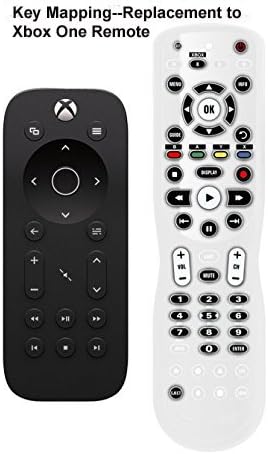
Figure 6: Key mapping for Xbox One, illustrating how the RWY-122's buttons correspond to Xbox One remote functions.

Figure 7: Key mapping for Roku, detailing the RWY-122's button functions relative to the standard Roku remote.

Figure 8: Key mapping for Windows Media Center (WMC), showing the RWY-122's button equivalents for WMC control.
6. Comprehensive Key Mapping Table
For a detailed overview of all button functions and their pre-programmed assignments across different devices, refer to the comprehensive key mapping table below. This table provides a complete reference for the remote's capabilities.

Figure 9: Comprehensive key mapping table, illustrating the function of each button across different pre-programmed device modes.
Maintenance
- Cleaning: Use a soft, dry cloth to clean the remote's surface. Do not use liquid cleaners or abrasive materials.
- Battery Replacement: Replace batteries when the remote's performance degrades or the LED indicator behaves erratically. Always use new AAA batteries and dispose of old batteries responsibly.
- Storage: Store the remote in a cool, dry place away from direct sunlight and extreme temperatures.
Troubleshooting
| Problem | Possible Cause | Solution |
|---|---|---|
| Remote not responding. | Dead or incorrectly inserted batteries. | Check battery polarity or replace with new AAA batteries. |
| Remote not controlling device. | Incorrect device mode selected. | Press the correct device button (A, B, C, or D) for the device you wish to control. |
| Learning function fails. | Remotes too far apart or not aligned; original remote battery low. | Ensure remotes are 1-2 inches apart and facing each other. Check batteries in original remote. Repeat learning steps carefully. |
| Backlight not working. | Batteries low. | Replace batteries. |
Specifications
- Model: RWY-122
- Brand: USARMT
- Type: 4-in-1 IR Learning Universal Remote
- Special Features: Full LED Backlighting, Pre-programmed (Apple TV, Xbox One, Roku, Windows Media Center), IR Learning, Key Punch Through
- Color: Black (with blue, green, red accents on certain buttons)
- Compatible Devices: Gaming Consoles, Streaming Devices, and other IR-controlled A/V equipment (via learning function)
- Power Source: 2 x AAA Batteries (not included)
- Manufacturer: USARMT
- First Available Date: May 12, 2018
Warranty and Support
For warranty information or technical support, please refer to the documentation included with your purchase or contact USARMT customer service directly. Contact details are typically available on the manufacturer's official website or through your retailer.
Note: This manual provides general instructions. Specific features and troubleshooting steps may vary.