
1. Introduction
The HyperX Cloud II Gaming Headset is engineered to deliver an optimal Hi-Fi gaming experience. It features a newly designed USB sound card audio control box that amplifies audio and voice, allowing users to discern subtle in-game details. This headset generates virtual 7.1 surround sound, enhancing gaming, movie, and music experiences with improved distance and depth perception. Independent audio and microphone volume controls, along with a toggle for 7.1 Surround Sound and microphone mute, provide comprehensive control over your audio environment.

Figure 1: HyperX Cloud II Gaming Headset, showcasing its design.
2. Key Features
- Superior Sound Quality: Equipped with 53mm drivers for rich, clear audio and an immersive gaming experience.
- Detachable Noise-Cancelling Microphone: Ensures clear and effective communication by minimizing background noise.
- Comfortable Design: Features HyperX's signature memory foam and premium leatherette material for extended comfort during long gaming sessions.
- Multi-Platform Compatibility: Compatible with PC, PS5, PS4, Xbox Series X|S, Xbox One, Nintendo Switch, and mobile gaming devices.
- Wired Connectivity: Connects to gaming devices or computers using a physical cable for reliable and uninterrupted audio transmission.

Figure 2: Headset with the detachable microphone in place.
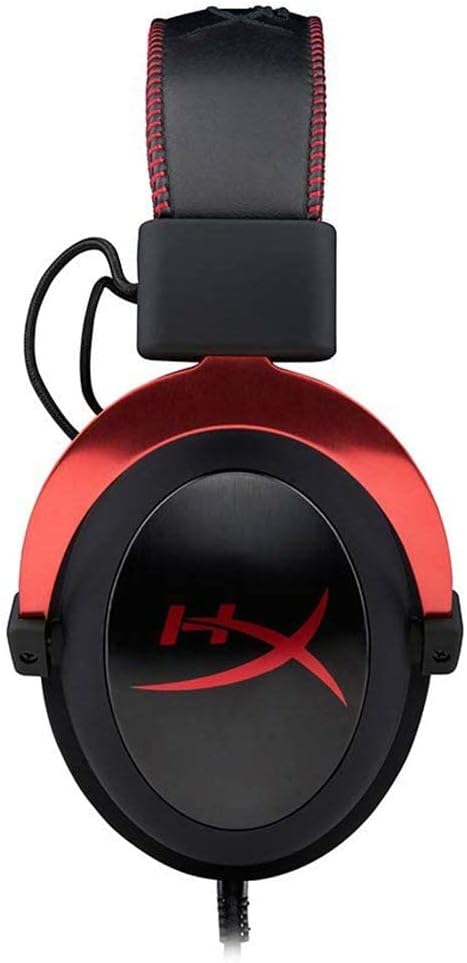
Figure 3: The USB audio control box for the HyperX Cloud II headset.
3. Setup
3.1 Included Components
- HyperX Cloud II Gaming Headset
- Detachable Noise-Cancelling Microphone
- USB Audio Control Box
- Additional Velour Ear Cushions (for replacement)
- Travel Pouch

Figure 4: HyperX Cloud II headset and its included accessories.
3.2 Connecting the Headset
- Attach the Microphone: Insert the detachable noise-cancelling microphone into the port on the left earcup until it clicks securely into place.
- PC Connection (USB Audio Control Box):
- Connect the headset's 3.5mm jack to the USB audio control box.
- Plug the USB connector of the audio control box into an available USB port on your PC.
- Your PC should automatically detect and install the necessary drivers.
- Console/Mobile Connection (3.5mm Jack):
- For PS4, Xbox One (with adapter, sold separately), Nintendo Switch, and mobile devices, connect the headset's 3.5mm jack directly to the controller or device's audio port. The USB audio control box is not used for these direct connections.

Figure 5: Multiplatform connection options for the headset.
4. Operating Instructions
4.1 Using the USB Audio Control Box (PC Only)
The in-line USB audio control box provides convenient access to essential audio functions:
- Headphone Volume Control: Use the '+' and '-' buttons on the left side to adjust the headset's audio output volume.
- Microphone Volume Control: Use the '+' and '-' buttons on the right side to adjust the microphone input level.
- 7.1 Surround Sound Toggle: Press the '7.1' button in the center to activate or deactivate virtual 7.1 surround sound. An LED indicator will confirm its status.
- Microphone Mute: Use the microphone mute switch on the side of the control box to quickly mute or unmute your microphone.
4.2 Using the Detachable Microphone
The flexible microphone can be positioned for optimal voice pickup. Ensure it is positioned close to your mouth but not directly in front to avoid plosives. When not needed, the microphone can be easily detached for a more streamlined headset profile.
5. Maintenance
- Cleaning: Use a soft, dry cloth to clean the headset. Avoid harsh chemicals or abrasive materials.
- Ear Cushions: The ear cushions are replaceable. If they show signs of wear or damage, they can be replaced with the included velour ear cushions or new ones purchased separately. Gently remove the old cushions and carefully attach the new ones.
- Storage: When not in use, store the headset in the provided travel pouch to protect it from dust and damage.

Figure 6: Detail of the headset's comfortable earcups.
6. Troubleshooting
- No Audio/Low Volume:
- Ensure all connections are secure.
- Check the volume levels on the in-line audio control box and your device.
- Verify that the headset is selected as the default audio output device in your system settings.
- Microphone Not Working:
- Ensure the microphone is securely attached and not muted on the in-line control box.
- Check microphone input levels in your device's sound settings.
- Verify that the headset microphone is selected as the default input device.
- 7.1 Surround Sound Issues:
- Ensure the 7.1 button on the USB audio control box is activated (LED illuminated).
- 7.1 surround sound functionality is primarily for PC via the USB audio control box.
7. Specifications
| Feature | Specification |
|---|---|
| Model Name | Cloud II |
| Model Number | KHX-HSCP-RD |
| Connectivity Technology | Wired (USB for PC, 3.5mm for consoles/mobile) |
| Headphones Jack | USB, 3.5mm |
| Audio Driver Size | 53 Millimeters |
| Noise Control Features | Noise-Cancelling Microphone, Active Noise Cancellation |
| Item Weight | 318 Grams (11.2 ounces) |
| Product Dimensions | 6.69 x 4.72 x 2.76 inches |
| Material | Aluminum, Leatherette, Plastic |
| Included Components | Headset, Detachable Microphone, USB Audio Control Box, Velour Ear Cushions, Travel Pouch |
| Supports Bluetooth Technology | No |
8. Compatibility
The HyperX Cloud II Gaming Headset offers broad compatibility across various gaming platforms:
- PC (via USB Audio Control Box)
- PlayStation 5 (PS5)
- PlayStation 4 (PS4)
- Xbox Series X|S (via controller 3.5mm port)
- Xbox One (via controller 3.5mm port, adapter may be required for older controllers)
- Nintendo Switch
- Mobile Gaming Devices
9. Official Product Video
Video 1: An overview of the HyperX Cloud II Gaming Headset, highlighting its 53mm drivers and noise-cancelling microphone. This video is provided by the seller, Renew4Me.
10. Warranty and Support
For warranty information, technical support, or service inquiries regarding your HyperX Cloud II Gaming Headset, please refer to the official HyperX website or contact their customer support directly. Keep your proof of purchase for any warranty claims.


