
Introduction
This user manual provides comprehensive instructions for the safe and efficient use of your Axen AX49DIL023 Full HD Smart LED TV. Please read this manual thoroughly before operating the device and retain it for future reference. Following these instructions will ensure optimal performance and extend the lifespan of your television.
Important Safety Information
Always observe the following safety precautions to prevent electric shock, fire, or injury:
- Do not expose the TV to rain or moisture.
- Ensure proper ventilation; do not block ventilation openings.
- Use only the power cord supplied with the TV.
- Do not place heavy objects on the power cord.
- Unplug the TV during lightning storms or when unused for long periods.
- Refer all servicing to qualified service personnel.
Package Contents
Before proceeding with the setup, please verify that all the following items are included in your TV package:
- Axen AX49DIL023 Full HD Smart LED TV
- Remote Control
- Power Cable
- User Manual (this document)
Note: Wall mount brackets and connection cables (HDMI, antenna, etc.) are typically not included and must be purchased separately.
Setup
Unpacking
Carefully remove the TV from its packaging. It is recommended to keep the original packaging materials for potential future transport or servicing.
Stand Installation
If you intend to place the TV on a flat surface, attach the provided stand according to the instructions below. Ensure the TV is placed on a stable, level surface.
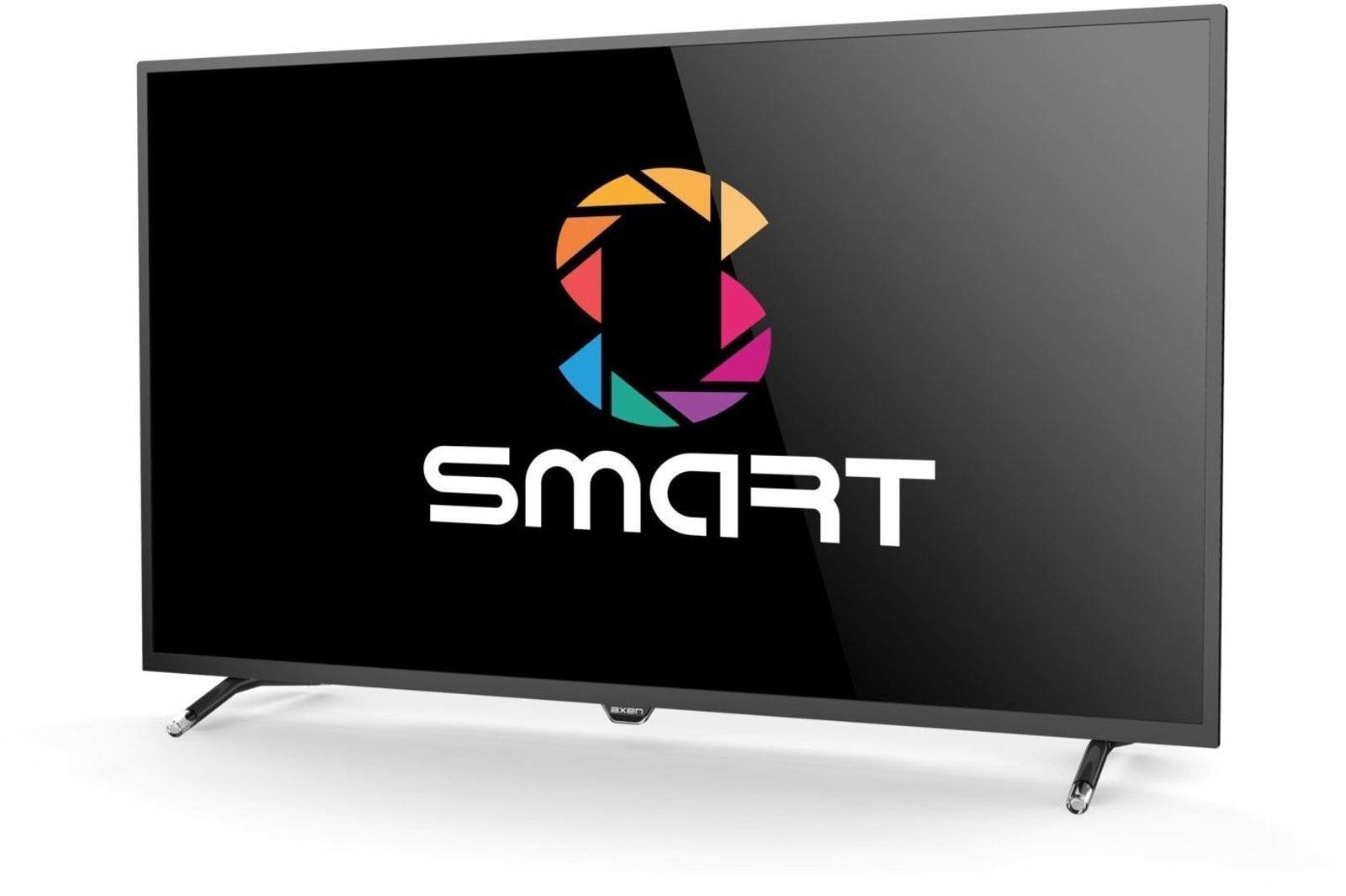
Image: The Axen AX49DIL023 TV with its stand attached, ready for placement.
Connecting Peripherals
Connect your external devices to the TV using the appropriate ports:
- HDMI Ports: For connecting Blu-ray players, game consoles, set-top boxes, etc. Your TV has 2 HDMI ports.
- USB Ports: For connecting USB storage devices to play media files.
- Antenna/Satellite Input: Connect your terrestrial antenna or satellite dish cable.
- Ethernet (RJ45) Port: For a wired internet connection.
Initial Power On and First-Time Setup
- Connect the power cable to the TV and then to a power outlet.
- Press the power button on the remote control or on the TV.
- Follow the on-screen instructions to select your preferred language, country, and time zone.
- Perform an automatic channel scan for terrestrial or satellite channels.
- Set up your network connection (Wi-Fi or Ethernet) to enable Smart TV features.
Operating Your TV
Remote Control Overview
The remote control allows you to access all the TV's functions. Familiarize yourself with the button layout for easy navigation.
Basic Functions
- Power On/Off: Press the power button on the remote.
- Volume Control: Use the VOL +/- buttons to adjust the sound level.
- Channel Selection: Use the CH +/- buttons or number pad to change channels.
- Input Source: Press the SOURCE button to switch between HDMI, AV, TV, and other inputs.
Smart TV Features
Your Axen AX49DIL023 is a Smart TV with built-in Wi-Fi and an Ethernet port, allowing access to online content.
- Wi-Fi Connection: Navigate to the network settings menu to connect to your home Wi-Fi network.
- Ethernet Connection: Plug an Ethernet cable from your router into the TV's RJ45 port for a stable wired internet connection.
- Smart Web: Access the integrated web browser and supported internet services like YouTube.
Menu Navigation
Press the MENU button on your remote to access the TV's main settings. Use the arrow keys to navigate through options and the OK button to confirm selections. You can adjust picture, sound, network, and system settings here.
Maintenance
Cleaning the Screen and Cabinet
To clean your TV, first unplug it from the power outlet. Use a soft, dry cloth to wipe the screen and cabinet. For stubborn marks, lightly dampen the cloth with water or a specialized screen cleaner. Never use abrasive cleaners, alcohol, or benzene, as these can damage the TV's surface.
Software Updates
Periodically check for software updates to ensure your TV has the latest features and performance improvements. Access the system settings menu to find the software update option. Follow the on-screen prompts to download and install any available updates.
Troubleshooting
If you encounter any issues with your TV, refer to the following table for common problems and their solutions:
| Problem | Solution |
|---|---|
| No power | Check if the power cable is securely connected to the TV and the power outlet. Ensure the outlet is functional. |
| No picture, but sound is present | Verify the correct input source is selected. Check cable connections to external devices. |
| No sound, but picture is present | Check the volume level and ensure the TV is not muted. Verify audio settings and external device audio output. |
| Wi-Fi connection issues | Ensure your Wi-Fi router is on and within range. Re-enter the Wi-Fi password. Try restarting both the TV and the router. |
| Smart features not working | Check your internet connection. Ensure the TV's software is up to date. |
Technical Specifications
| Feature | Detail |
|---|---|
| Model Number | AX49DIL023 |
| Screen Size | 49 inches (124 cm) |
| Resolution | 1920 x 1080 Full HD |
| Display Technology | LED |
| Key Features | Smart/Internet, HbbTV |
| Connectivity Technology | Wi-Fi |
| Supported Internet Services | Smart Web |
| Total HDMI Ports | 2 |
| Hardware Interface | Ethernet |
| Product Weight | 12.8 Kilograms |
| Model Year | 2018 |
| Tuner Technology | DVB-T2; DVB-C; DVB-S |
| Annual Energy Consumption | 73 Kilowatt Hours per year |
Warranty and Support
Your Axen AX49DIL023 TV comes with a 2-year manufacturer's warranty from the date of purchase. Please retain your proof of purchase for warranty claims.
For technical support, service, or warranty inquiries, please contact your local Axen authorized service center or the retailer from whom you purchased the product. Do not attempt to repair the TV yourself, as this may void the warranty.