
1. Introduction
This manual provides essential instructions for the installation, operation, and maintenance of your Zstint 046H toner cartridge set. Please read this guide thoroughly to ensure optimal performance and longevity of your cartridges and printer.

Image 1.1: Zstint 046H Toner Cartridge Set (4-Pack)
2. Product Overview
The Zstint 046H toner cartridge set is designed to provide high-quality printing for compatible Canon Color imageCLASS laser printers. This set includes one black (046HK), one cyan (046HC), one yellow (046HY), and one magenta (046HM) toner cartridge.
2.1 Compatible Printers
- Canon Color imageCLASS LBP653Cdw
- Canon Color imageCLASS LBP654Cx
- Canon Color imageCLASS LBP650C
- Canon Color imageCLASS MF732Cdw
- Canon Color imageCLASS MF734Cdw
- Canon Color imageCLASS MF735Cx
- Canon Color imageCLASS MF733Cdw
- Canon Color imageCLASS MF731Cdw
- Canon Color imageCLASS MF730C

Image 2.1: Visual representation of compatible Canon imageCLASS printers.
2.2 Page Yield
The estimated page yield for these cartridges is:
- Black: Up to 6,300 pages (at 5% coverage)
- Color (Cyan, Yellow, Magenta): Up to 5,000 pages each (at 5% coverage)

Image 2.2: Illustration of high page yield for black and color cartridges.
2.3 Product Video Overview
Video 2.3: An overview of the Canon 046H Toner Cartridge, demonstrating its features and compatibility.
3. Installation Guide
Follow these steps to install your Zstint 046H toner cartridges:
- Step 1: Agitate the Toner Cartridge. Gently shake the new toner cartridge horizontally 5-6 times to distribute the toner evenly inside.
- Step 2: Remove Protective Cover. Carefully remove the orange protective cover or sealing strip from the toner cartridge.
- Step 3: Pull Out Sealing Strip. Locate and pull the sealing strip completely out of the cartridge.
- Step 4: Load into the Printer. Insert the prepared toner cartridge into the correct slot in your printer until it clicks into place. Close the printer cover.
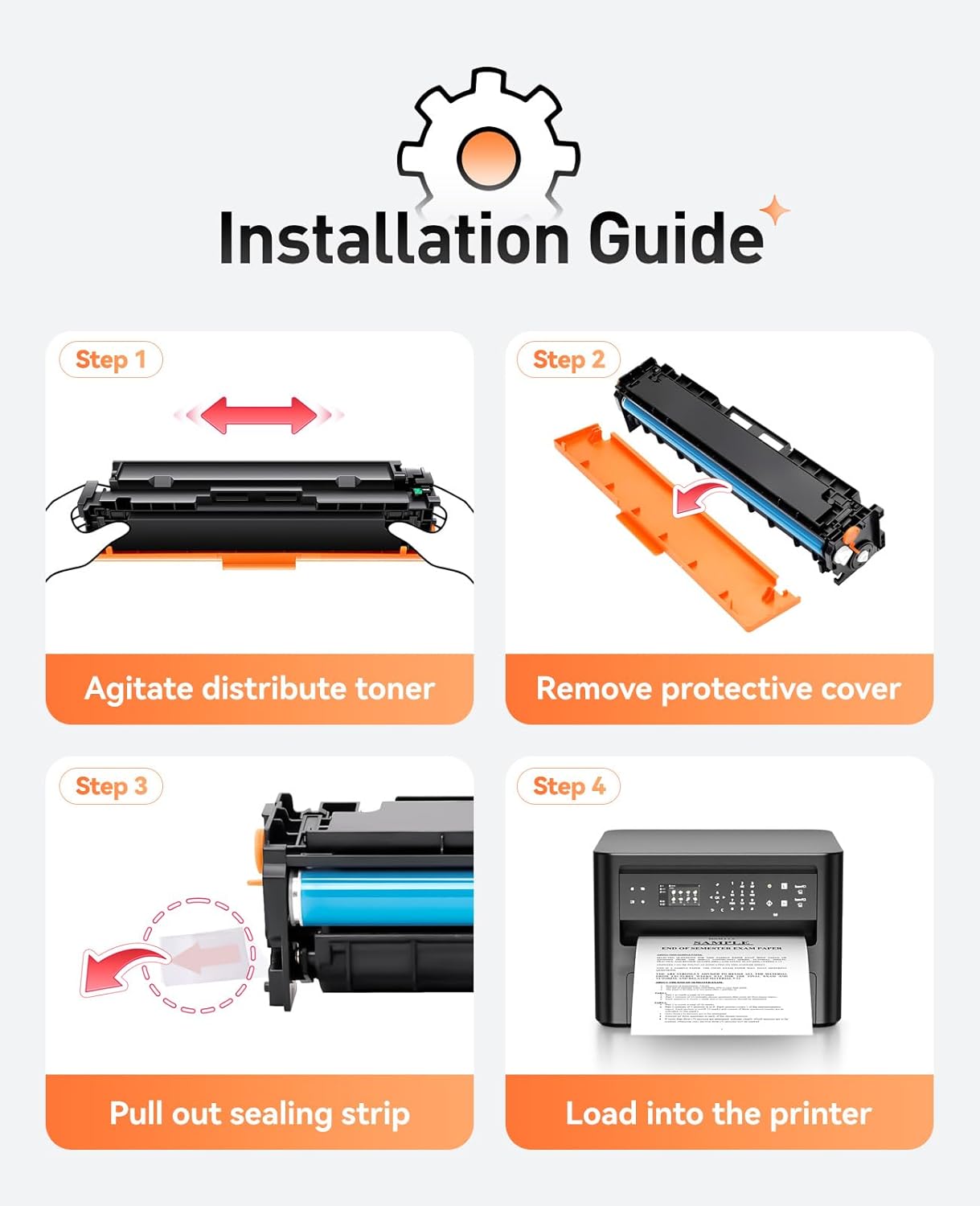
Image 3.1: Step-by-step visual guide for toner cartridge installation.
3.1 Installation Video
Video 3.2: A video demonstrating the easy installation process for Zstint toner cartridges.
4. Operating Instructions
Once installed, your Zstint 046H toner cartridges are ready for use. The cartridges are equipped with the latest upgraded chips for quick recognition and compatibility with your printer.
4.1 Printing Quality
These cartridges are designed to deliver clear text and vivid colors, ensuring smooth transitions and high-quality output for various document types.

Image 4.1: Examples of premium printing solutions, highlighting clear text and vivid colors.
4.2 Application Scenarios
The Zstint 046H toner cartridges are suitable for a wide range of printing needs, including:
- Documents
- Contracts
- Photos
- Flyers
- Stickers

Image 4.2: Various application scenarios where Zstint toner can be used effectively.
5. Maintenance Tips
To maintain the quality of your prints and extend the life of your printer and toner cartridges:
- Store unused toner cartridges in their original packaging in a cool, dry place away from direct sunlight.
- Avoid exposing cartridges to extreme temperatures or humidity.
- Regularly clean your printer according to its manufacturer's instructions to prevent toner buildup and ensure consistent print quality.
- If print quality degrades, gently agitate the toner cartridge again to redistribute the toner.
6. Troubleshooting
If you encounter issues with your Zstint 046H toner cartridges, consider the following troubleshooting steps:
6.1 Faded or Uneven Prints
- Agitate Cartridge: Remove the cartridge and gently shake it horizontally 5-6 times to redistribute toner. Reinstall and try printing again.
- Check Sealing Strip: Ensure the sealing strip was completely removed during installation.
- Printer Settings: Verify that your printer settings are configured for optimal print quality and not for draft or economy modes.
6.2 Smudges or Streaks
- Clean Printer: Perform a printer cleaning cycle as recommended by your printer's manual.
- Inspect Cartridge: Carefully remove the cartridge and inspect it for any visible damage or toner leakage. If damaged, replace the cartridge.
- Drum Unit: If your printer uses a separate drum unit, ensure it is clean and functioning correctly. Some drum units have a slider that needs to be moved back and forth to clean the corona wire.
6.3 "Low Toner" or "Non-Genuine Cartridge" Messages
Zstint cartridges are equipped with chips for compatibility. However, some printers may display messages indicating low toner or non-genuine cartridges, especially with compatible products. These messages typically do not affect printing performance or page yield. You can usually dismiss these prompts and continue printing.
7. Specifications
| Feature | Detail |
|---|---|
| Brand | Zstint |
| Model Number | 046H |
| Cartridge Type | Compatible |
| Color | Black, Cyan, Yellow, Magenta (4-Pack) |
| Black Page Yield | 6,300 pages (at 5% coverage) |
| Color Page Yield | 5,000 pages (at 5% coverage) |
| Item Weight | 6.21 pounds |
| Product Dimensions | 6 x 6 x 6 inches |
8. Warranty and Support
Zstint products are manufactured under strict quality control standards. For any questions, concerns, or technical support regarding your Zstint 046H toner cartridges, please contact the seller, MH Office Supplies, through your purchase platform. They will be able to assist you with product-related inquiries and potential warranty claims.