1. Introduction
This manual provides essential information for the safe and efficient operation of your SKYWORTH G2A Series 50-inch 4K UHD Smart Android TV. Please read this manual thoroughly before using the television and retain it for future reference.
2. Safety Information
Always observe the following safety precautions to prevent electric shock, fire, or injury:
- Do not expose the TV to rain or moisture.
- Do not open the TV casing; refer all servicing to qualified personnel.
- Ensure proper ventilation around the TV.
- Keep the TV away from direct sunlight, heat sources, and open flames.
- Use only the power cord supplied with the TV.
- Unplug the TV during lightning storms or when unused for long periods.
3. What's in the Box
Verify that all components are present:
- SKYWORTH G2A Series 50-inch 4K UHD Smart Android TV
- Remote Control
- TV Stand (2 pieces)
- Screws for Stand Attachment
- Power Cord
- User Manual (this document)
- 2 AAA Batteries (for remote control)
4. Setup
4.1 Attaching the Stand
- Carefully place the TV face-down on a soft, flat surface to prevent screen damage.
- Align each stand piece with the corresponding slots on the bottom of the TV.
- Secure the stands using the provided screws. Ensure they are tightened firmly.
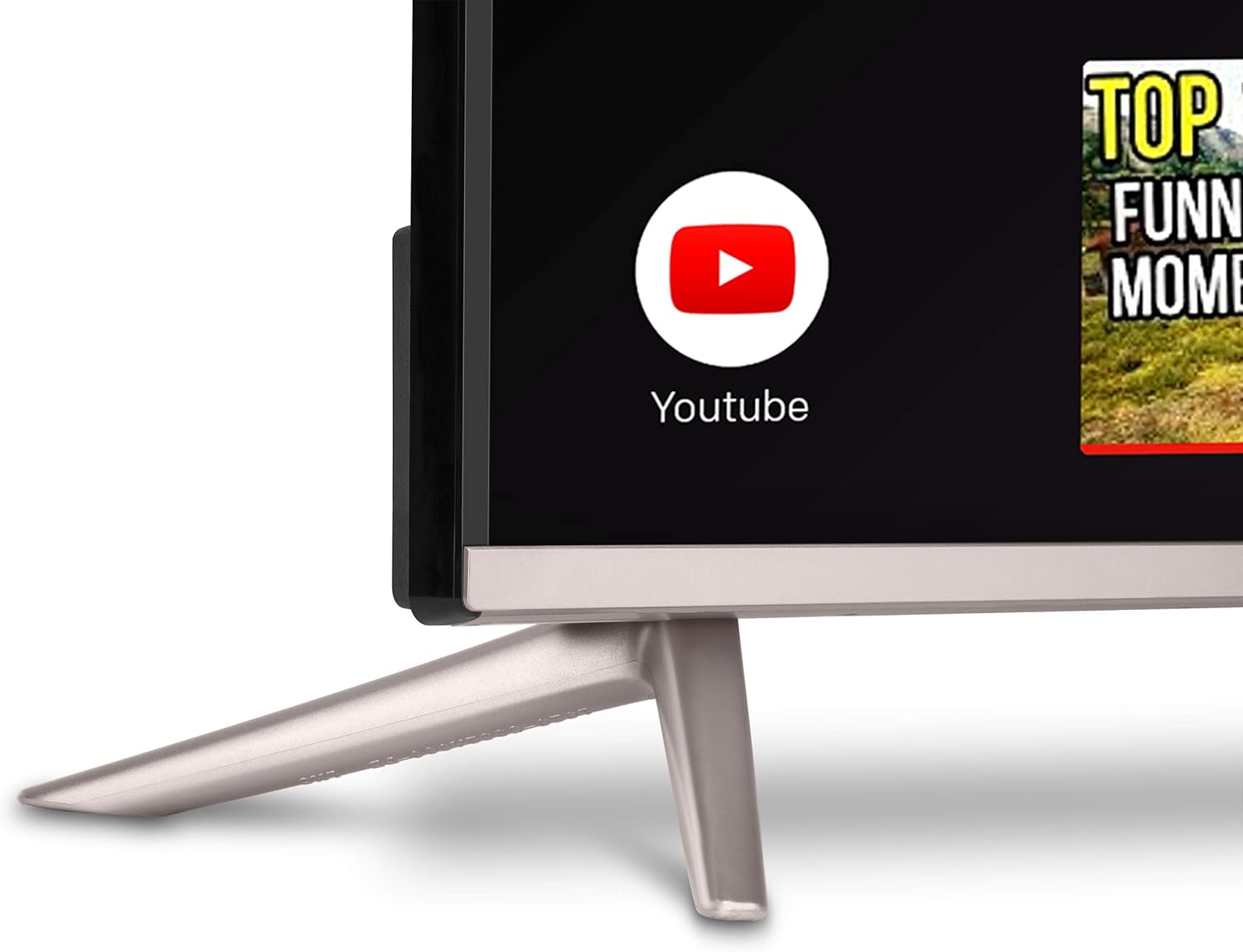
Image: Close-up view of the TV stand, showing how it connects to the television unit. The stand provides stable support for the TV on a flat surface.
4.2 Wall Mounting (Optional)
If you choose to wall mount your TV, ensure you use a VESA-compatible wall mount kit (not included) that supports the TV's weight and dimensions. Follow the wall mount manufacturer's instructions carefully. Remove the TV stand before wall mounting.
4.3 Connecting Peripherals
Your TV offers various ports for connecting external devices:
- HDMI Ports: Connect Blu-ray players, game consoles, cable/satellite boxes.
- USB Ports: Connect USB drives for media playback.
- Ethernet Port: For wired internet connection.
- Antenna/Cable Input: For connecting an antenna or cable TV.
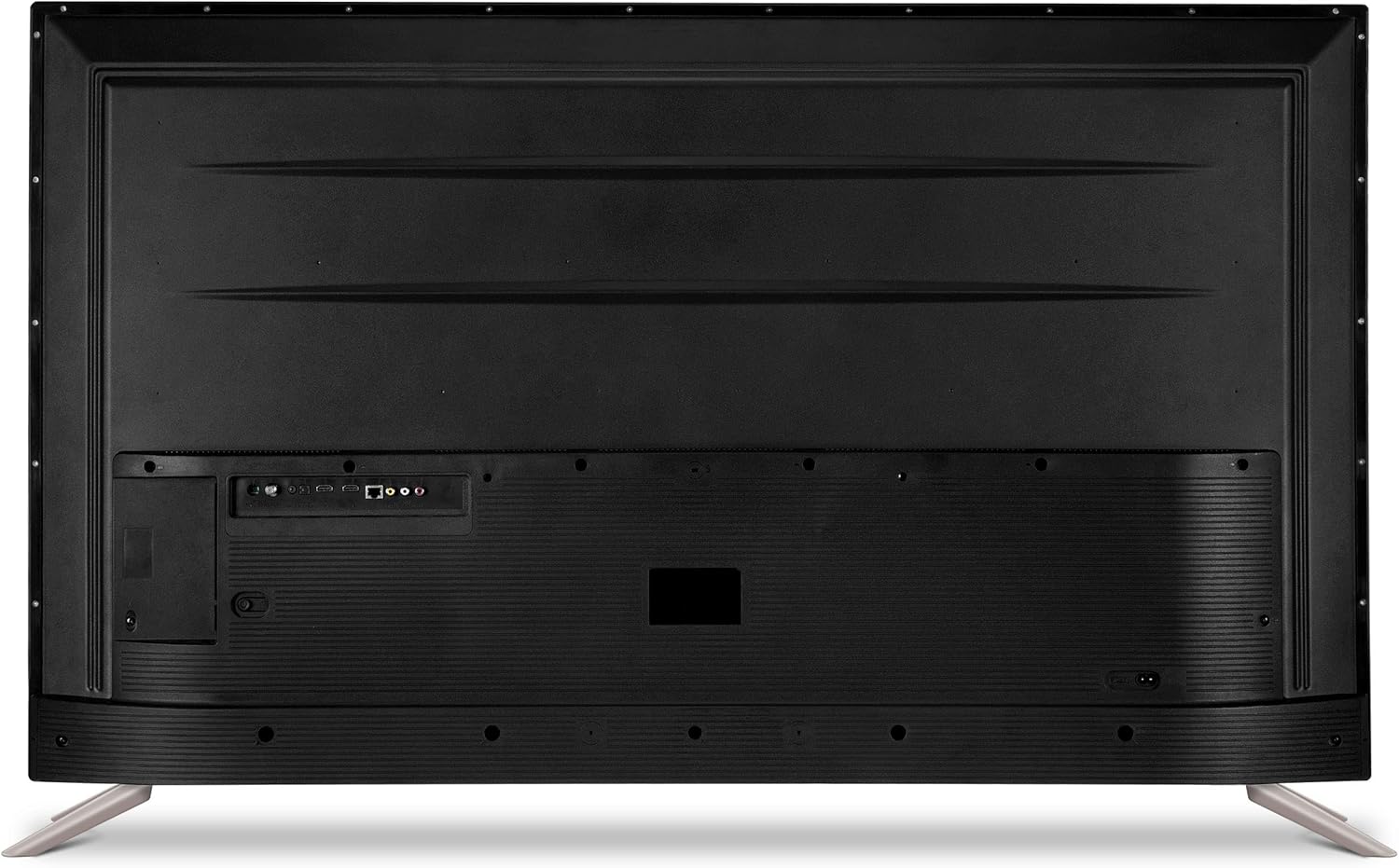
Image: The back panel of the SKYWORTH TV, displaying multiple input and output ports including HDMI, USB, and Ethernet for connecting external devices.

Image: A side profile of the SKYWORTH TV, highlighting easily accessible ports on the side for convenient connection of devices like USB drives or additional HDMI cables.
4.4 Power Connection
After connecting all desired peripherals, plug the power cord into the TV's power input and then into a wall outlet.
4.5 Initial Setup Wizard
Upon first power-on, the TV will guide you through an initial setup process. This includes:
- Language selection.
- Network connection (Wi-Fi or Ethernet).
- Google Account sign-in (required for Android TV features).
- Channel scanning (for antenna/cable).
5. Operating the TV
5.1 Remote Control Overview
The remote control allows you to navigate the TV's features. Insert the two AAA batteries into the remote, ensuring correct polarity.

Image: A detailed view of the SKYWORTH TV remote control, showcasing its array of buttons for power, navigation, volume, channel selection, and dedicated app access.
5.2 Basic Functions
- Power: Press the power button to turn the TV on or off.
- Volume: Use the Volume Up/Down buttons to adjust audio levels.
- Channels: Use the Channel Up/Down buttons to change channels (for antenna/cable input).
- Source: Press the Source button to select input sources (HDMI 1, HDMI 2, TV, etc.).
5.3 Android TV Interface
Your SKYWORTH TV runs on the Android TV operating system, providing access to a wide range of apps and services. The home screen displays recommended content, installed apps, and settings.

Image: The SKYWORTH TV screen showing the Android TV interface, featuring rows of applications like YouTube and Netflix, and content suggestions, with a search bar at the top.
5.4 Using Chromecast Built-in
The TV features Chromecast built-in, allowing you to cast content from compatible apps on your smartphone, tablet, or computer directly to the TV screen. Look for the Cast icon ▶ within apps like YouTube, Netflix, or Google Photos.
5.5 Voice Control with Google Assistant
Your remote control includes a microphone button for Google Assistant. Press the microphone button and speak your commands to search for content, control smart home devices, get answers, and more.

Image: A close-up of the SKYWORTH TV remote control, highlighting the microphone button used to activate Google Assistant for voice commands and searches.
5.6 Accessing Apps
From the Android TV home screen, navigate to the 'Apps' section to view all installed applications. You can download new apps from the Google Play Store.
6. Maintenance
6.1 Cleaning the Screen
Gently wipe the screen with a soft, dry, lint-free cloth. For stubborn marks, lightly dampen the cloth with water or a specialized screen cleaner. Never spray liquid directly onto the screen.
6.2 General Care
- Keep the TV in a well-ventilated area.
- Avoid placing heavy objects on top of the TV.
- Do not block ventilation openings.
7. Troubleshooting
Refer to the following table for common issues and their solutions:
| Problem | Possible Cause | Solution |
|---|---|---|
| No power | Power cord disconnected; outlet issue | Ensure power cord is securely plugged in; test outlet with another device. |
| No picture, but sound is present | Incorrect input source selected; external device issue | Press the Source button on the remote to select the correct input; check external device connections. |
| No sound, but picture is present | Volume muted or too low; external audio system issue | Unmute volume or increase level; check connections to external audio devices. |
| Remote control not working | Batteries depleted or incorrectly inserted; obstruction | Replace batteries; ensure correct polarity; remove any obstructions between remote and TV. |
| Wi-Fi connection issues | Incorrect password; router issue; signal interference | Re-enter Wi-Fi password; restart router; move TV closer to router or use wired connection. |
8. Specifications
| Feature | Detail |
|---|---|
| Model Number | 50G2A |
| Screen Size | 50 Inches |
| Display Technology | LED |
| Resolution | 4K (2160p) |
| Refresh Rate | 60 Hz |
| Operating System | Android TV |
| Processor | A53 Quad-Core |
| Special Features | HDR, Chromecast Built-in, Google Assistant Voice Control |
| Connectivity | HDMI, USB, Wi-Fi, Ethernet |
| Item Weight | 32.6 Pounds |
| Product Dimensions | 50 x 6 x 31 inches |
9. Warranty and Support
For warranty information and technical support, please refer to the warranty card included with your product or visit the official Skyworth website. Keep your purchase receipt as proof of purchase for warranty claims.


