
1. Introduction
The ADJ MYDMX RM is a DMX lighting storage device designed to program and save up to 16 preset lighting shows. This unit can operate as a DMX dongle when connected to a computer or function independently to trigger saved shows without a computer. Its rack-mountable design allows for convenient installation in various environments, providing a reliable solution for managing lighting scenes.
2. Safety Information
To ensure safe operation and prolong the life of your MYDMX RM, please observe the following precautions:
- Power Supply: Use only the UL approved power supply provided with the unit. Ensure the voltage matches the device requirements.
- Moisture: Do not expose the device to rain or moisture. Avoid using it in damp or wet locations.
- Heat: Keep the device away from heat sources such as radiators, heat registers, stoves, or other apparatus that produce heat. The operating temperature range is up to 35°C.
- Ventilation: Ensure proper ventilation. Do not block any ventilation openings.
- Servicing: Refer all servicing to qualified service personnel. Do not attempt to repair the unit yourself.
- Placement: Mount the device securely in a rack or on a stable surface to prevent accidental falls.
3. Package Contents
Verify that your package contains the following items:
- ADJ MYDMX RM Unit
- UL Approved Power Supply
- USB Cable
- Access to myDMX 3.0 Software (downloadable)
4. Features
The ADJ MYDMX RM offers a range of features designed for flexible DMX lighting control:
- Preset Show Storage: Program and save up to 16 distinct preset lighting shows directly onto the device's internal memory.
- Standalone Operation: Trigger saved shows with the touch of a button without requiring a computer connection.
- myDMX 3.0 Software Access: Includes access to the myDMX 3.0 software for comprehensive lighting programming, featuring a drag-and-drop effects generator and Blind Editing capabilities.
- Data Backup: The internal memory serves as a backup, ensuring access to programmed shows even if software issues occur.
- Assignable Port Triggers: Equipped with 16 assignable port triggers for easy recall of scenes.
- Connectivity: Features a USB input for computer connection and both 3-pin and 5-pin DMX outputs for versatile fixture compatibility.
- Rack Mountable: Robust 19-inch rack mount design for professional installation.
5. Setup
5.1 Physical Connection
- Power Connection: Connect the provided UL approved power supply to the DC9V Input port on the rear of the MYDMX RM unit. Plug the power supply into a suitable electrical outlet.
- DMX Output: Connect your DMX-compatible lighting fixtures to the DMX OUTPUT ports (3-pin or 5-pin) on the rear of the MYDMX RM using standard DMX cables.
- USB Connection (for Programming): For programming and software control, connect the MYDMX RM to your computer using the supplied USB cable. The USB port is located on the rear panel.

Figure 1: Rear panel of the MYDMX RM, illustrating the DMX output, USB, and power input connections.

Figure 2: Detailed view of the MYDMX RM's rear connections, including DMX outputs, USB serial port, and DC9V power input.
5.2 Software Installation
Download the latest version of the myDMX 3.0 software from the official ADJ website. Follow the on-screen instructions to install the software on your computer. The MYDMX RM unit acts as a hardware dongle for the software.
5.3 Rack Mounting
The MYDMX RM is designed for 19-inch rack mounting. Secure the unit into a standard equipment rack using appropriate rack screws (not included) through the mounting ears on both sides of the device.
6. Operating Instructions
6.1 Programming with myDMX 3.0 Software
To program lighting shows, connect the MYDMX RM to your computer via USB and launch the myDMX 3.0 software.
- Software Interface: The myDMX 3.0 software provides a graphical interface for controlling DMX fixtures. You can patch fixtures, create scenes, and build complex effects using the drag-and-drop generator.
- Scene Creation: Utilize the software's tools, including color wheels, faders, and effect generators, to design your desired lighting scenes. The Blind Editing feature allows for programming without live output.
- Uploading Shows: Once scenes and shows are created, upload them to the MYDMX RM's internal memory. The software will guide you through the process of saving up to 16 preset shows to the device. Refer to the myDMX 3.0 software manual for detailed programming instructions.

Figure 3: myDMX 3.0 software interface displaying various scenes and effects in a grid layout.

Figure 4: myDMX 3.0 software interface showing color selection tools and faders for precise lighting adjustments.

Figure 5: Detailed view of color control and scene triggering within the myDMX 3.0 software.
6.2 Standalone Operation
After uploading your desired shows to the MYDMX RM, you can disconnect it from the computer and operate it in standalone mode.
- Power On: Ensure the MYDMX RM is powered on.
- Triggering Shows: Use the 16 assignable port triggers (buttons) on the front panel of the device to recall and activate your saved lighting shows. Each button corresponds to a specific preset show.
- Scene Arrangement: Shows can be arranged into groups within the software before uploading, allowing for logical organization and easy access via the physical buttons.

Figure 6: Front panel of the MYDMX RM, showing the 16 illuminated buttons used for standalone show triggering.
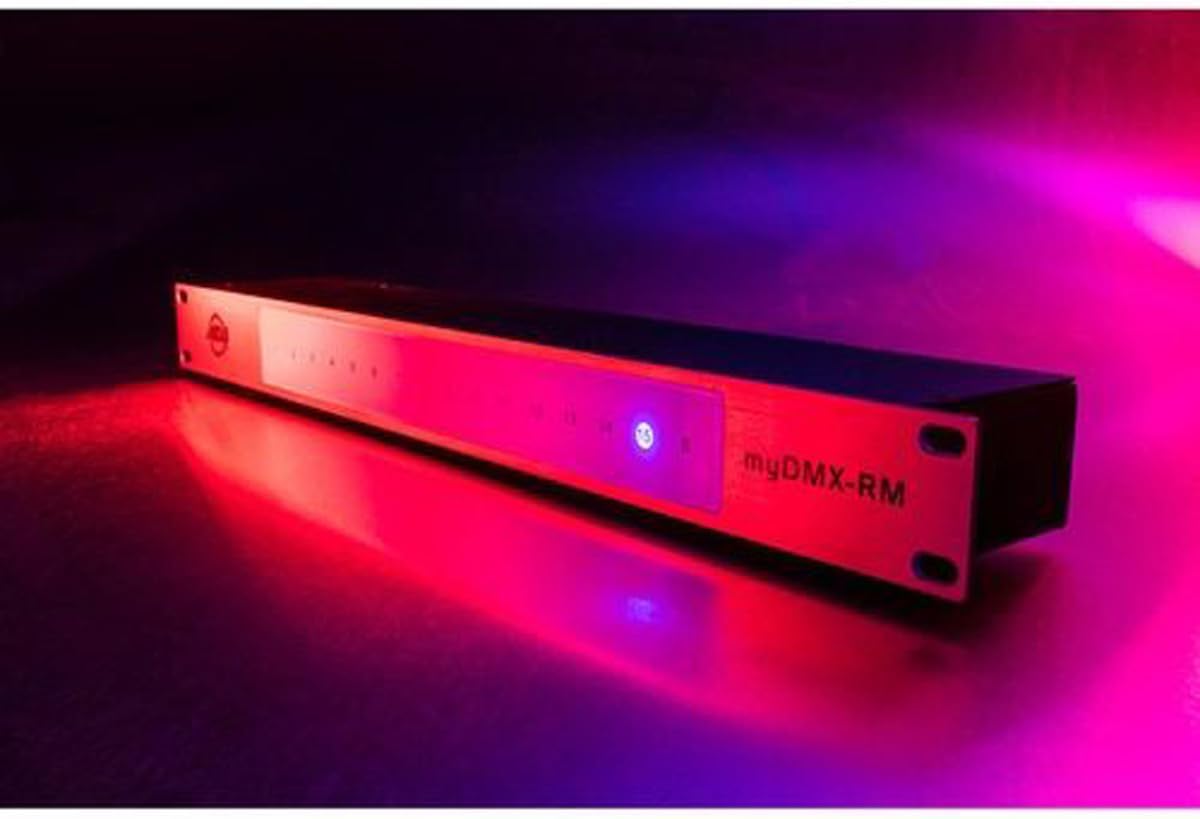
Figure 7: MYDMX RM operating in a red-lit environment, demonstrating its visual feedback.

Figure 8: MYDMX RM operating in a green-lit environment, showing another example of its visual feedback.
7. Maintenance
Regular maintenance ensures optimal performance and longevity of your MYDMX RM unit.
- Cleaning: Disconnect power before cleaning. Use a soft, dry cloth to wipe the exterior of the device. Avoid abrasive cleaners or solvents that could damage the finish.
- Firmware Updates: Periodically check the official ADJ website for any available firmware updates for the MYDMX RM. Follow the provided instructions carefully for any update procedures.
- Storage: When not in use for extended periods, store the device in a cool, dry place, away from extreme temperatures and humidity.
8. Troubleshooting
If you encounter issues with your MYDMX RM, refer to the following troubleshooting steps:
- No Power: Ensure the power supply is securely connected to both the unit and a working electrical outlet. Verify the power supply is the correct voltage.
- No DMX Output: Check all DMX cable connections between the MYDMX RM and your lighting fixtures. Ensure the fixtures are properly addressed and powered. Verify that a show is actively running on the MYDMX RM.
- Shows Not Saving/Loading Correctly: Ensure the myDMX 3.0 software is properly connected to the MYDMX RM via USB during the upload process. Confirm that the upload completes successfully. If programs appear to be lost after power cycling, re-upload the shows from the software.
- Software Connection Issues: If the myDMX 3.0 software does not recognize the MYDMX RM, try reconnecting the USB cable, restarting the software, or restarting your computer. Ensure all necessary drivers are installed.
9. Specifications
| Model Number | MYDMX-RM |
| Item Weight | 3 pounds (1.36 kg) |
| Product Dimensions | 24 x 6 x 3 inches (60.96 x 15.24 x 7.62 cm) |
| DMX Channels | 512 (Live & Stand Alone) |
| Preset Show Storage | Up to 16 shows |
| Input | USB, DC9V Power |
| Output | 3-pin DMX, 5-pin DMX |
| Environmental Rating | IP20 |
| Operating Temperature | Up to 35°C |
10. Support
For technical assistance or customer support, please contact ADJ Products directly. ADJ offers a customer support hotline in Los Angeles to assist with product inquiries and troubleshooting.
Visit the official ADJ website for the latest product information, software downloads, and contact details.

