
1. Introduction
Thank you for choosing the FOSA Bulldog Bluetooth Speaker. This portable speaker combines unique design with advanced audio technology, offering a versatile listening experience. This manual provides essential information for setting up, operating, and maintaining your speaker to ensure optimal performance.

Image 1.1: The FOSA Bulldog Bluetooth Speaker highlighting its key features and design.

Image 1.2: The speaker's compact size, suitable for portability.
2. Package Contents
Please check the box for the following items:
- FOSA Bulldog Bluetooth Speaker
- USB Charger Cable
- Audio Cable

Image 2.1: The speaker and its accompanying cables.
3. Product Overview
Familiarize yourself with the speaker's components and controls.
Front View
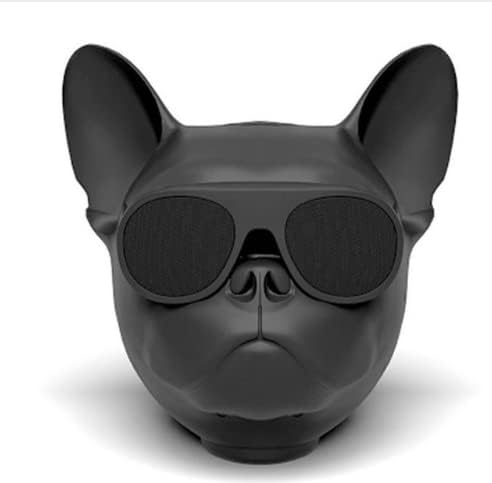
Image 3.1: Front view of the speaker, featuring the bulldog head design with integrated speaker grilles.
Rear View and Controls

Image 3.2: Rear view of the speaker, highlighting the rear speaker grille and control interface.

Image 3.3: Detailed view of the rear control panel, including ports and buttons.
The control panel typically includes:
- USB Port: For charging and USB drive playback.
- TF Card Slot: For playing music from a Micro SD/TF card.
- M (Mode) Button: To switch between Bluetooth, USB, TF Card, and AUX modes.
- Power Button: To turn the speaker on/off.
- AUX Input: For wired audio connection.
4. Setup
4.1 Charging the Speaker
- Connect the small end of the USB charging cable to the USB port on the speaker.
- Connect the large end of the USB charging cable to a USB power adapter (not included) or a computer's USB port.
- The charging indicator light will illuminate during charging and turn off when fully charged.
Ensure the speaker is fully charged before first use for optimal battery life.

Image 4.1: The speaker features a 4000mAh battery for extended playback.
4.2 Powering On/Off
- To Power On: Press and hold the Power button until you hear an audible prompt or see an indicator light.
- To Power Off: Press and hold the Power button again until the speaker powers down.
5. Operating Instructions
5.1 Bluetooth Pairing
- Ensure the speaker is powered on and in Bluetooth mode. If not, press the 'M' (Mode) button to switch to Bluetooth mode. The speaker will indicate it is ready for pairing (e.g., a blinking LED or audible prompt).
- On your mobile device (smartphone, tablet, laptop), enable Bluetooth and search for available devices.
- Select "FOSA Bulldog Speaker" (or similar name) from the list of devices.
- Once paired, the speaker will provide an audible confirmation, and the indicator light will become solid.
The speaker utilizes Bluetooth 4.1 technology for stable performance and a connection range of up to 10 meters (33 feet).

Image 5.1: Bluetooth 4.1 connectivity for stable audio streaming.
5.2 Audio Playback (USB & TF Card)
- Insert a USB drive or TF (Micro SD) card containing MP3 audio files into the respective port on the speaker.
- Press the 'M' (Mode) button to switch to USB or TF Card mode. The speaker will automatically begin playing music from the inserted storage device.
5.3 AUX Input
- Connect one end of the provided audio cable to the AUX input port on the speaker.
- Connect the other end of the audio cable to the headphone jack or audio output of your external device.
- Press the 'M' (Mode) button to switch to AUX mode.
5.4 True Wireless Stereo (TWS) Pairing
The speaker supports connecting two FOSA Bulldog Bluetooth Speakers for a stereo sound experience.
- Ensure both speakers are powered on and not connected to any Bluetooth device.
- On one of the speakers, press and hold the 'M' (Mode) button for a few seconds until you hear a pairing tone, indicating it's searching for another speaker.
- The two speakers will automatically connect to each other. Once connected, you will hear a confirmation tone.
- Now, connect your mobile device to one of the paired speakers via Bluetooth as described in section 5.1. Audio will play in stereo through both speakers.

Image 5.2: The speaker integrated into a desktop setup for music playback.
6. Maintenance
- Keep the speaker away from water and moisture. It is not waterproof.
- Clean the speaker with a soft, dry cloth. Do not use abrasive cleaners or solvents.
- Avoid exposing the speaker to extreme temperatures (hot or cold).
- Store the speaker in a cool, dry place when not in use for extended periods.
7. Troubleshooting
| Problem | Possible Cause | Solution |
|---|---|---|
| Speaker does not turn on | Low battery; Power button not pressed correctly | Charge the speaker; Press and hold the Power button for 3-5 seconds |
| Cannot pair via Bluetooth | Speaker not in pairing mode; Bluetooth disabled on device; Device too far | Ensure speaker is in Bluetooth mode; Enable Bluetooth on your device; Move device closer to speaker (within 10m) |
| No sound | Volume too low; Incorrect mode selected; Audio cable not connected properly | Increase volume on speaker and device; Press 'M' button to select correct mode; Reconnect audio cable securely |
| TWS pairing fails | Speakers already connected to another device; Speakers too far apart | Disconnect speakers from any Bluetooth devices; Ensure speakers are within close proximity for TWS pairing |
8. Specifications
| Feature | Detail |
|---|---|
| Brand | FOSA |
| Model Name | FOSA (Bulldog Bluetooth Speaker) |
| Mounting Type | Tabletop Mount |
| Material | Plastic |
| Speaker Type | Portable |
| Special Feature | Display |
| Recommended Uses | Portable music playback and hands-free use |
| Compatible Devices | Smartphone, Tablet, MP3 Player, Laptop |
| Surround Sound Channel Configuration | 4.1 |
| Included Components | Bluetooth speaker, USB charger cable, audio cable |
| Is Waterproof | FALSE (Not Water Resistant) |
| Maximum Range | 10 Meters |
| Control Method | Voice (via connected device), Buttons |
| Wireless Communication Technology | Bluetooth |
| Power Source | Battery Powered |
| Audio Driver Type | Dynamic Driver |
| Battery Capacity | 4000 mAh |
| Item Weight | 15.8 ounces |
| Speaker Maximum Output Power | 5 Watts |
| Frequency Response | 20 Hz - 20 kHz (estimated from 2E+5 Hz, assuming typo) |
| Connectivity Technology | Bluetooth, USB |
| Audio Output Mode | Stereo |
| Indoor/Outdoor Usage | Indoor |
9. Warranty and Support
For warranty information and customer support, please refer to the documentation provided with your purchase or contact FOSA customer service through their official channels. Keep your proof of purchase for any warranty claims.