
1. Product Overview
The myCharge Unplugged Qi Wireless Charger is a versatile portable power bank designed to extend the battery life of your Qi-enabled devices and other USB-compatible devices. With a 10000mAh capacity, it offers both 10W fast wireless charging and 2.4A dual USB-A port charging. Its thin profile and soft-touch finish make it convenient for use at home, in the office, or while traveling. The pass-through charging feature allows the power bank and your device to charge simultaneously.
2. Key Features
- Qi Wireless Charging & Dual USB Ports: Provides 10W fast wireless power and/or 2.4A via dual USB ports for up to 5x extra battery life.
- Qi Certified Compatibility: Works with a wide range of Qi-enabled devices including iPhone XS, XS Max, XR, X, 8, 8 Plus, Samsung Galaxy S8, S8+, Note 8, S7, S7 Edge, S6, S6 Edge, Nokia 9, Nexus 4, 5, Lumia 920, and other Qi-enabled devices.
- Cord-Free Convenience: Simply place your Qi-enabled smartphone on the power bank for wireless charging. Supports pass-through charging.
- Thin Profile & Soft-Touch Finish: Designed for portability, easily fitting into small bags or purses.
- Multiple Device Charging: Charge up to three devices simultaneously via wireless charging and USB-A ports.
3. Setup
3.1 Charging the Power Bank
Before first use, fully charge your myCharge Unplugged power bank. Connect the included recharge cable to the micro-USB input port on the power bank and plug the other end into a USB power adapter (not included) or a computer's USB port. The LED indicator lights will illuminate to show the charging progress. All four lights will be solid when fully charged.
Alternatively, the Dual model can be recharged wirelessly by placing it on a compatible wireless charging pad (not included).

Figure 3.1: The myCharge Unplugged Dual power bank with its micro-USB input and dual USB-A output ports.
4. Operating Instructions
4.1 Checking Battery Level
Press the power button on the side of the power bank. The LED indicator lights will show the remaining battery capacity. Four solid lights indicate a full charge, while one blinking light indicates a low battery.
4.2 Wireless Charging Your Device
- Ensure your device is Qi-enabled.
- Place your Qi-enabled smartphone directly onto the wireless charging pad area on the top surface of the myCharge Unplugged power bank.
- Ensure the phone is centered on the charging pad for optimal connection. Charging should begin automatically.
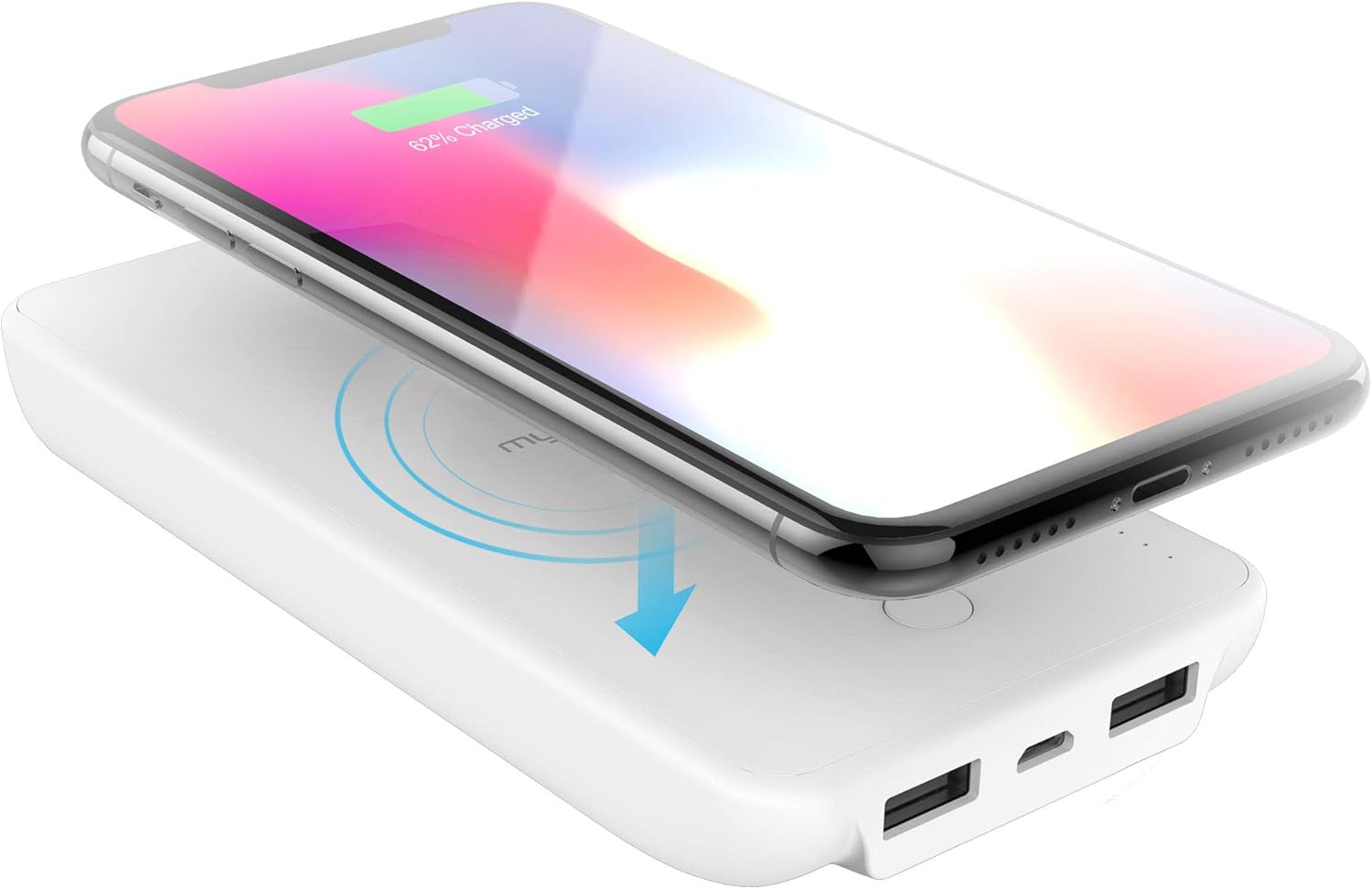
Figure 4.1: A smartphone being charged wirelessly by placing it on the myCharge Unplugged power bank.
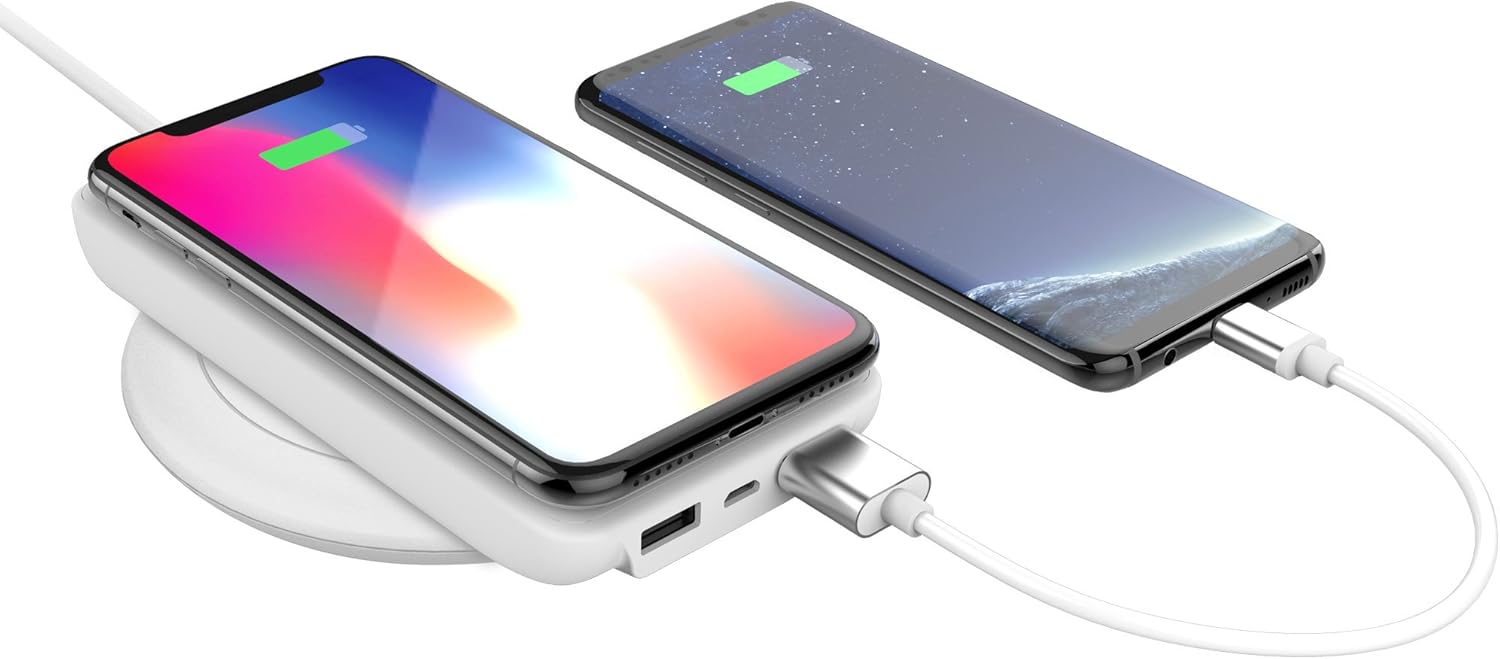
Figure 4.2: The myCharge Unplugged power bank simultaneously charging a smartphone wirelessly and another via a USB cable.
4.3 Wired Charging Your Device
- Connect your device's USB charging cable to one of the USB-A output ports on the myCharge Unplugged power bank.
- Connect the other end of the cable to your device. Charging should begin automatically.

Figure 4.3: Two smartphones charging simultaneously, one wirelessly and one via USB cable, from the myCharge Unplugged power bank.
5. Maintenance
- Keep the power bank dry and away from moisture.
- Avoid extreme temperatures.
- Clean the surface with a soft, dry cloth. Do not use harsh chemicals or abrasive materials.
- Store in a cool, dry place when not in use.
6. Troubleshooting
6.1 Device Not Charging Wirelessly
- Ensure your device is Qi-enabled.
- Make sure the device is centered on the wireless charging pad.
- Check if the power bank has sufficient charge.
- Remove any thick phone cases that might interfere with wireless charging.
6.2 Slow Charging
- Ensure you are using a high-quality charging cable for wired charging.
- For wireless charging, ensure your device supports 10W wireless charging. Some devices may only support 5W.
- Avoid using the device heavily while charging, as this can slow down the process.
6.3 Power Bank Not Charging
- Verify the charging cable is securely connected to both the power bank and the power source.
- Try a different USB power adapter or USB port.
- If charging wirelessly, ensure the wireless charging pad is functioning correctly and the power bank is properly aligned.
7. Specifications
| Feature | Detail |
|---|---|
| Product Dimensions | 5.83 x 2.79 x 0.8 inches |
| Item Weight | 8 ounces |
| Model Number | UPP10WW-A |
| Battery Type | Lithium Metal (included) |
| Connectivity Technologies | USB, Wireless |
| Color | White |
| Manufacturer | myCharge |
| Connector Type | Qi Wireless Charging / Dual USB Ports |
| Battery Capacity | 10000 Milliamp Hours |
| Special Features | Portable Charger, Wireless, Wireless Charger |
8. Warranty and Support
For warranty information and customer support, please visit the official myCharge website or contact their customer service directly. Keep your proof of purchase for any warranty claims.
You can find more information and contact details on the myCharge Store on Amazon.