
Logitech G 910-005280
Logitech G305 LIGHTSPEED Wireless Gaming Mouse User Manual
Model: 910-005280
1. Introduction
The Logitech G305 LIGHTSPEED Wireless Gaming Mouse is engineered for high-performance gaming without the constraints of wires. Featuring the advanced HERO 12K optical sensor and LIGHTSPEED wireless technology, it delivers exceptional accuracy, responsiveness, and long-lasting battery life. This manual provides essential information for setting up, operating, maintaining, and troubleshooting your G305 mouse.
2. Package Contents
Verify that all items are present in your package:
- Logitech G305 LIGHTSPEED Wireless Gaming Mouse
- LIGHTSPEED USB wireless receiver
- AA battery (pre-installed or included)
- User documentation (this manual)

Image: Logitech G305 LIGHTSPEED Wireless Gaming Mouse and its accompanying USB receiver.
3. Setup
3.1. Battery Installation
- Remove the top cover of the mouse by gently lifting from the rear.
- Insert the provided AA battery into the battery compartment, ensuring correct polarity (+/-).
- Replace the top cover, aligning it properly until it clicks into place.

Image: Illustration of inserting the AA battery into the Logitech G305 mouse.
3.2. Connecting the USB Receiver
- Locate the LIGHTSPEED USB wireless receiver stored inside the mouse's battery compartment.
- Plug the USB receiver into an available USB port on your computer (PC or Mac).
- Turn on the mouse using the ON/OFF switch located on the bottom of the mouse.
- The mouse should automatically connect to your computer. The indicator light on the mouse will illuminate.
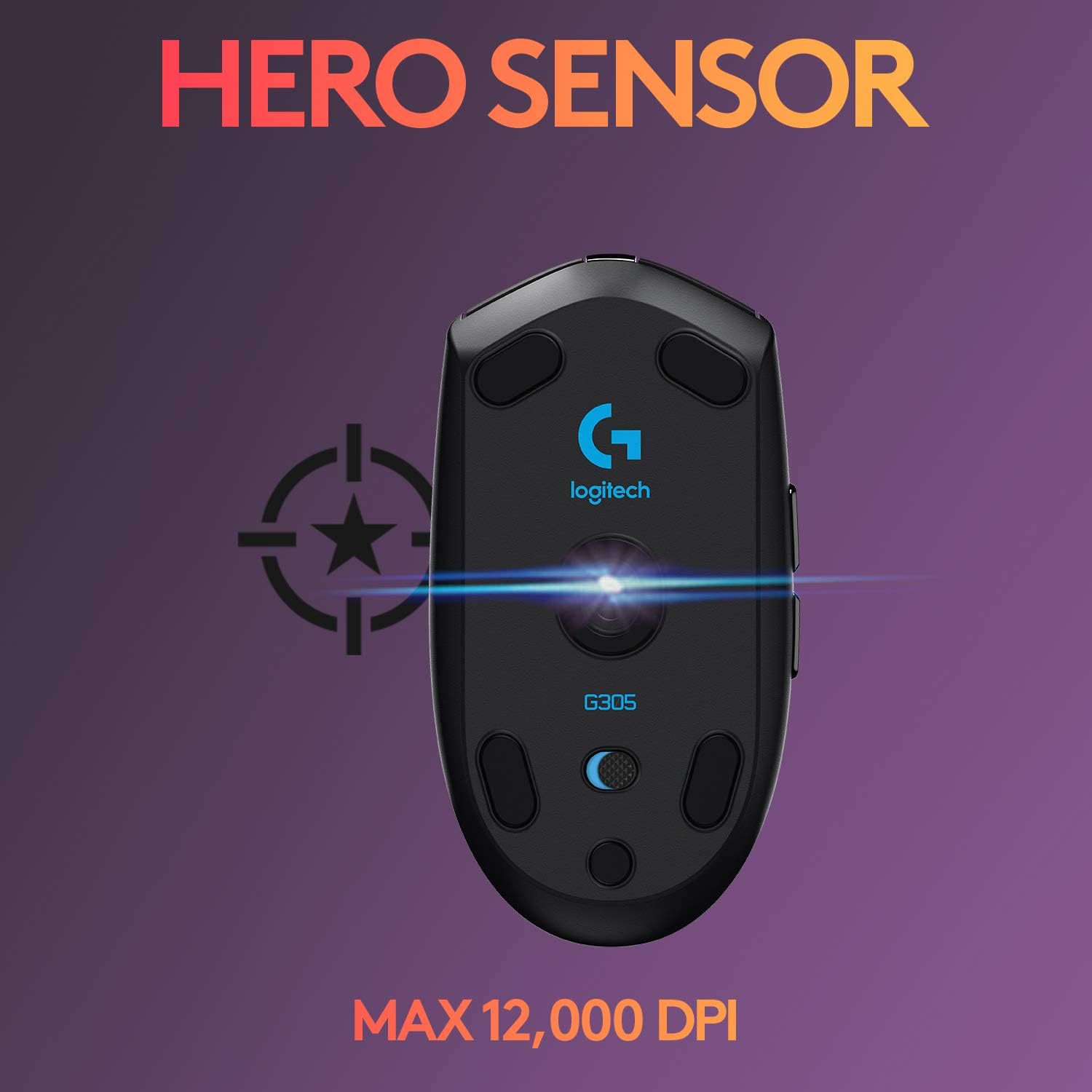
Image: Close-up of the Logitech G305 USB receiver, which is stored inside the mouse.
3.3. Software Installation (Optional but Recommended)
For full customization and advanced features, download and install the Logitech G HUB software from the official Logitech G website. This software allows you to:
- Customize DPI settings.
- Program the 6 programmable buttons.
- Manage on-board memory profiles.
- Monitor battery status.
4. Operating the Mouse
4.1. Basic Functions
- Left Click: Primary action.
- Right Click: Secondary action/context menu.
- Scroll Wheel: Scroll up/down documents or web pages.
- Middle Click (Scroll Wheel Button): Customizable action, often used for opening links in new tabs.
- DPI Cycle Button: Located behind the scroll wheel, this button cycles through pre-set DPI sensitivity levels.
- Side Buttons (G4 & G5): Programmable for various in-game commands or desktop shortcuts.

Image: Diagram highlighting the 6 programmable buttons on the Logitech G305 mouse.
4.2. DPI Sensitivity
The G305 features a HERO 12K sensor with adjustable DPI from 200 to 12,000. Use the DPI cycle button to switch between sensitivity levels on the fly. You can configure these levels using the Logitech G HUB software.

Image: Underside view of the Logitech G305 mouse, showcasing the HERO 12K sensor and maximum DPI.
4.3. Battery Life Indicator
The G305 provides up to 250 hours of continuous gameplay on a single AA battery. The indicator light on the mouse will blink red when the battery level is low, signaling that it's time for a replacement.

Image: Visual representation of the Logitech G305's ultra-long battery life, indicating 250 hours on one AA battery.
5. Maintenance
5.1. Cleaning
- Regularly clean the mouse surface with a soft, damp cloth.
- Use a cotton swab or compressed air to clean around the scroll wheel and sensor area to prevent dust buildup.
- Avoid using harsh chemicals or abrasive materials.
5.2. Battery Replacement
When the battery indicator blinks red, replace the AA battery following the installation steps in Section 3.1.
6. Troubleshooting
| Problem | Possible Cause | Solution |
|---|---|---|
| Mouse not responding | Low battery; USB receiver disconnected; Mouse is off. | Replace battery; Re-insert USB receiver; Turn mouse ON. |
| Lag or intermittent connection | Interference from other wireless devices; Receiver too far from mouse. | Move receiver closer to mouse (e.g., using a USB extender); Reduce interference sources. |
| DPI settings not changing | Logitech G HUB software not installed or running; On-board memory profile issue. | Install/reinstall Logitech G HUB; Check software settings; Reset mouse to factory defaults via G HUB. |
7. Specifications
- Model: 910-005280
- Sensor: HERO 12K Optical
- DPI Range: 200 - 12,000 DPI
- Tracking Speed: > 400 IPS
- Report Rate: 1ms (LIGHTSPEED wireless)
- Buttons: 6 Programmable Buttons
- Battery Life: Up to 250 hours (with 1 AA battery)
- Weight: 99 grams (3.36 ounces)
- Dimensions (LxWxH): 4.59 x 2.45 x 0.1 inches
- Connectivity: LIGHTSPEED Wireless (USB receiver)
- Platform Compatibility: PC/Mac (Microsoft Windows)
8. Official Product Videos
Watch these official videos for additional guidance and product insights:
No official seller videos are available for embedding at this time.
9. Warranty and Support
For warranty information, technical support, or to download the latest software and drivers, please visit the official Logitech G support website or refer to the included user manual PDF.
Related documents910-005280


Ask a question about this manual
Ask about setup, troubleshooting, compatibility, parts, safety, or missing instructions. Manuals+ will review the question and use this page’s manual context to help answer it.