
1. Introduction
This manual provides essential information for the safe and efficient use of your ZTE Trek 2 HD K88 Tablet. The ZTE Trek 2 HD K88 is an 8-inch tablet featuring an HD display, an Octa-core processor, 2GB RAM, 16GB internal storage (expandable), and a 4600mAh battery. It operates on Android 6.0 Marshmallow and supports Wi-Fi and 4G-LTE connectivity.
Please read this manual thoroughly before operating your device to ensure proper functionality and to understand its features.

Image 1.1: Back view of the ZTE Trek 2 HD K88 Tablet, showing the AT&T logo and product labels.
2. Setup
2.1. Charging the Battery
Before first use, fully charge the tablet's battery. Connect the included power adapter to the tablet's charging port and then to a power outlet. The battery indicator on the screen will show charging status.
- Use only the power adapter provided with your device.
- A full charge can take several hours.
2.2. Powering On/Off
- To Power On: Press and hold the Power button until the ZTE logo appears.
- To Power Off: Press and hold the Power button until the power options menu appears, then select "Power off."
2.3. Initial Setup
Upon first power-on, follow the on-screen prompts to configure basic settings:
- Select your preferred language.
- Connect to a Wi-Fi network.
- Sign in with your Google account or create a new one.
- Review and accept the terms and conditions.
2.4. Inserting a MicroSD Card (Optional)
The tablet supports expandable memory up to 128GB via a microSD card. Locate the microSD card slot, typically on the side of the device. Carefully insert the card with the gold contacts facing down until it clicks into place.

Image 2.1: Side view of the ZTE Trek 2 HD K88 Tablet, illustrating its thin design. The microSD slot is typically located on one of the side edges.
3. Operating Instructions
3.1. Basic Navigation
The ZTE Trek 2 HD K88 features a responsive touchscreen. Use the following gestures:
- Tap: To select an item or open an app.
- Touch and Hold: To access contextual menus or move items.
- Swipe: To scroll through screens or lists.
- Pinch: To zoom in or out on content like photos or web pages.
3.2. Home Screen and Apps
The home screen displays your favorite apps, widgets, and notifications. Swipe left or right to access additional home screens. Tap the "Apps" icon to view all installed applications.

Image 3.1: Front view of the ZTE Trek 2 HD K88 Tablet with the display active, showing the Android home screen with various application icons.
3.3. Connecting to Wi-Fi
- Go to Settings > Wi-Fi.
- Toggle Wi-Fi On.
- Select your desired network from the list.
- Enter the password if prompted, then tap Connect.
3.4. Using the Camera
The tablet is equipped with 5 MP front and rear cameras. Open the Camera app to capture photos and videos.
- Tap the shutter button to take a photo.
- Switch between front and rear cameras using the camera toggle icon.
- Explore various modes and settings within the camera app.
3.5. Audio Features
The ZTE Trek 2 HD K88 features Dolby Audio powered dual front-facing speakers for an enhanced audio experience. Adjust volume using the physical volume buttons on the side of the tablet or through the on-screen volume controls.
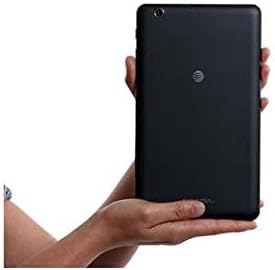
Image 3.2: The ZTE Trek 2 HD K88 Tablet held horizontally in two hands, demonstrating its comfortable and portable 8-inch form factor.
4. Maintenance
4.1. Cleaning the Device
To clean your tablet, use a soft, lint-free cloth. For stubborn marks, slightly dampen the cloth with water. Avoid using harsh chemicals, abrasive cleaners, or aerosol sprays, as these can damage the screen and finish.
4.2. Software Updates
Periodically check for software updates to ensure your tablet has the latest features and security patches. Go to Settings > About tablet > System updates.
4.3. Storage Management
Regularly manage your tablet's storage to maintain optimal performance. Delete unnecessary files, uninstall unused apps, and move large media files to a microSD card or cloud storage. Go to Settings > Storage & USB to view storage usage.
4.4. Battery Care
To prolong battery life:
- Avoid extreme temperatures.
- Do not let the battery completely drain frequently.
- Unplug the charger once the battery is full.
- Adjust screen brightness and disable unused features like Wi-Fi or Bluetooth when not needed.
5. Troubleshooting
5.1. Common Issues and Solutions
| Issue | Solution |
|---|---|
| Tablet does not turn on | Ensure the battery is charged. Press and hold the Power button for at least 10-15 seconds to force a restart. |
| Wi-Fi connection issues | Restart the tablet and your Wi-Fi router. Forget the network in Wi-Fi settings and reconnect. |
| Apps crashing or freezing | Close and reopen the app. Clear the app's cache (Settings > Apps > [App Name] > Storage > Clear cache). Restart the tablet. |
| Slow performance | Close unused apps. Clear cache. Free up storage space. Restart the tablet. |
5.2. Factory Reset
If issues persist, a factory reset may resolve them. This will erase all data on your tablet, so back up important information first. Go to Settings > Backup & reset > Factory data reset.
6. Specifications
| Feature | Detail |
|---|---|
| Brand | ZTE |
| Model Name | K88 |
| Operating System | Android 6.0 Marshmallow |
| Screen Size | 8 Inches |
| Display Resolution | 1280 x 800 (HD) |
| Processor | Qualcomm Snapdragon 617 Octa-core (1.5 GHz) |
| RAM Memory | 2 GB |
| Storage Capacity | 16 GB (expandable up to 128 GB with microSD) |
| Rear Camera | 5 MP |
| Front Camera | 5 MP |
| Battery Capacity | 4600 mAh (up to 10 hours average life) |
| Connectivity | Wi-Fi (802.11n), 4G-LTE (AT&T) |
| Audio | Dolby Audio, Dual Front-Facing Speakers |
| Weight | 1.3 Pounds |
| Included Accessories | Power adapter |
7. Warranty and Support
7.1. Warranty Information
This ZTE Trek 2 HD K88 Tablet comes with a 90-day limited warranty. Please refer to your purchase documentation for specific terms and conditions regarding warranty claims.
7.2. Customer Support
For further assistance, technical support, or warranty inquiries, please contact the retailer or ZTE customer service. You may also visit the official ZTE support website for FAQs and additional resources.


