
Introduction
This manual provides instructions for the UpStart Components Replacement Remote Control, designed to operate various LG TV models, including those originally compatible with AGF76692608 and 60PN5700-UA remotes. This remote is a direct replacement and does not require programming.

Image: Front view of the UpStart Components Replacement Remote Control. It features a black casing with various buttons for TV operation, including power, number pad, volume, channel, navigation, and smart TV functions.
Setup
Battery Installation
The remote control requires two AAA batteries (not included) for operation. Follow these steps to install them:
- Locate the battery compartment on the back of the remote control.
- Press down on the latch and slide the battery cover downwards to open it.
- Insert two AAA batteries, ensuring the positive (+) and negative (-) terminals align correctly with the markings inside the compartment.
- Slide the battery cover back into place until it clicks securely.
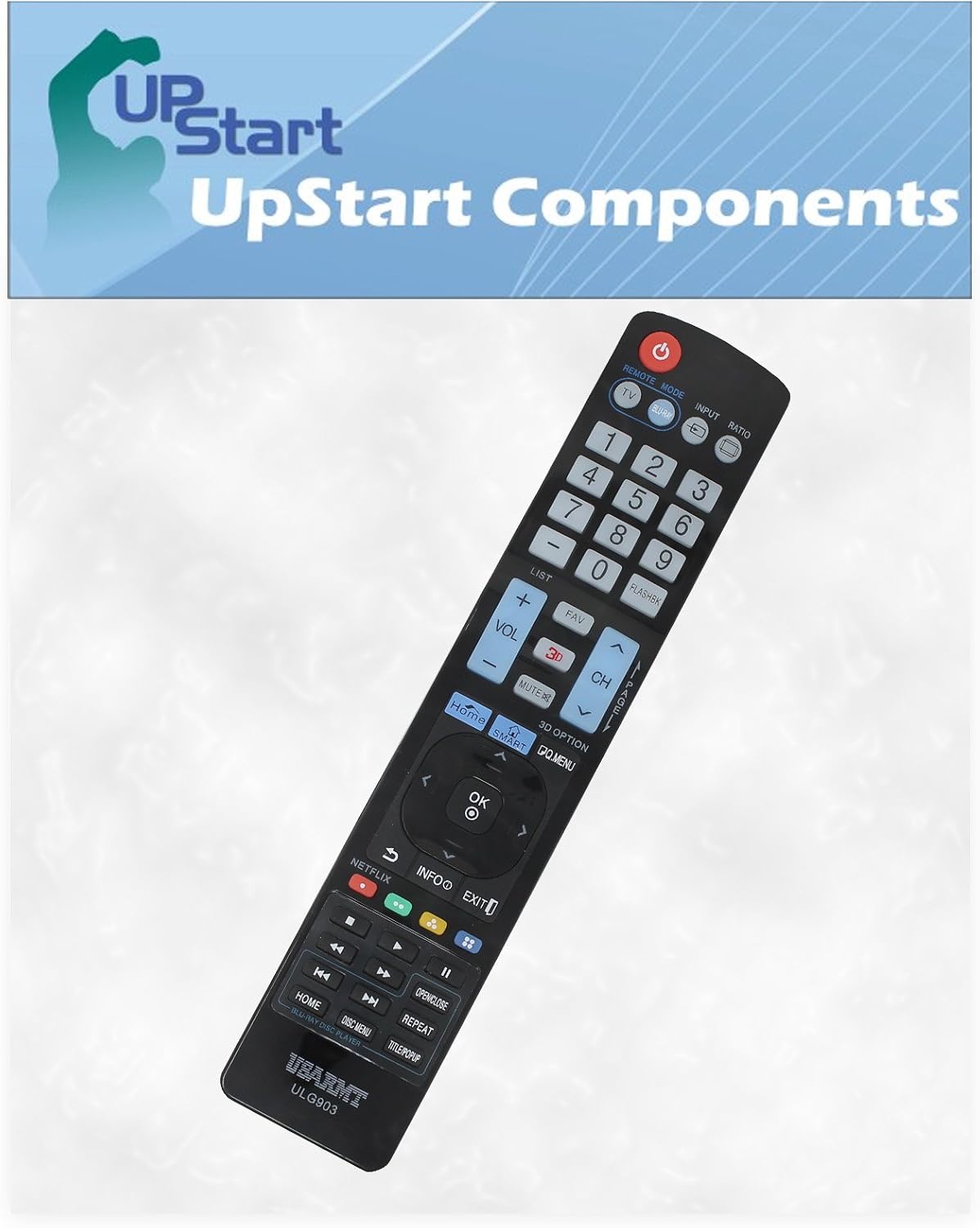
Image: Back view of the UpStart Components Replacement Remote Control, showing the battery compartment cover. The cover is designed to slide open for battery insertion.
Initial Use
Once batteries are installed, the remote control is ready for immediate use. No programming or pairing is required. Point the remote directly at your LG TV and press the desired function button.
Operating Instructions
This section outlines the primary functions of the remote control buttons.
Image: Detailed front view of the UpStart Components Replacement Remote Control, highlighting the layout of all buttons for TV operation.
- Power Button (●): Turns the TV on or off. Located at the top right.
- TV/Blu-ray Mode Buttons: Switches between TV and Blu-ray player control modes.
- Input Button: Cycles through available input sources (HDMI, AV, etc.).
- Ratio Button: Adjusts the screen aspect ratio.
- Number Pad (0-9): Directly enters channel numbers.
- LIST Button: Displays the channel list.
- FAV Button: Accesses favorite channels.
- VOL +/- Buttons: Increases or decreases the volume level.
- CH +/- Buttons: Changes the TV channel up or down.
- MUTE Button: Mutes or unmutes the TV audio.
- Home/Smart Button: Accesses the TV's Smart Home menu or dashboard.
- Navigation Pad (Up, Down, Left, Right, OK): Used to navigate menus and confirm selections. The OK button is in the center.
- Back Button (↶): Returns to the previous screen or menu.
- INFO Button: Displays information about the current program or input.
- EXIT Button: Exits the current menu or application.
- Netflix Button: Direct access to the Netflix application.
- Media Control Buttons (Play, Pause, Stop, Rewind, Fast Forward, Skip): Controls media playback.
- Open/Close Button: For disc tray operation on compatible devices.
- Repeat Button: Repeats playback.
- Title/Popup Button: Accesses title or popup menus on compatible devices.
Maintenance
Cleaning the Remote Control
To maintain the remote control's appearance and functionality:
- Wipe the surface with a soft, dry cloth.
- For stubborn dirt, lightly dampen the cloth with water or a mild, non-abrasive cleaner.
- Avoid using harsh chemicals, solvents, or abrasive cleaning pads, as these can damage the remote's finish or internal components.
Battery Replacement
Replace batteries when the remote's response becomes sluggish or stops working. Always replace both batteries at the same time with new AAA batteries. Do not mix old and new batteries, or different types of batteries.
Storage
If the remote control will not be used for an extended period, remove the batteries to prevent leakage and potential damage to the remote.
Troubleshooting
| Problem | Solution |
|---|---|
| Remote control is not working. |
|
| Some buttons are not responding. |
|
| Remote control works intermittently. |
|
Specifications
| Brand | UpStart Components |
| Model Number | RC-AGF76692608-DL109 |
| Compatible Devices | LG Televisions (compatible with original AGF76692608 and 60PN5700-UA remotes) |
| Connectivity Technology | Infrared (IR) |
| Power Source | 2 x AAA Batteries (not included) |
| Product Dimensions | 9.13 x 1.81 x 0.83 inches |
| Item Weight | 3.4 ounces |
| Color | Black |
| Special Feature | Ergonomic design |
Warranty Information
This product is a replacement part manufactured by UpStart Components. Any warranties for this product are offered solely by UpStart Components. This product is not affiliated with any OEM brands and is not covered under any warranties offered by the original manufacturers. For specific warranty details, please refer to the documentation provided with your purchase or contact UpStart Components directly.
Customer Support
If you encounter any issues or have questions regarding your UpStart Components Replacement Remote Control that are not addressed in this manual, please contact the seller or UpStart Components customer support for assistance. Please have your product model number (RC-AGF76692608-DL109) available when contacting support.