
Introduction
The Emerson Sensi Touch Wi-Fi Smart Thermostat is designed to provide efficient and convenient control over your home's HVAC system. With its touchscreen color display and smart home compatibility, it offers advanced features for energy savings and comfort management. This manual provides essential information for installation, operation, maintenance, and troubleshooting.

Image: Front view of the Emerson Sensi Touch Wi-Fi Smart Thermostat, showing its color touchscreen display with current temperature and settings.
Setup and Installation
Installation of the Sensi Touch thermostat is designed to be straightforward. A C-wire is required for proper operation. The Sensi mobile app provides step-by-step instructions to guide you through the process.
Pre-Installation Checklist:
- Verify HVAC system compatibility.
- Ensure a C-wire (common wire) is available at your thermostat location.
- Download the Sensi mobile app for Android or iOS devices.
- Gather necessary tools: screwdriver, wire strippers (if needed).
Installation Steps:
- Turn off power: Before beginning, turn off power to your HVAC system at the circuit breaker.
- Remove old thermostat: Carefully remove your existing thermostat from the wall. Take a picture of the wiring for reference.
- Label wires: Use the provided labels to mark each wire according to its terminal.
- Mount Sensi base: Mount the Sensi thermostat base plate to the wall using the included hardware. The base features a built-in bubble level to ensure straight installation.
- Connect wires: Connect the labeled wires to the corresponding terminals on the Sensi base.
- Attach thermostat: Snap the Sensi Touch thermostat onto the mounted base.
- Restore power: Turn the power back on to your HVAC system.
- App setup: Follow the instructions in the Sensi mobile app to connect your thermostat to Wi-Fi and complete the setup process.

Image: A person's hands installing the Sensi Touch thermostat onto a wall, highlighting the easy DIY installation process.
For detailed wiring diagrams and troubleshooting during installation, refer to the Installation Manual (PDF).
Operating Your Thermostat
The Sensi Touch thermostat can be controlled directly from its touchscreen display or remotely using the Sensi mobile app.
Touchscreen Controls:
- Temperature Adjustment: Use the up/down arrows on the display to set your desired temperature.
- Mode Selection: Tap the 'Cool Mode' or 'Heat Mode' area to cycle through heating, cooling, auto, or off modes.
- Fan Control: Tap the 'Fan Auto' area to select fan modes (Auto, On, Circulate).
- Menu: Access advanced settings and schedules by tapping the 'Menu' button.
Sensi Mobile App:
The Sensi app provides comprehensive control and monitoring features from anywhere.
- Remote Control: Adjust temperature, change modes, and control the fan from your smartphone or tablet.
- Flexible Scheduling: Create custom 7-day schedules to optimize comfort and energy savings.
- Geofencing: Utilize your phone's location to automatically adjust temperature when you leave or return home.
- Usage Reports: Monitor current day and historical heating, cooling, and fan runtimes to understand energy consumption.
- Smart Home Integration: Connect with Amazon Alexa, Apple HomeKit, Google Assistant, and Samsung SmartThings for voice control and integrated automation.

Image: A hand holding a smartphone displaying the Sensi mobile app interface, showing remote control capabilities for the thermostat.

Image: The Sensi thermostat alongside logos for Amazon Alexa, Google Assistant, Apple HomeKit, and SmartThings, illustrating its smart home compatibility.
Maintenance
Regular maintenance ensures optimal performance and longevity of your Sensi Touch thermostat and HVAC system.
- Cleaning: Gently wipe the touchscreen and exterior with a soft, damp cloth. Avoid abrasive cleaners or solvents.
- Filter Replacement: The Sensi app can provide reminders for air filter replacement. Regularly changing your HVAC filter improves air quality and system efficiency.
- Software Updates: Ensure your thermostat's firmware is up-to-date through the Sensi app for the latest features and improvements.
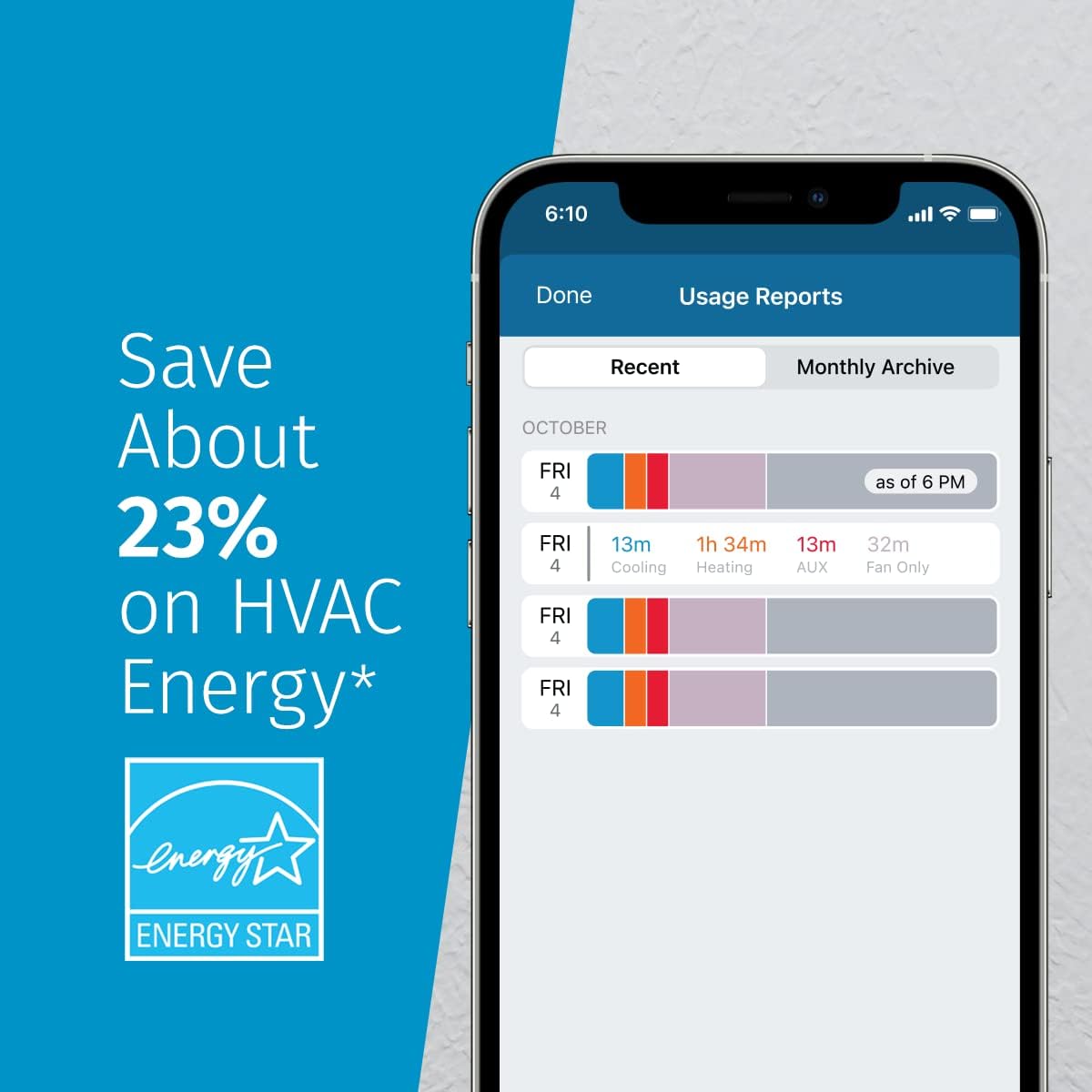
Image: A smartphone screen displaying usage reports from the Sensi app, showing heating, cooling, and fan runtimes, which can help monitor energy usage and maintenance needs.
Troubleshooting
If you encounter issues with your Sensi Touch thermostat, consider the following common solutions:
- No Power/Blank Screen:
- Check your circuit breaker to ensure power to the HVAC system is on.
- Verify the C-wire is properly connected at both the thermostat and HVAC system.
- Wi-Fi Disconnection:
- Ensure your home Wi-Fi network is active and within range.
- Restart your Wi-Fi router.
- Follow the Wi-Fi setup steps in the Sensi app to reconnect.
- Incorrect Temperature Readings:
- Ensure the thermostat is not exposed to direct sunlight or drafts.
- Check for any obstructions around the thermostat's sensors.
- HVAC System Not Responding:
- Verify all wiring connections are secure.
- Check the system mode (Heat, Cool, Auto) on the thermostat and in the app.
- The Sensi app provides smart alerts for extreme temperature and humidity levels, which may indicate a system issue.
For more detailed troubleshooting, consult the full User Manual (PDF) or the User Guide (PDF).
Specifications
| Brand | Emerson |
| Model Name | Touch Wi-Fi Thermostat with Touchscreen Color Display |
| Model Number | ST75W |
| Product Dimensions | 1.17"D x 5.63"W x 3.2"H |
| Color | White |
| Material | Plastic |
| Power Source | Common wire (C-wire) |
| Voltage | 24 Volts |
| Connectivity Technology | Wi-Fi |
| Controller Type | Amazon Alexa, Apple HomeKit, Google Assistant, SmartThings, Vera |
| Display Type | LCD |
| Mounting Type | Wall Mount |
| Item Weight | 0.634 ounces |
Warranty and Support
The Emerson Sensi Touch Wi-Fi Smart Thermostat comes with a 3-year warranty. For warranty claims, technical support, or additional assistance, please refer to the official Emerson Sensi website or contact their customer service.
Additional resources:


